
Project management tools are meant to improve productivity. But in many companies, they do the opposite.
Teams see them as extra work - updating tasks, duplicating communication, and managing disconnected systems. If you're implementing Odoo 19 Project Management, the goal should be to simplify execution, not create more administrative overhead.
In this guide, you’ll learn how to properly set up and use Odoo 19 Projects to streamline workflows, improve visibility, and avoid common project management mistakes.
❖ What Is Odoo 19 Project Management ?
Odoo 19 Project Management is a module designed to help teams plan, execute, track, and analyse projects within a unified ERP system.
It supports :-
- • Task management
- • Resource planning
- • Time tracking
- • Gantt charts
- • Agile workflows
- • Portfolio dashboards
- • Cross-module integration
But the key to making it effective lies in how you configure and use it.
❖ Step 1 : Set Up Project Templates in Odoo 19
One of the biggest time-wasters in project management is recreating the same structure repeatedly.
Why Project Templates Matter
Without templates :-
• Tasks get forgotten
• Dependencies are missed
• Project managers manually recreate structures
With templates :-
• Standard phases are predefined
• Dependencies are automatically applied
• Roles can be mapped to real users
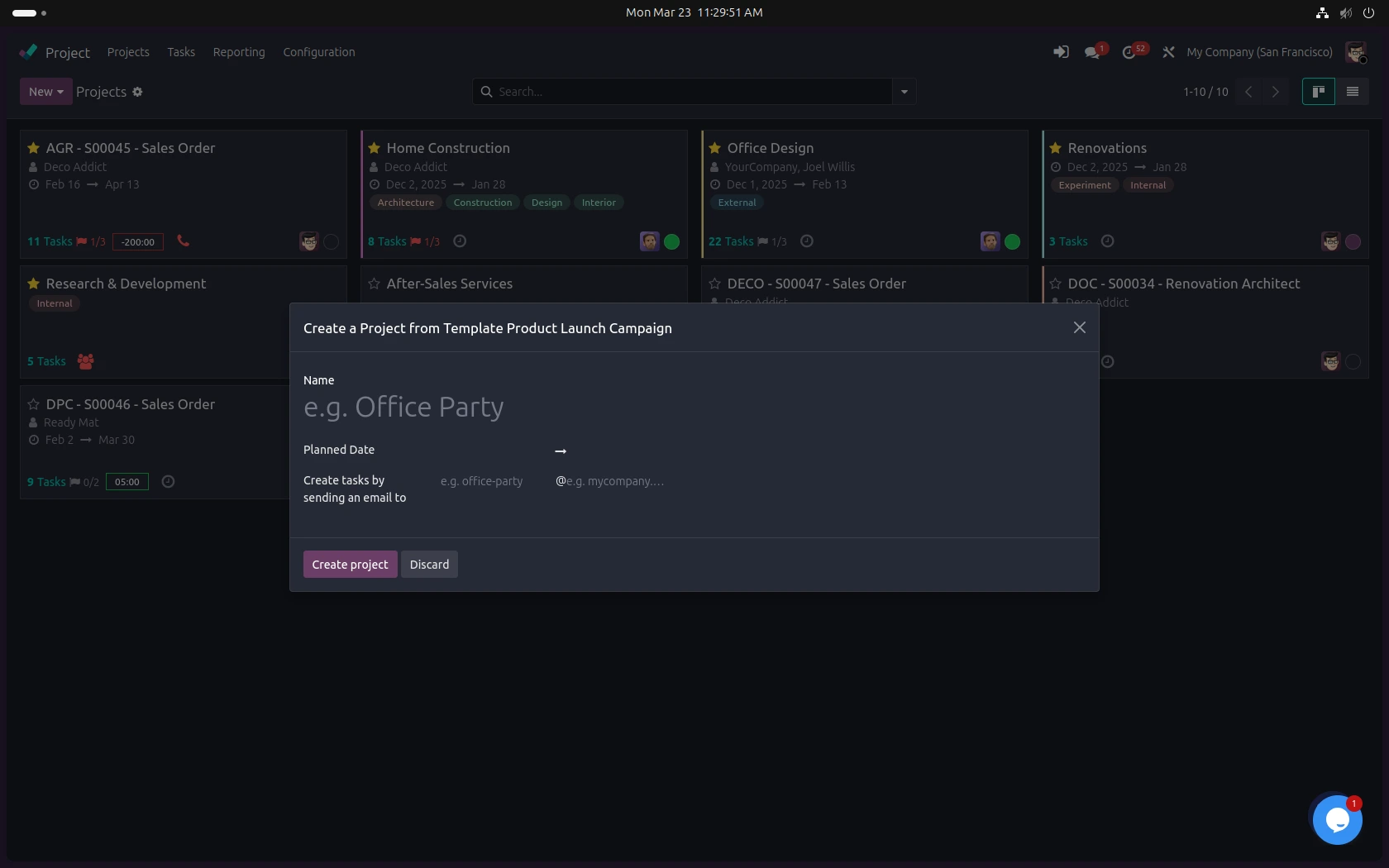
How to Create a Project Template in Odoo 19
1. Go to Projects
2. Enable Project Templates (if not already active)
3. Create a new template
4. Add :
○ Standard stages
○ Default tasks
○ Task dependencies
○ Assigned roles
5. Save the template
Now, when creating a new project :-
• Select the template
• Assign team members
• Tasks generate automatically
This reduces project setup time significantly.
❖ Step 2 : Use Task Dependencies to Prevent Delays
Missed dependencies cause downstream chaos.
In Odoo 19 :-
- • Tasks can be linked
- • Successor tasks only activate when prerequisites are complete
- • Blocked tasks are clearly marked
Why This Matters
Without dependency tracking :
• Teams start tasks prematurely
• Rework increases
• Delivery timelines slip
Odoo automatically adjusts dependent tasks when schedules shift, keeping timelines realistic.
❖ Step 3 : Use Task Dependencies to Prevent Delays
Overloaded teams burn out. Underutilized teams waste budget.
How Resource Planning Works in Odoo 19
Navigate to :-
Projects → Planning / Resource View
You can :-
- • View workload per employee
- • Detect over-allocations
- • Identify vacation conflicts
- • Rebalance assignments visually
- The system highlights conflicts so managers can act early - not after deadlines are missed.
❖ Step 4 : Use Gantt Charts for Timeline Control
The Gantt view in Odoo 19 is more than a visual timeline.
It allows :--
- • Drag-and-drop rescheduling
- • Automatic shifting of dependent tasks
- • Zoom-based timeline adjustments
- • Visibility of absences directly in the chart
- When to Use Gantt View
- • Large implementation projects
- • Multi-team initiatives
- • Manufacturing-linked workflows.
- It helps identify critical path delays before they impact delivery.
❖ Step 5 : Enable Time Tracking for Accurate Project Costing
If you don’t track time, you cannot measure profitability.
In Odoo 19 :--
- • Open a task
- • Log hours directly
- • Approve timesheets (if required)
- Time entries integrate with :
- • Accounting
- • Invoicing
- • Payroll
- • Reporting
- This ensures project profitability is based on real data, not assumptions.
Step 6 : Choose the Right View for Each Role
Different stakeholders need different visibility levels.
Odoo 19 supports :-
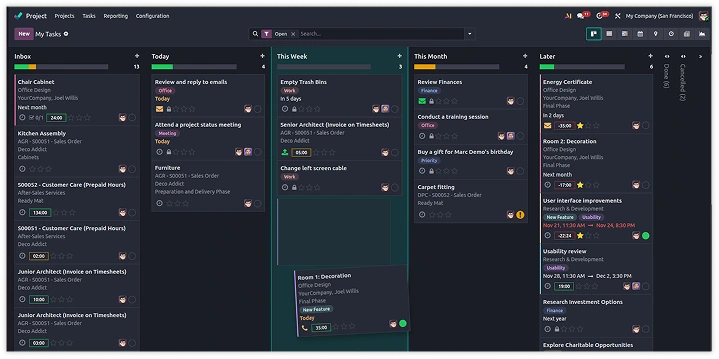
- • Kanban View - Best for daily task management
- • List View - Detailed tracking
- • Gantt View - Timeline management
- • Portfolio Dashboard - Executive oversight
- Avoid forcing everyone to use the same interface. Configure views based on responsibility.
Step 7 : Use Agile Project Management in Odoo 19
Odoo 19 supports both Waterfall and Agile methodologies.
For Agile teams, you can use :
- • Sprint planning
- • Burndown charts
- • Velocity tracking
- • Kanban workflow
- • Task prioritization
This makes it suitable for software development, marketing, and product teams.
Step 8 : Integrate Projects with Other Odoo Modules
One advantage of using Odoo 19 Project Management is integration.
Projects can connect with :-
- • CRM (sales opportunities create projects)
- • Helpdesk (tickets generate tasks)
- • Manufacturing (production tasks)
- • Timesheets
- • Accounting
- This removes duplicate data entry and keeps departments aligned.
Common Mistakes When Using Odoo 19 Projects
Avoid these frequent errors :-
❌ Not using templates
❌ Ignoring task dependencies
❌ Skipping time tracking
❌ Not reviewing resource planning
❌ Treating it as a standalone tool instead of an integrated ERP module
Correct configuration is what makes Odoo 19 efficient - not complicated.
Reporting and Portfolio Management in Odoo 19
Odoo provides :-
- • Budget vs actual reports
- • Timeline analysis
- • Resource utilization reports
- • Multi-project portfolio dashboards
Use reporting regularly to improve future planning accuracy.
Is Odoo 19 Project Management Right for You?
Odoo 19 is ideal for :-
- • ERP-driven companies
- • Service-based businesses
- • Manufacturing firms
- • Agencies
- • Multi-project organizations
- It works best when properly configured around real workflows - not theoretical structures.
Conclusion
Odoo 19 Project Management is designed to simplify execution, not add layers of bureaucracy.
By using :-
- • Project templates
- • Dependency tracking
- • Resource planning
- • Integrated time tracking
- • Role-based views
You can create a structured system that supports teams instead of slowing them down.
If you’re planning to implement Odoo 19 Projects, start with a clear template structure and resource strategy. The right setup makes all the difference.