
If you're planning to use Odoo 19 Point of Sale, the goal should be simple: faster transactions, accurate inventory, and better operational control.
In this guide, you’ll learn how to properly configure and use Odoo 19 POS for retail stores and restaurants without creating unnecessary complexity.
❖ What Is Odoo 19 Point of Sale ?
Odoo 19 Point of Sale (POS) is a fully integrated module designed for :-
• Retail stores
• Restaurants
• Cafés
• Supermarkets
• Multi-location businesses
It connects directly with Inventory, Accounting, CRM, and eCommerce modules, ensuring real-time data synchronization across your business.
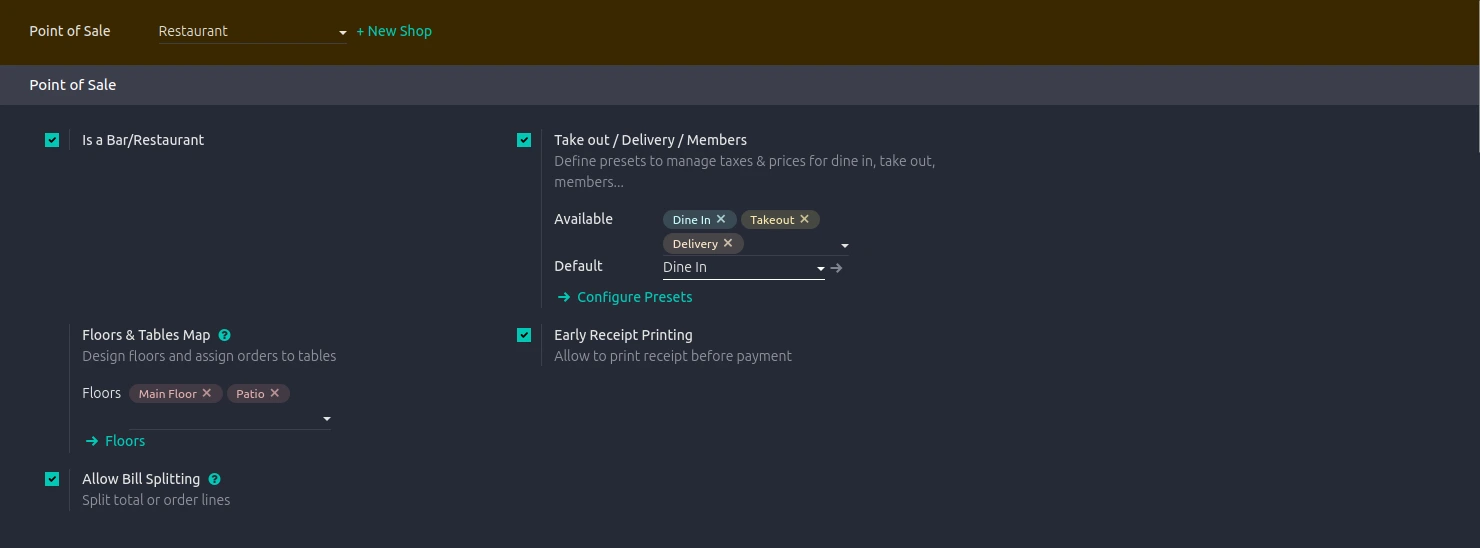
❖ Step 1 : Configure Multiple POS Setups for Different Sales Modes
Many businesses operate in more than one mode 0 :-
• Dine-in
• Takeaway
• Delivery
• Drive-through
• Catering
• Retail counter
Using a single POS configuration for all of them causes confusion.
How to Create Multiple POS Configurations in Odoo 19
1. Go to Point of Sale → Configuration
2. Create a new POS configuration
3. Customize :
○ Interface layout
○ Payment methods
○ Order options
○ Table management (for restaurants)
4. Save each configuration separately
Now staff can select the appropriate setup depending on their shift or service type.
This prevents mistakes and speeds up operations.
❖ Step 2 : Optimize Restaurant Workflow in Odoo 19 POS
If you operate a restaurant, Odoo 19 includes features designed specifically for food service operations.
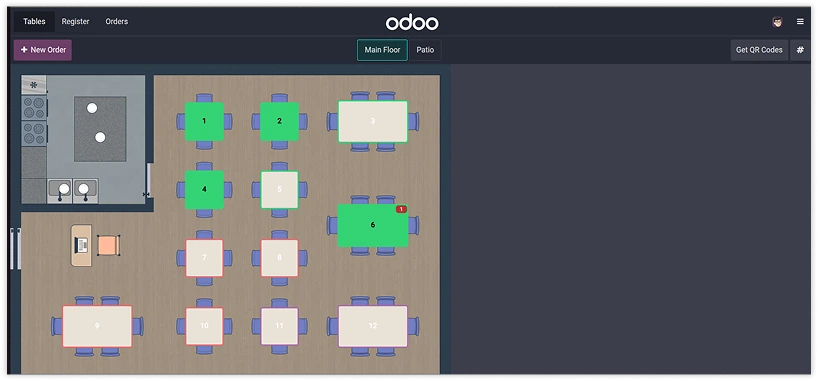
Restaurant-Specific Features
• Menu organization by course (appetizer, main course, dessert)
• Kitchen order routing
• Table management interface
• Preparation time tracking
• Pickup and delivery scheduling
Why This Matters
Without structured kitchen routing :
• Orders get sent all at once
• Service timing becomes inconsistent
• Customer experience suffers
Odoo 19 ensures food preparation follows the intended service flow.
❖ Step 3 : Enable Smart Payment Processing
Checkout speed directly affects revenue.
In Odoo 19 Point of Sale, you can :-
• Accept multiple payment methods in one transaction
• Process partial payments
• Handle refunds directly from the POS
• Manage tips correctly across payment types
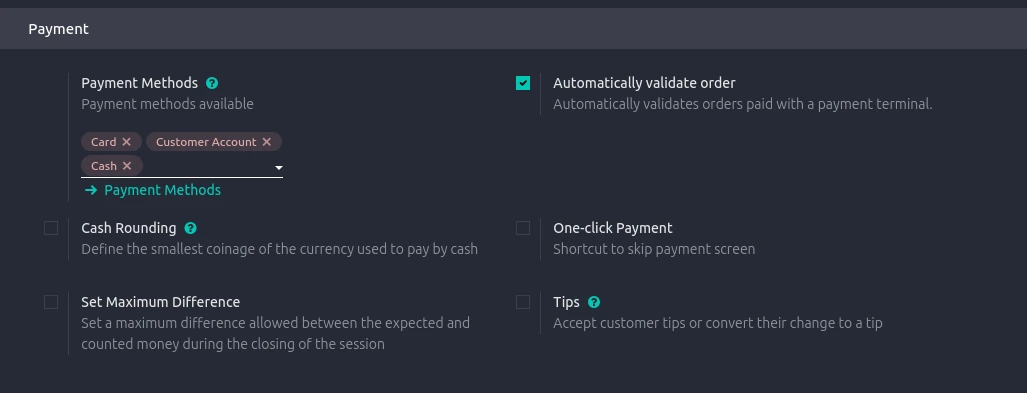
How to Configure Payment Methods
1. Navigate to Point of Sale → Configuration → Payment Methods
2. Add :
○ Cash
○ Card terminal
○ Online payment
○ Mobile wallet
3. Assign payment methods to specific POS configurations
This ensures flexibility without slowing down the checkout process.
❖ Step 4 : Use Real-Time Inventory Sync
Inventory accuracy is critical in both retail and restaurants.
Odoo 19 automatically updates inventory with every sale.
Benefits :-
• Prevents overselling
• Improves stock visibility
• Enables automatic reordering
• Reduces manual reconciliation
To activate inventory tracking :-
1. Install the Inventory module
2. Enable stock tracking for products
3. Link POS to warehouse location
All sales will now sync live.
❖ Step 5 : Manage Combos and Product Bundles
Retailers and restaurants often sell :-
• Combo meals
• Promotional bundles
• Customizable products
Odoo 19 allows:
• Product bundling
• Selection limits
• Smart pricing rules
• Add-on configuration
This reduces manual pricing errors and ensures transparent billing.
❖ Step 6 : Enable Role-Based Security in POS
Unauthorized discounts and refunds can lead to revenue loss.
Odoo 19 includes :-
• Employee authentication
• PIN-based approval for refunds
• Role-based discount control
• Session tracking
How to Set User Permissions
1. Go to Settings → Users & Companies → Users
2. Assign POS access rights
3. Configure managerial approval requirements
This protects your revenue without complicating staff workflows.
❖ Step 7 : Use POS Reporting for Business Insights
Odoo 19 provides real-time POS reporting, including :-
• Total sales
• Transaction volume
• Top-selling products
• Payment method breakdown
For multi-location businesses, this helps compare store performance and adjust strategy accordingly.
❖ Step 8 : Enable Mobile and Kiosk POS
Not all sales happen at a fixed counter.
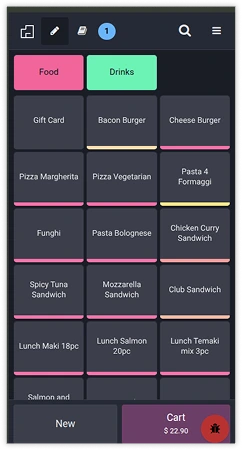
Odoo 19 supports :-
• Tablet-based POS
• Self-service kiosks
• Kitchen display systems
• Mobile checkout
This is especially useful for :-
• Busy restaurants
• Retail peak seasons
• Event-based selling
❖ Common Mistakes When Implementing Odoo 19 POS
Avoid these errors :-
❌ Using one POS setup for all service types
❌ Not configuring role-based security
❌ Ignoring inventory integration
❌ Failing to define payment methods clearly
❌ Skipping employee training
Correct setup determines whether POS becomes an asset or a bottleneck.
❖ Is Odoo 19 Point of Sale Right for Your Business?
Odoo 19 POS works best for :-
• Multi-location retailers
• Restaurants with structured workflows
• Businesses needing ERP integration
• Companies seeking real-time inventory accuracy
Because it integrates directly with other Odoo modules, it eliminates data silos and duplicate entries.
❖ Conclusion
Your point of sale system is where revenue is generated and recorded. If it’s slow, confusing, or disconnected from inventory and accounting, your entire operation suffers.
Odoo 19 Point of Sale simplifies checkout, improves inventory control, and supports multiple business models without increasing system complexity.
If you're planning to implement Odoo 19 POS, focus on proper configuration, role management, and inventory integration to maximize results.