Simplify POS Access Management
With Simplify POS Access Management, you can easily establish multiple access right for multiple users and
employees. With a single click, you can hide numerous POS buttons from users and employees. You can improve
the POS system and increase users and employees efficiency by hiding unnecessary buttons for them.
Setting rules for users and employees can be simple without technical skills. It is simple to use.
Here is the detailed explanation about all features of this module.


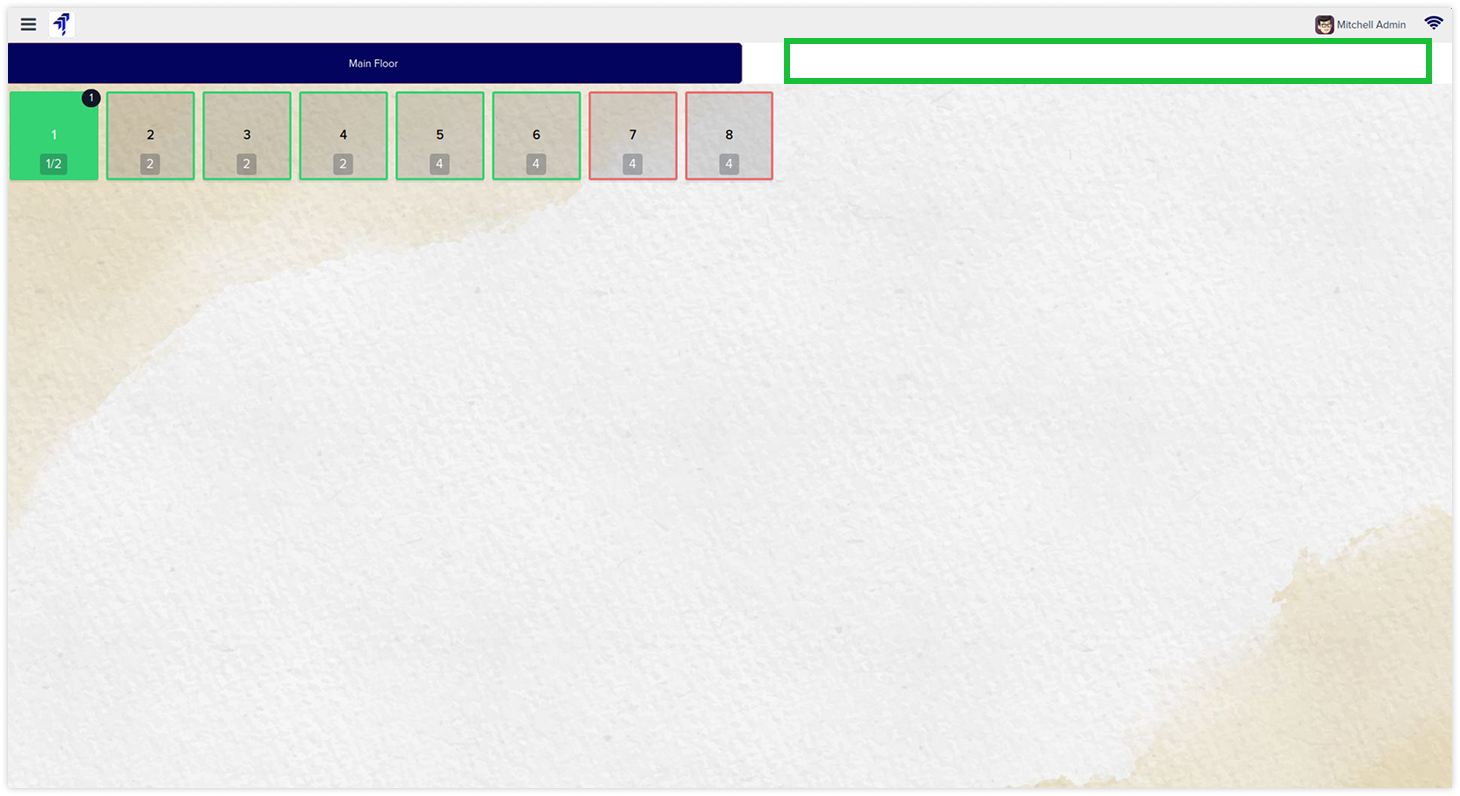
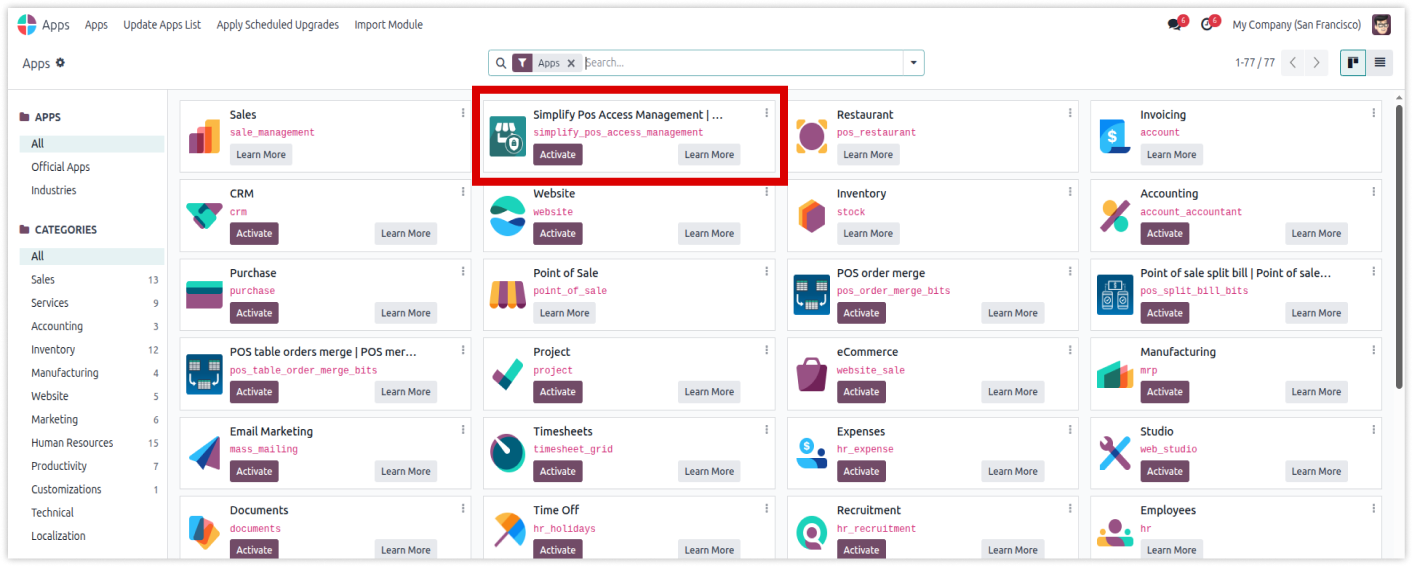
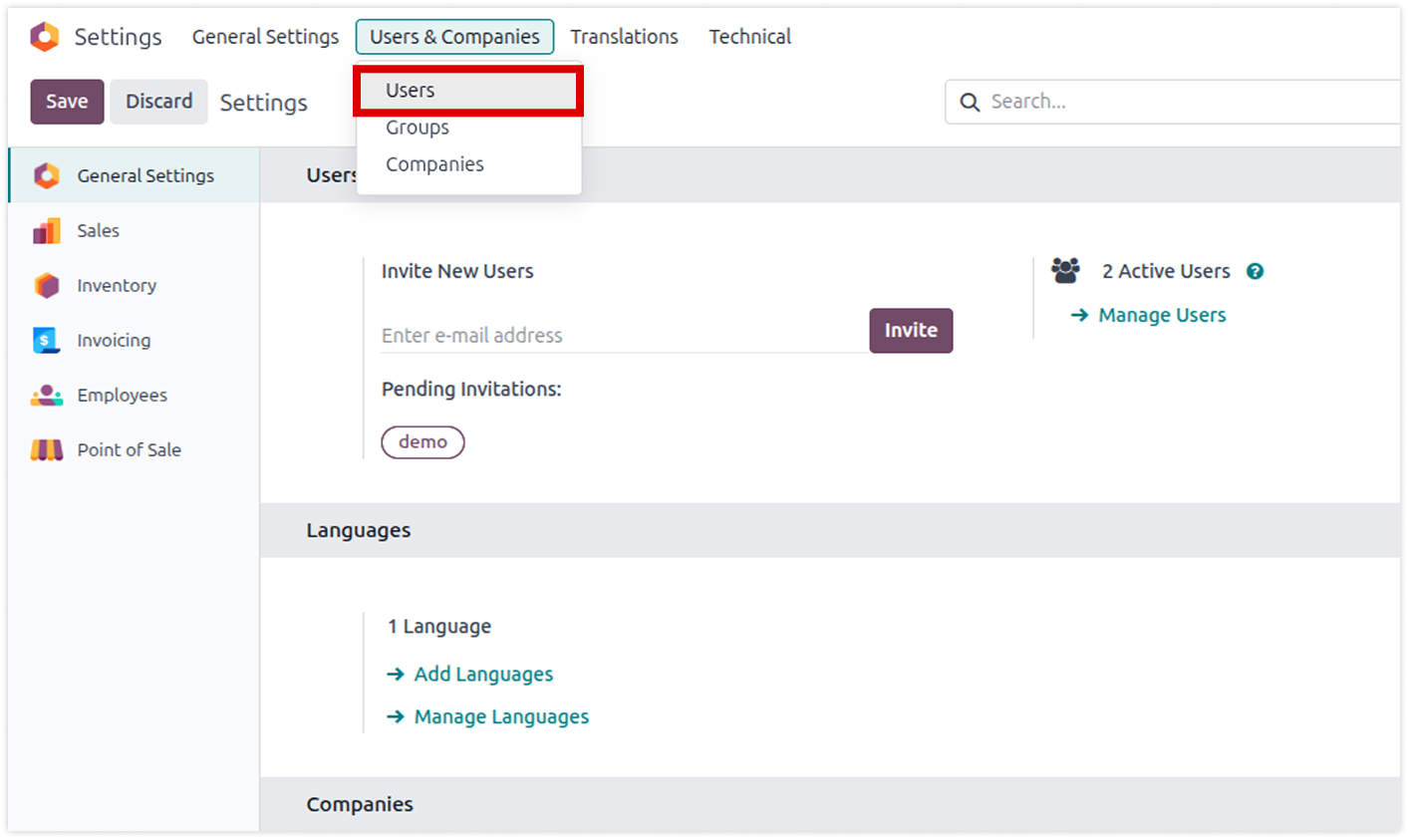
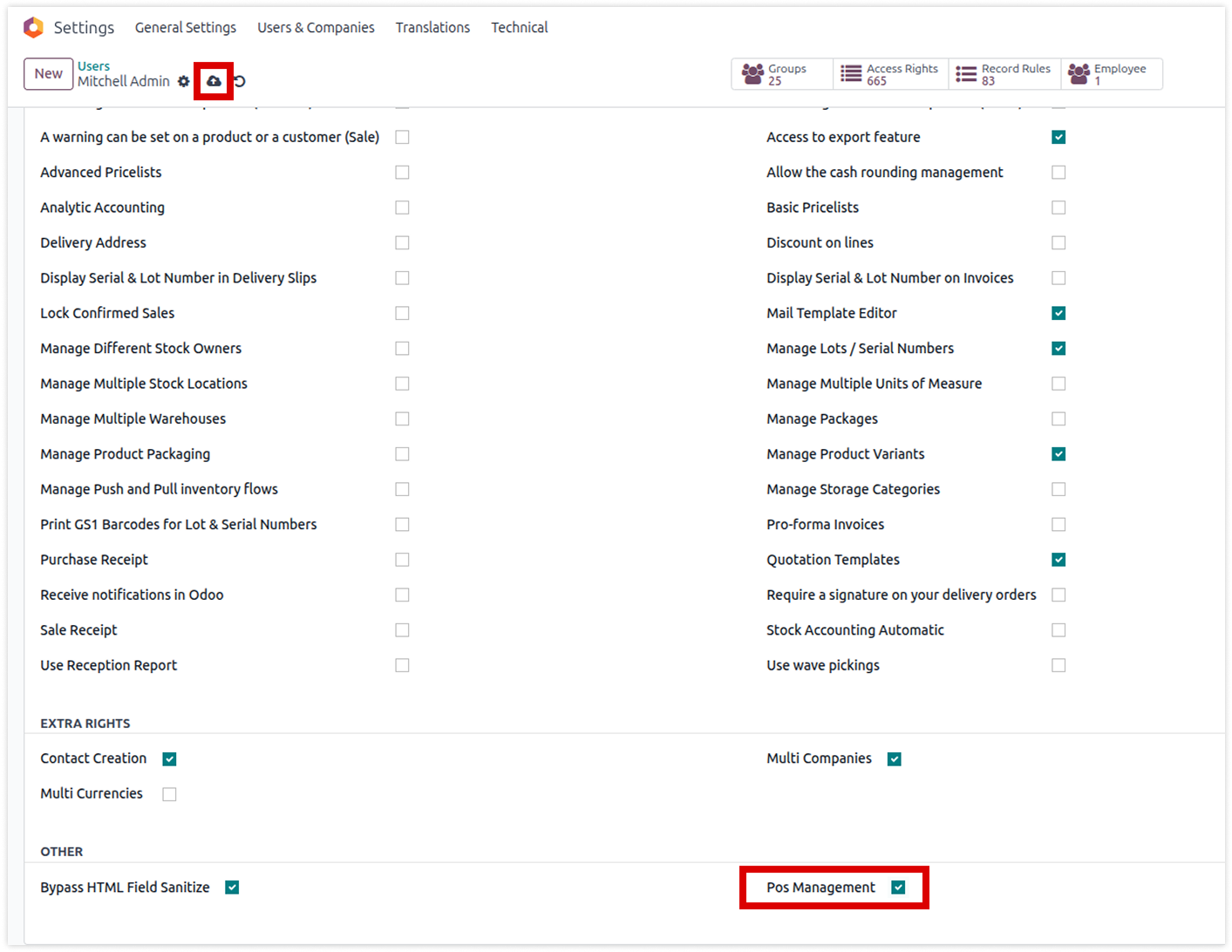
It shows that how to setup the Simplify POS Access Management.
Click on image to Zoom in.
Click on image to Zoom in.
Click on image to Zoom in.
Click on image to Zoom in.
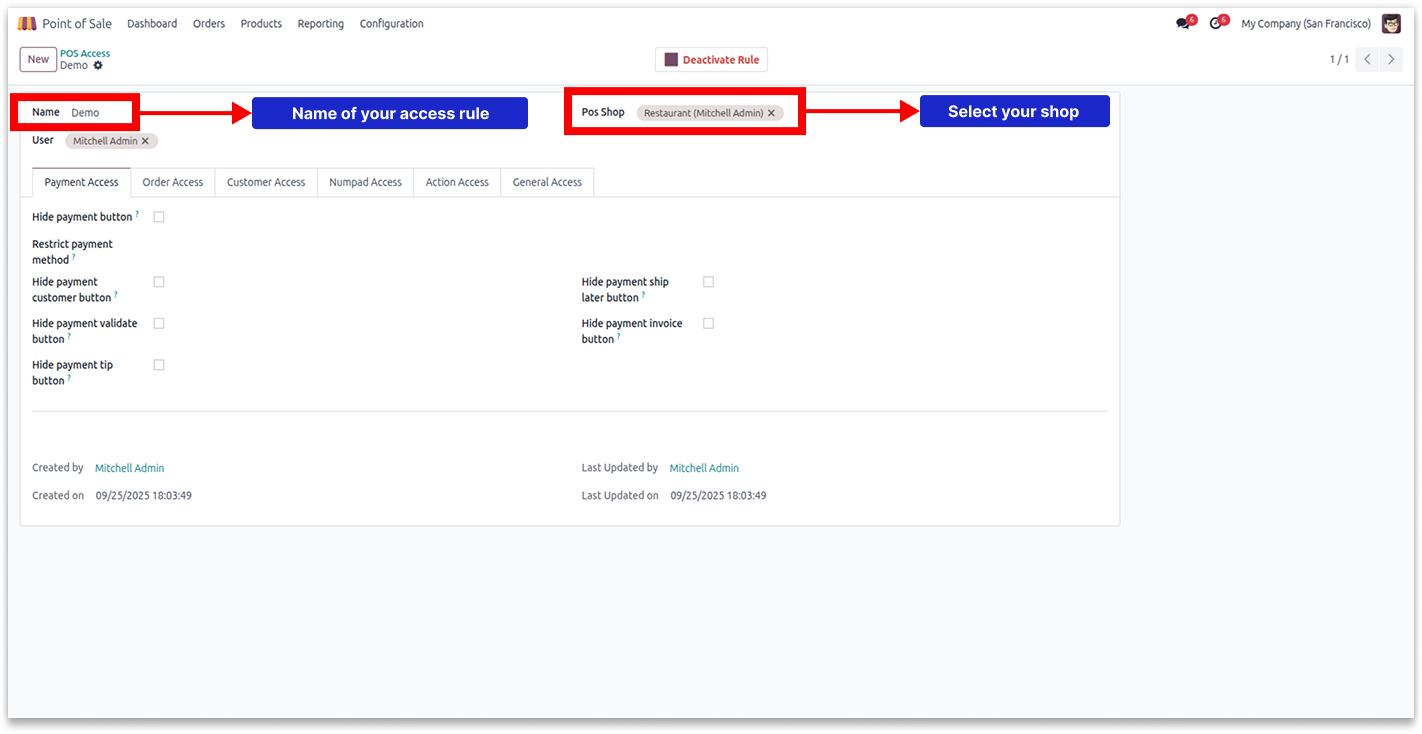
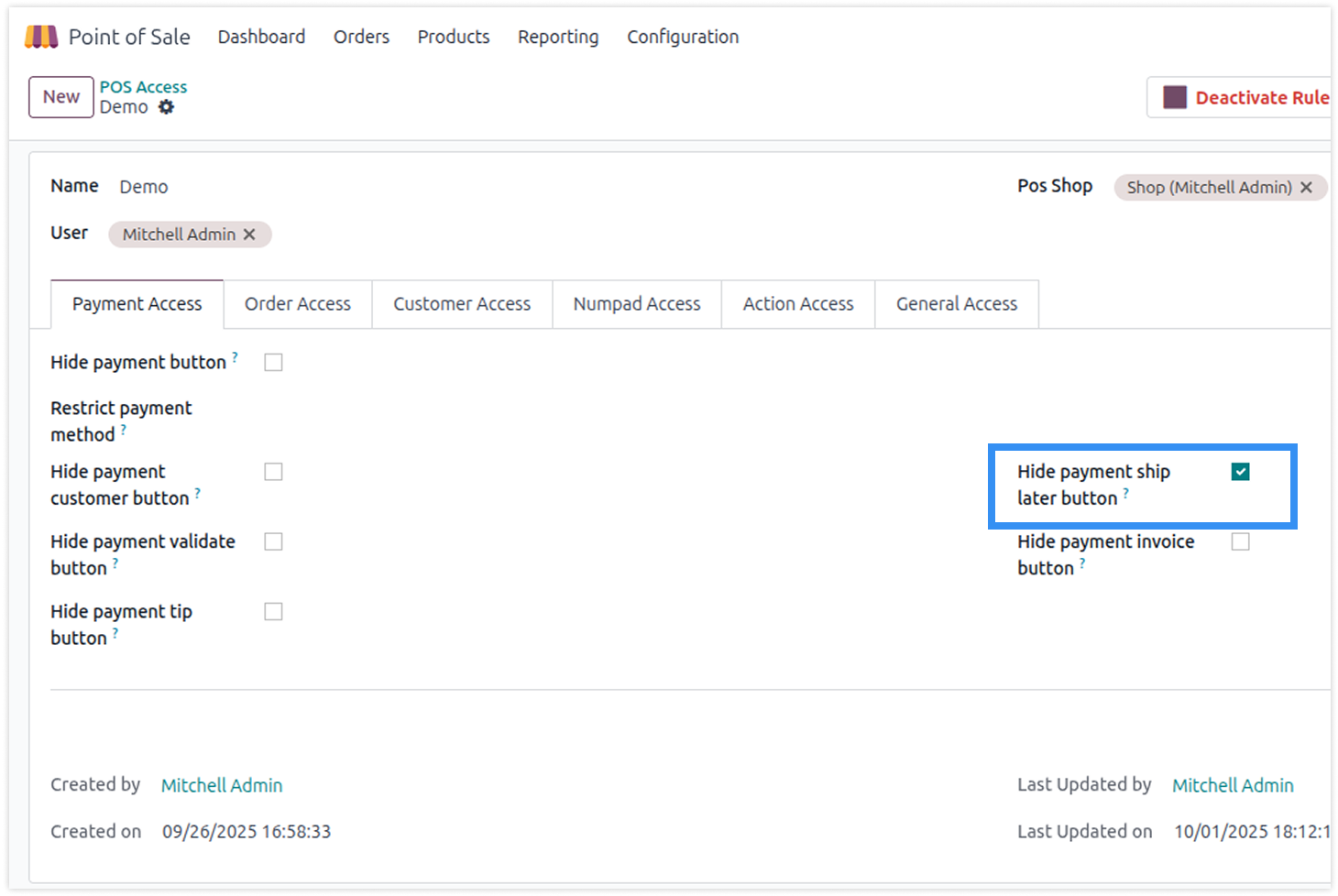
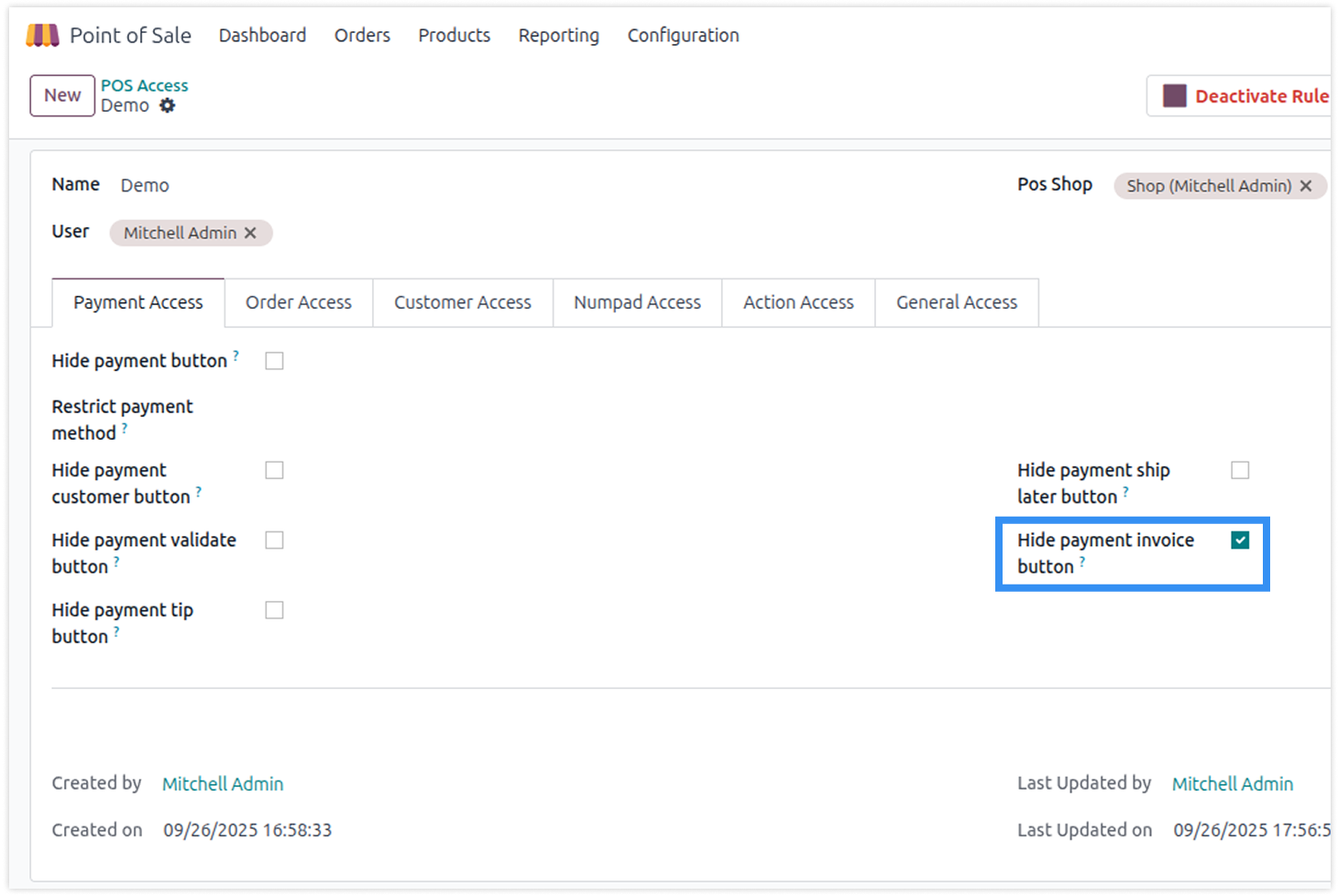
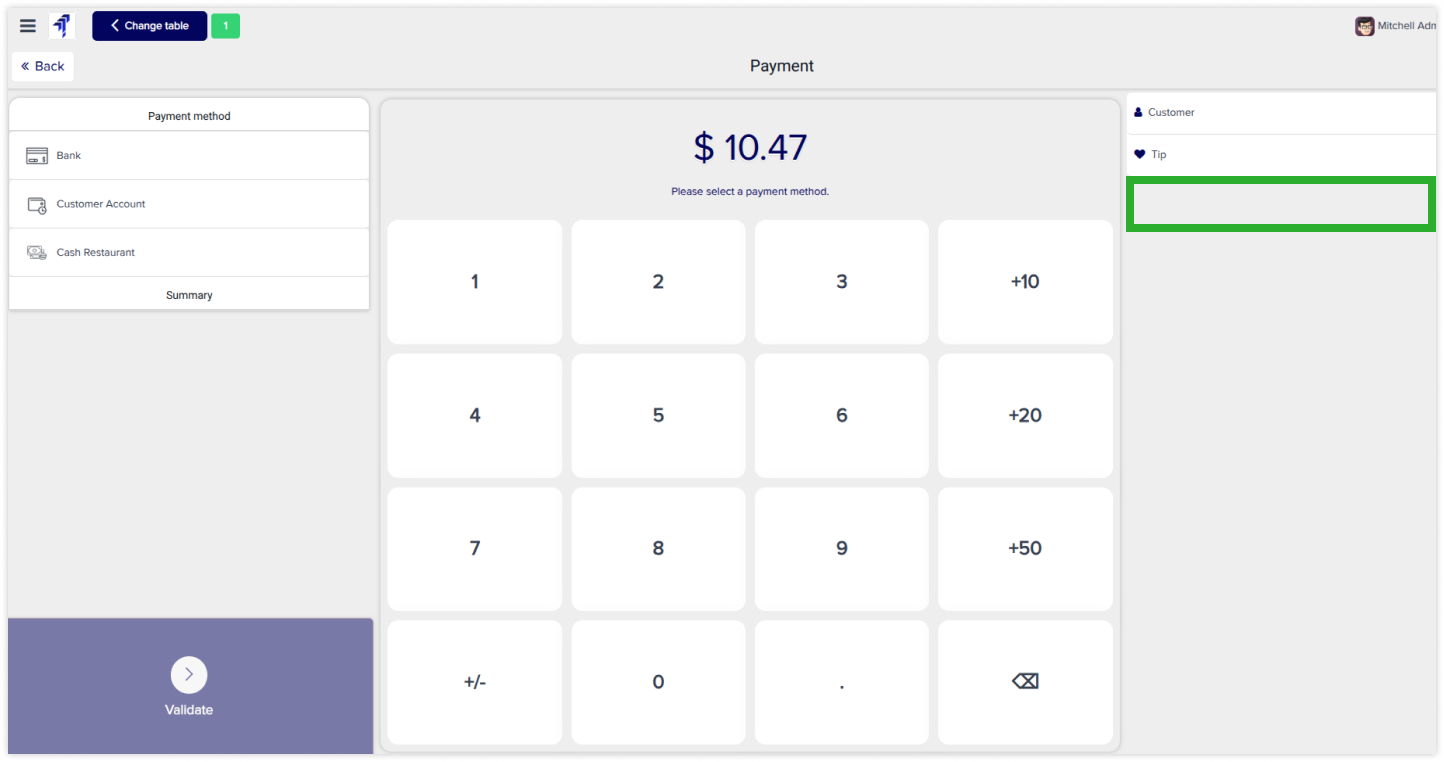
Payment access rights restrict payment actions such as buttons for methods, customers, validation, tips, shipping tips, and invoices.
You must have technical knowledge.
You have to need Odoo enterprise addons.
Here is the solution
No need to have technical knowledge, Only you have to understand our module features and you will be rock.
Work in both Enterprise and Community versions(14,15,16,17,18,19).
How to setup access rights for the payment
Here we have explained an example step by step.
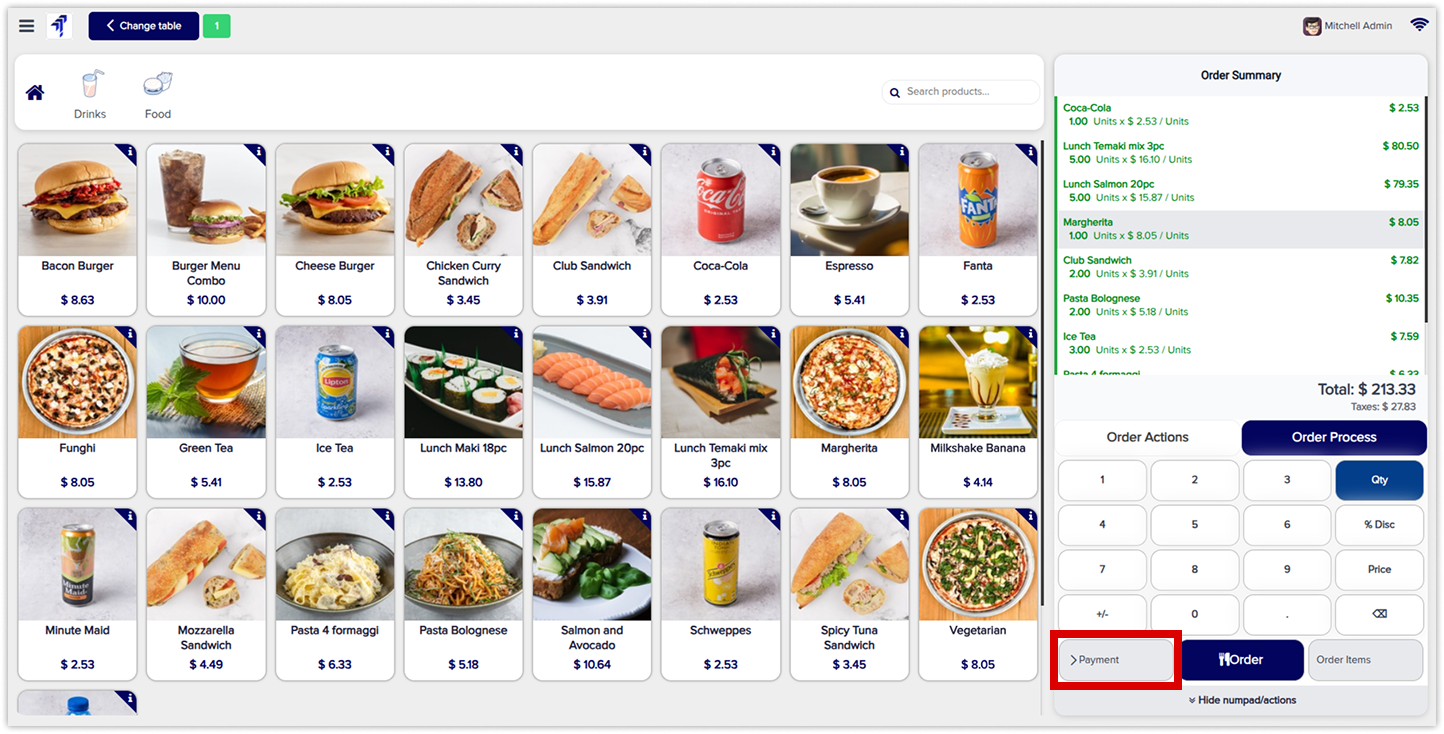
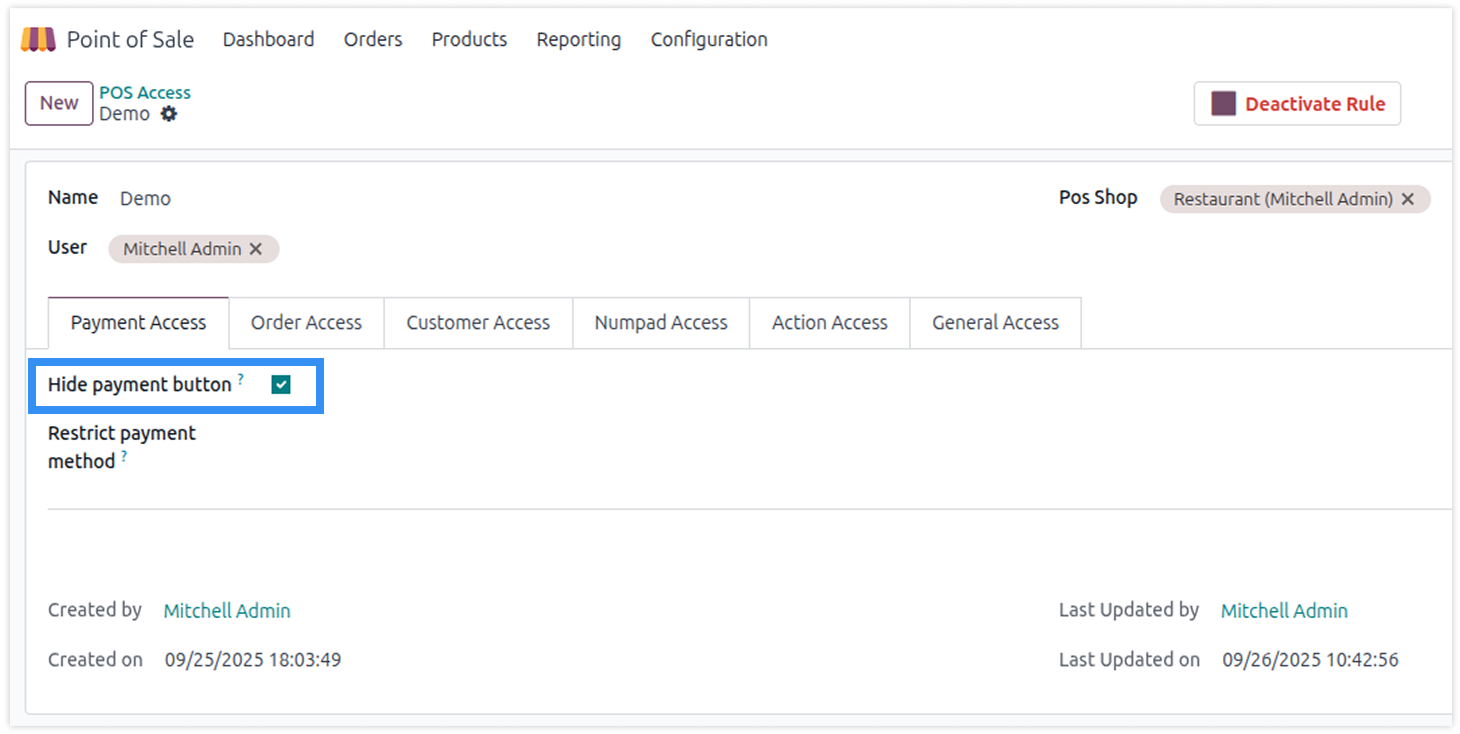
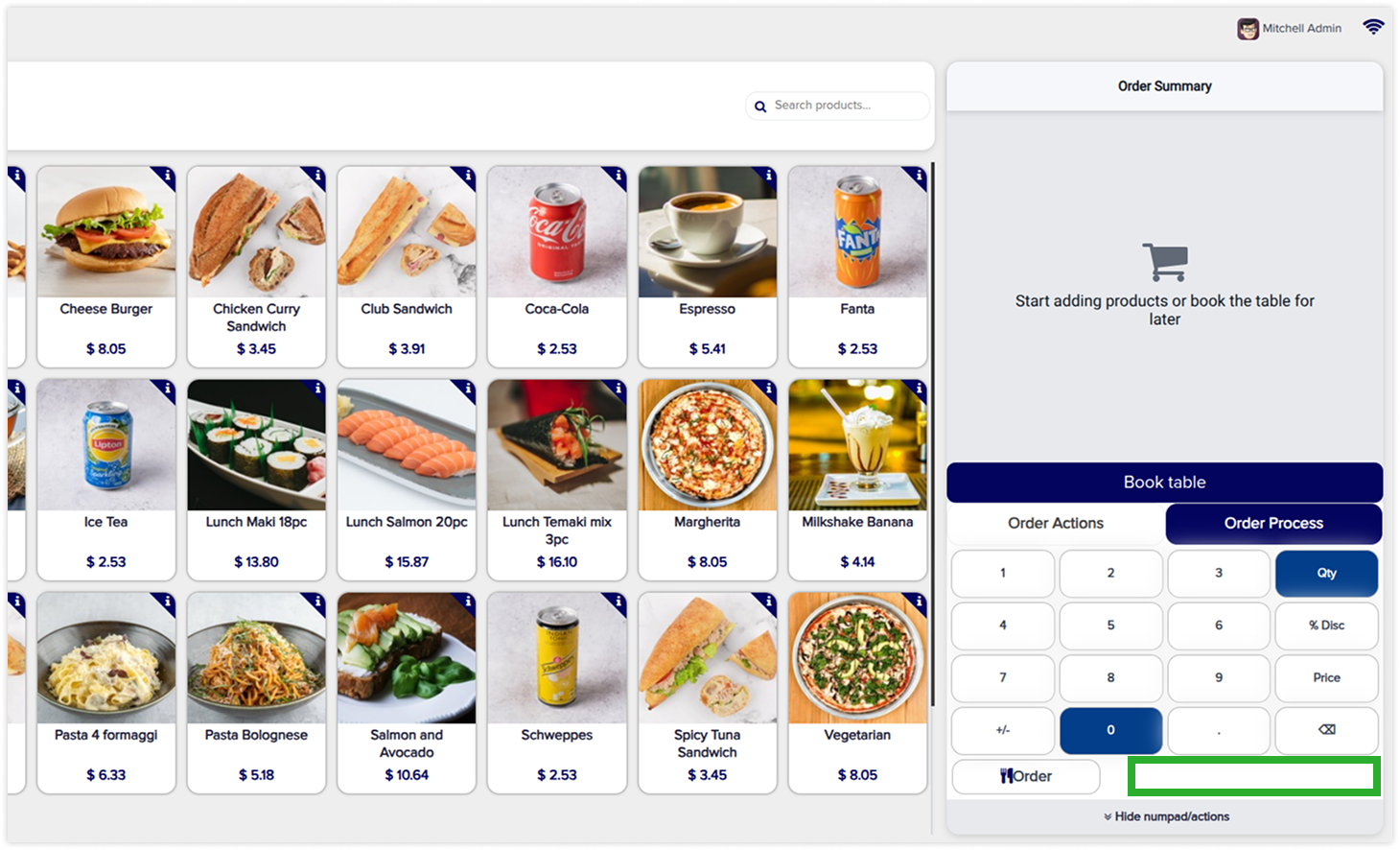
Hide payment button
-
Manage payment access rights visibility for specific users through rules.
-
Click on image to Zoom out.
-
Click on image to zoom out.
-
Click on image to zoom out.
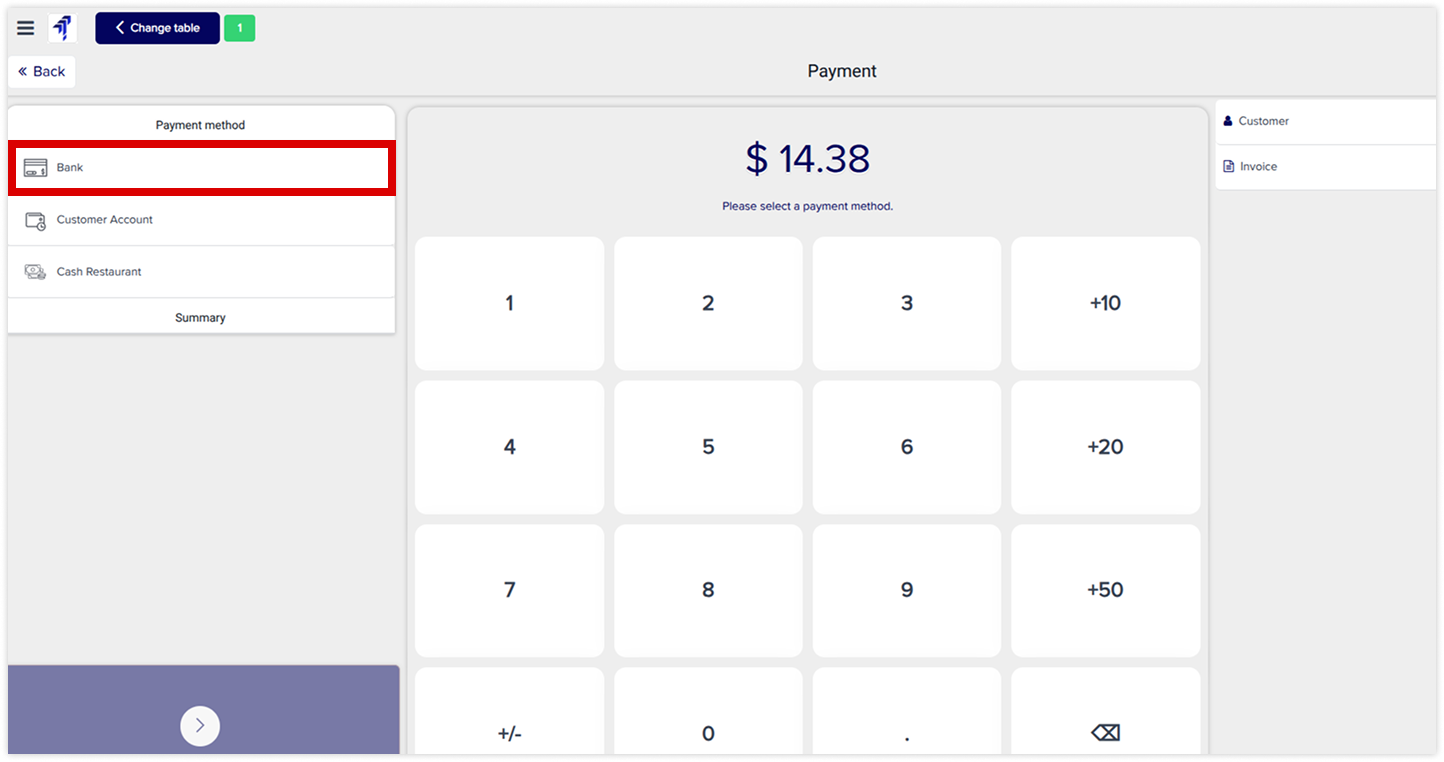
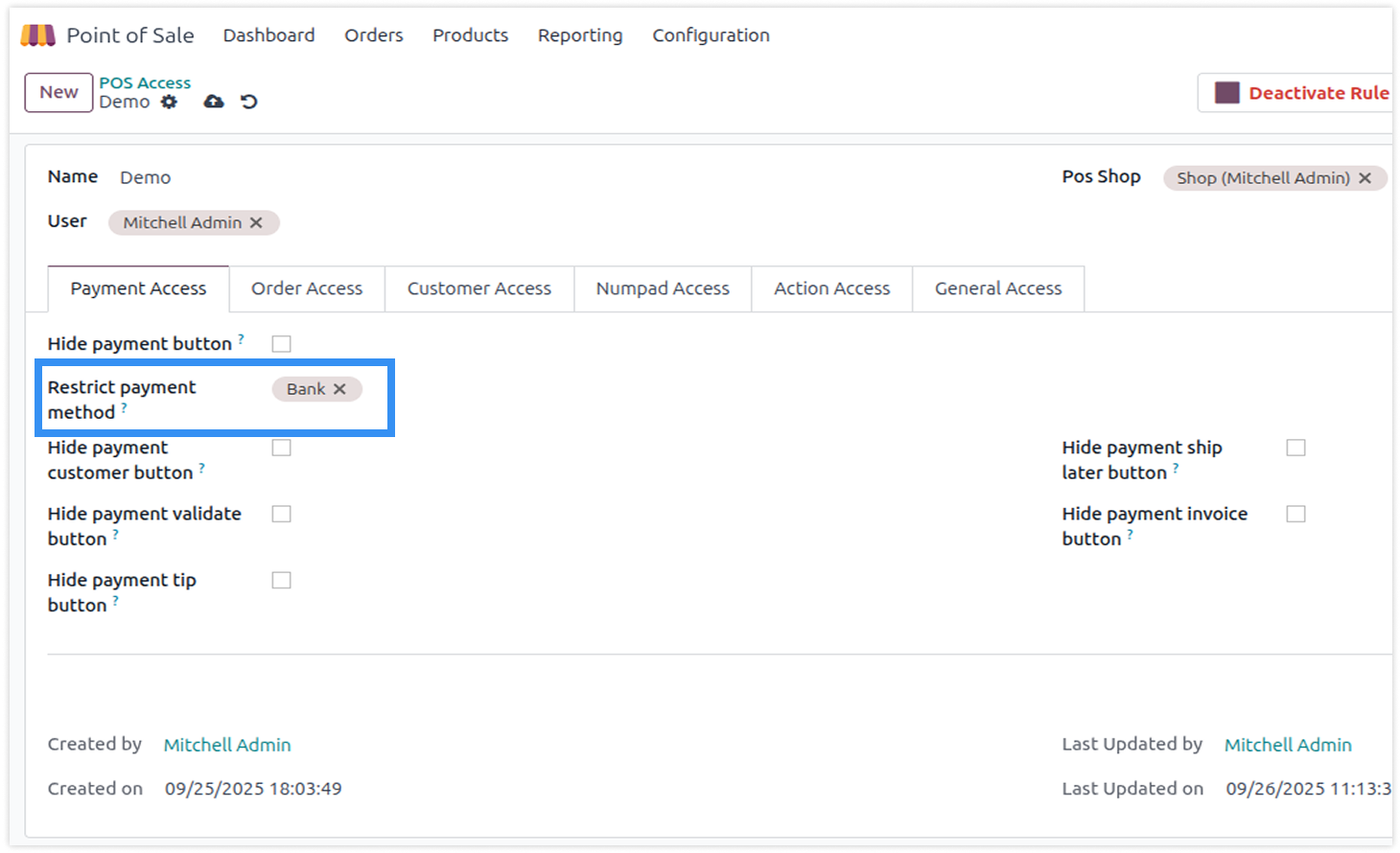
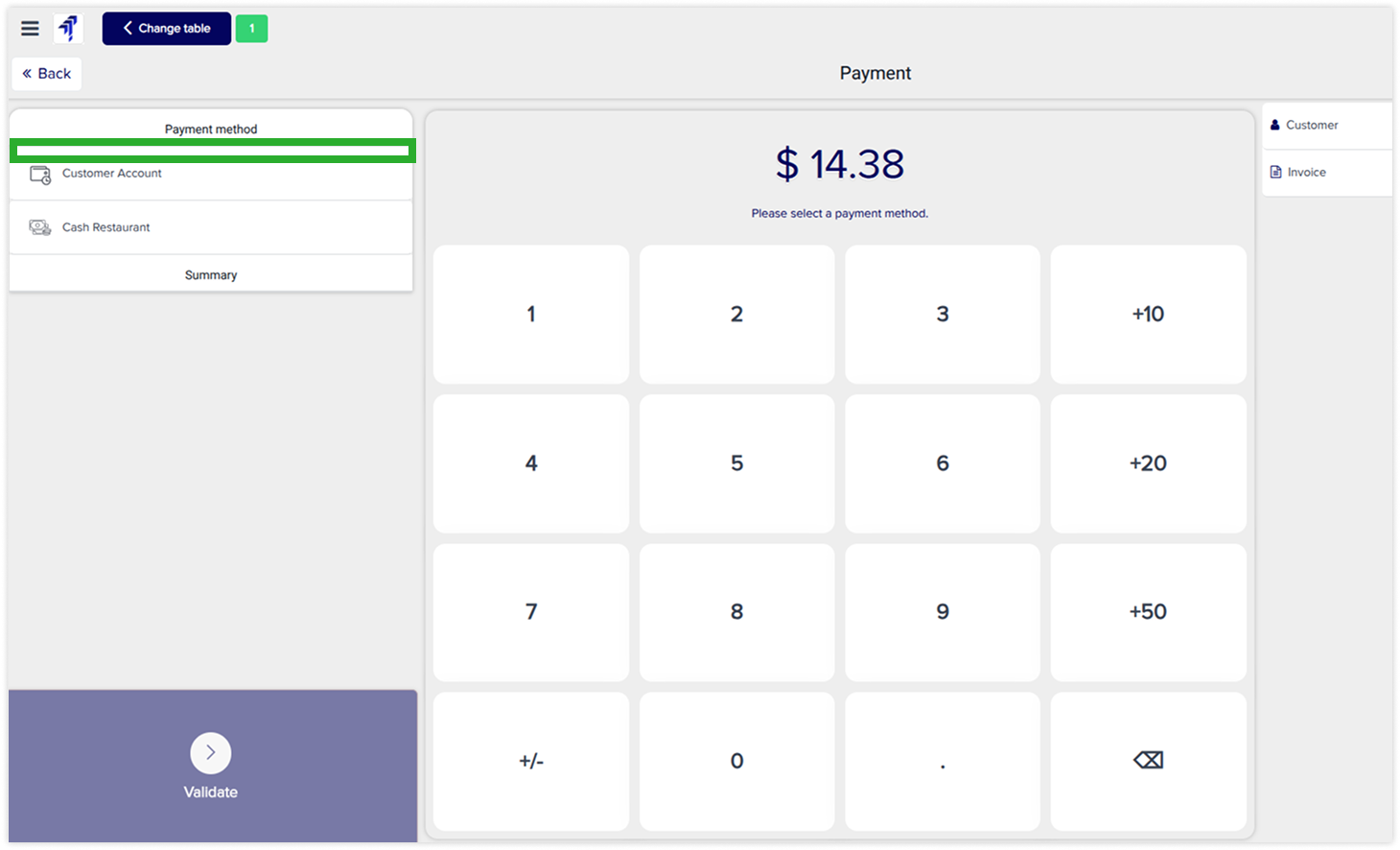
Restrict payment method
-
Click on image to zoom out.
-
Click on image to zoom out.
-
Click on image to zoom out.
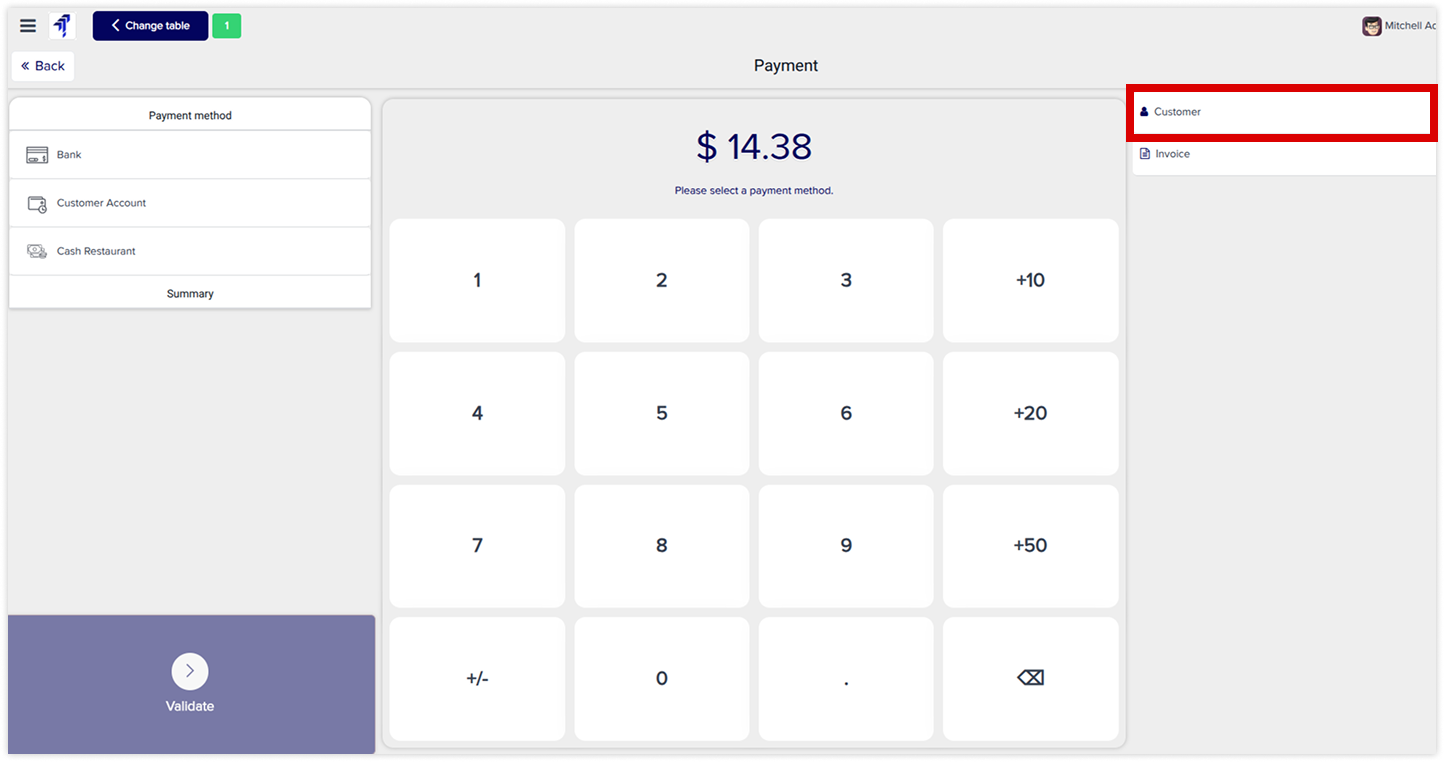
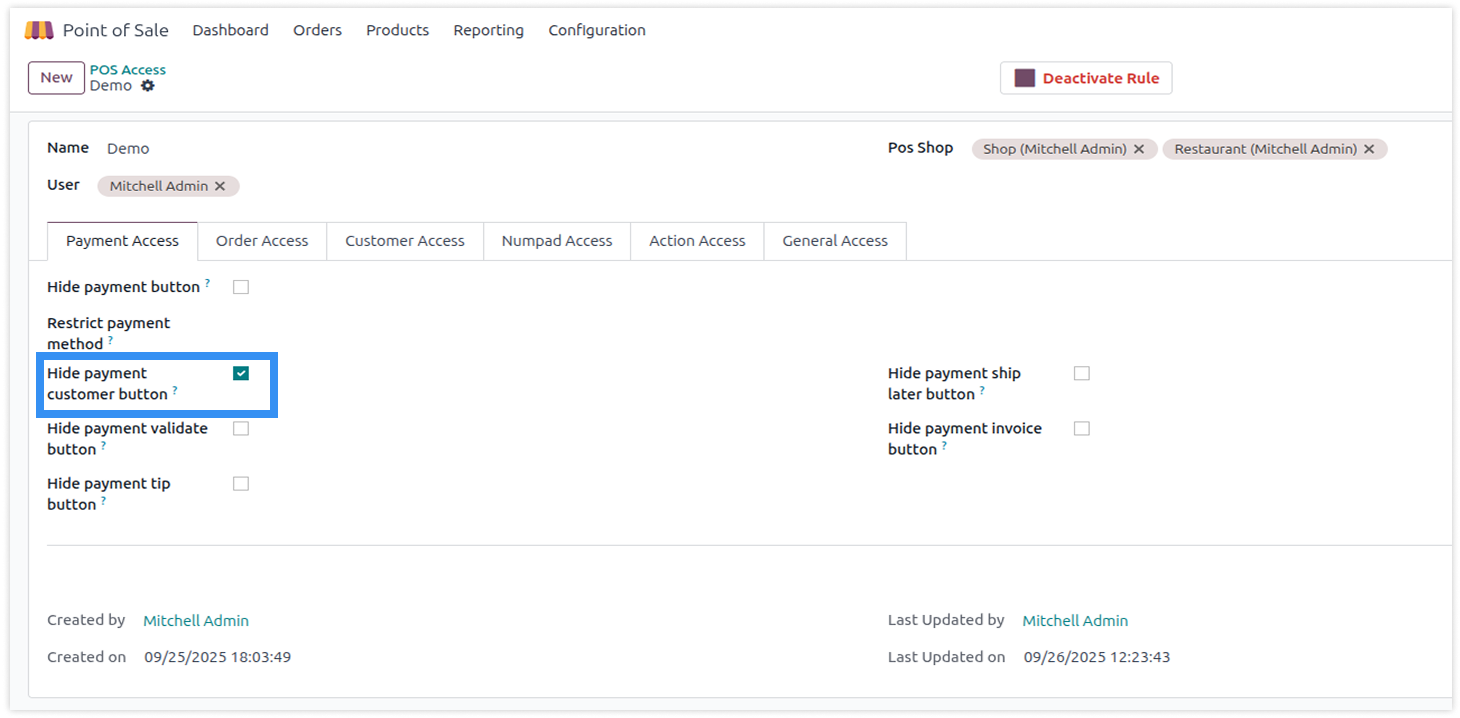
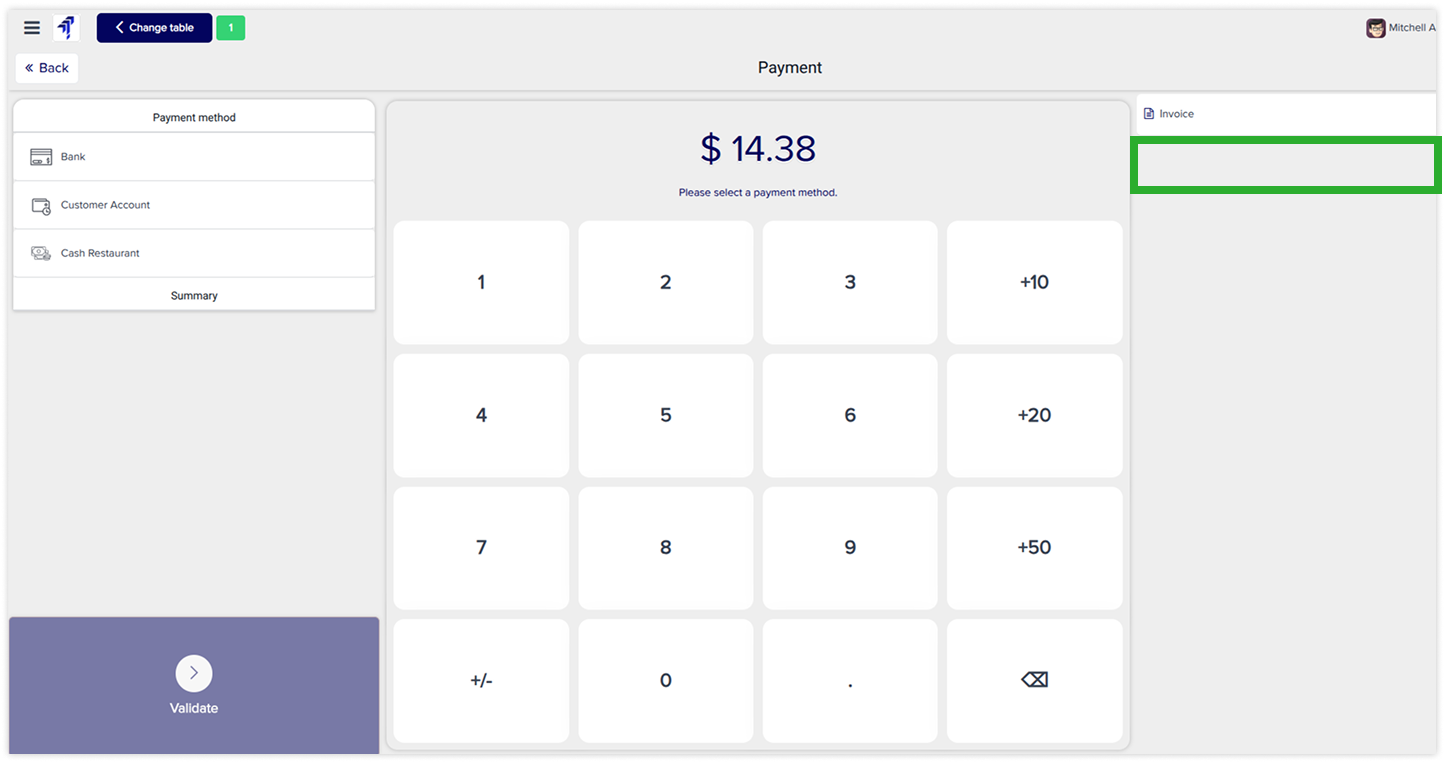
Hide payment customer button
-
Click on image to zoom out.
-
Click on image to zoom out.
-
Click on image to zoom out.
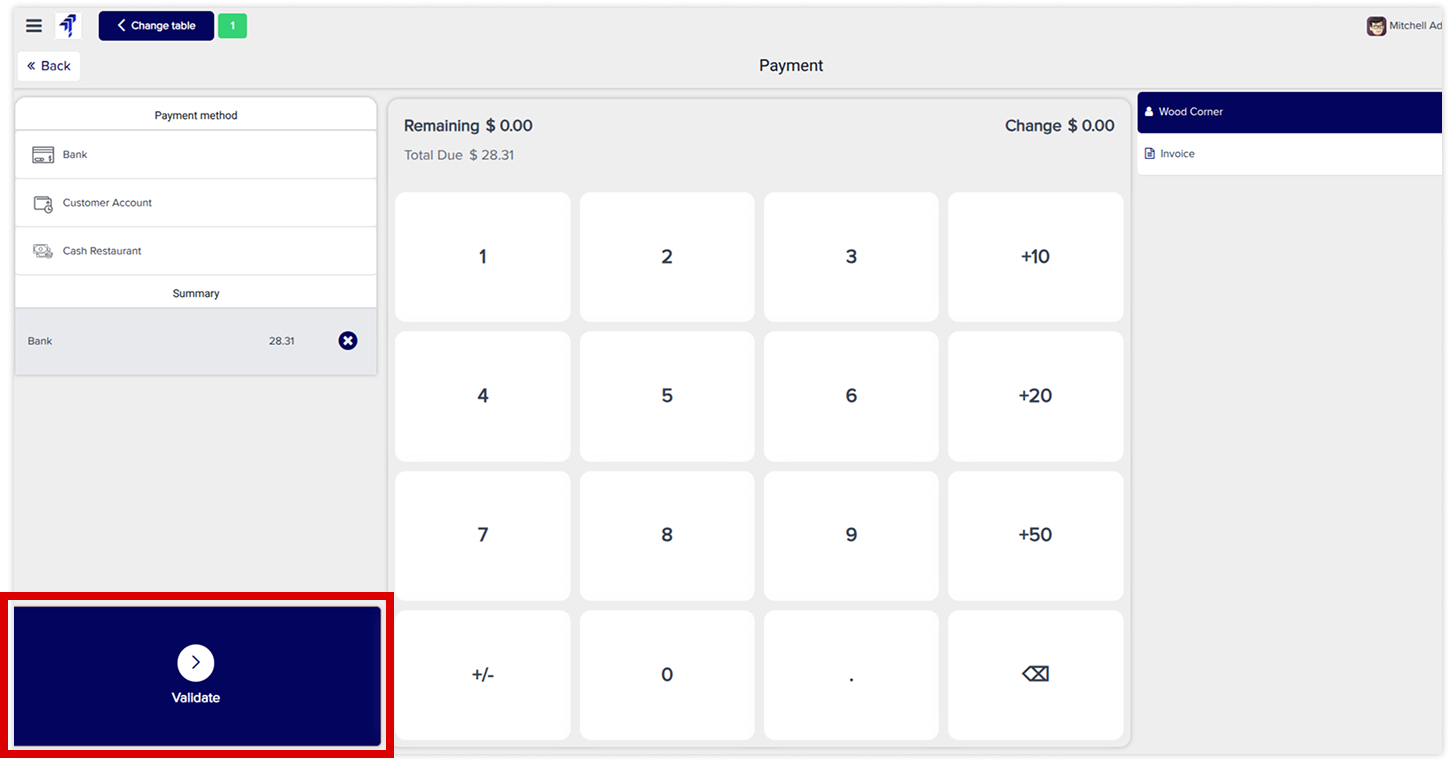
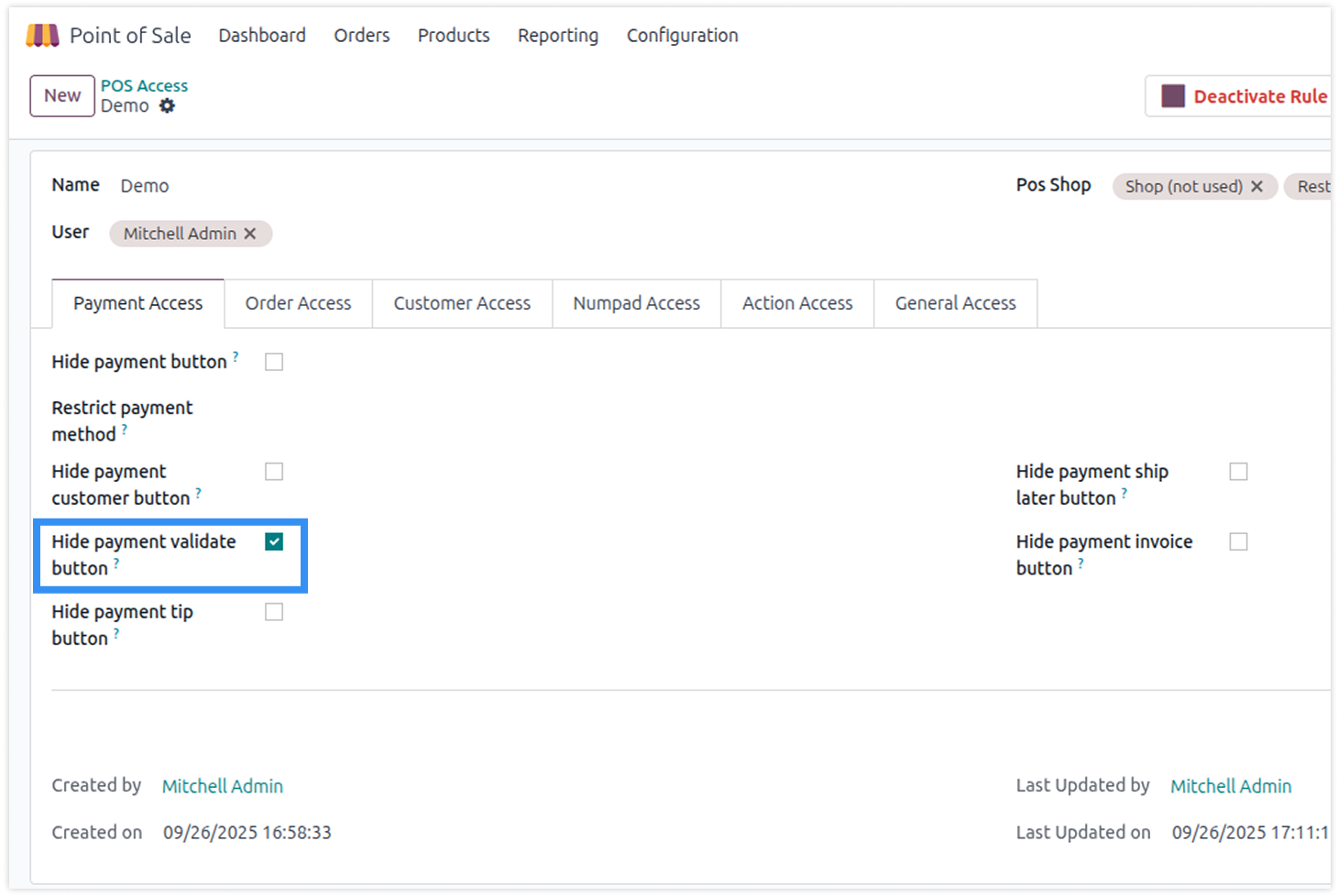
Hide payment validation
-
Click on image to zoom out.
-
Click on image to zoom out.
-
Click on image to zoom out.
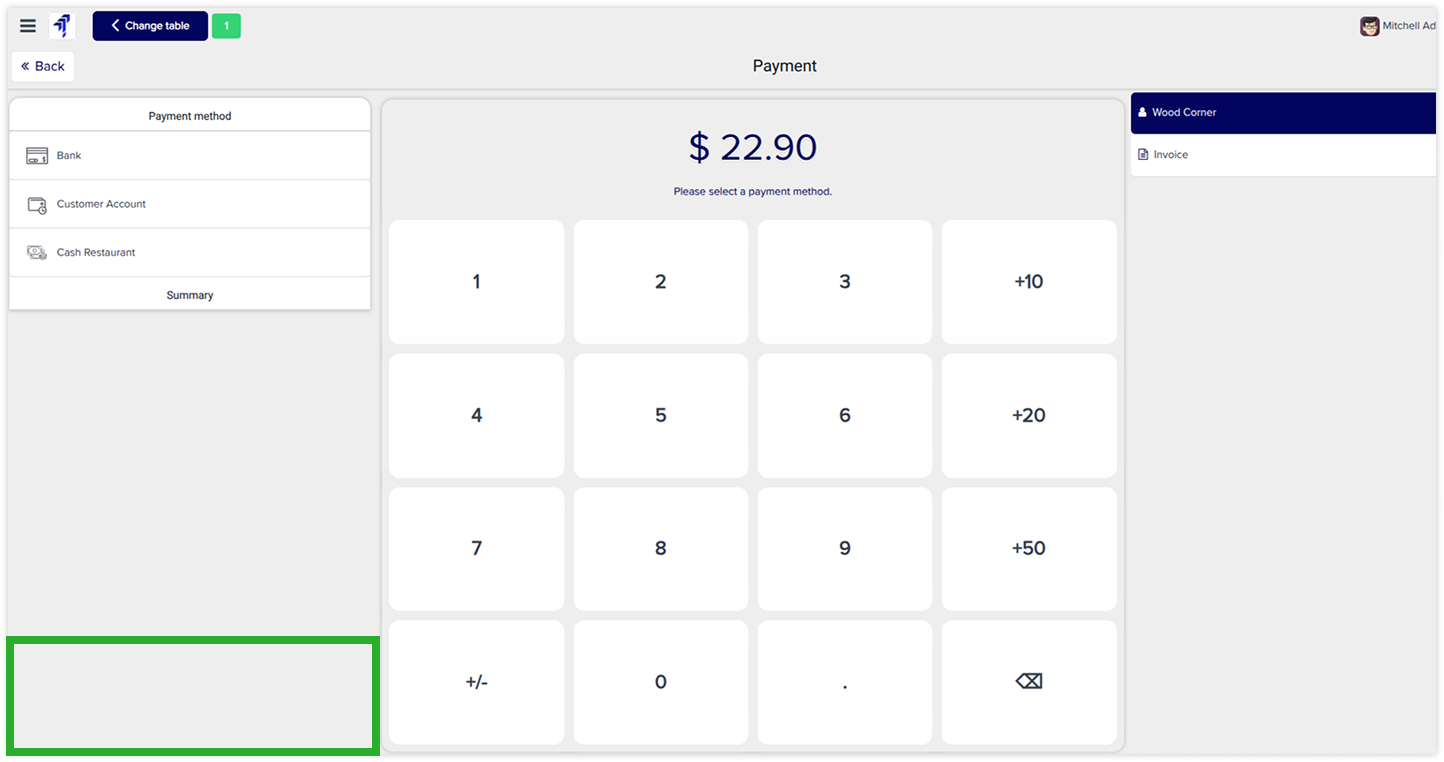
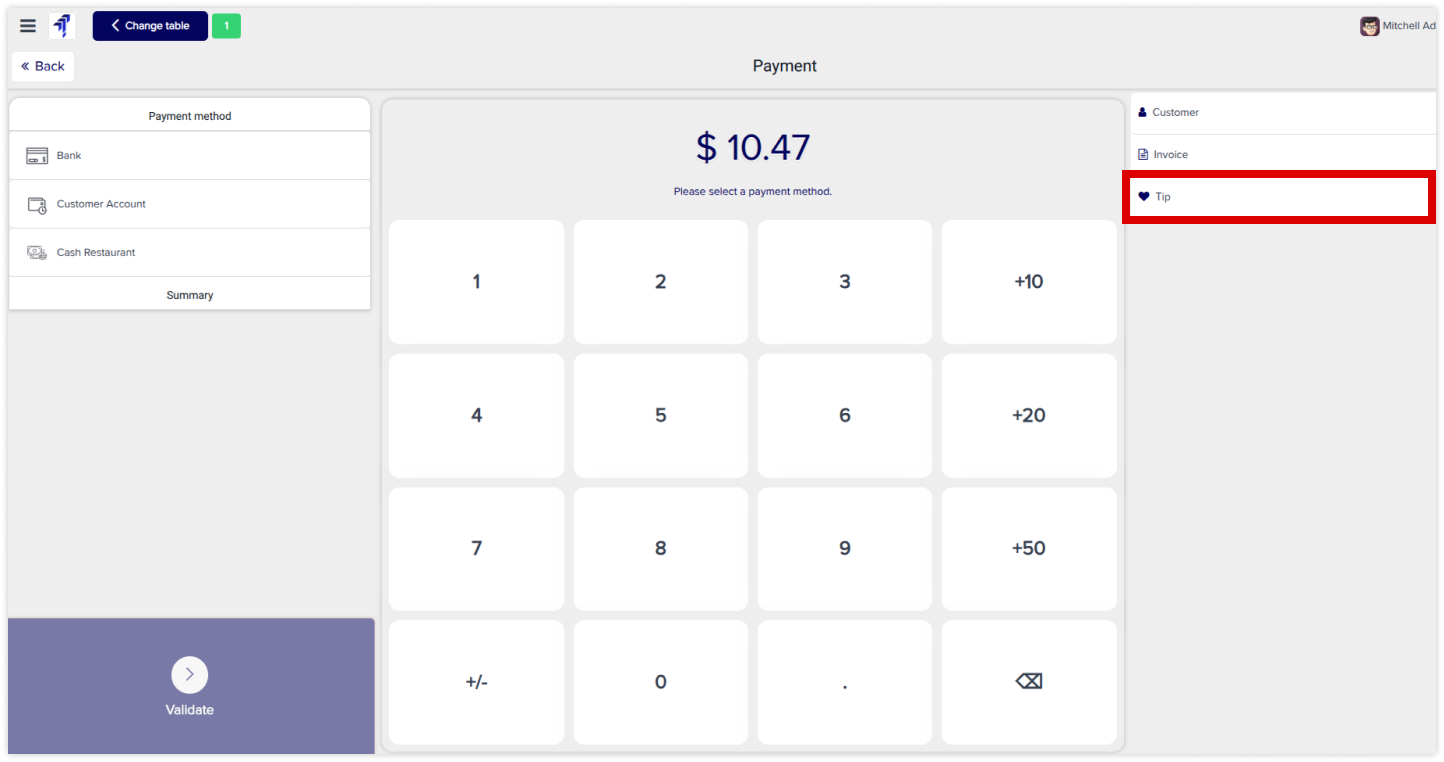
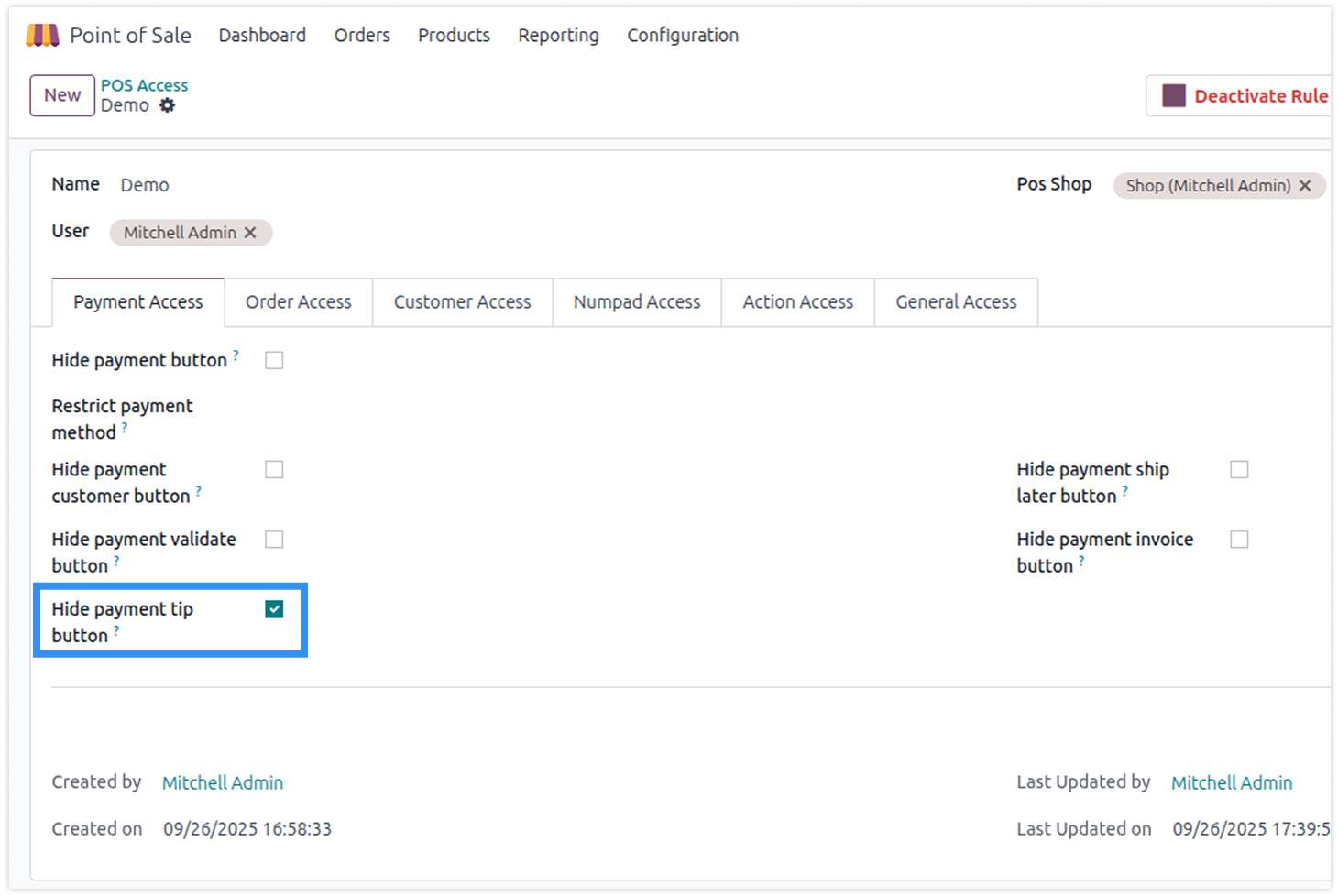
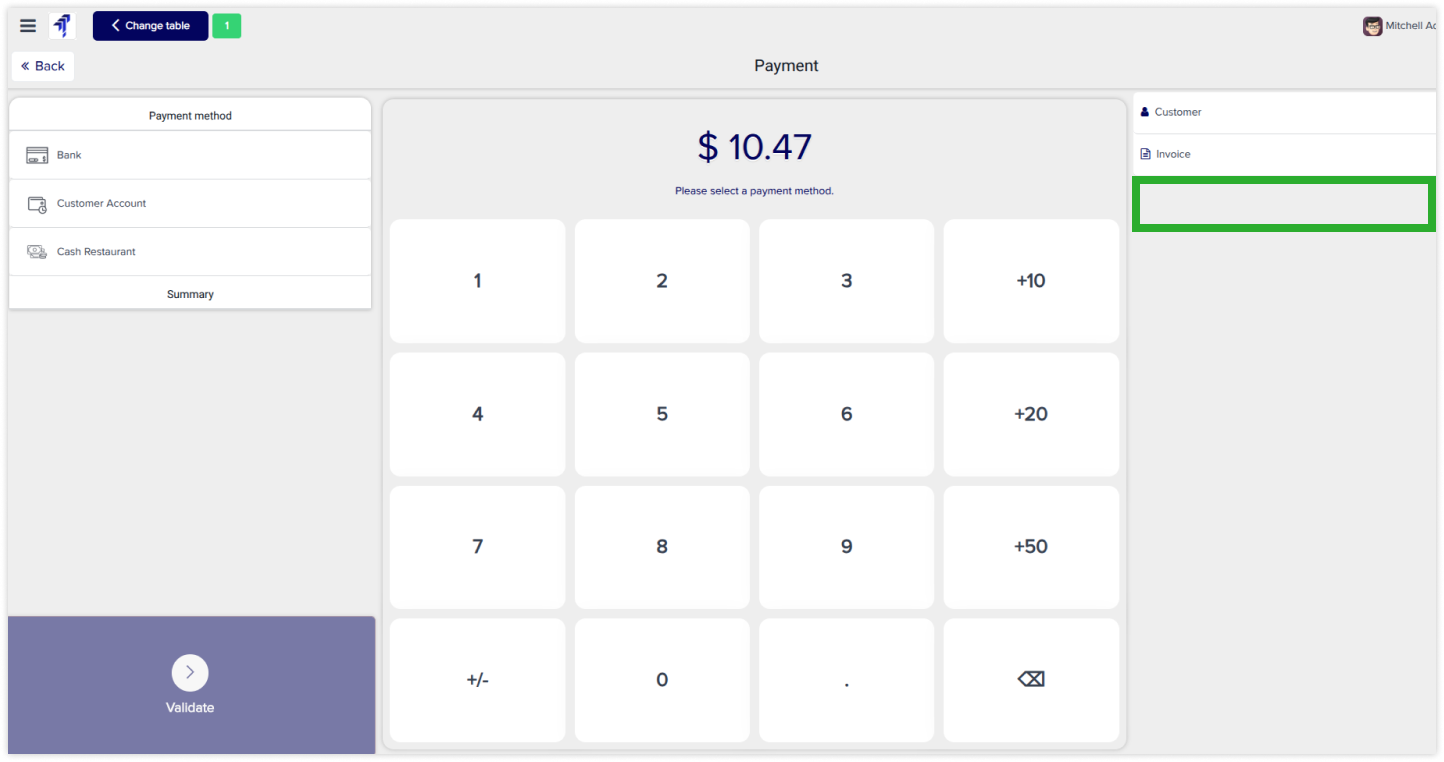
Hide payment tips button
-
Click on image to zoom out.
-
Click on image to zoom out.
-
Click on image to zoom out.
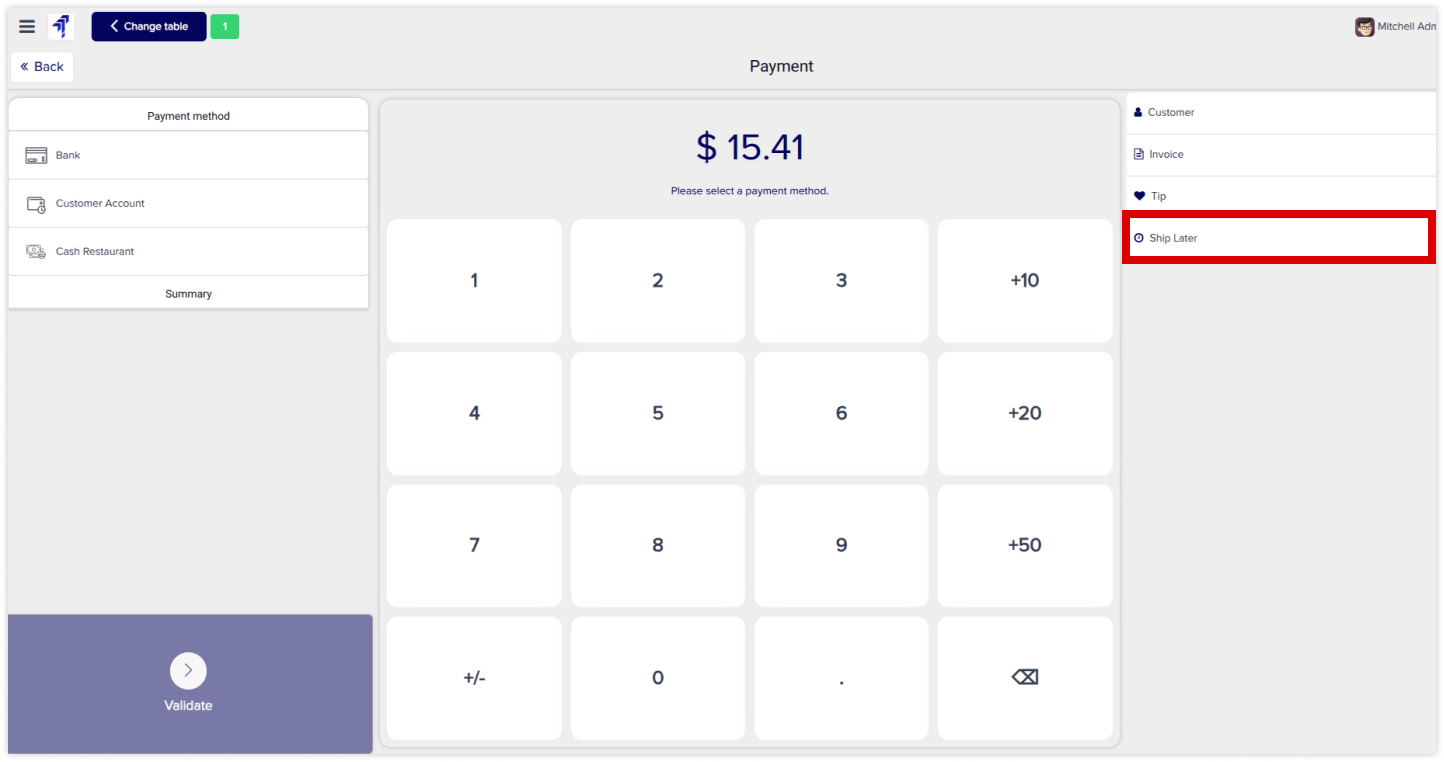
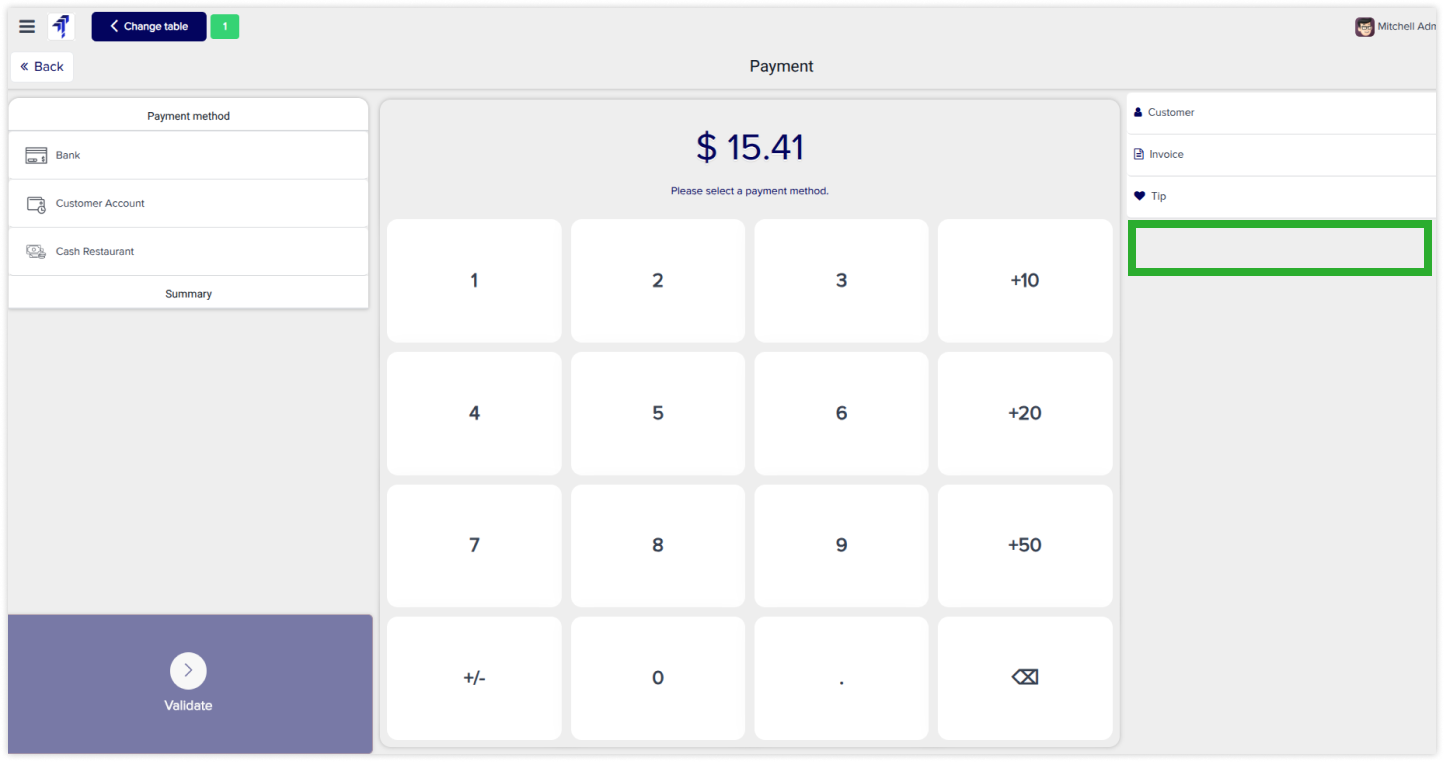
Hide payment ship tips button
-
Click on image to zoom out.
-
Click on image to zoom out.
-
Click on image to zoom out.
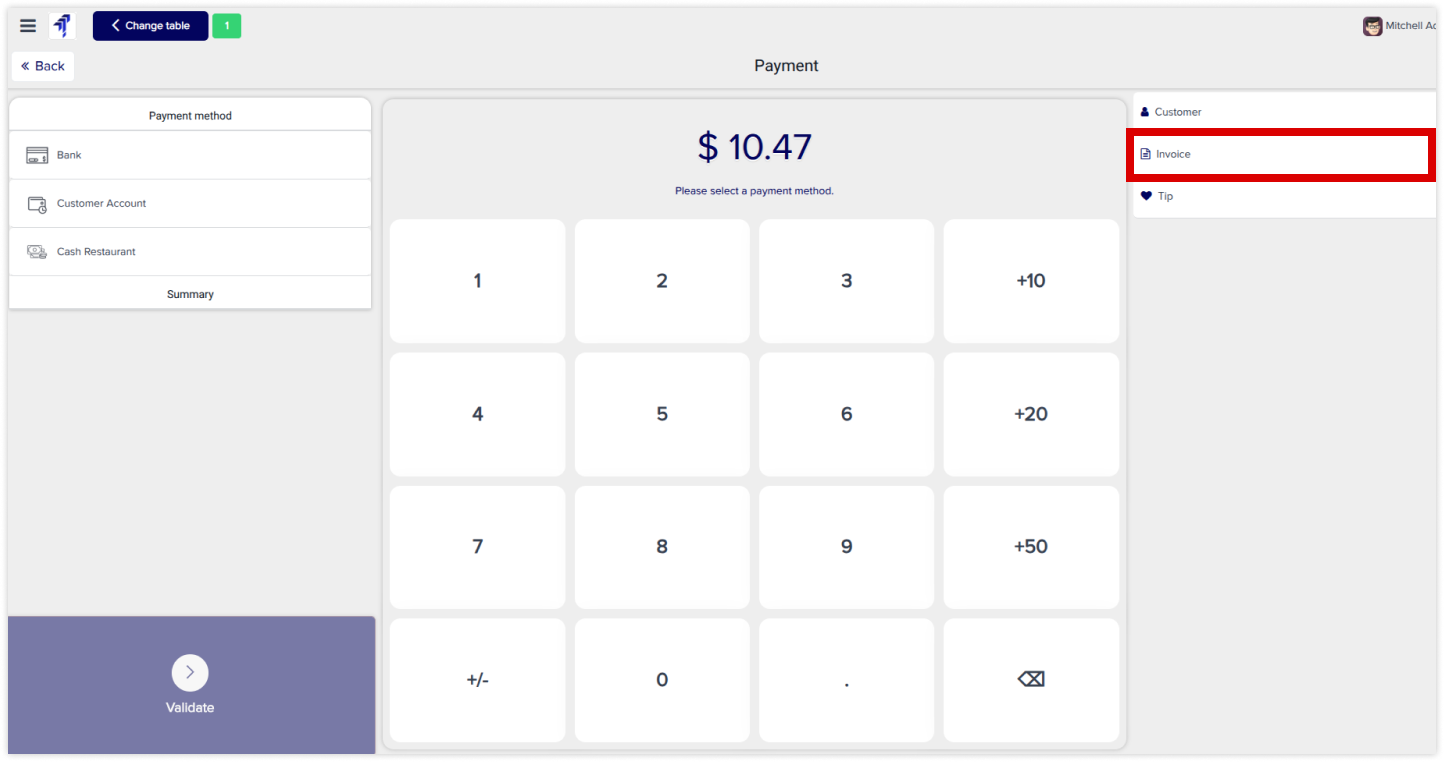
Hide payment invoice buttons
-
Click on image to zoom out.
-
Click on image to zoom out.
-
Click on image to zoom out.
Order access rights restrict POS categories, disables order deletion, and shows only active orders.
You must have technical knowledge..
You have to need Odoo enterprise addons.
Here is the solution
No need to have technical knowledge, Only you have to understand our module features and you will be rock.
Work in both Enterprise and Community versions(14,15,16,17,18,19).
How to setup access rights for the order
Here we have explained an example step by step.
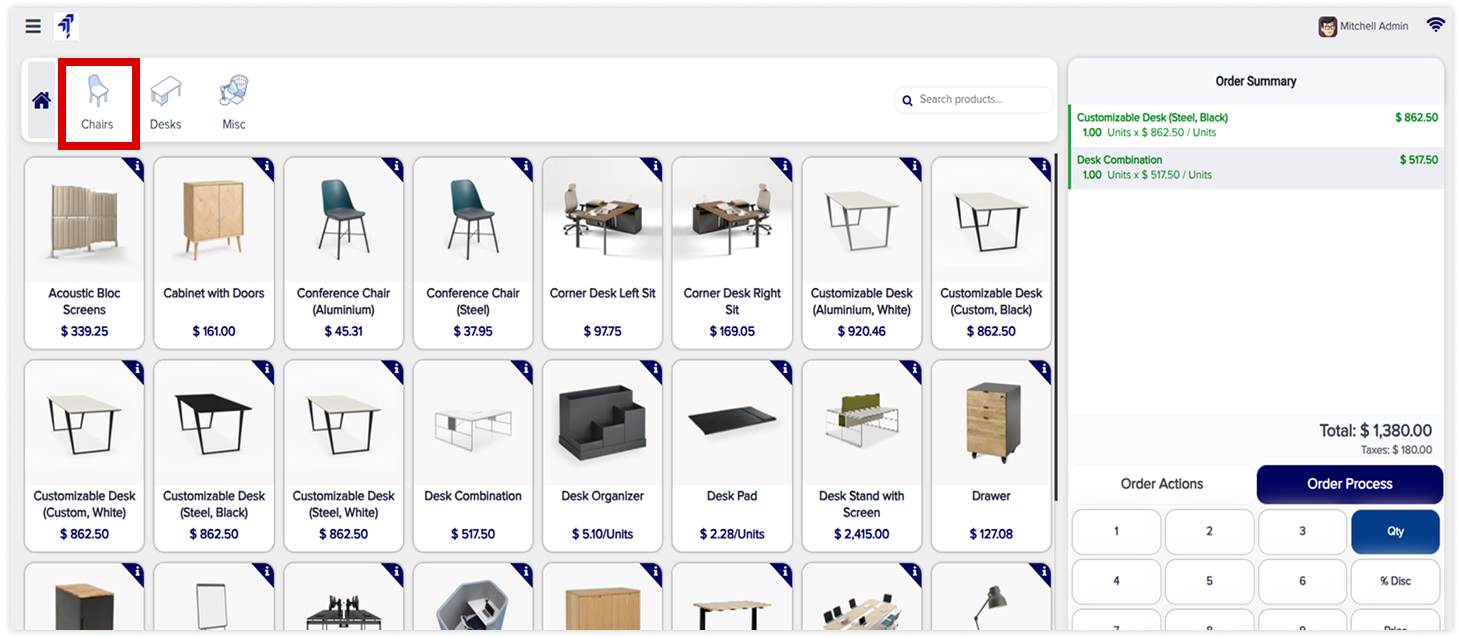
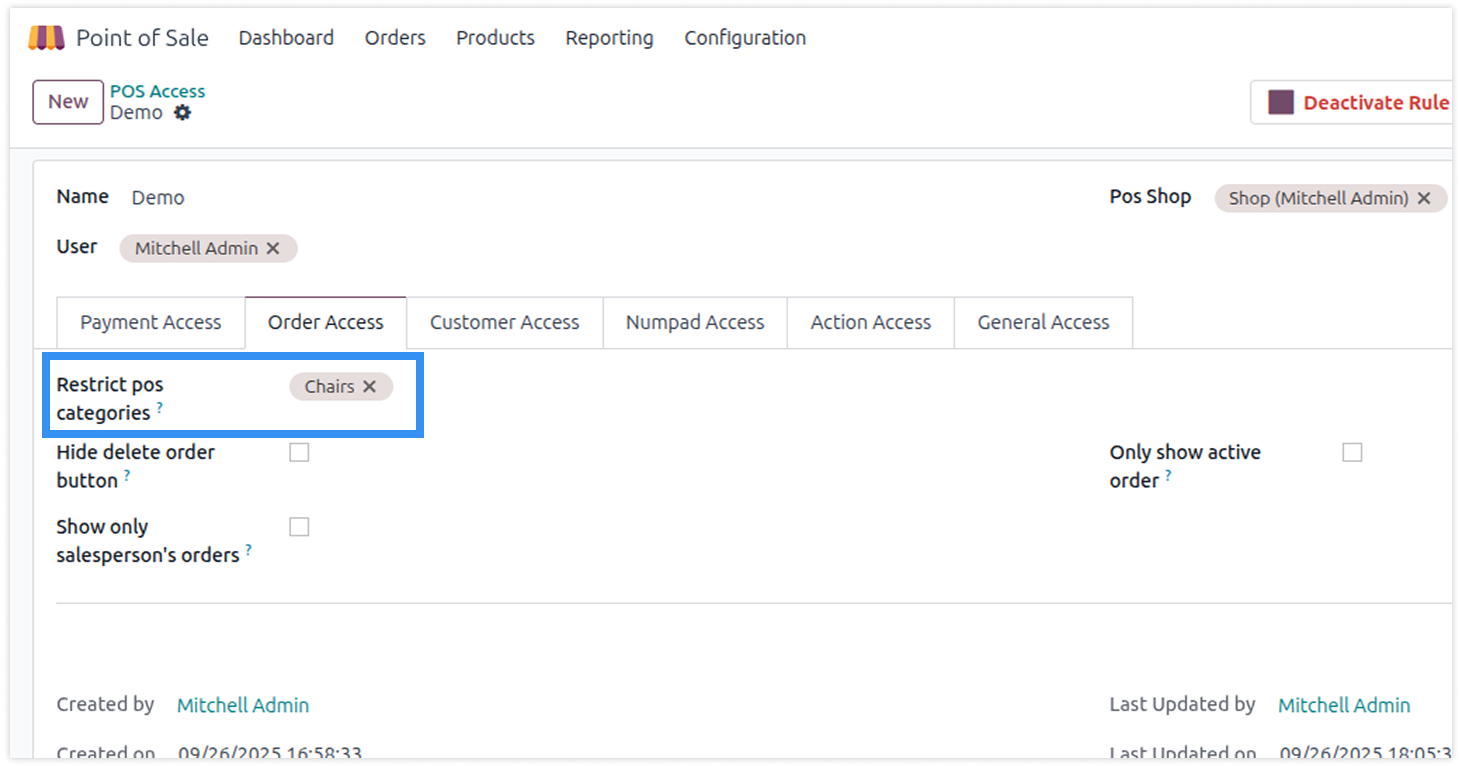
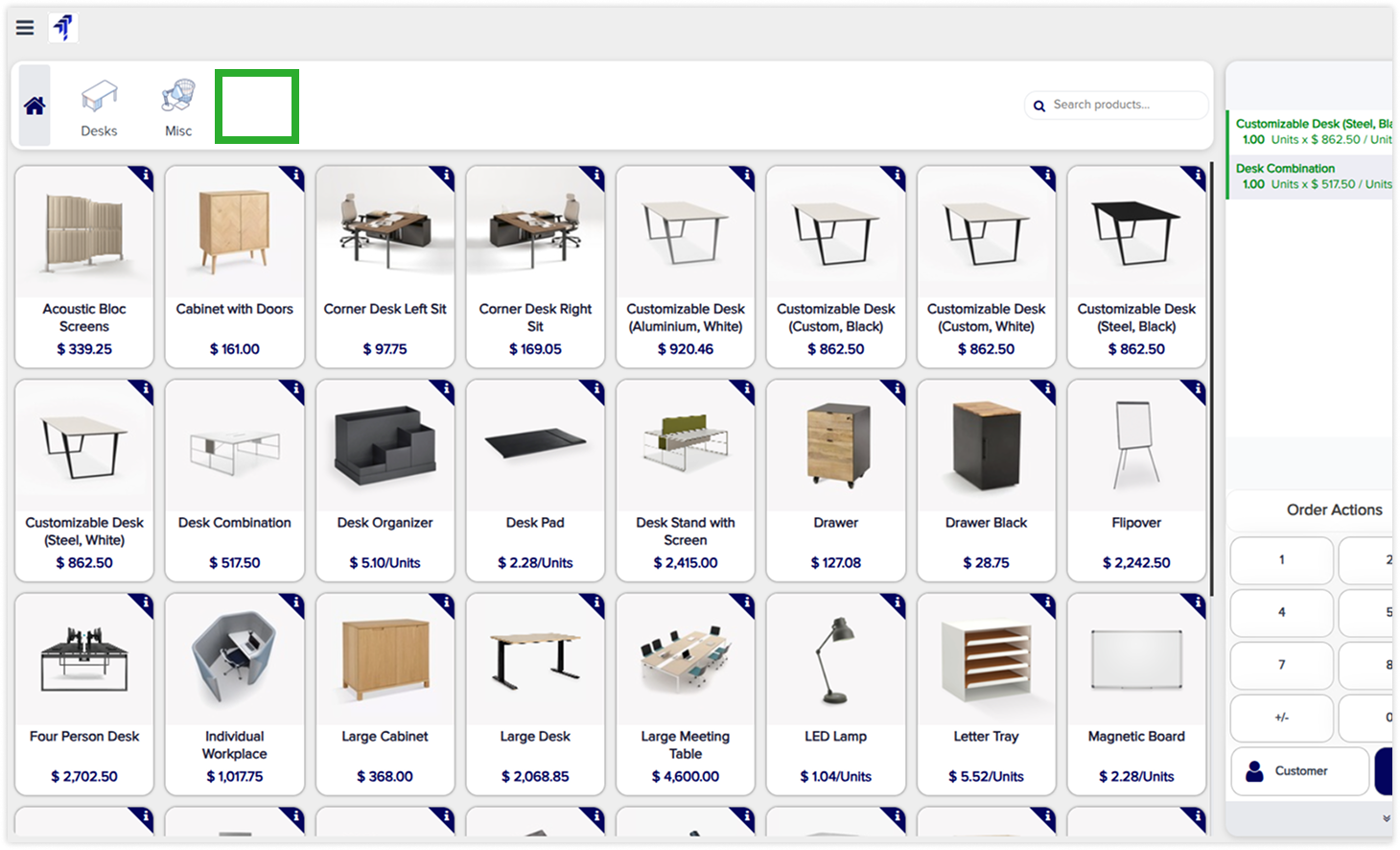
Restrict pos categories
-
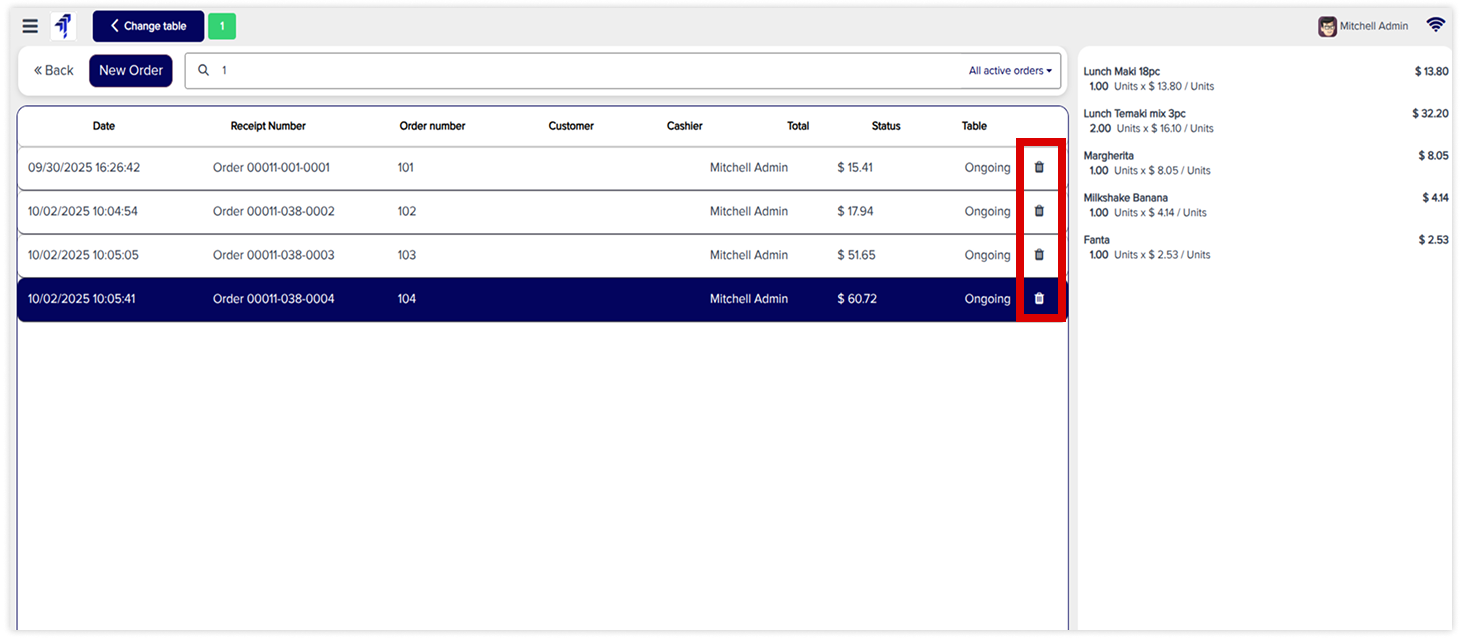
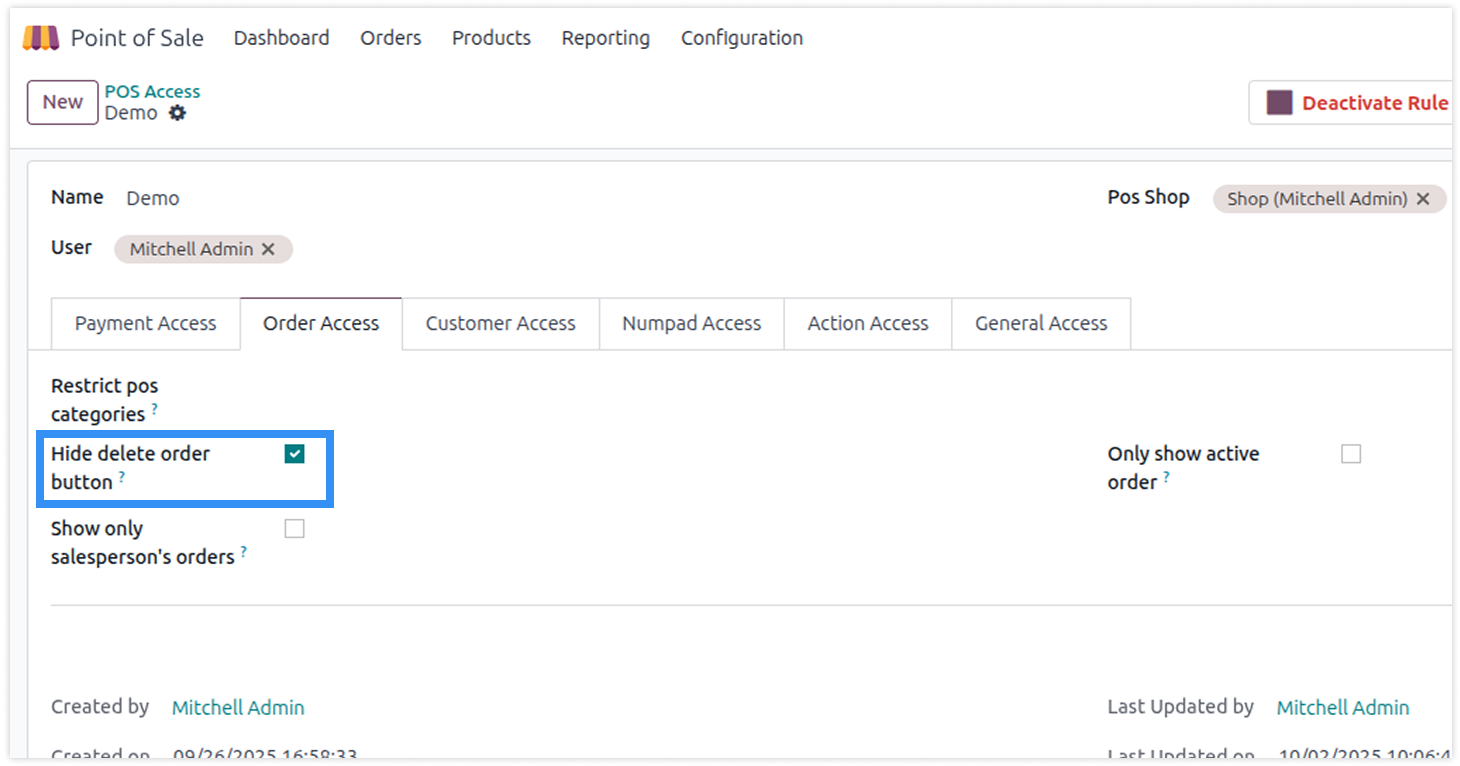
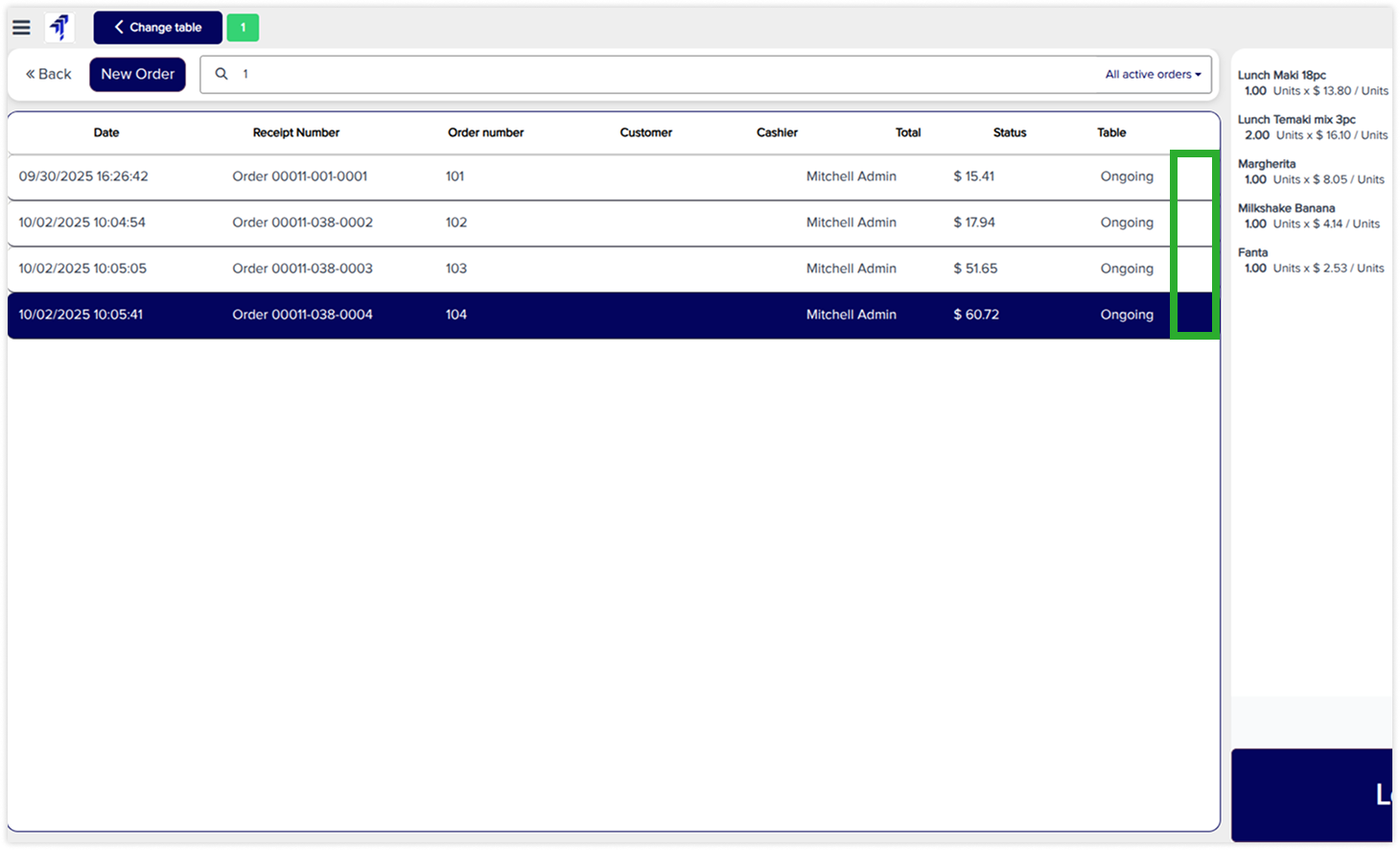
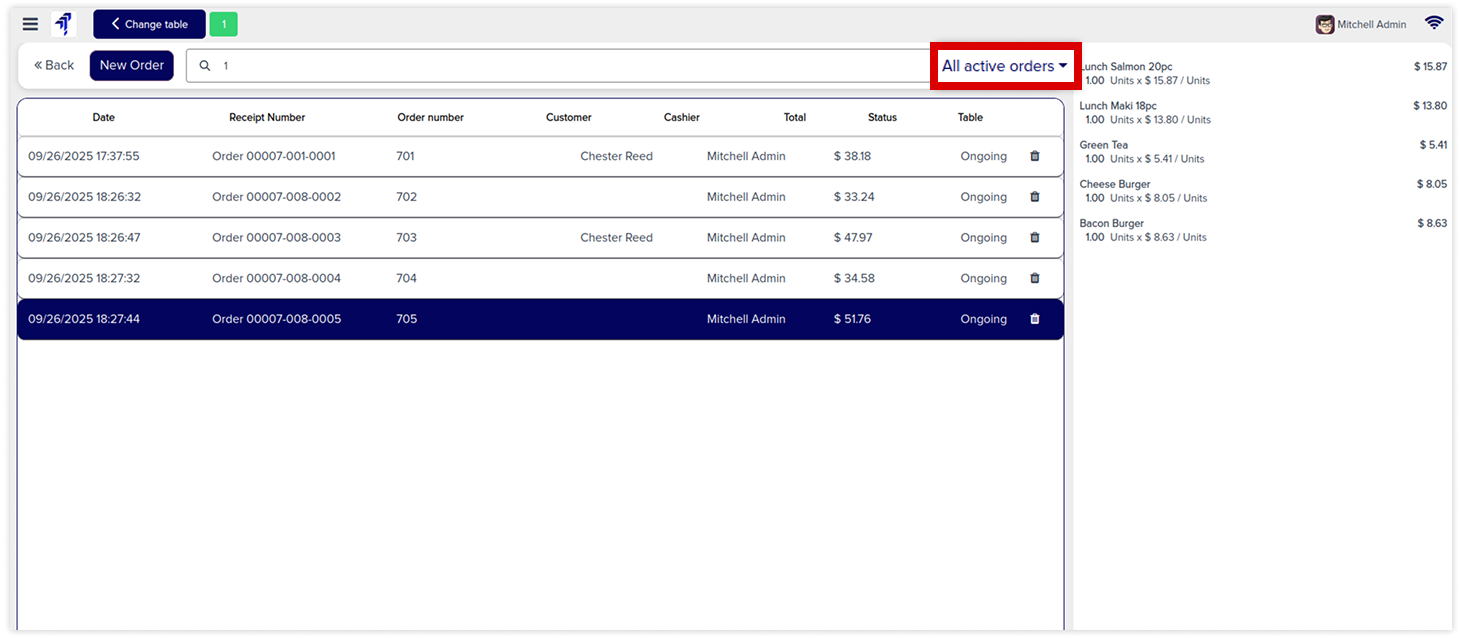
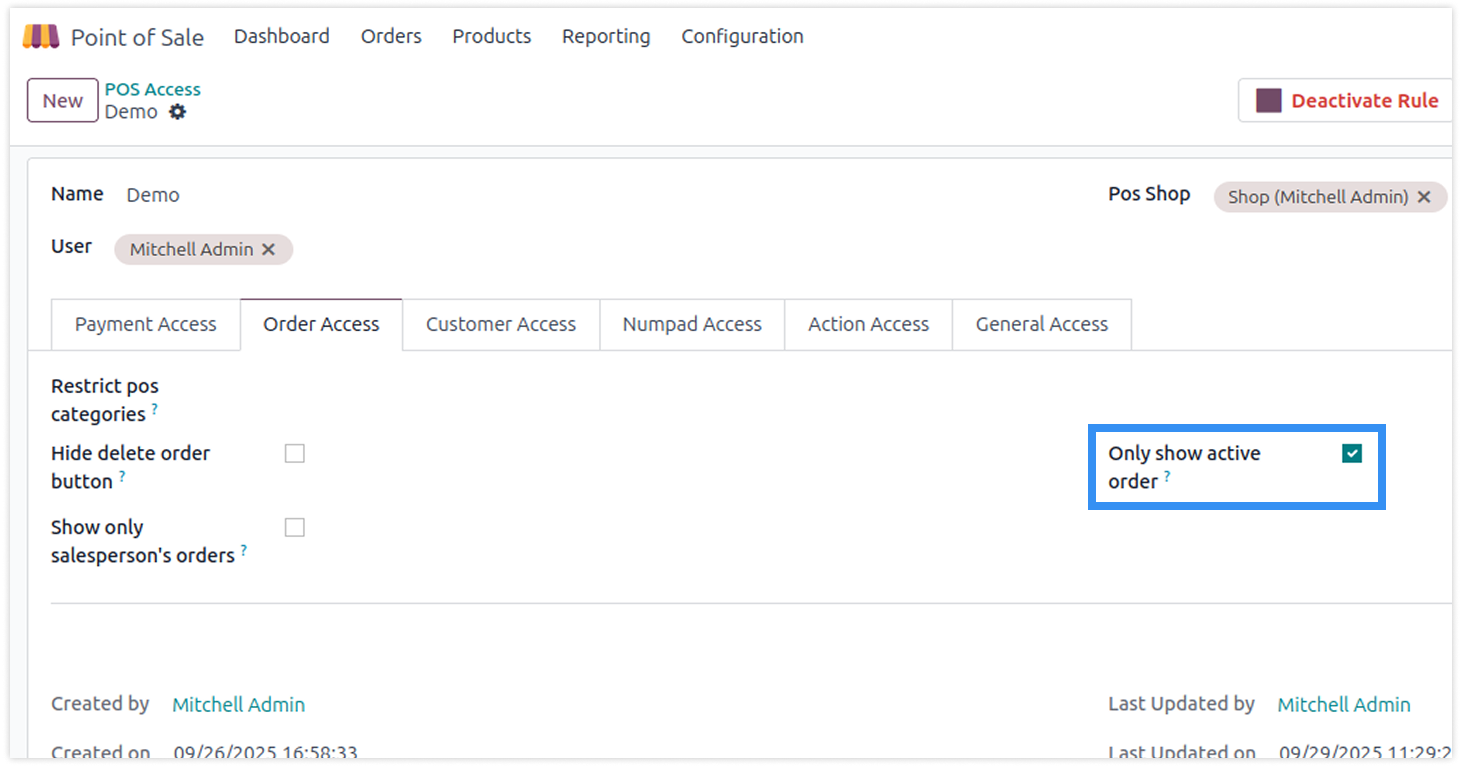
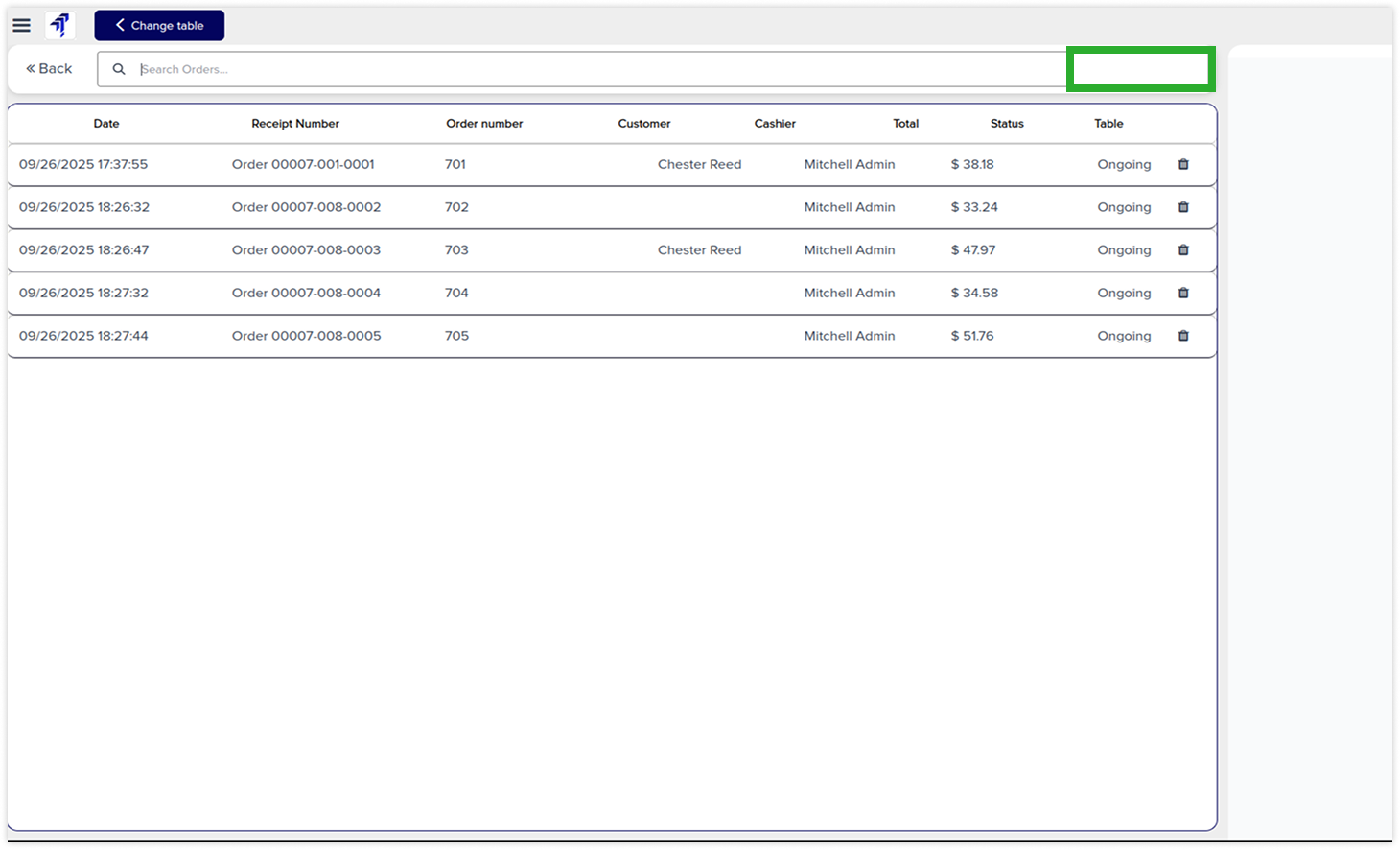
The order access tab allows you create rules for specific users to hide menu categories, delete and activate order buttons with a single click.
-
Click on image to Zoom out.
-
Click on image to zoom out.
-
Click on image to zoom out.
Hide delete order button
-
Click on image to Zoom out.
-
Click on image to zoom out.
-
Click on image to zoom out.
Only show active order
-
Click on image to Zoom out.
-
Click on image to zoom out.
-
Click on image to zoom out.
Customer access rights hide the customer creation and save buttons.
You must have technical knowledge.
Not possible to create user-wise access rules.
Here is the solution
No need to have technical knowledge, Only you have to understand our module features and you will be rock.
Work in both Enterprise and Community versions(14,15,16,17,18,19).
How to setup access rights for the customer
Here we have explained some examples step by step.
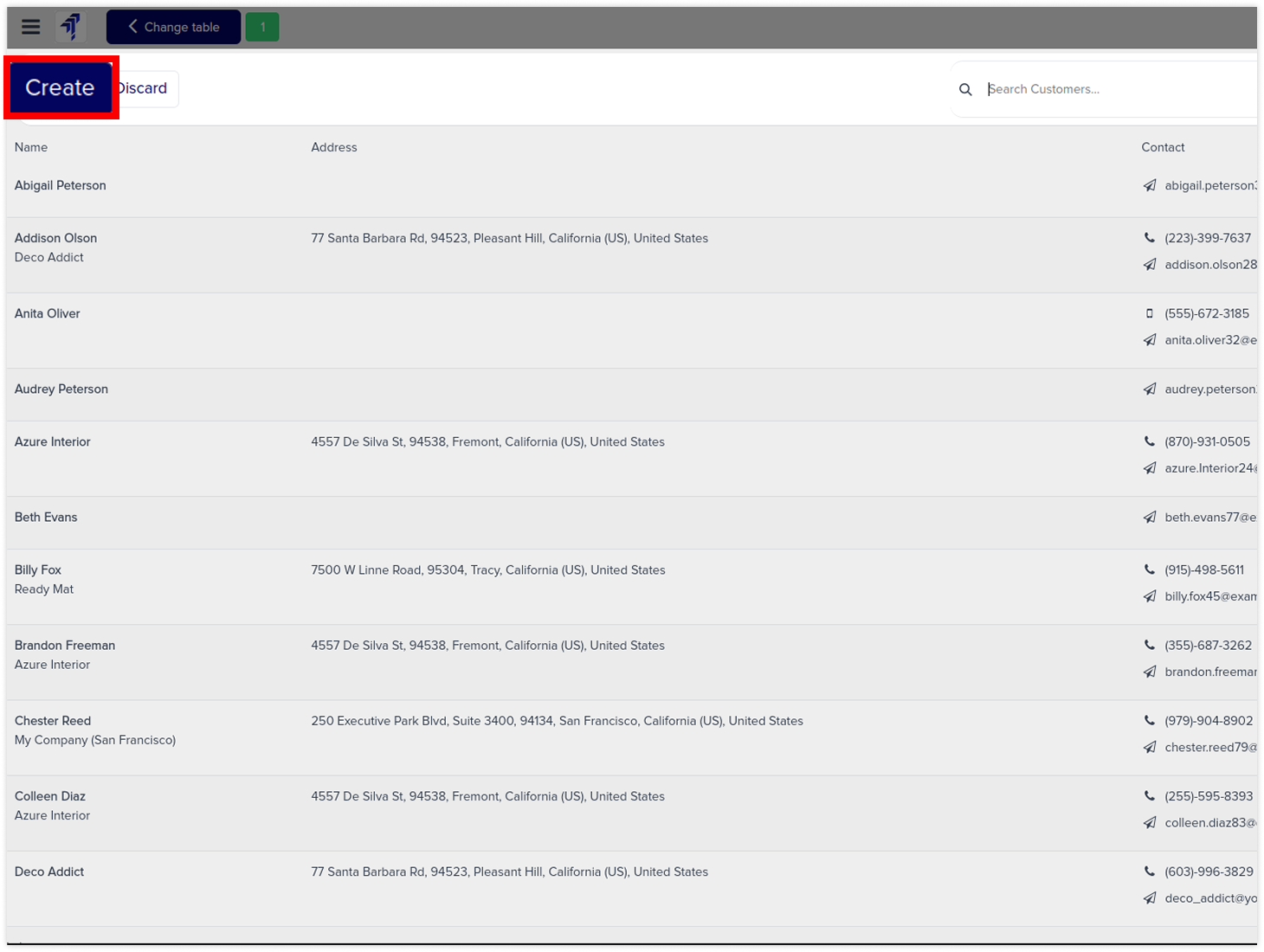
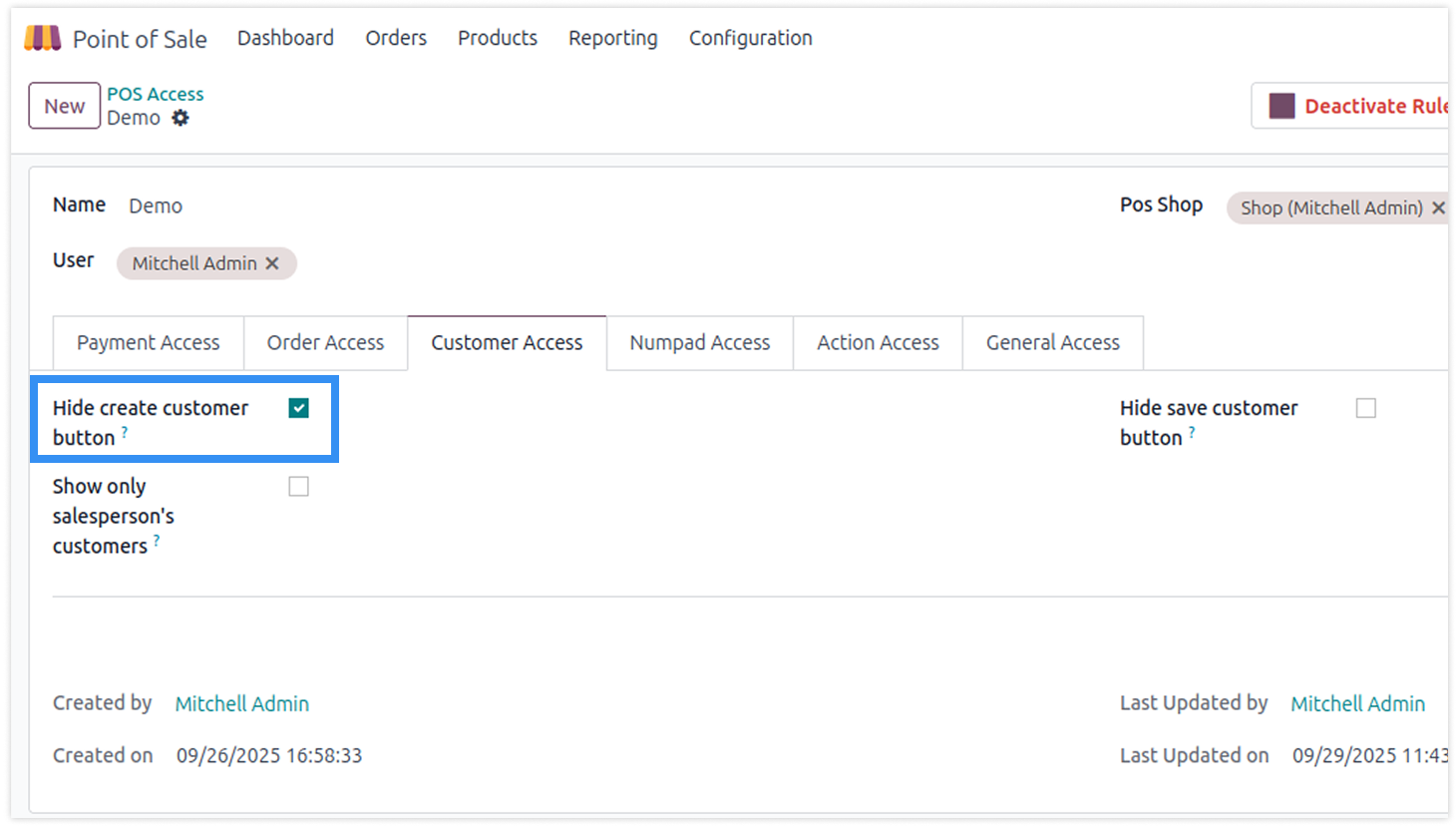
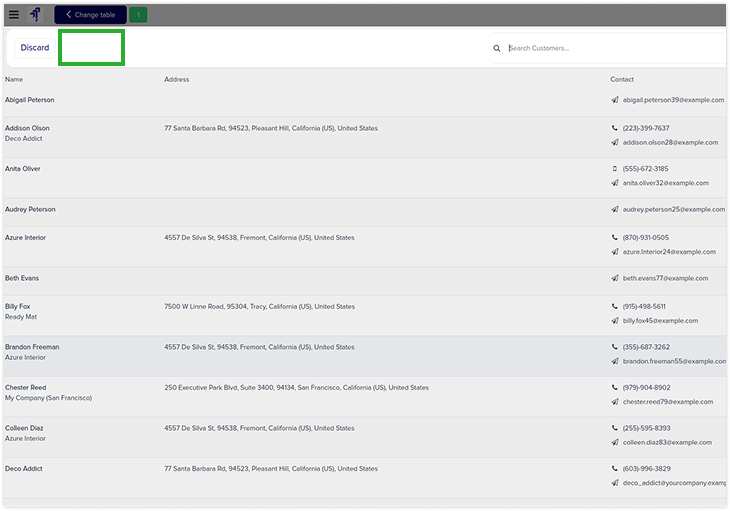
Hide create customer button
-
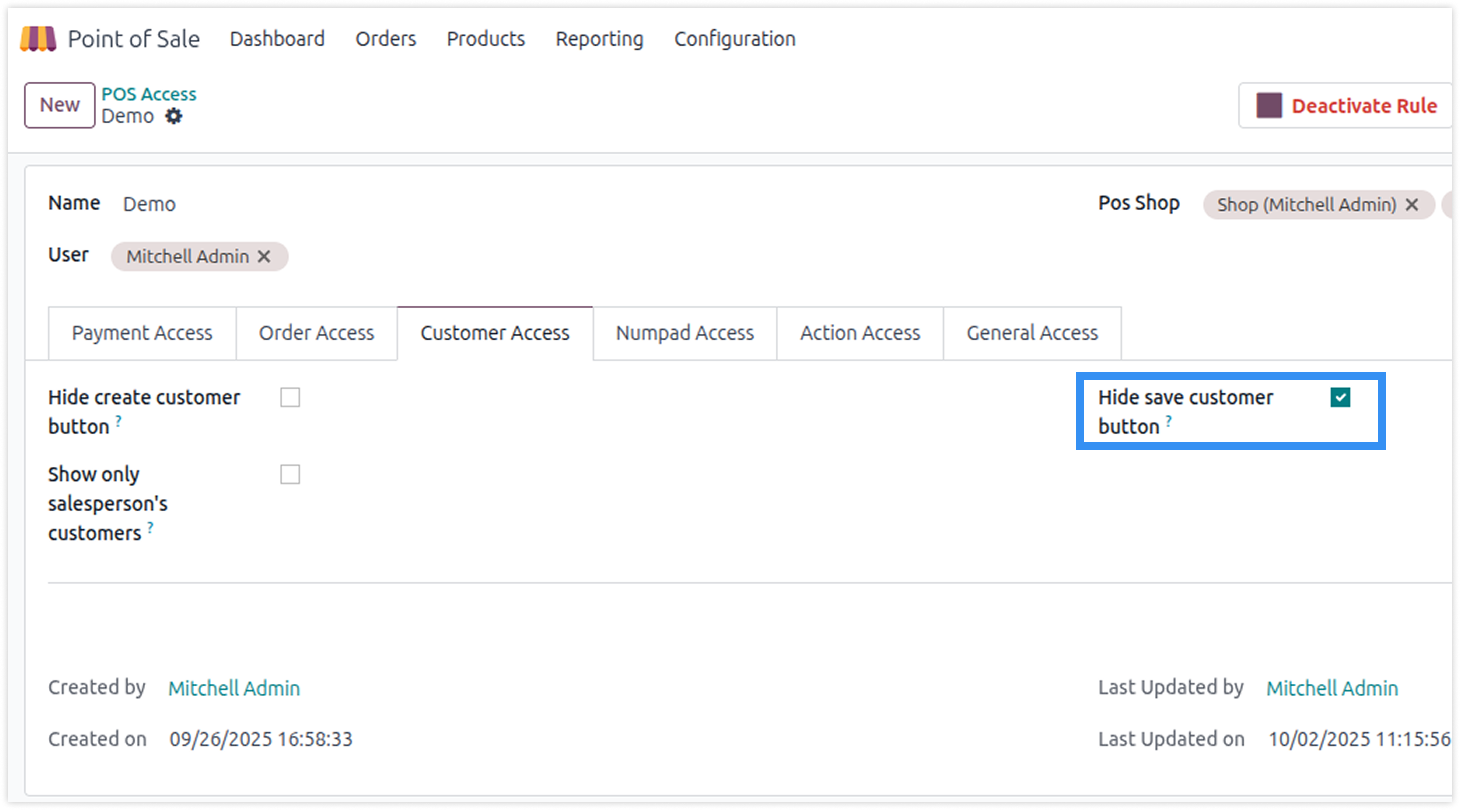
You can configure customer-related access rights in the customer access tab.
-
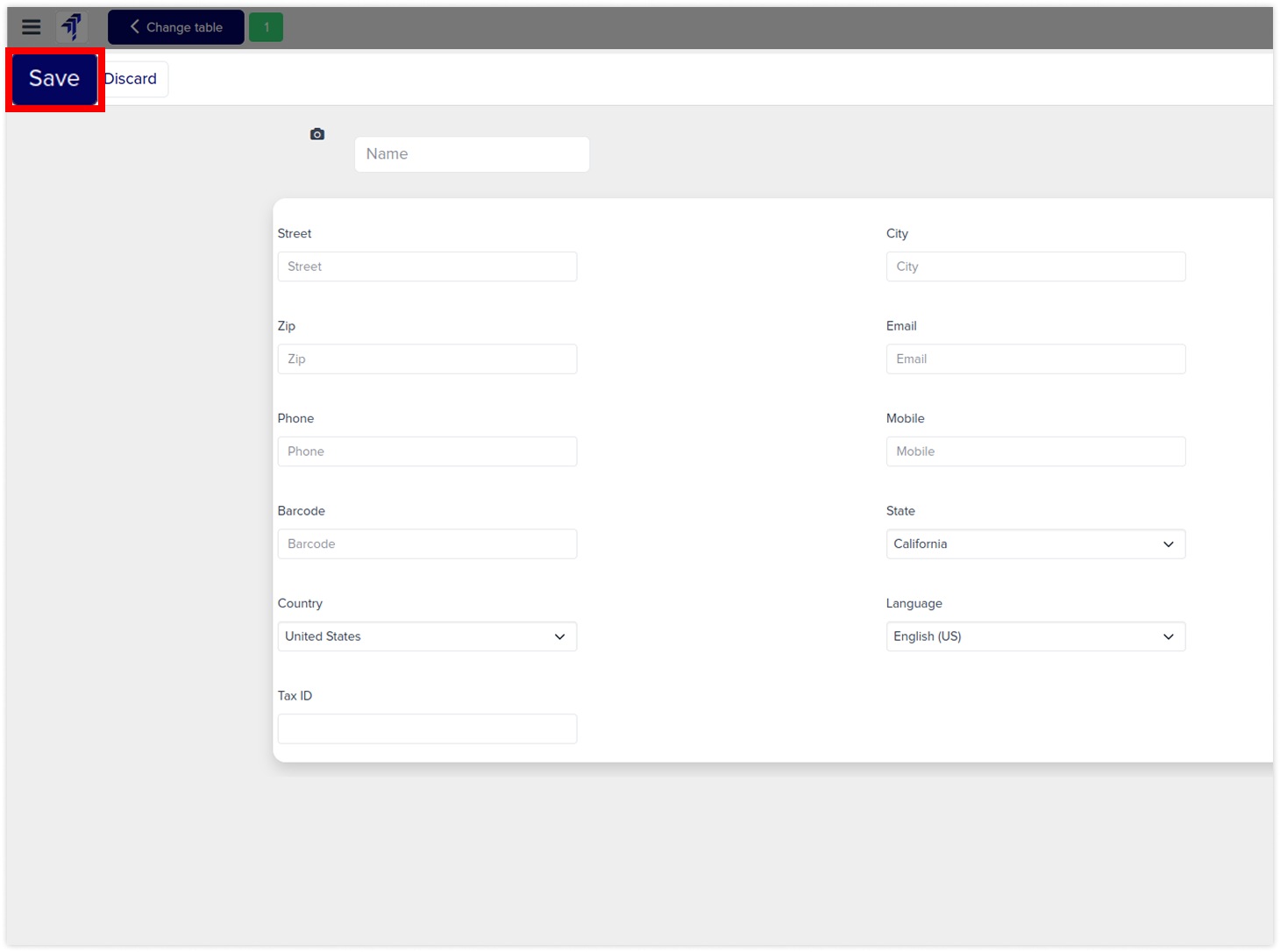
Hide buttons like customer, create, and save from specific users to keep customer details private.
-
Click on image to Zoom out.
-
Click on image to zoom out.
-
Click on image to zoom out.
Hide save customer button
-
Click on image to Zoom out.
-
Click on image to zoom out.
-
Click on image to zoom out.
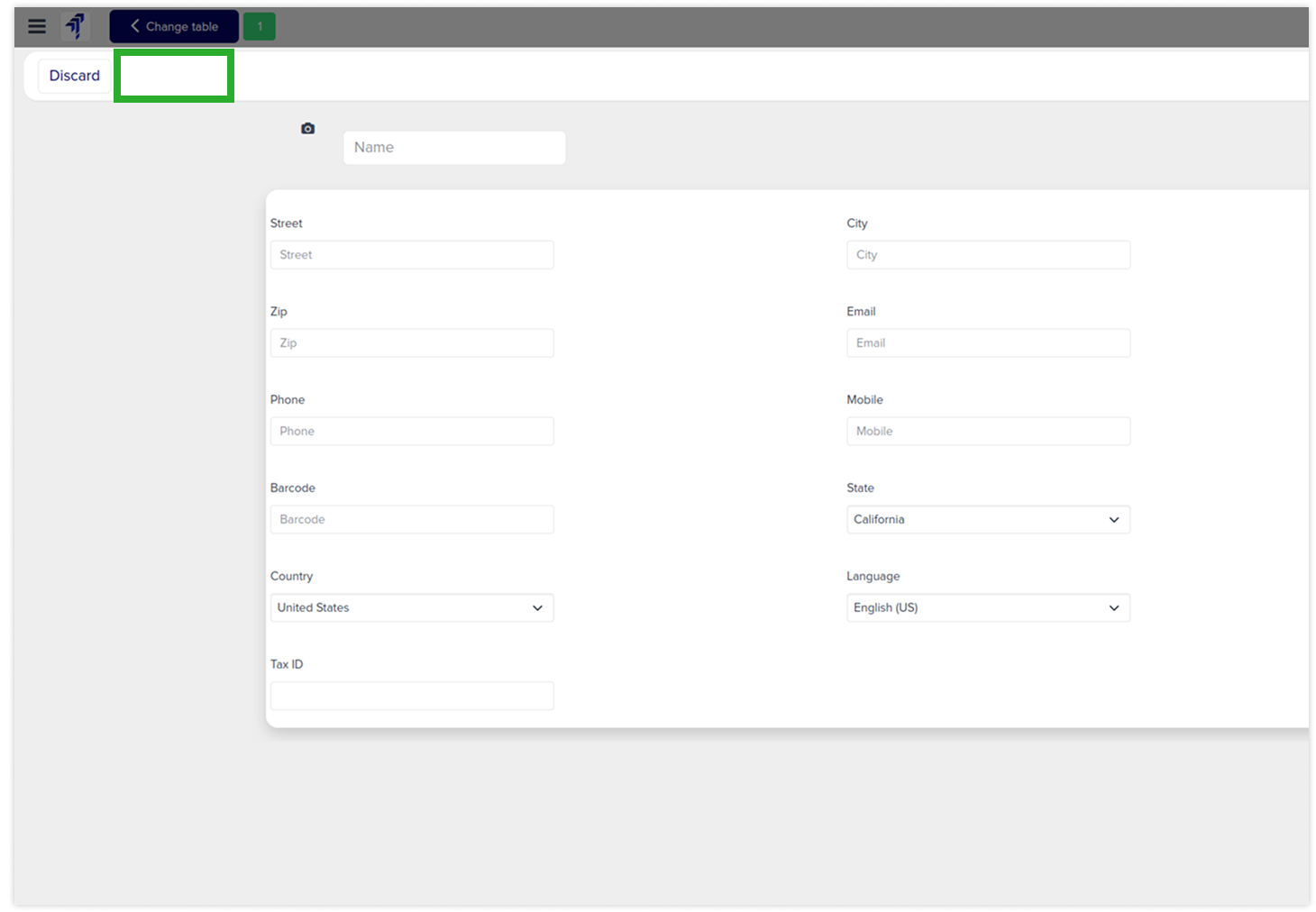
Numpad access rights hide numpad buttons and disable the ±, price, quantity, and discount buttons.
You must have technical knowledge.
Not possible to create user-wise access rules.
Here is the solution
No need to have technical knowledge, Only you have to understand our module features and you will be rock.
Work in both Enterprise and Community versions(14,15,16,17,18,19).
How to setup access rights for the numpad
Here we have explained some examples step by step.
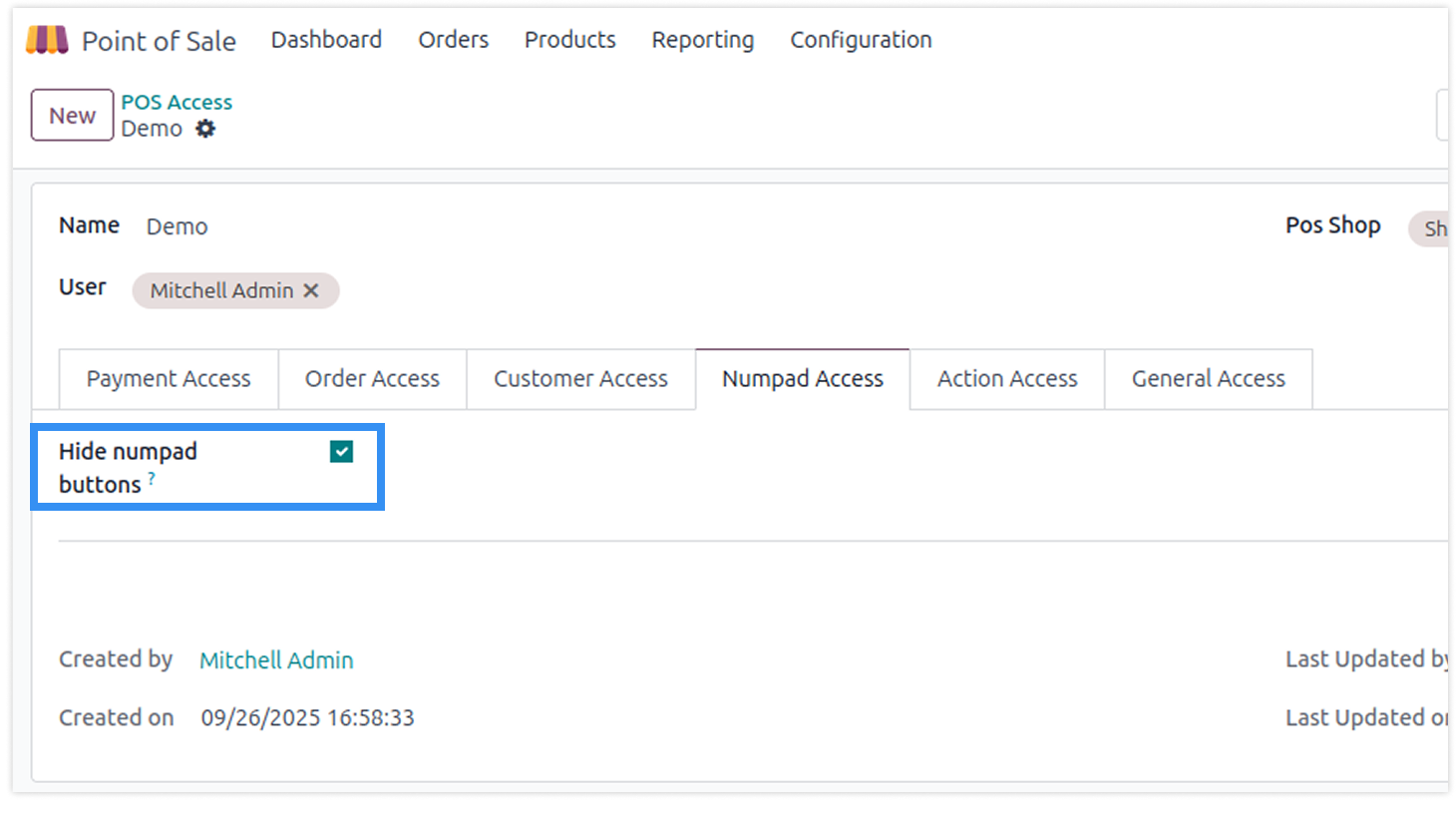
Hide numpad buttons
-
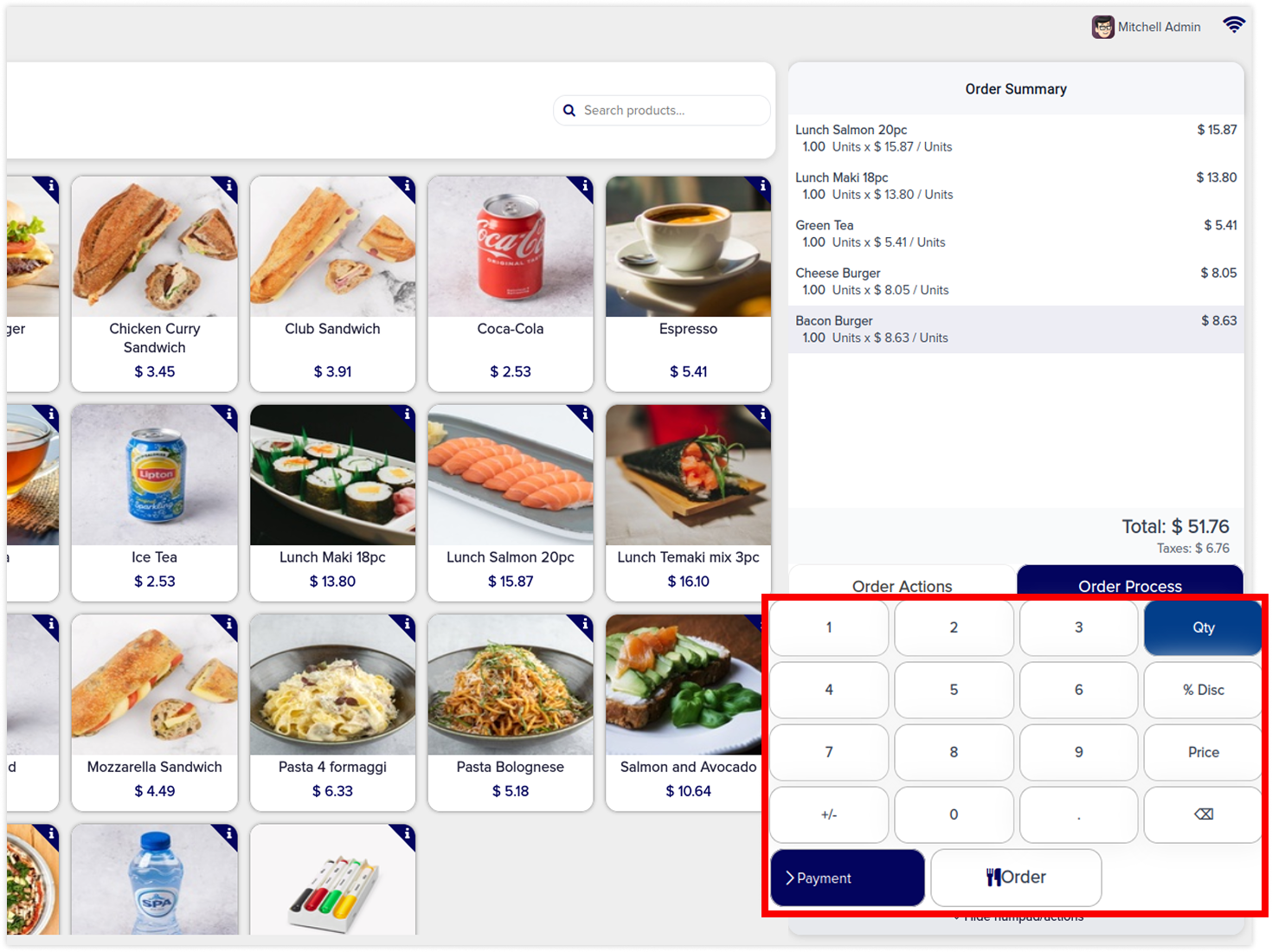
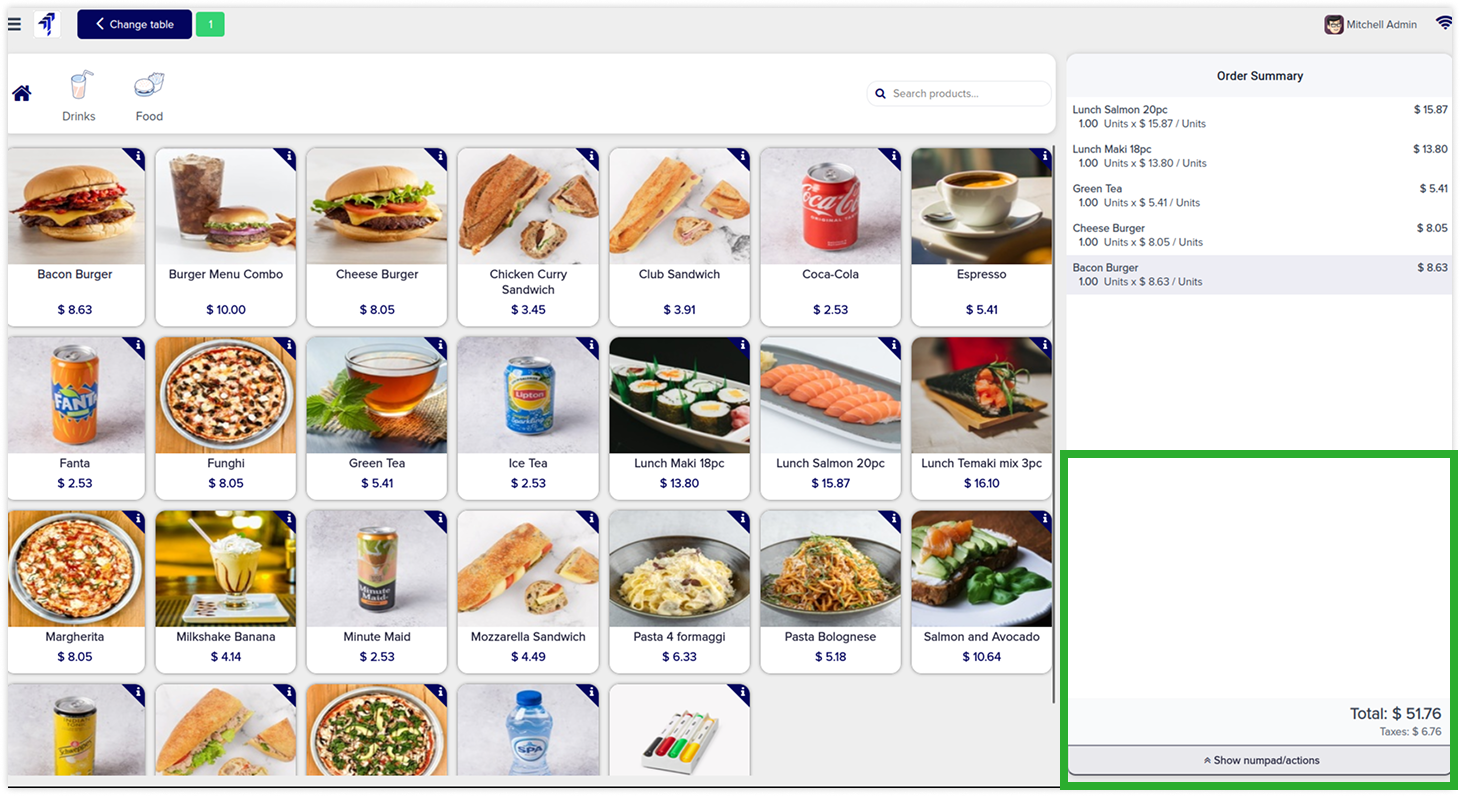
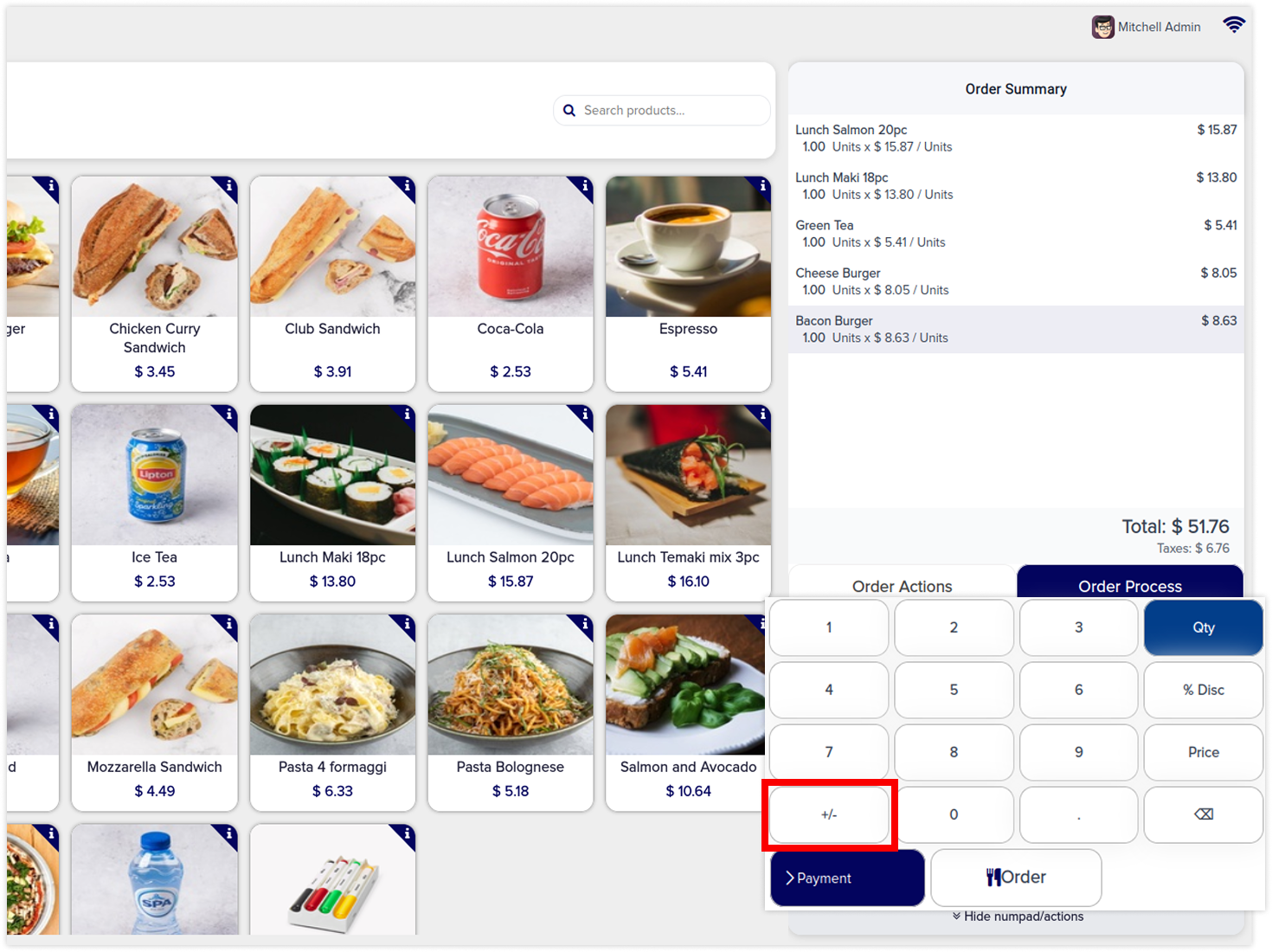
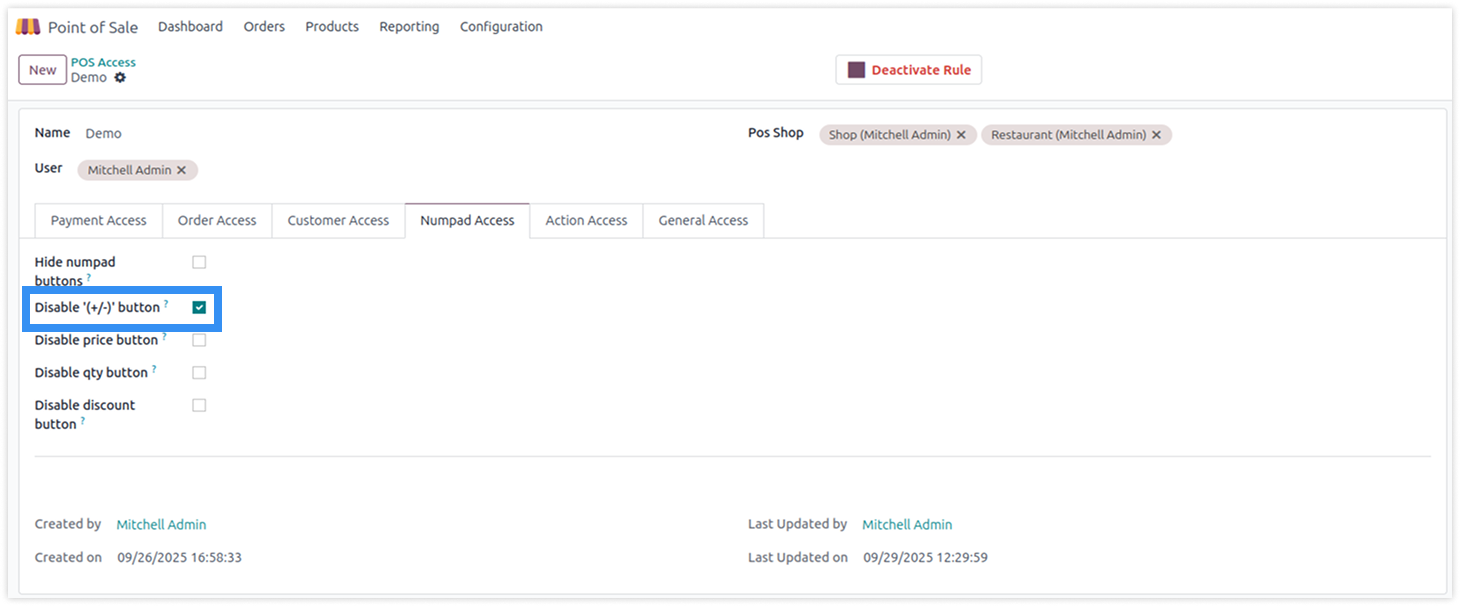
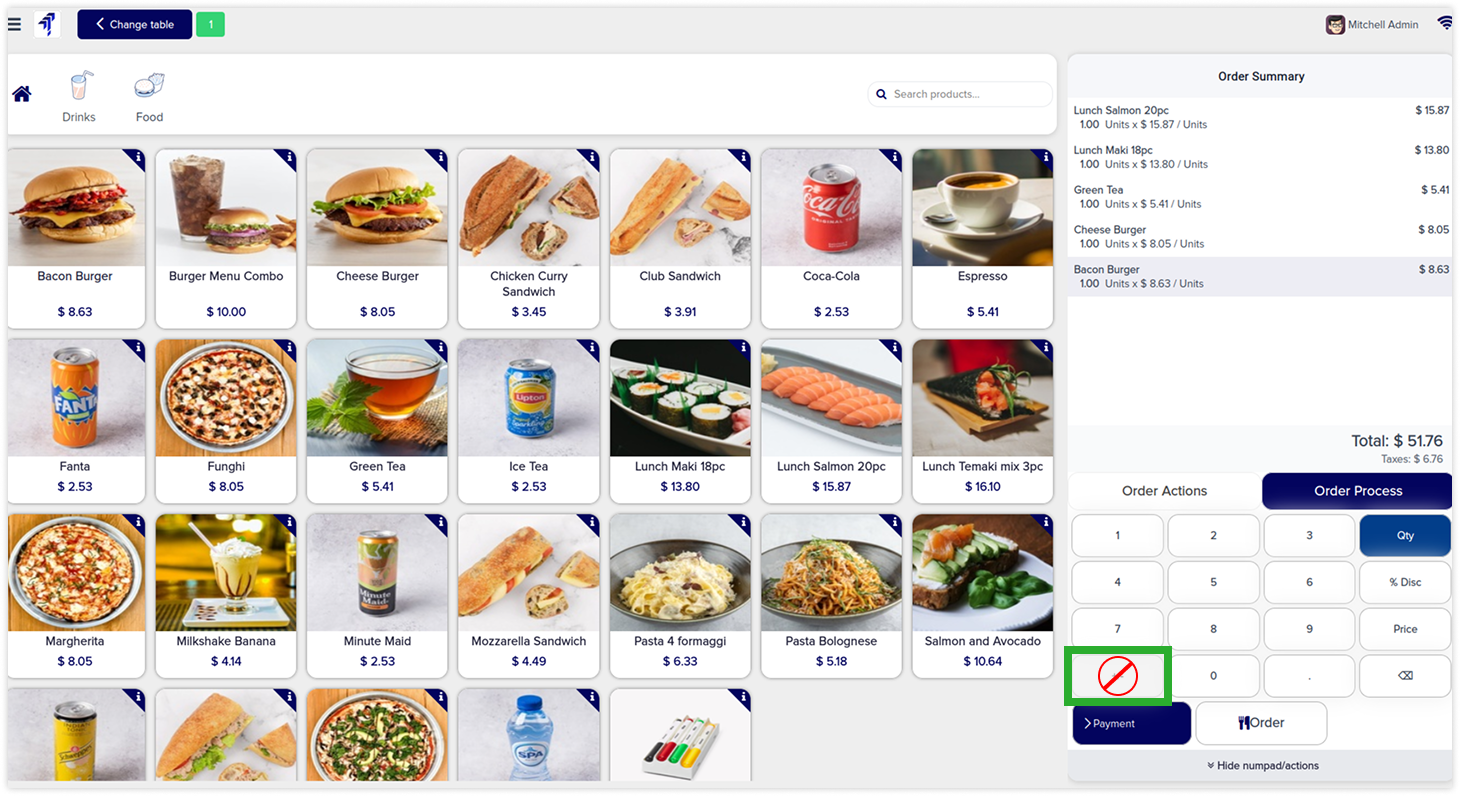
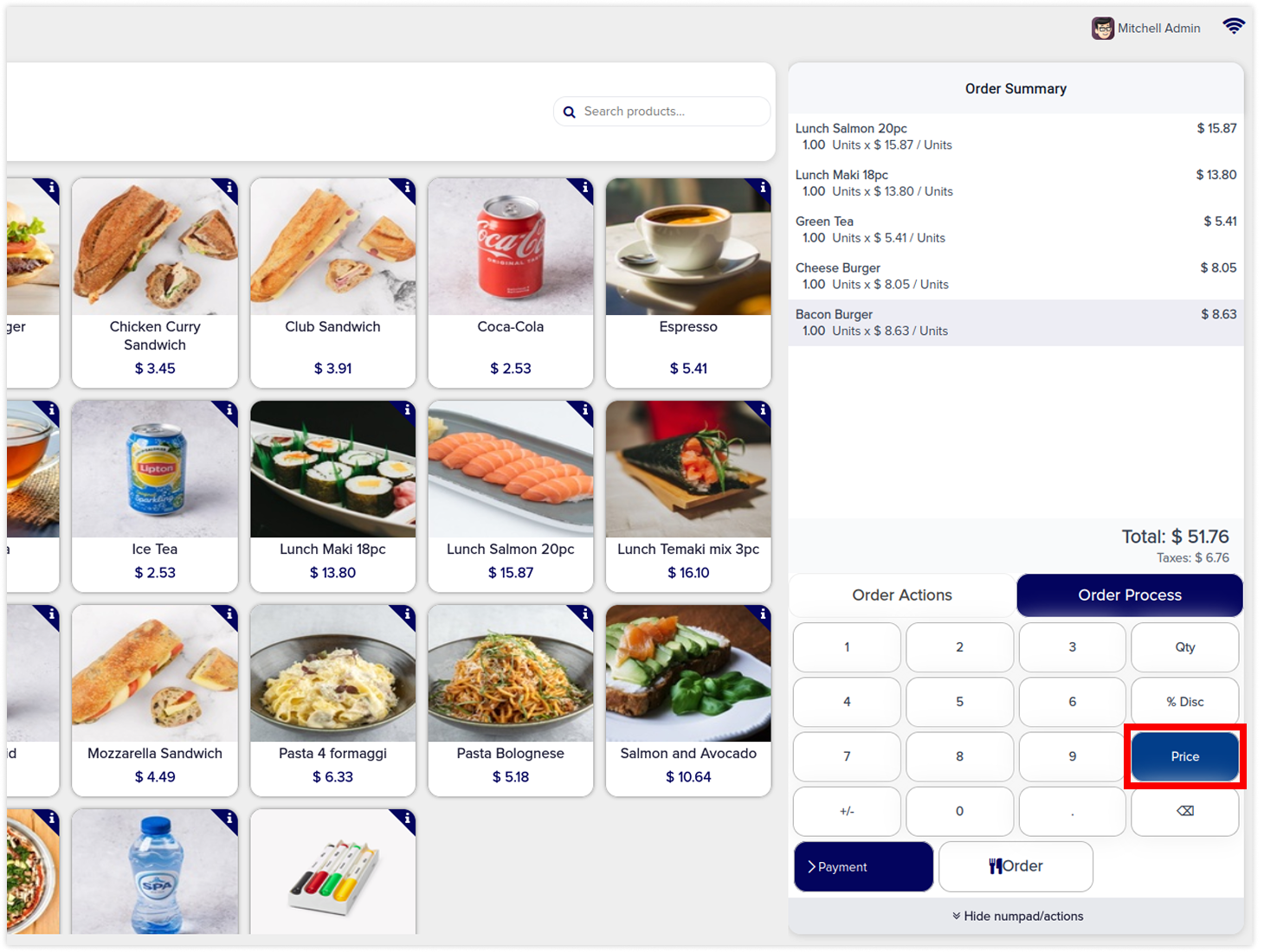
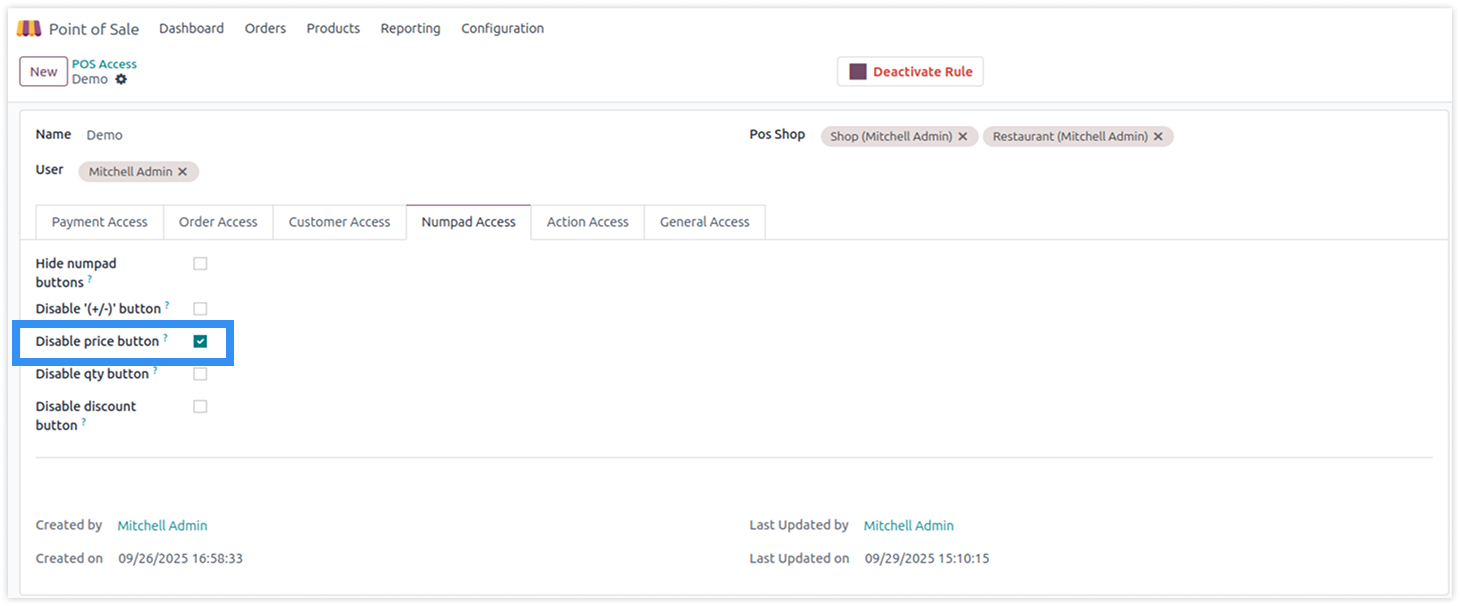
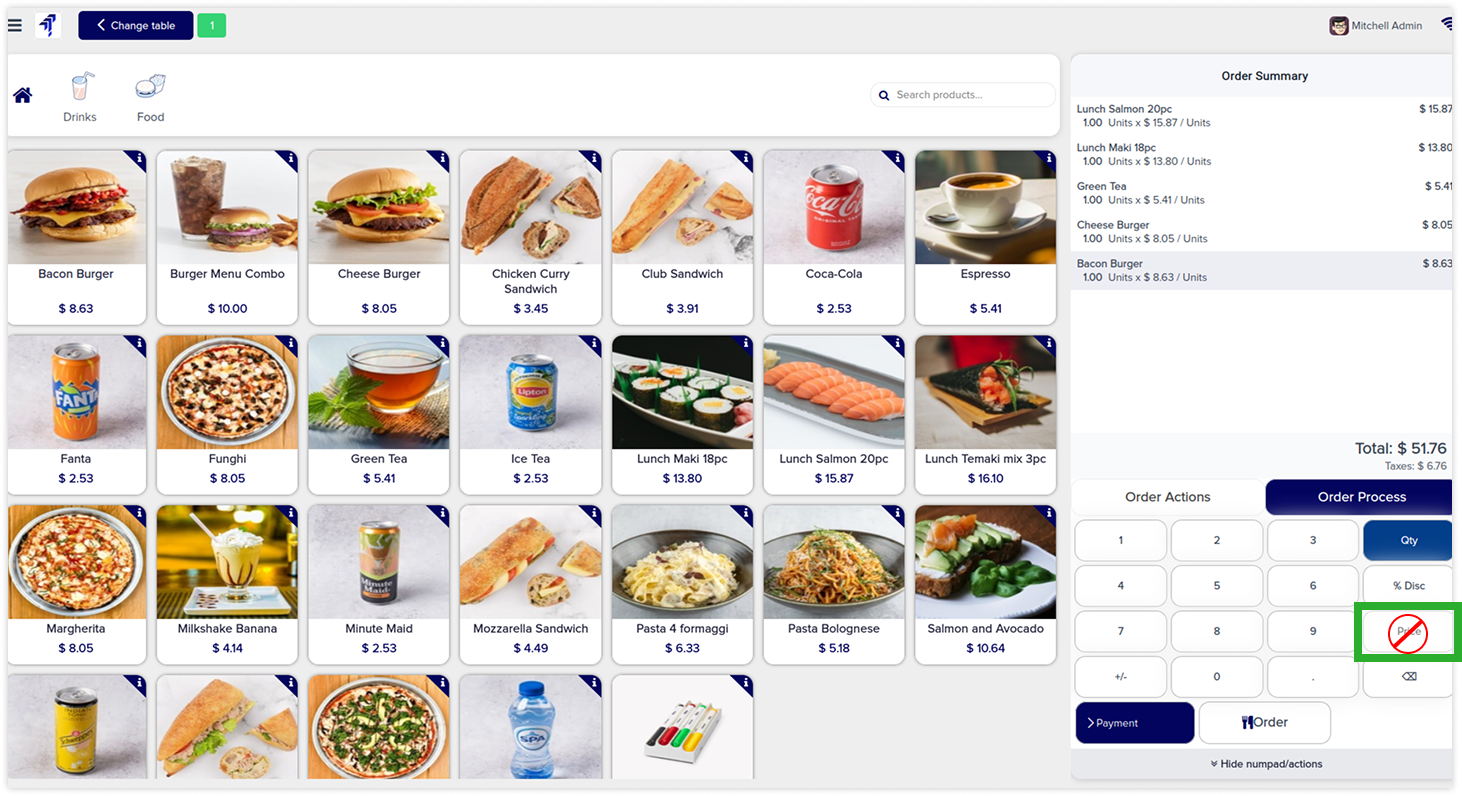
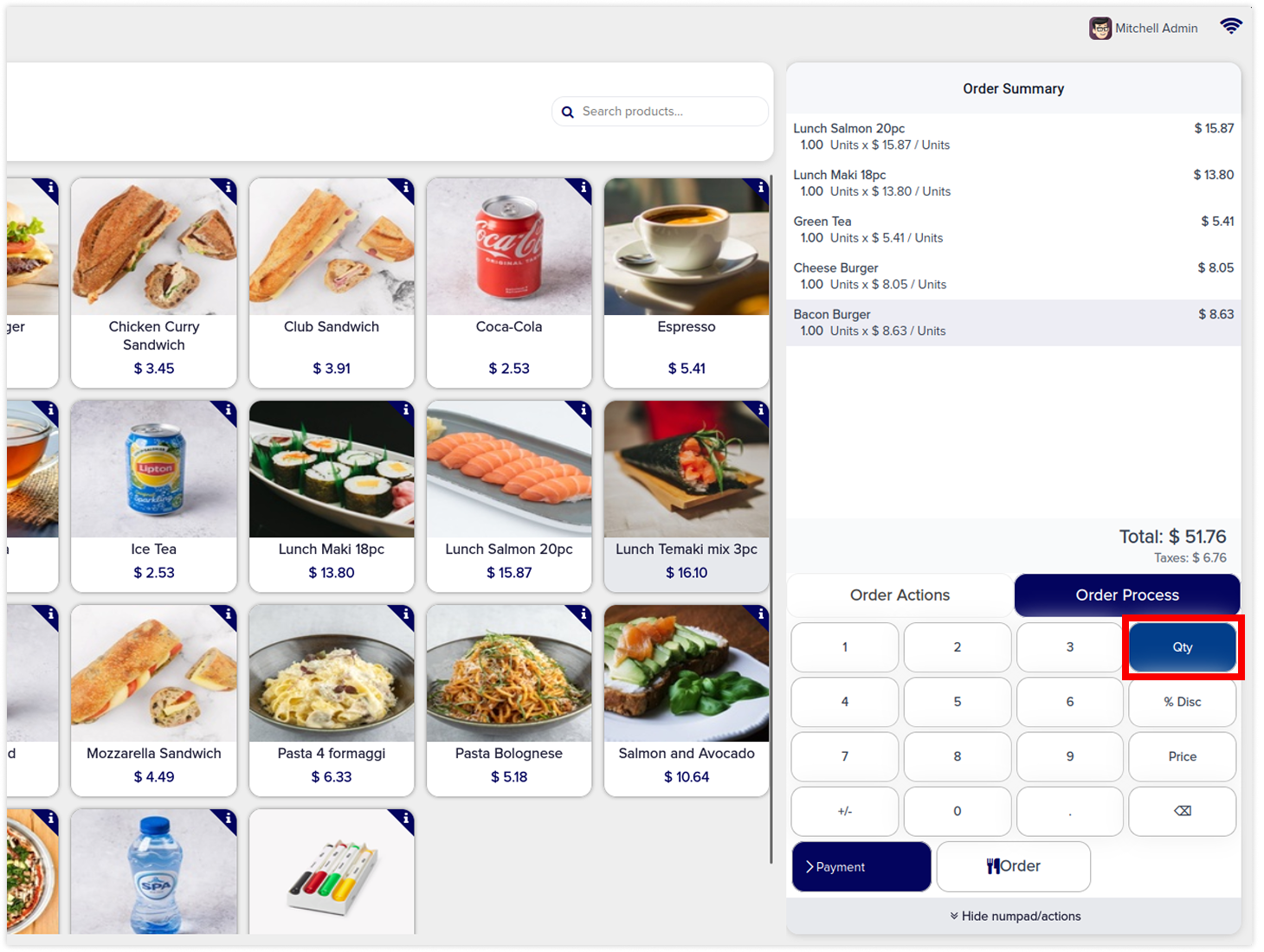
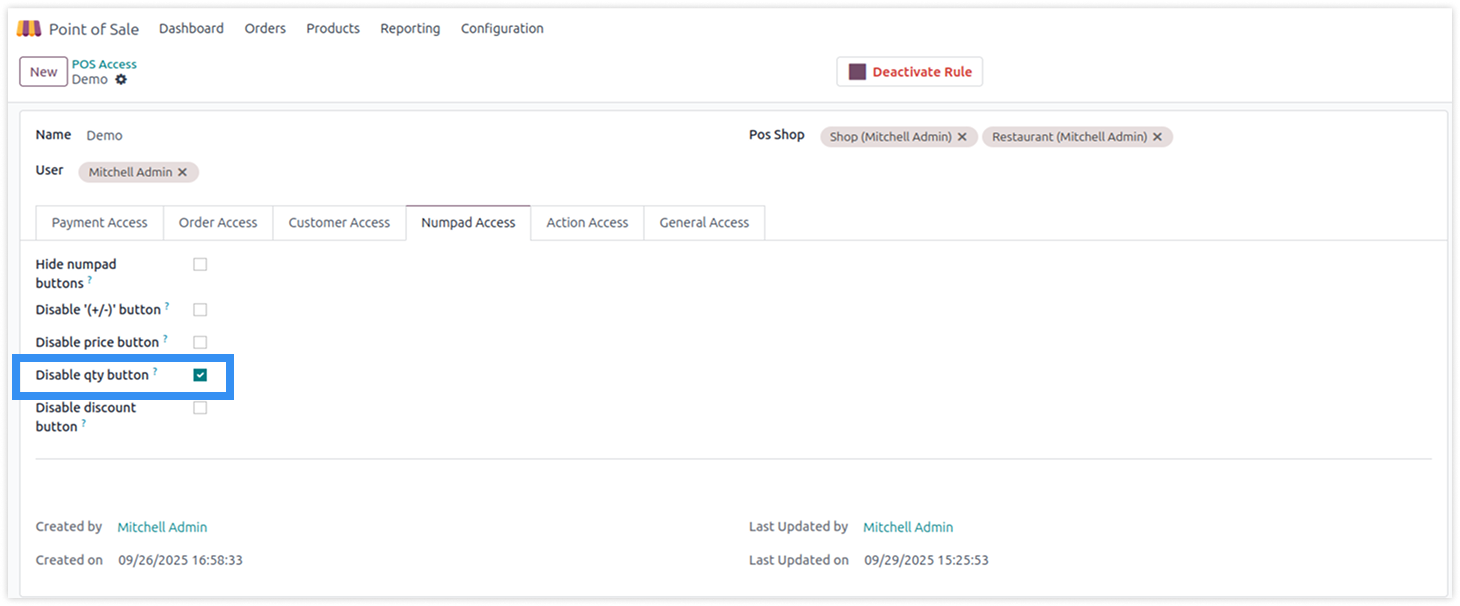
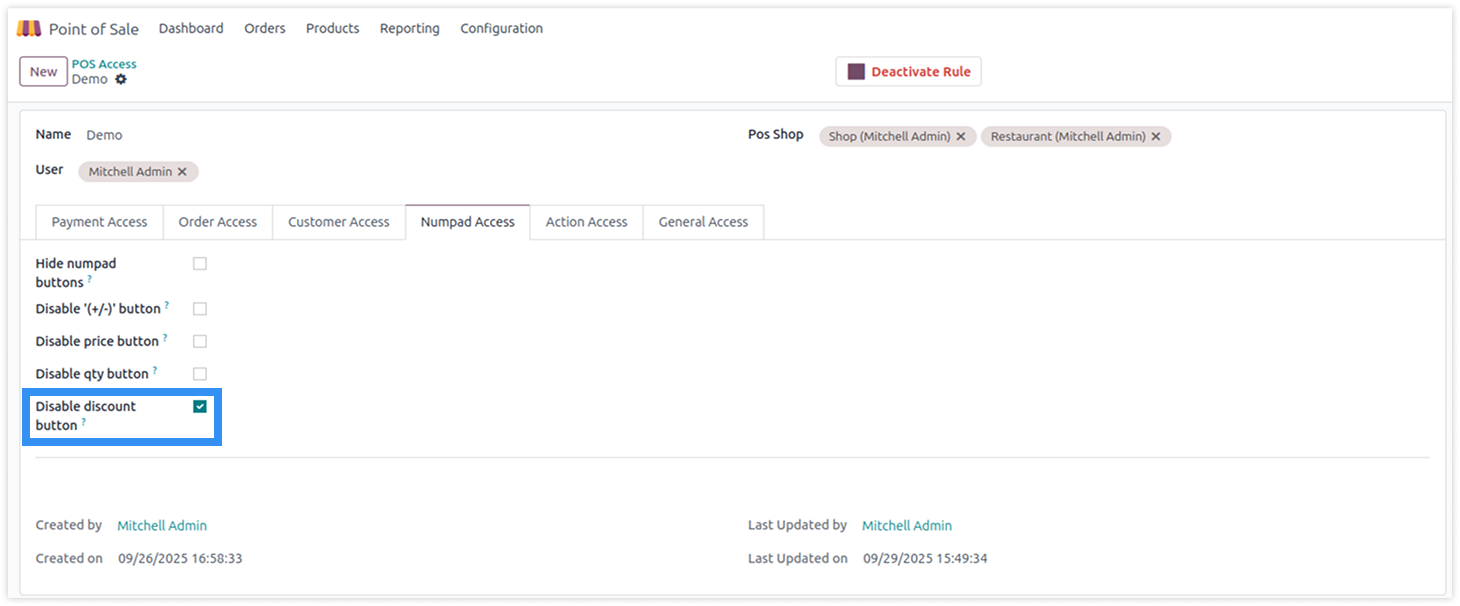
This tab allows you to manage user-specific numpad access rights. Hide the entire numpad or disable certain numpad features such as price, quantity, discount, and minus/plus (+/-).
-
Click on image to Zoom out.
-
Click on image to zoom out.
-
Click on image to zoom out.
Disable '(+/-)' button
-
Click on image to Zoom out.
-
Click on image to zoom out.
-
Click on image to zoom out.
Disable price button
-
Click on image to Zoom out.
-
Click on image to zoom out.
-
Click on image to zoom out.
Disable qty button
-
Click on image to Zoom out.
-
Click on image to zoom out.
-
Click on image to zoom out.
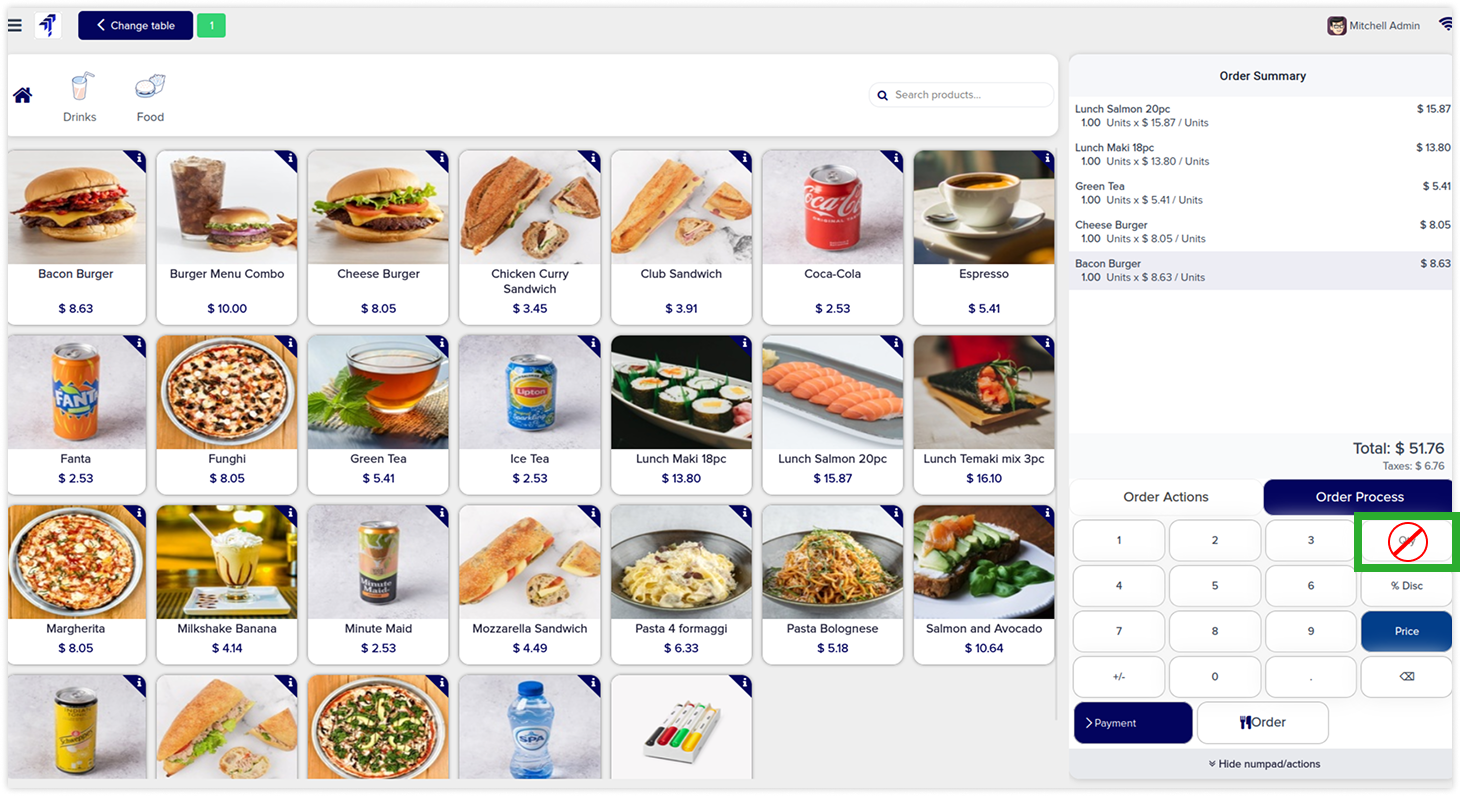
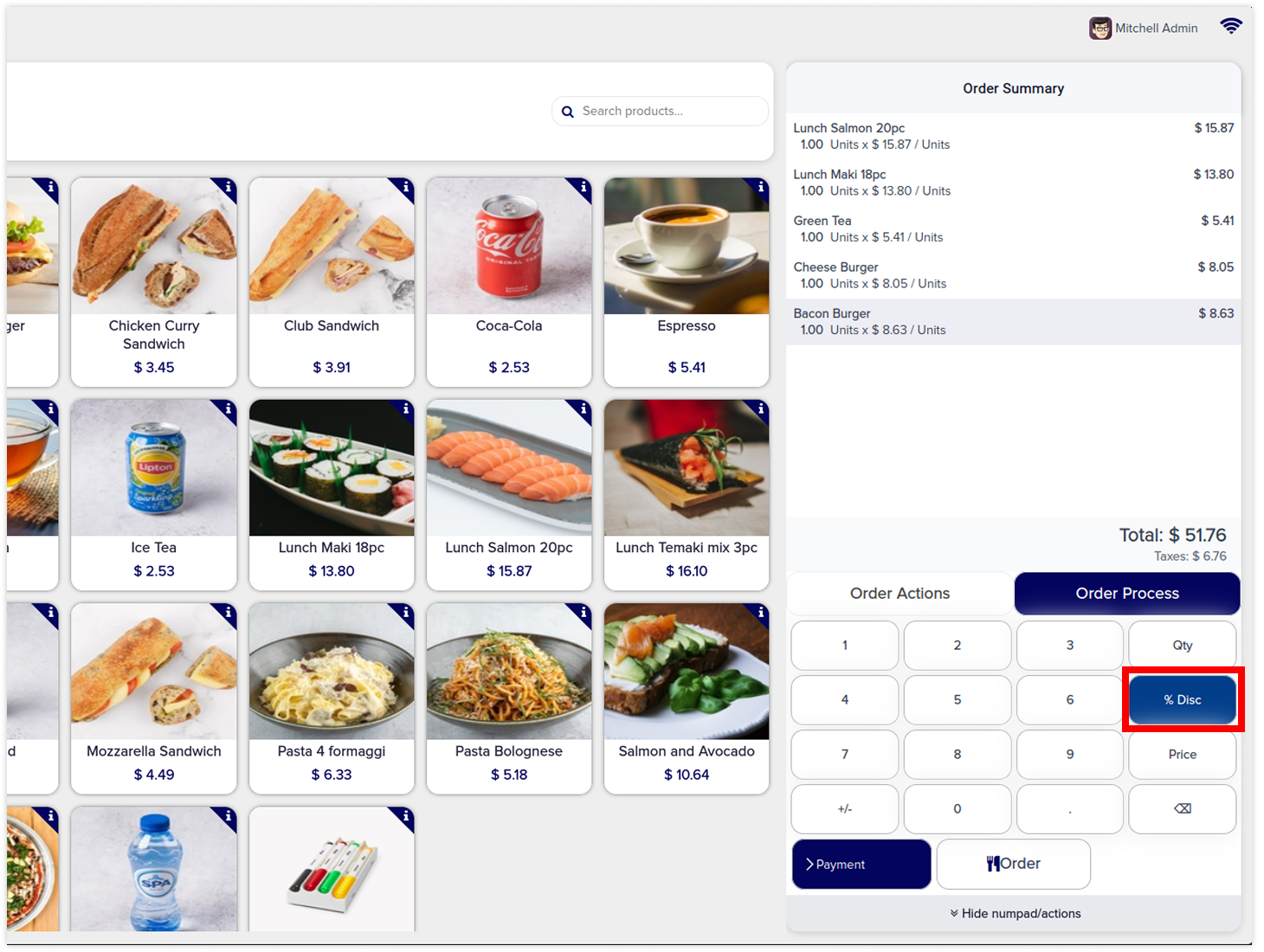
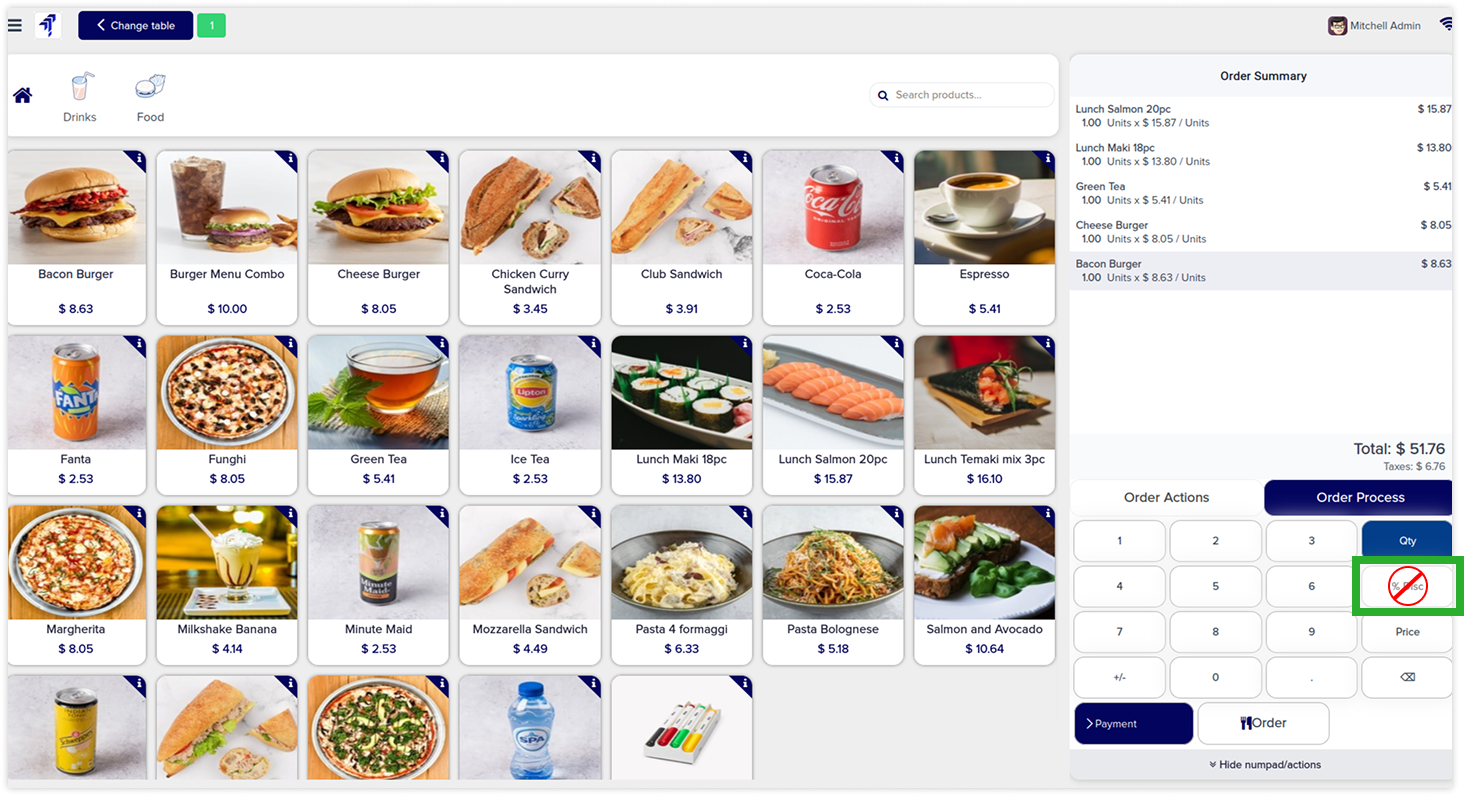
Disable discount button
-
Click on image to Zoom out.
-
Click on image to zoom out.
-
Click on image to zoom out.
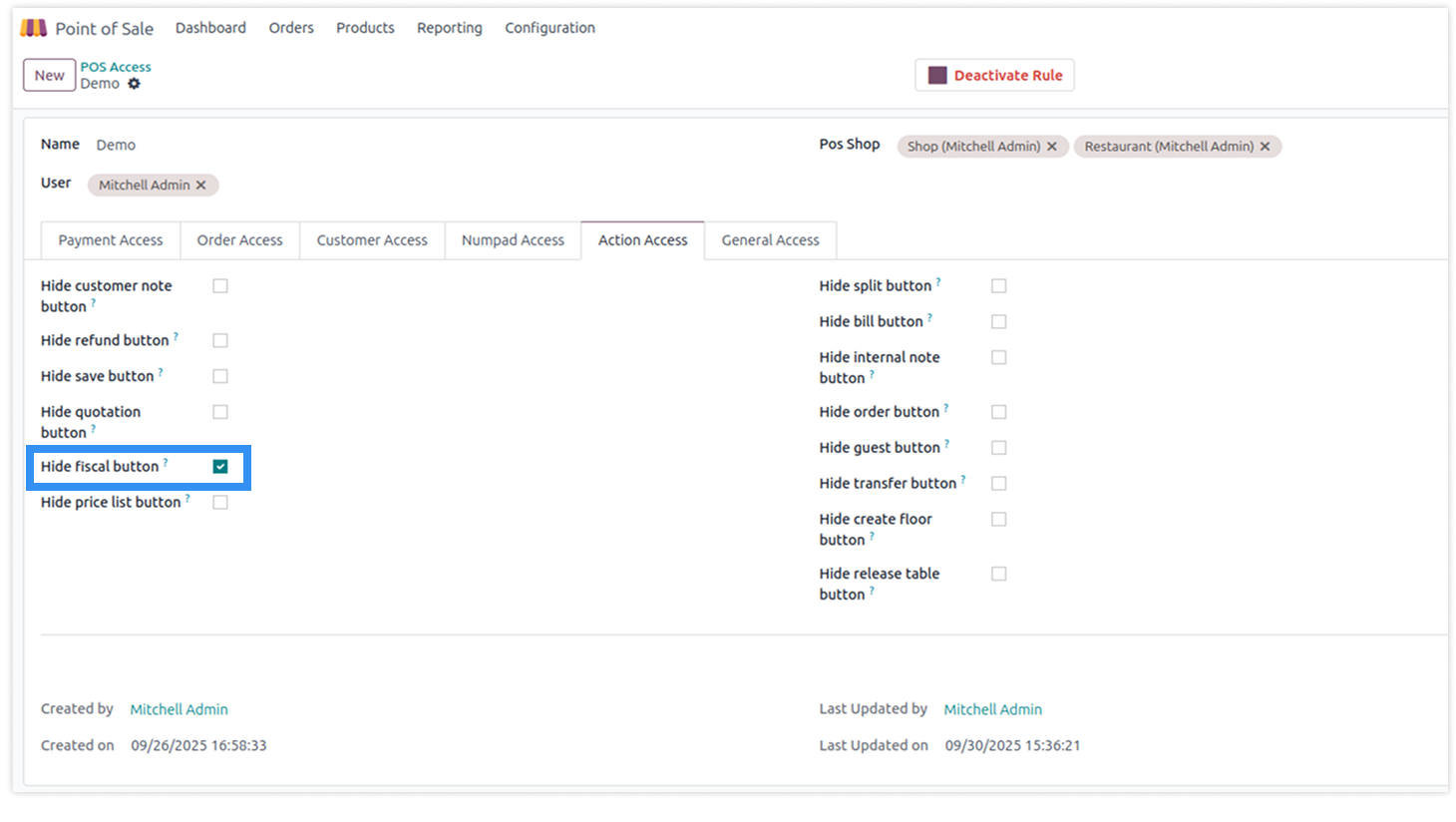
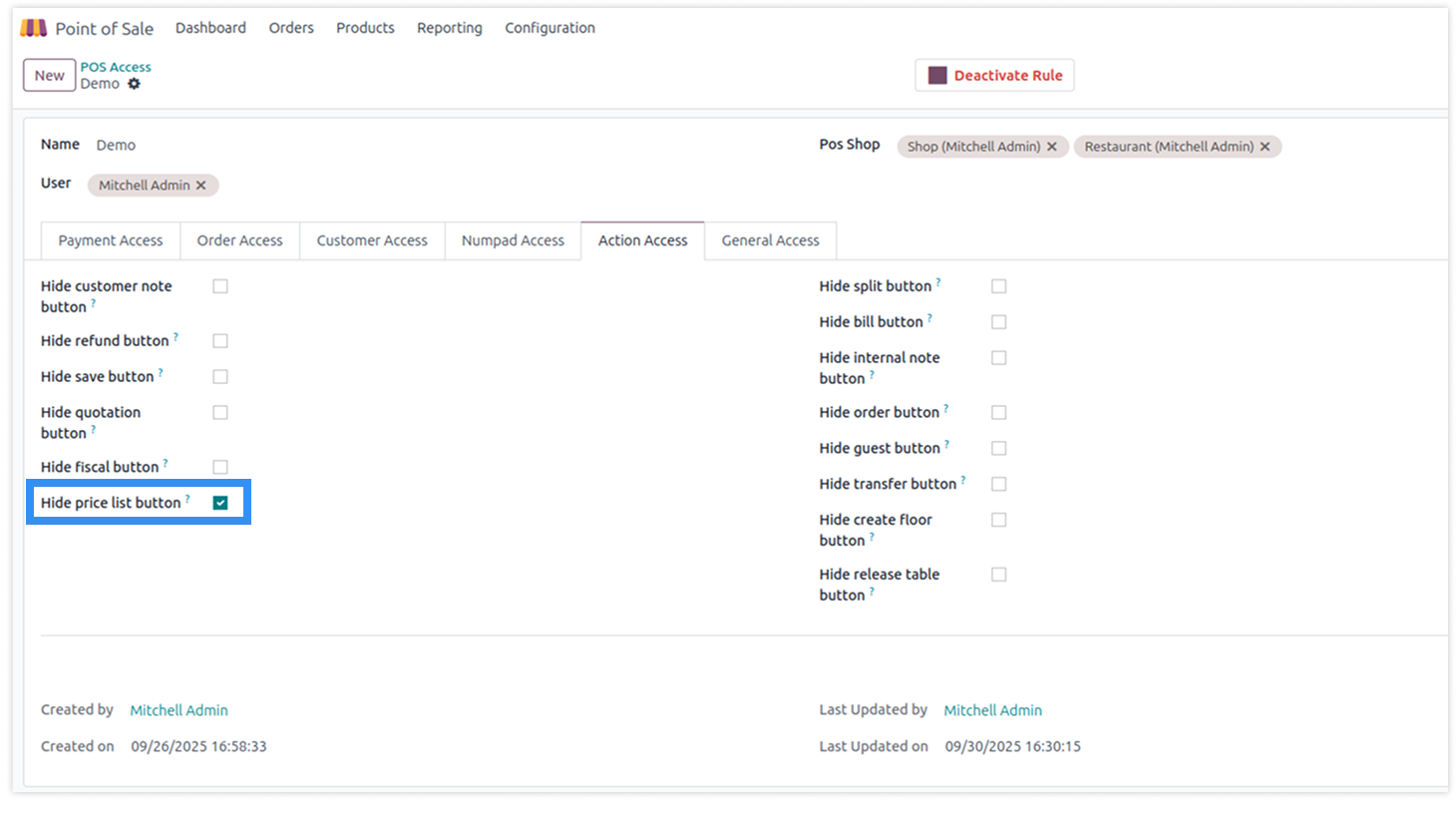
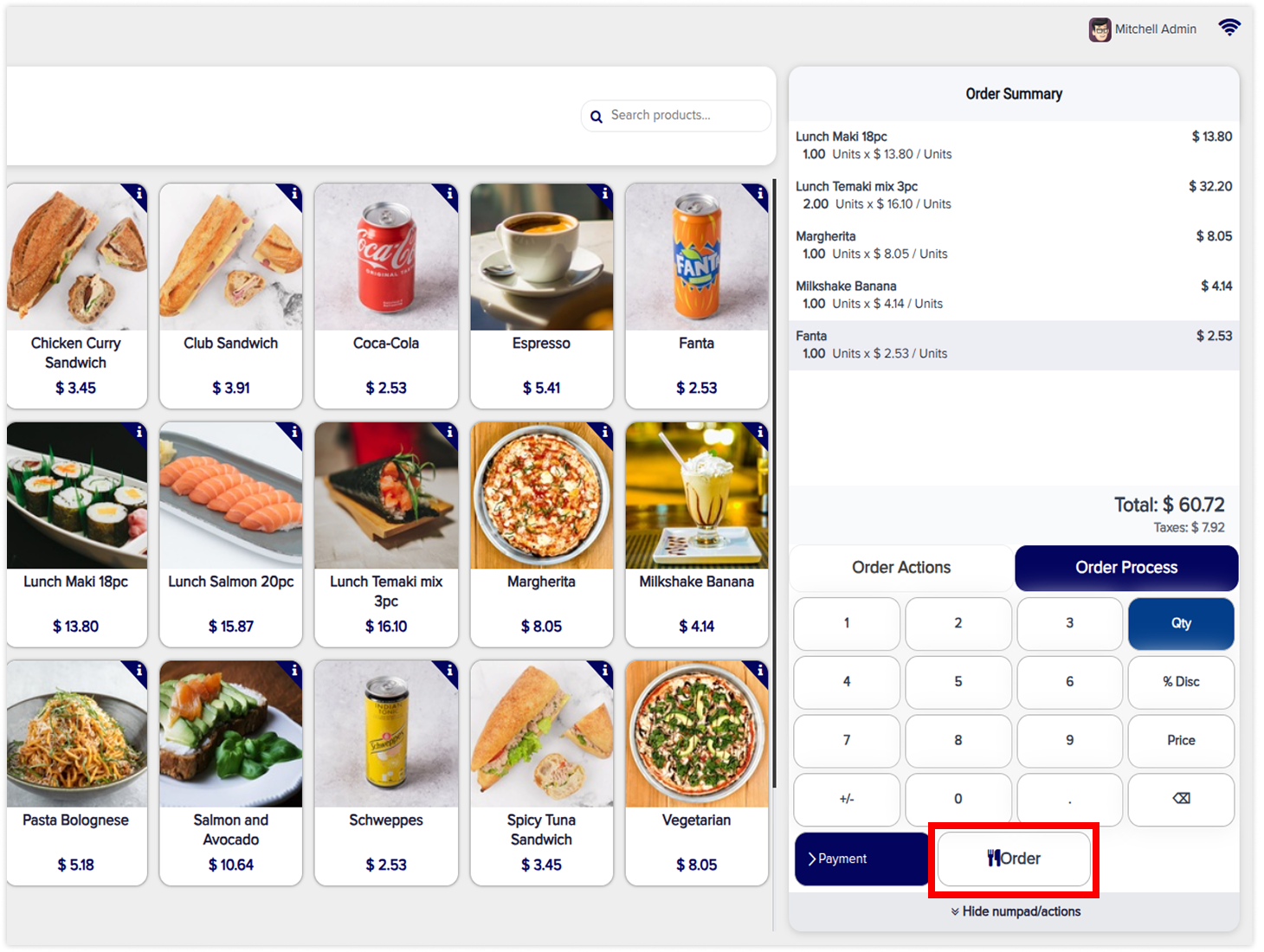
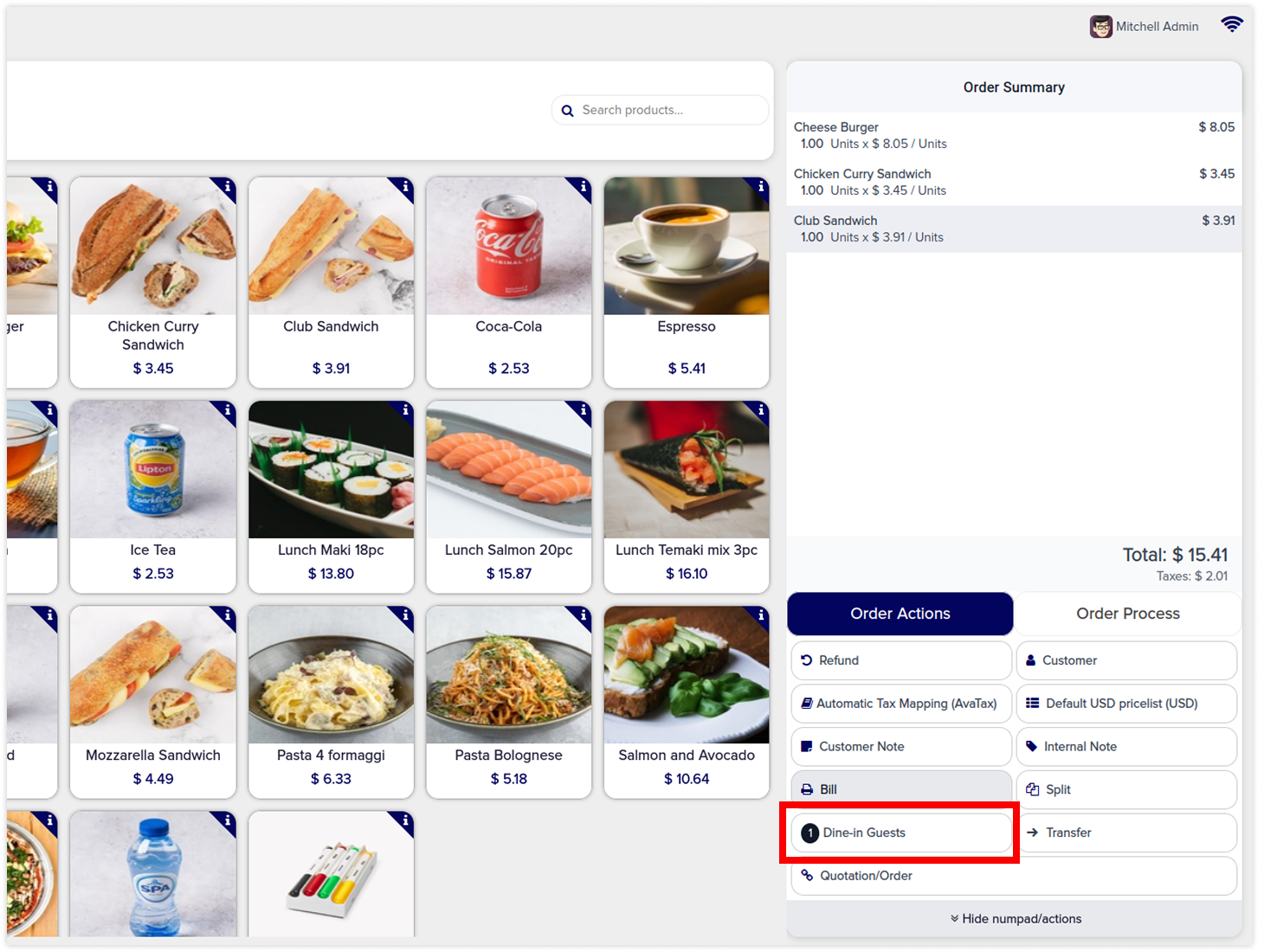
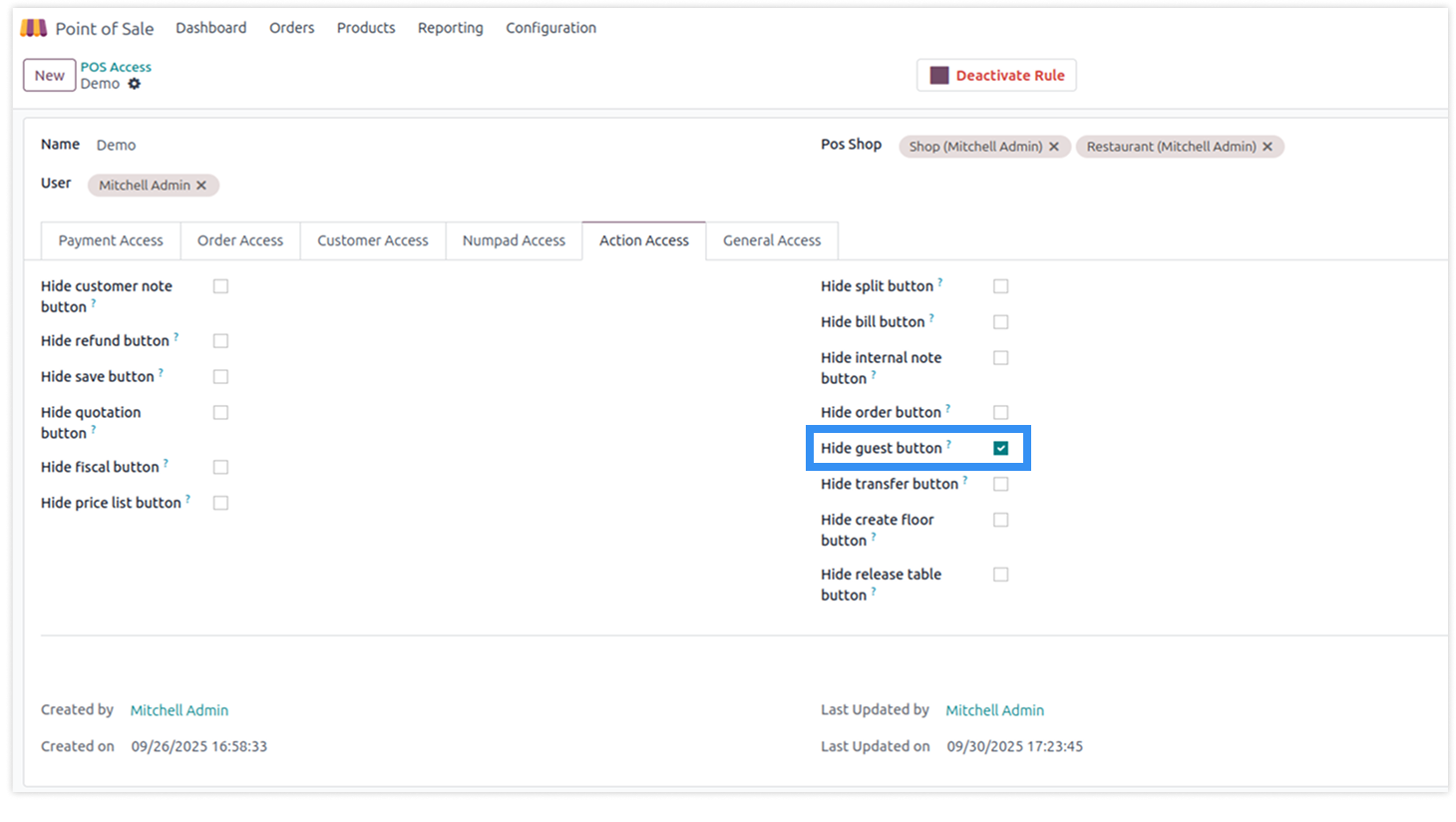
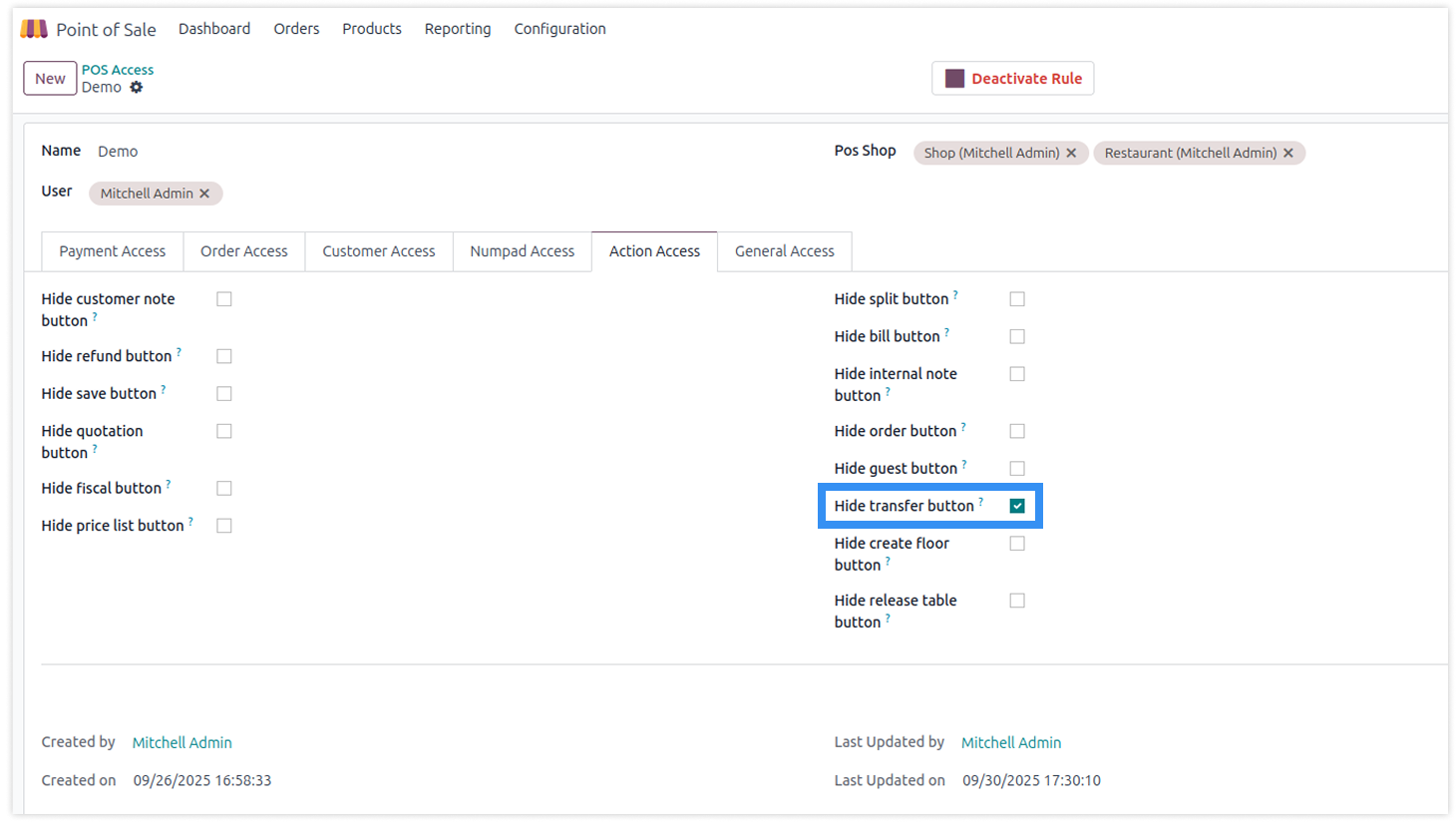
Action access rights hide buttons for customer notes, refunds, quotations, fiscal positions, pricelists, split bills, bills, internal notes, orders, guests, and transfers.
You must have technical knowledge.
Not possible to create user-wise access rules.
Here is the solution
No need to have technical knowledge, Only you have to understand our module features and you will be rock.
Work in both Enterprise and Community versions(14,15,16,17,18,19).
How to setup access rights for the action
Here we have explained some examples step by step.
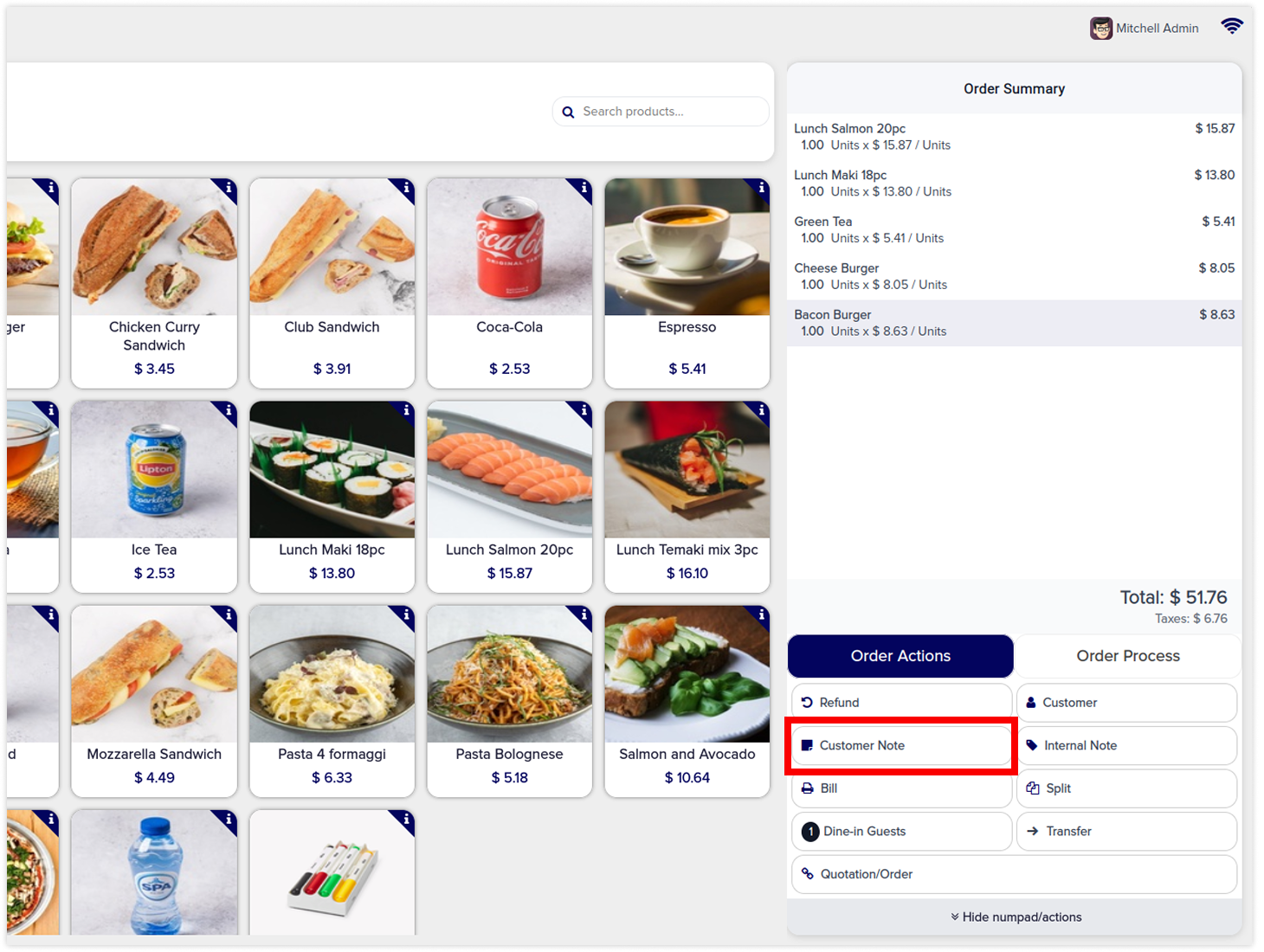
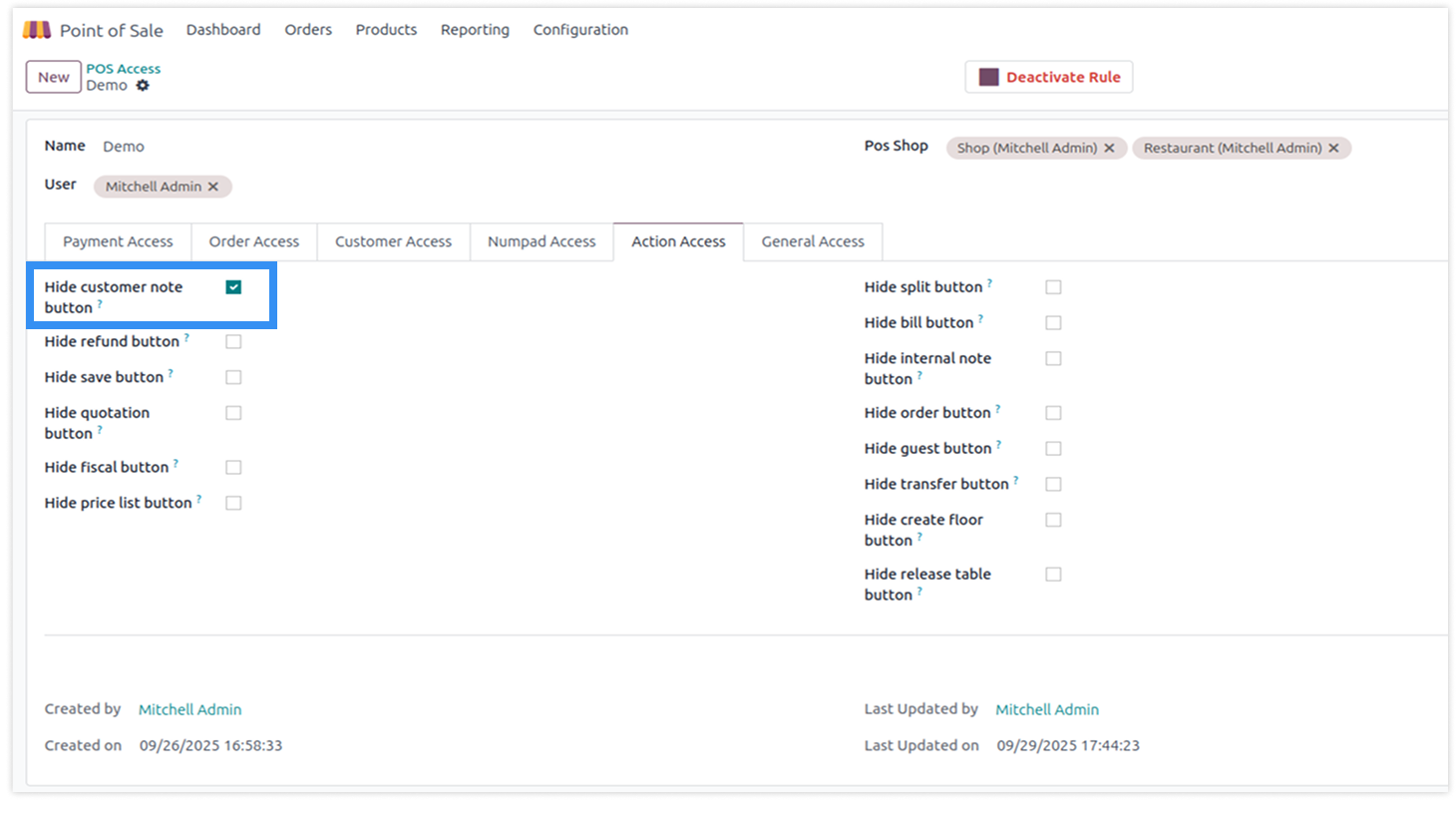
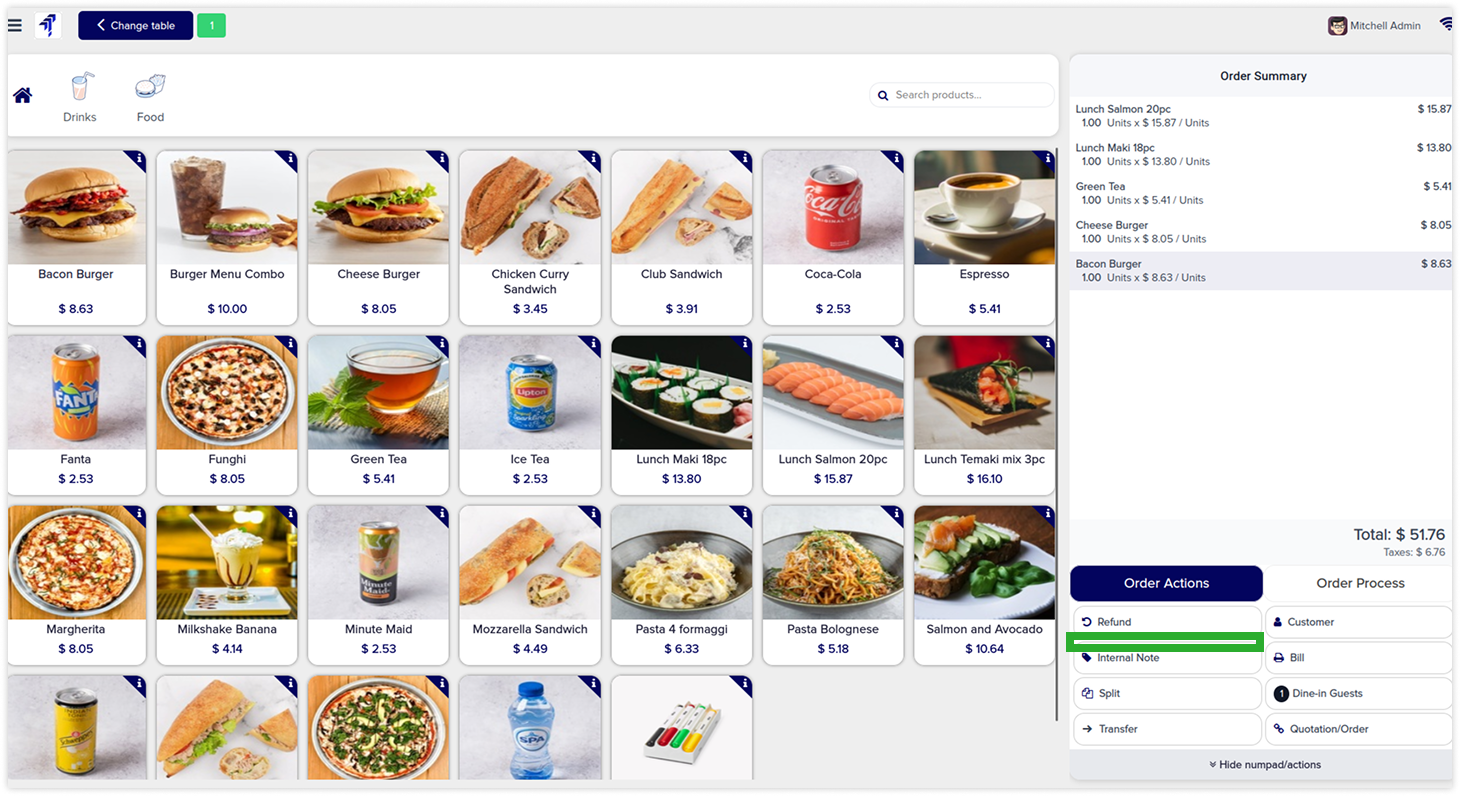
Hide customer note button
-
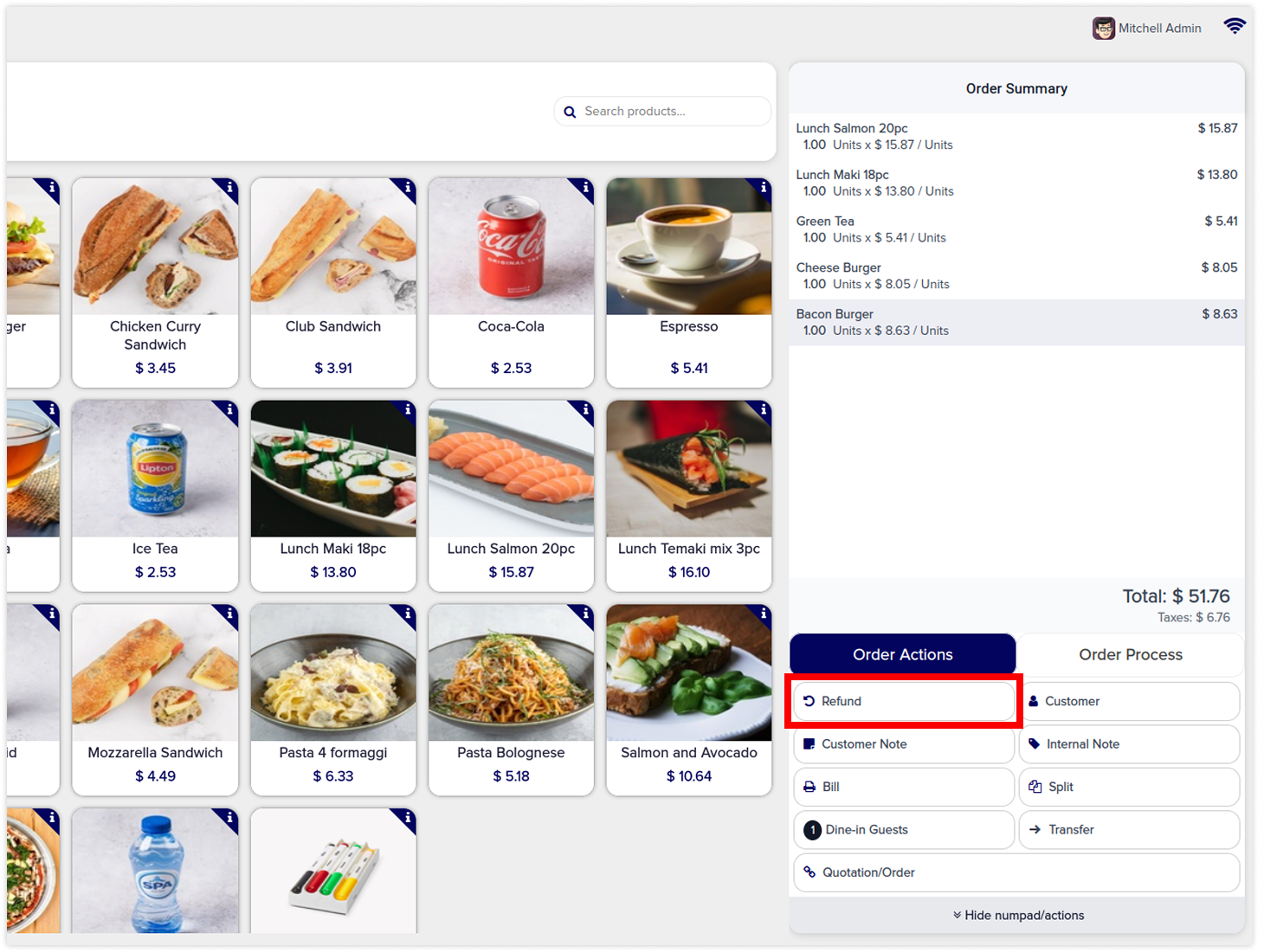
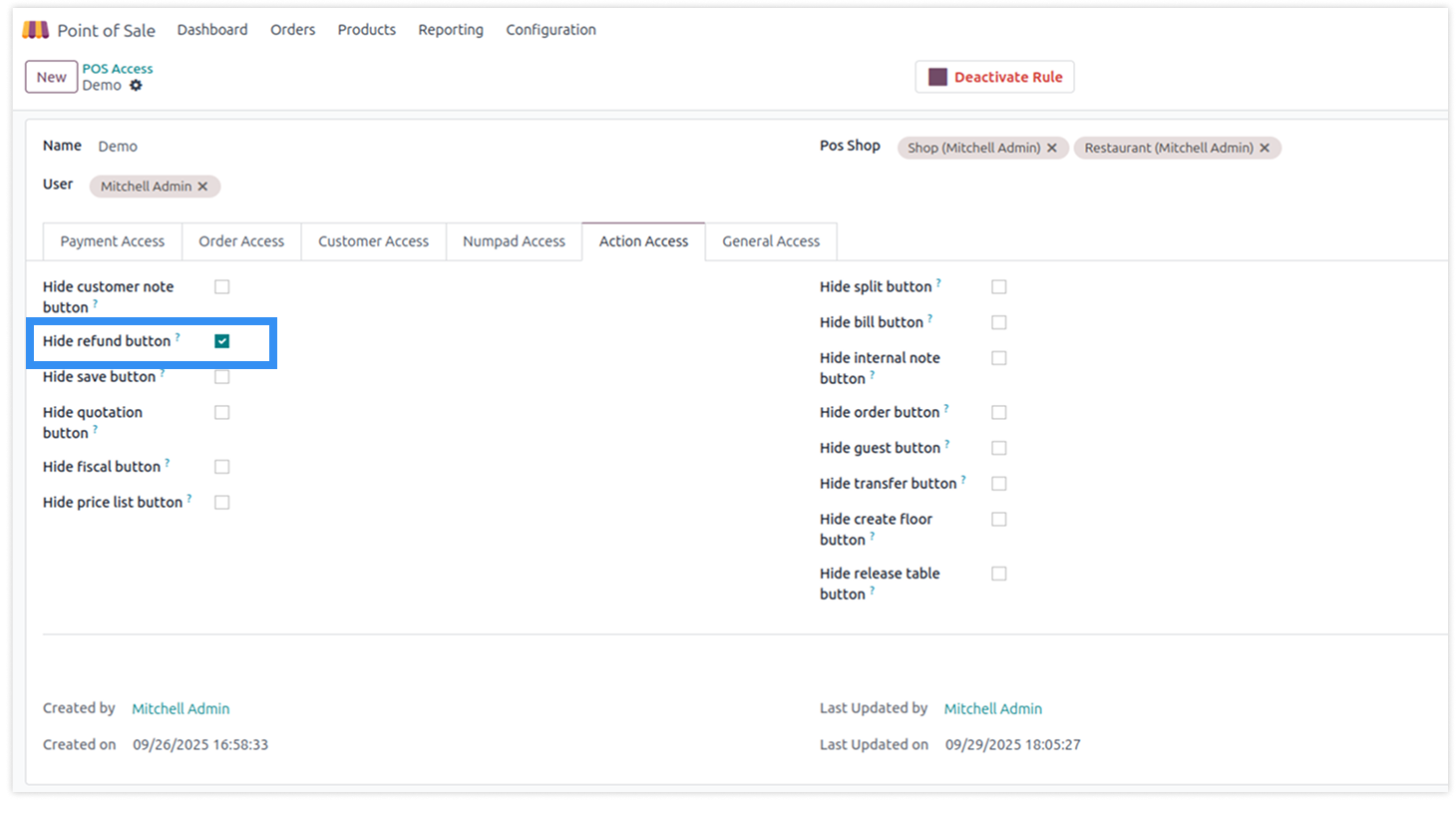
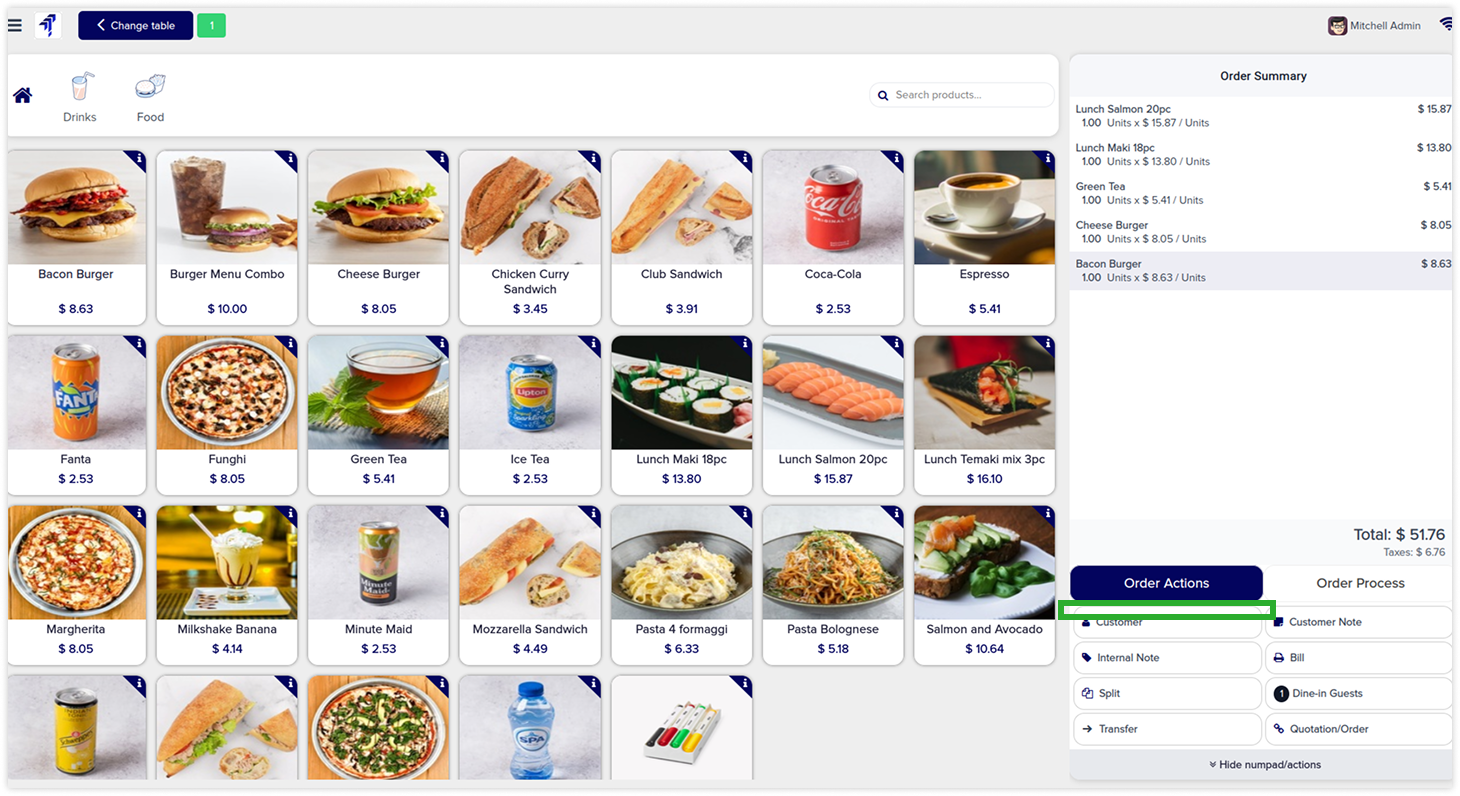
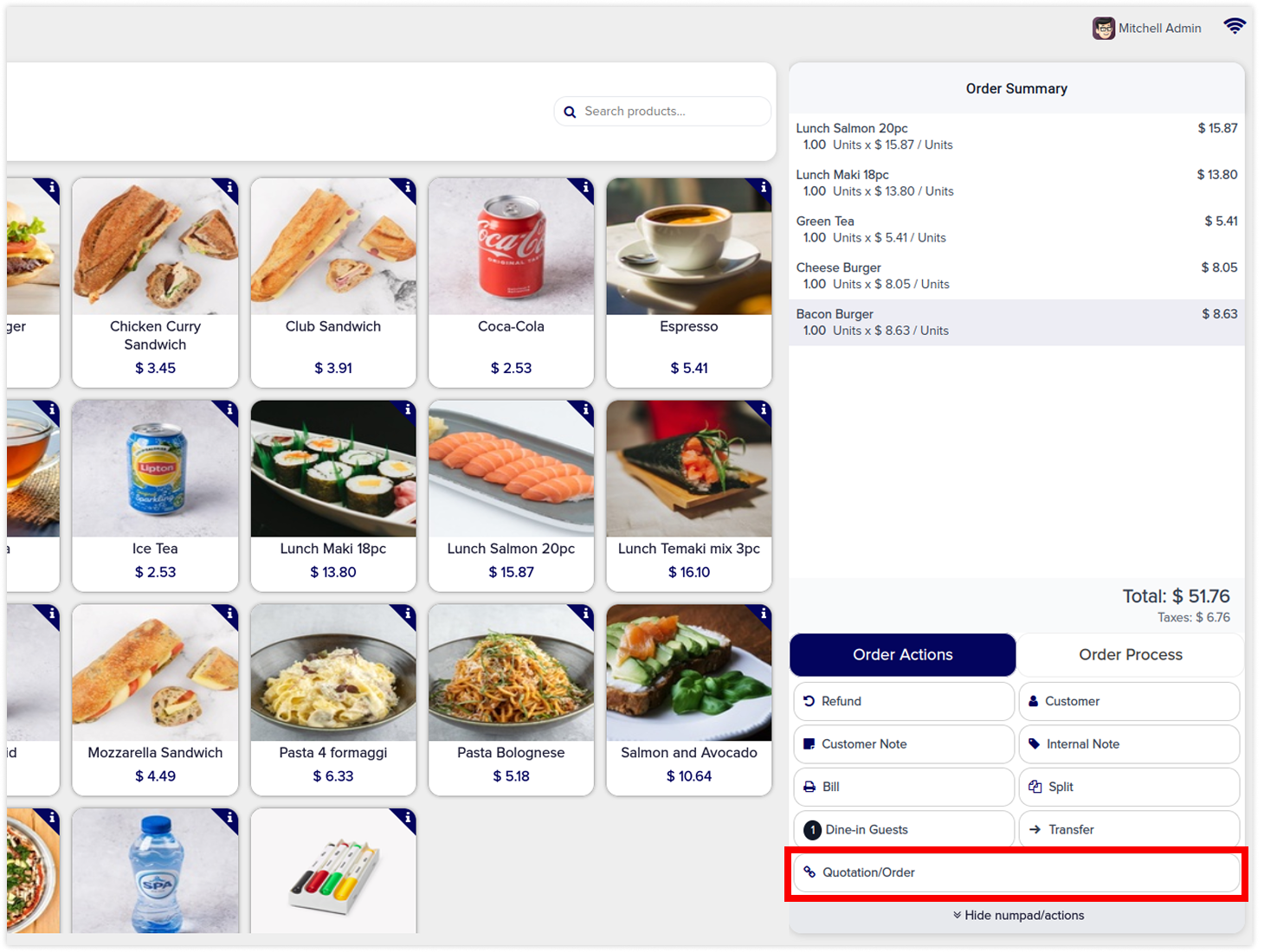
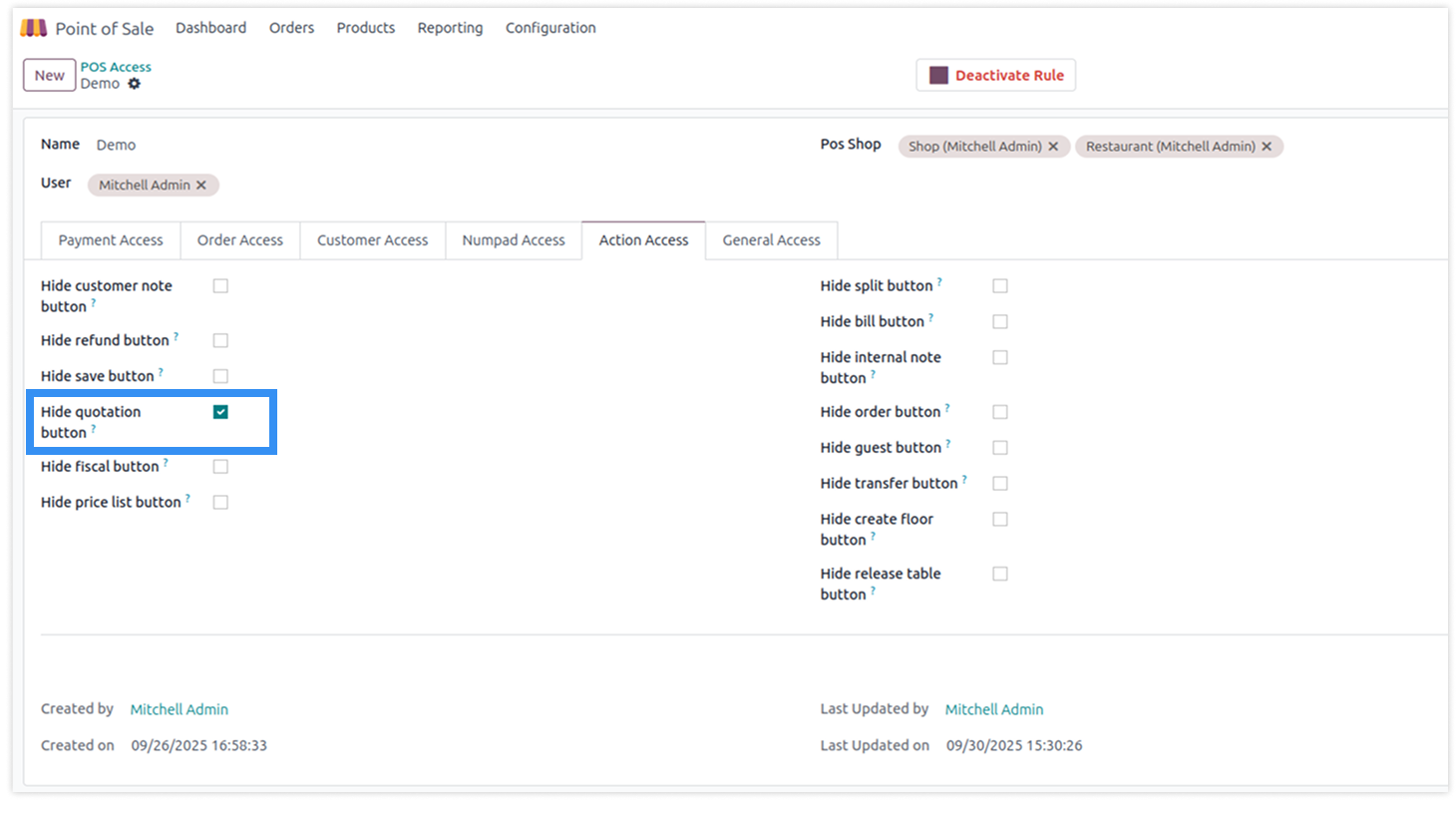
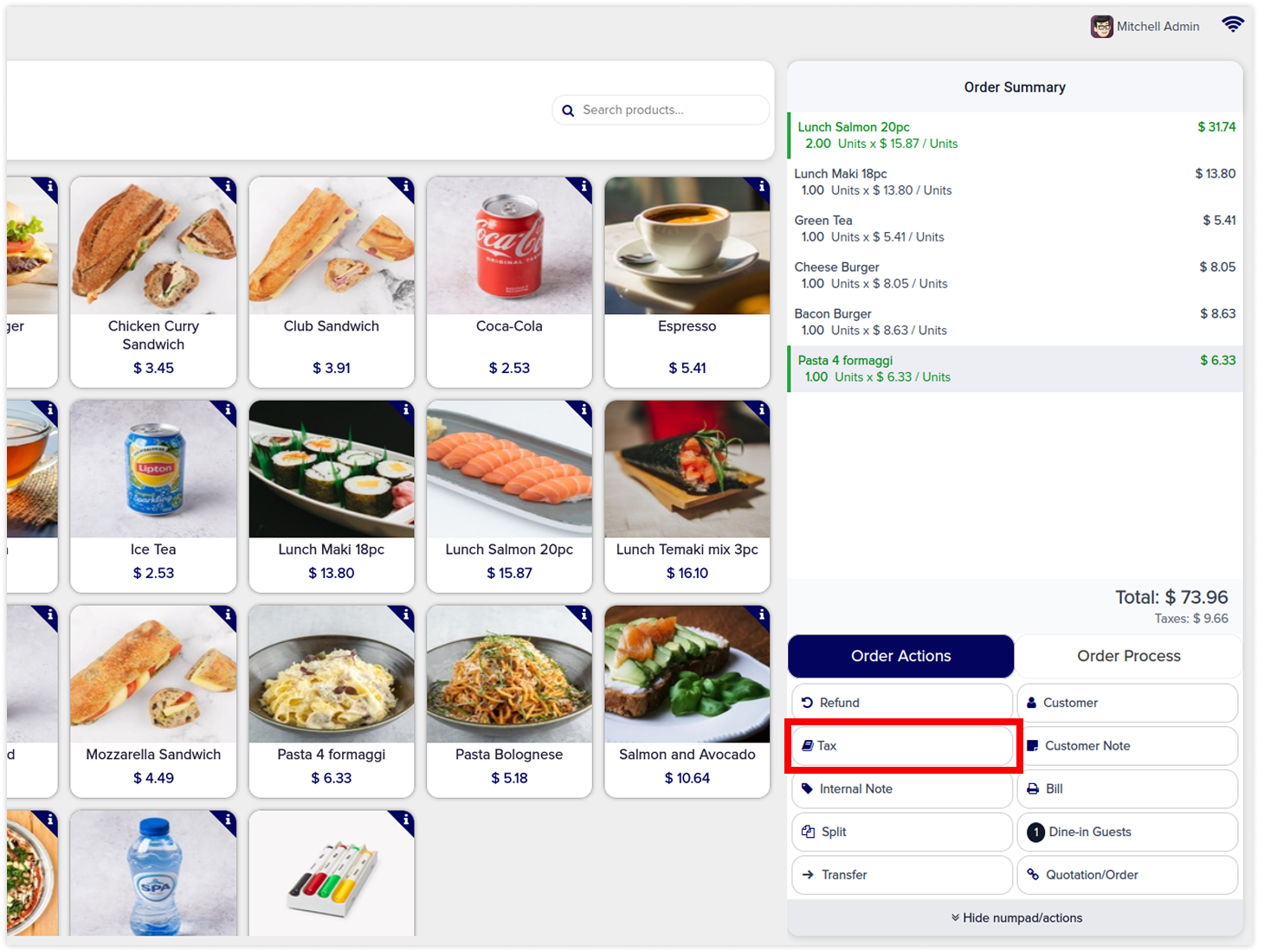
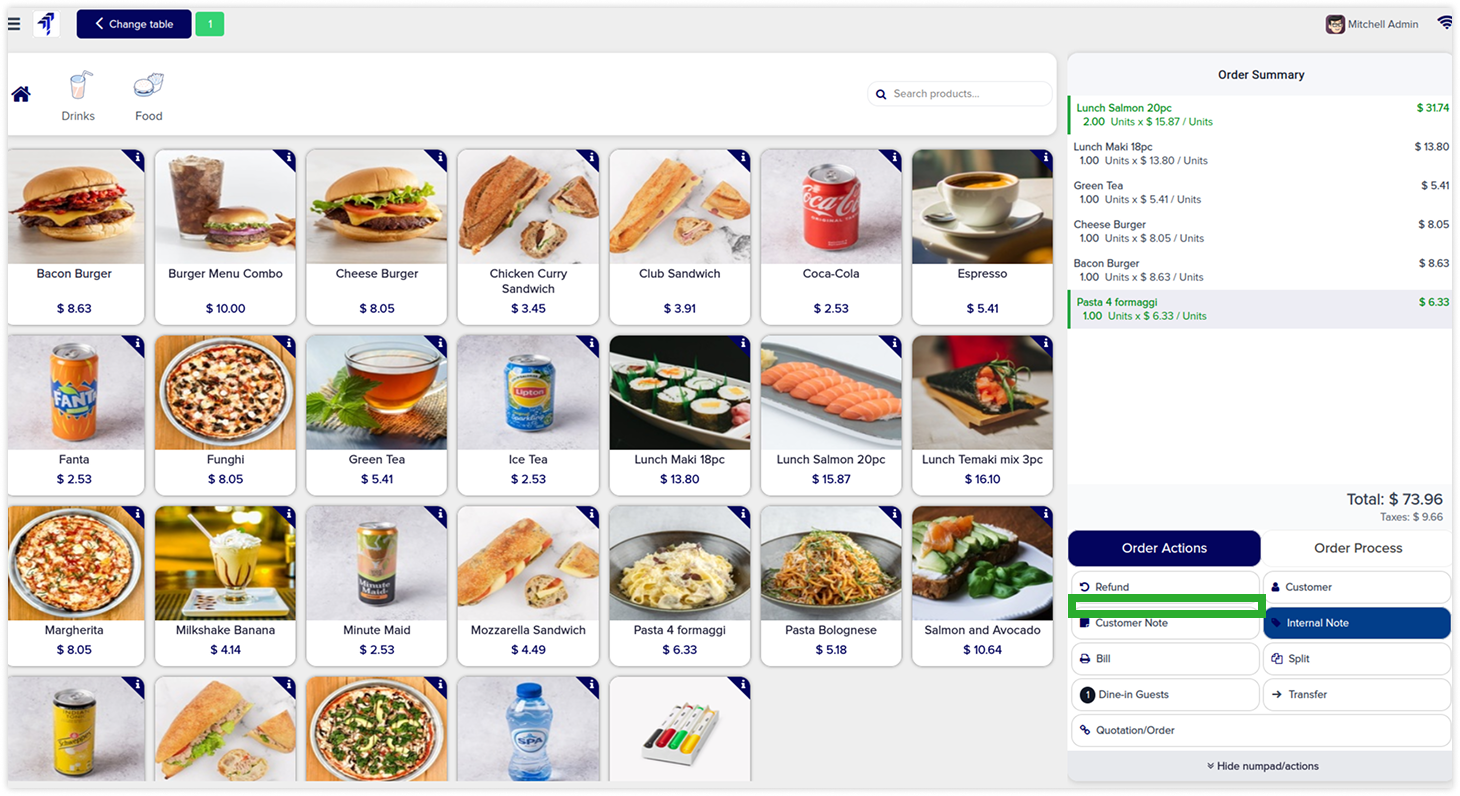
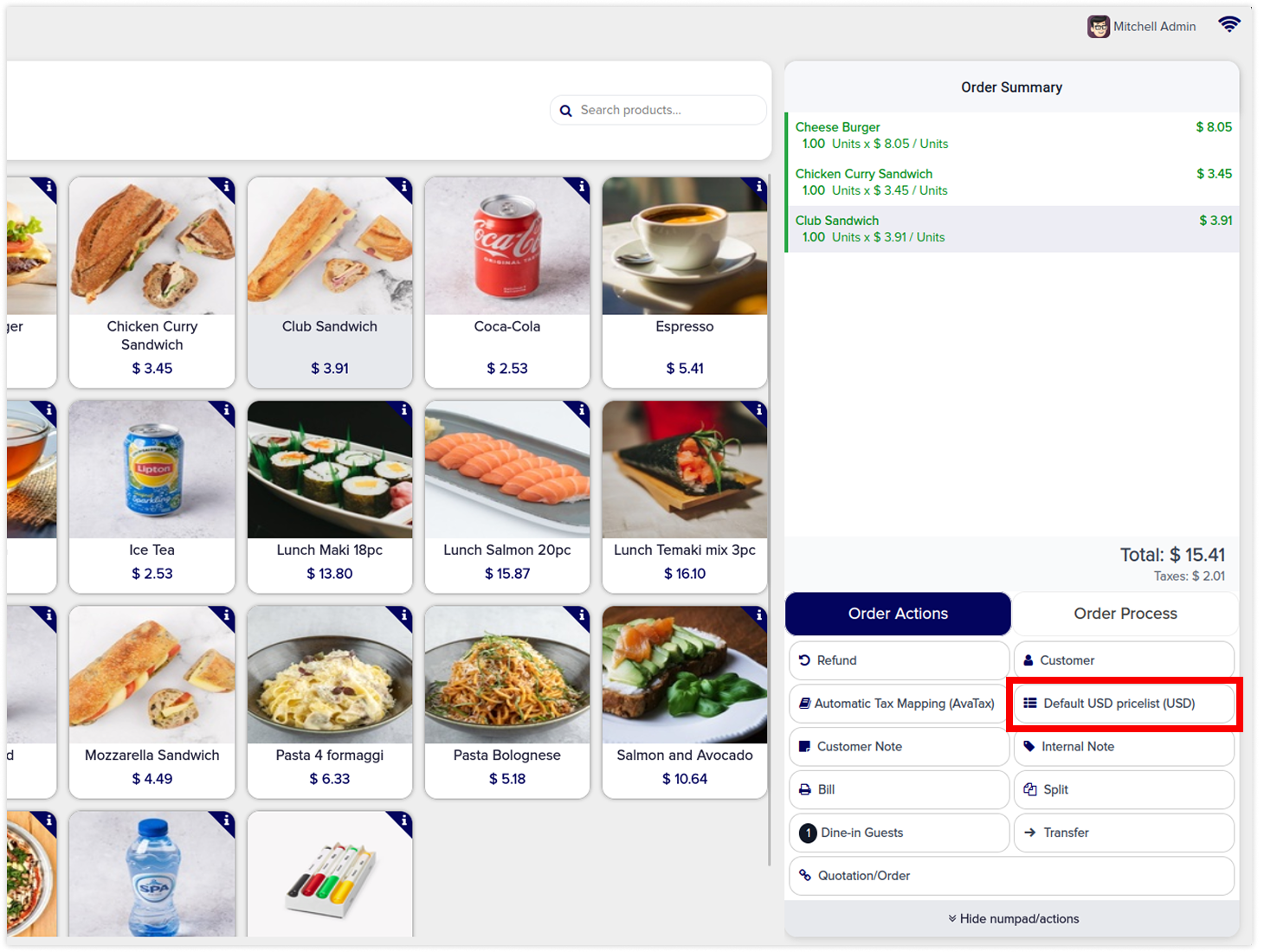
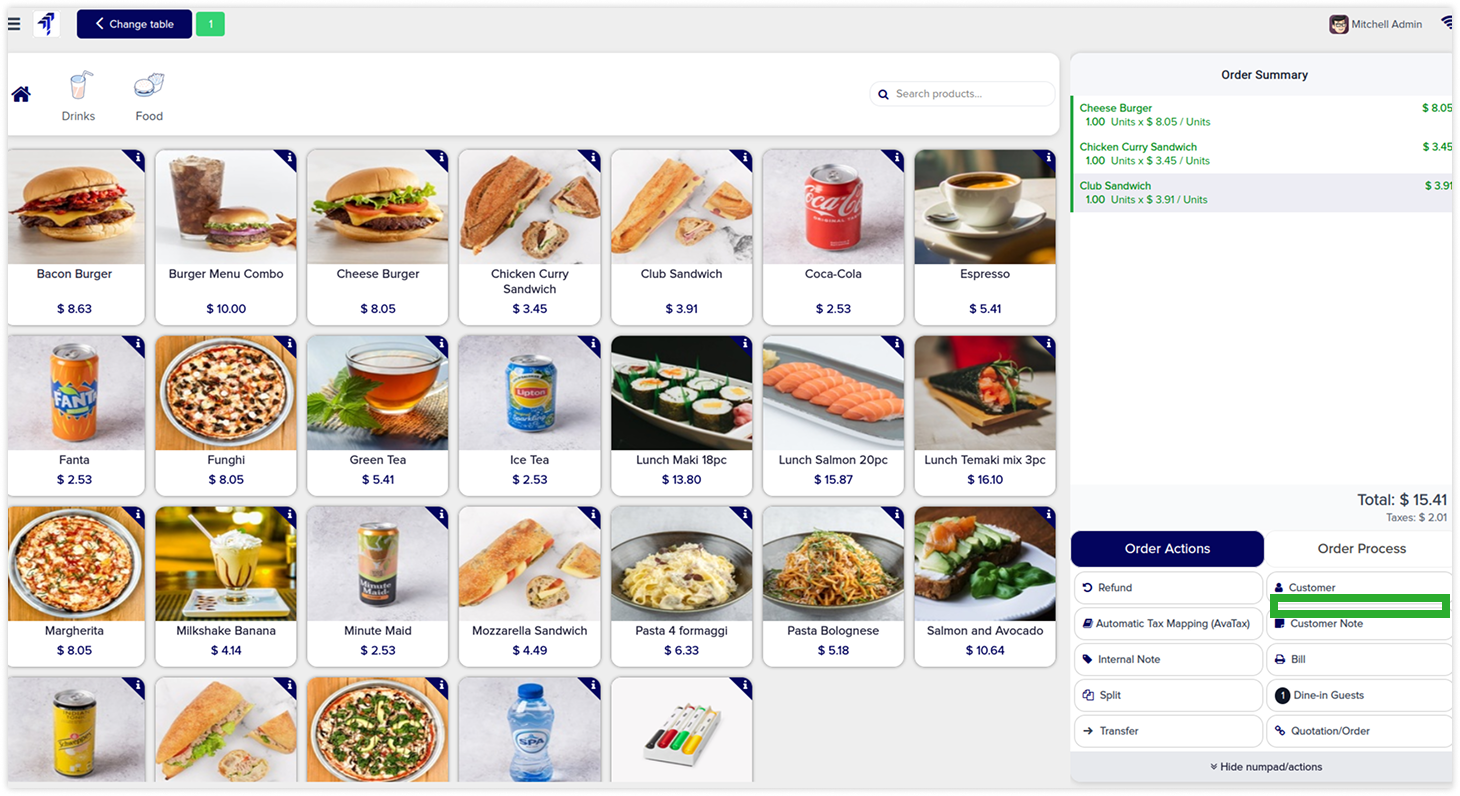
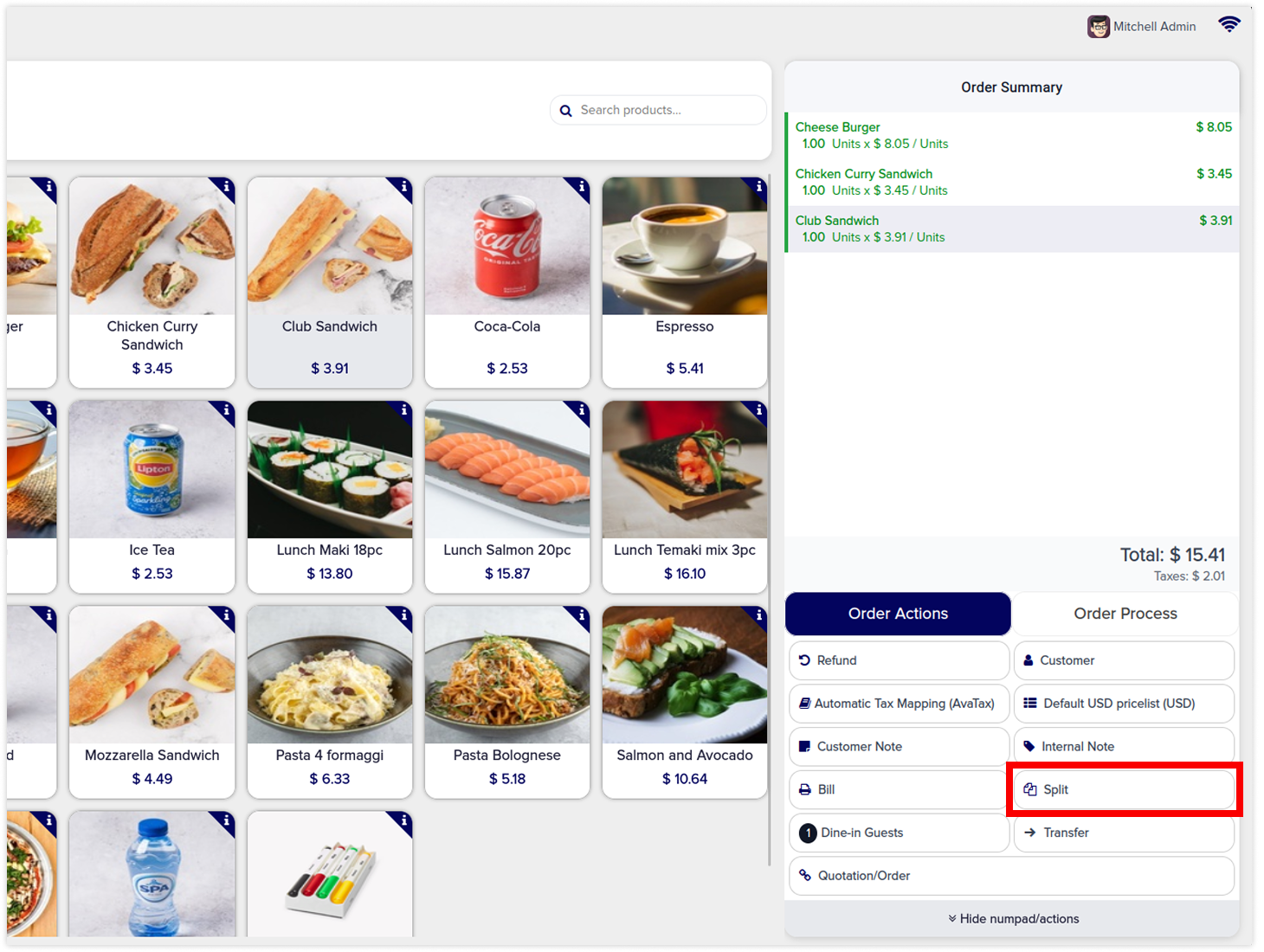
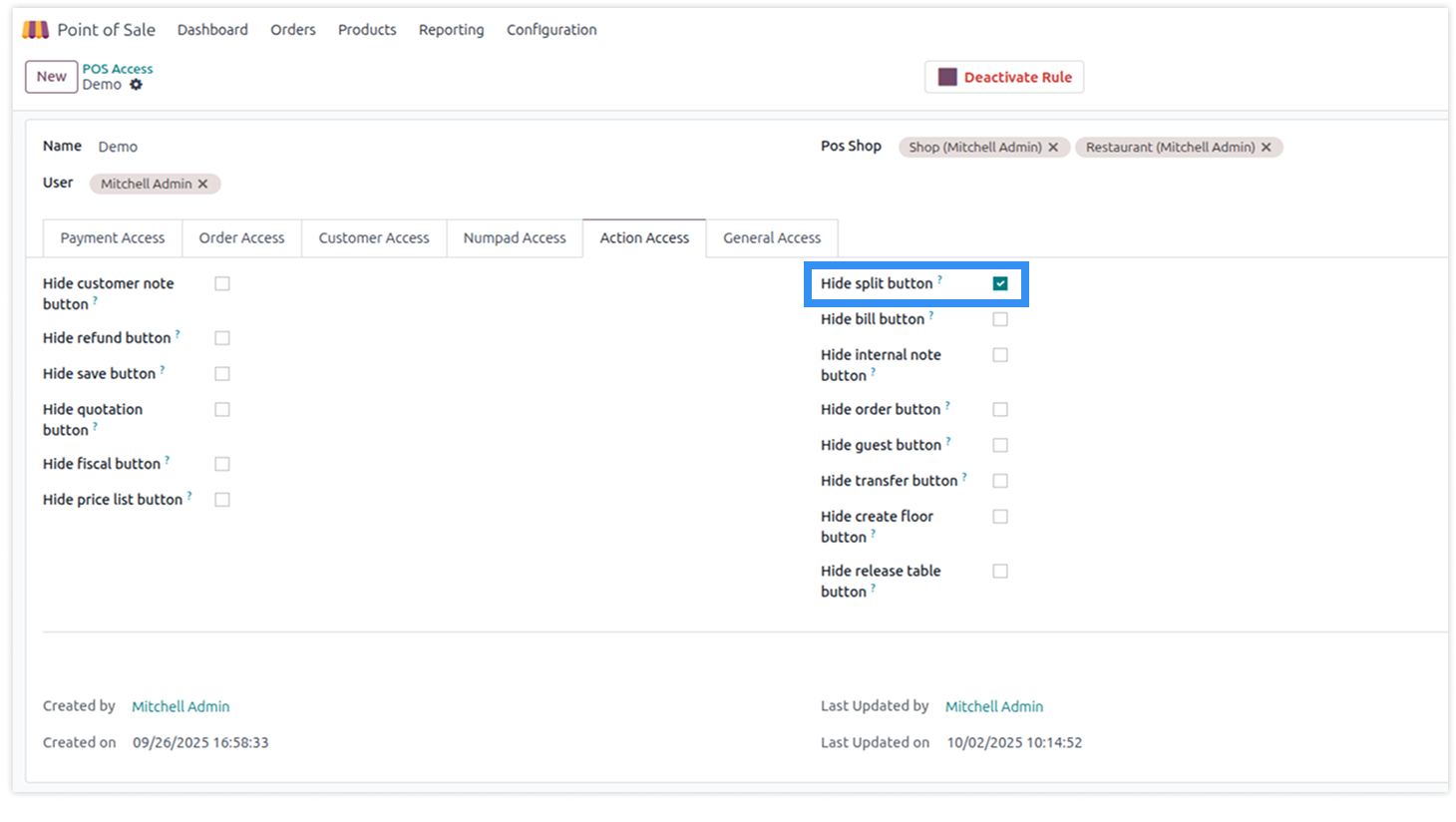
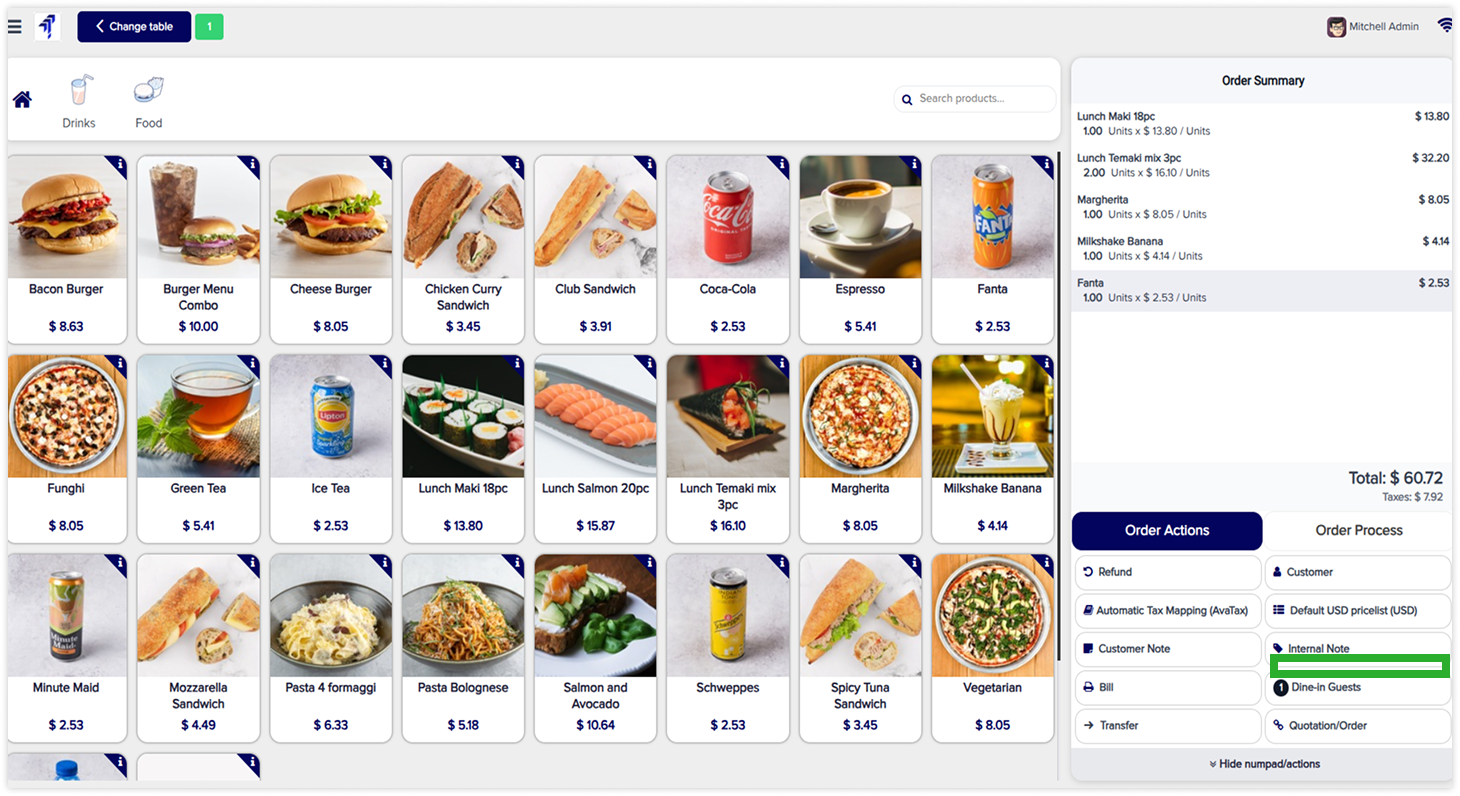
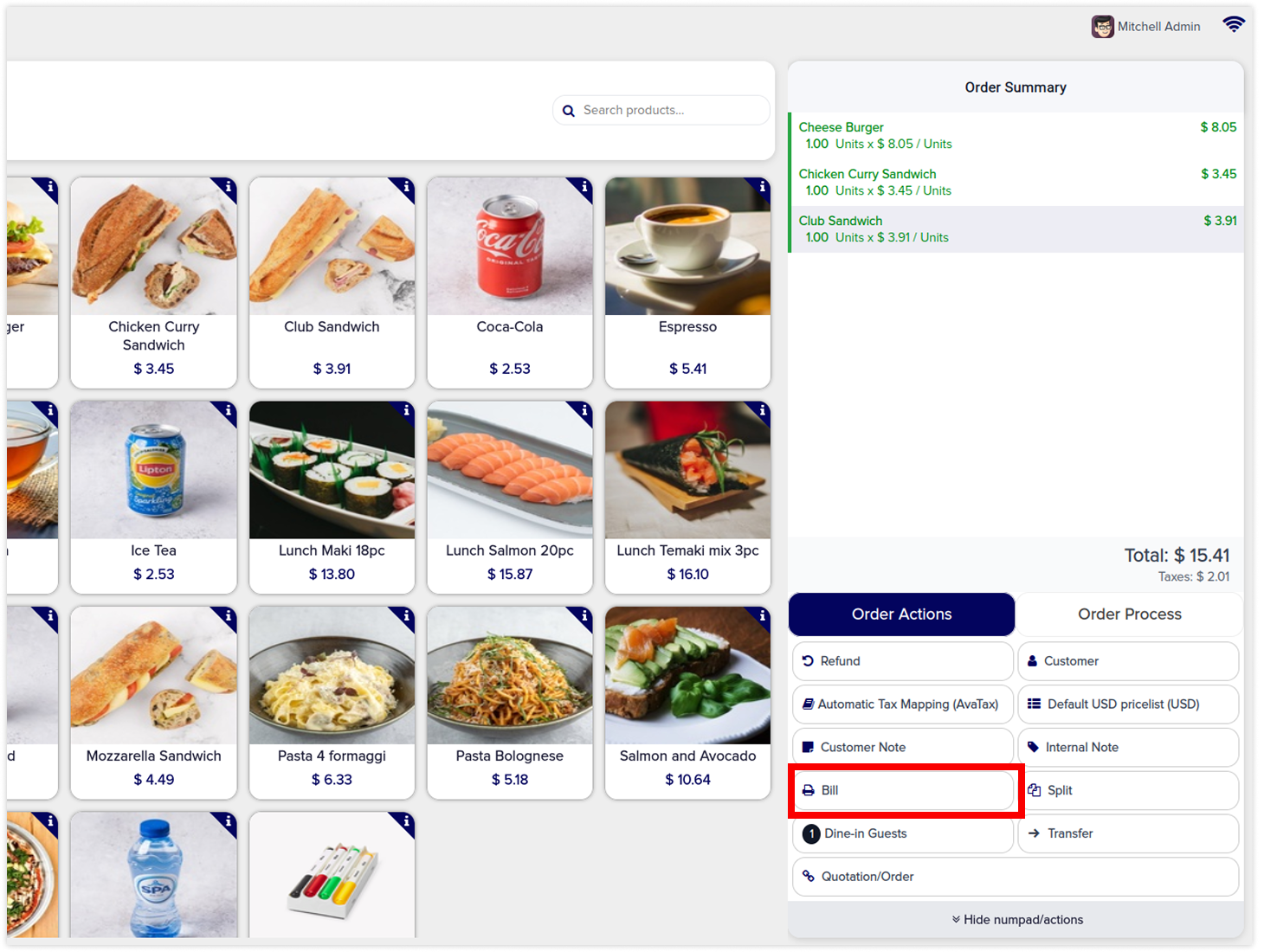
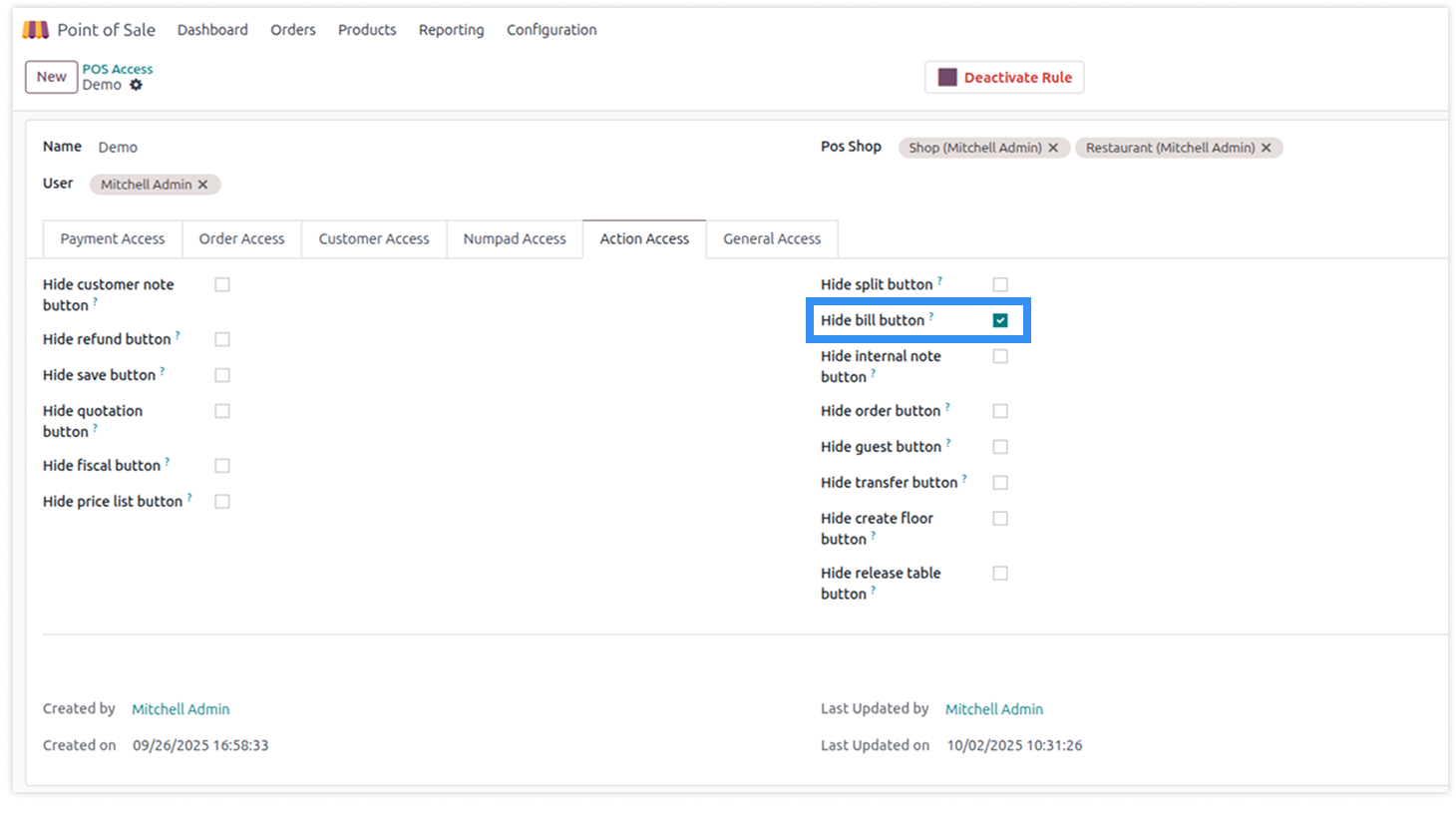
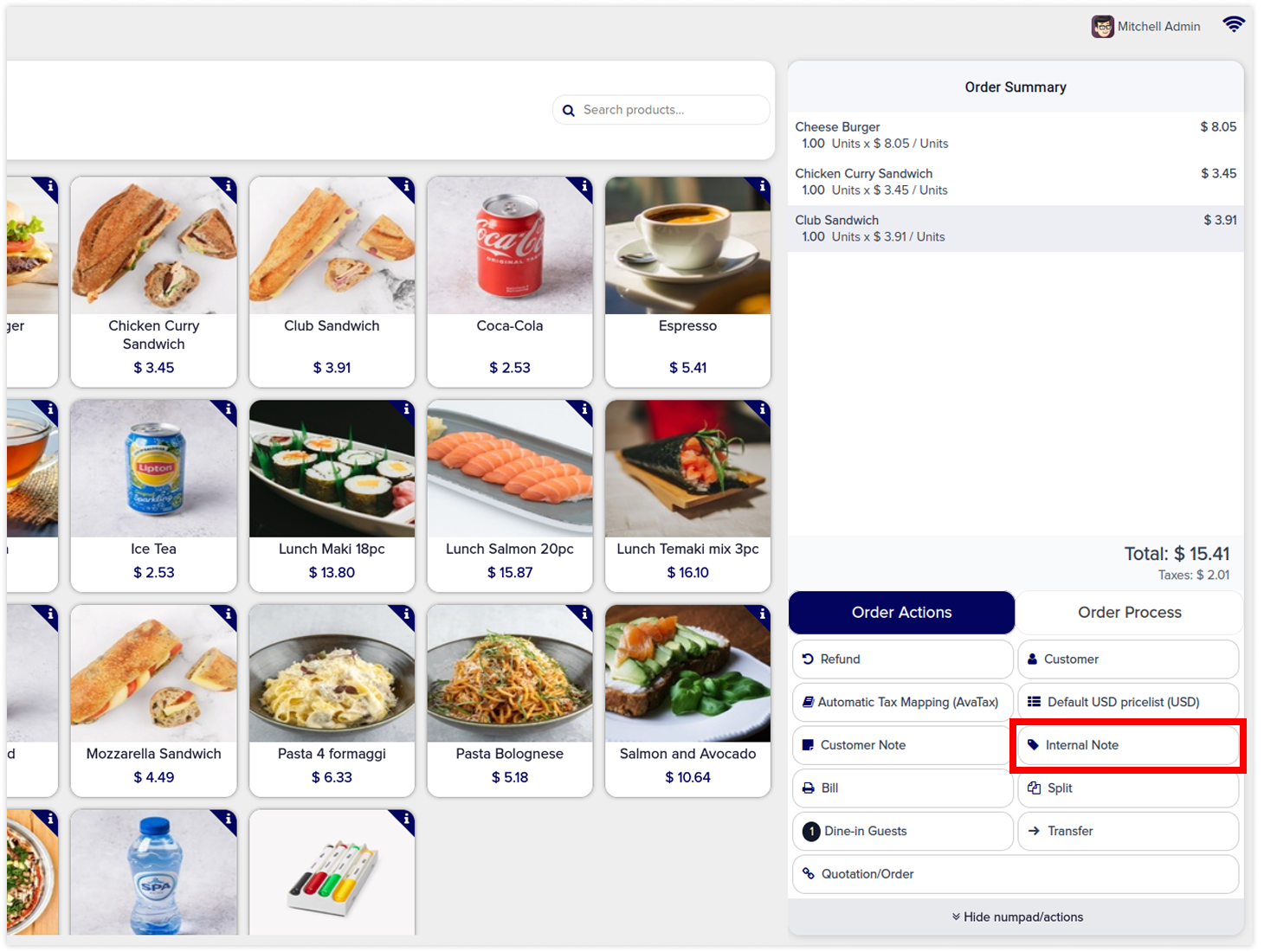
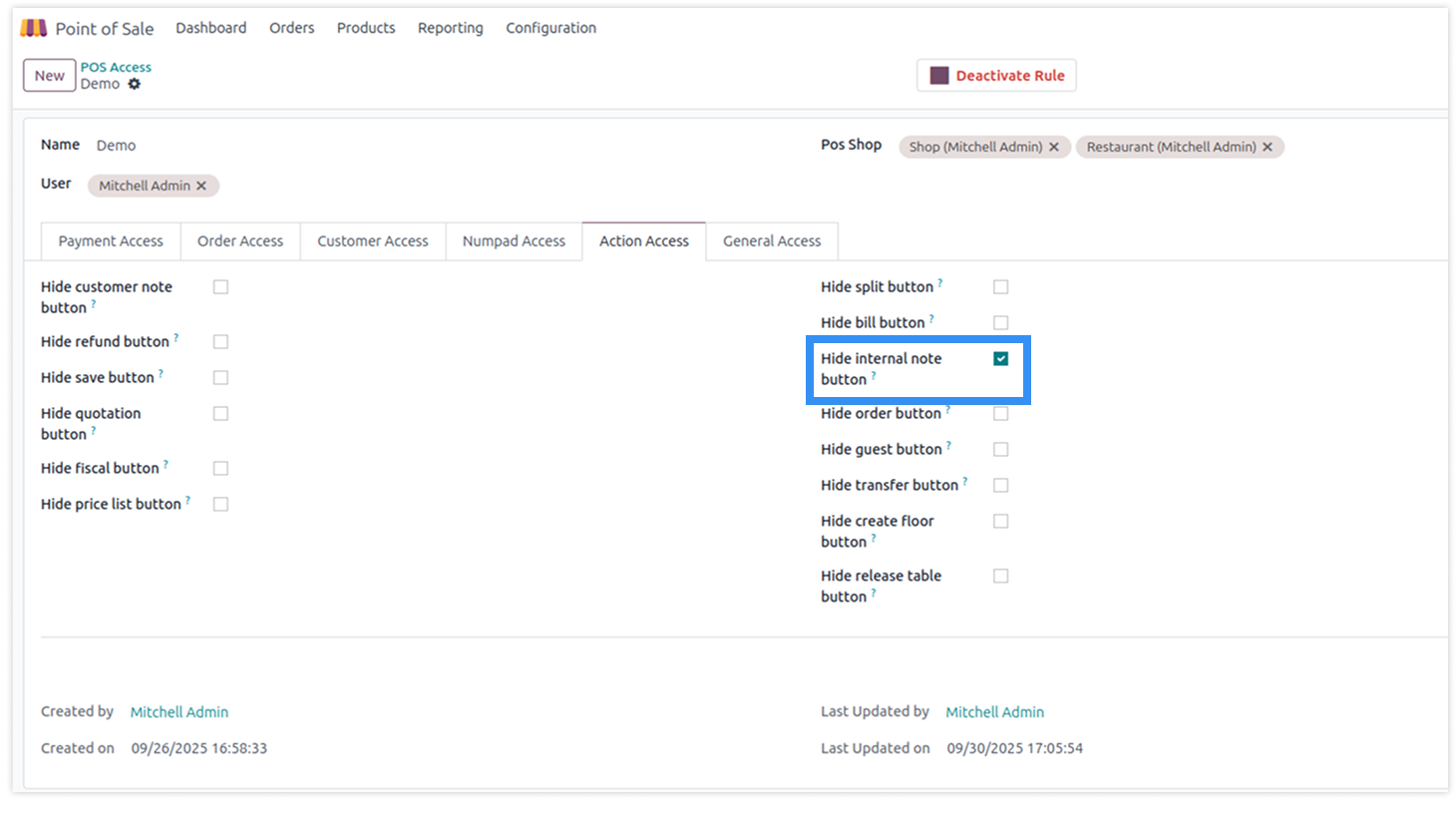
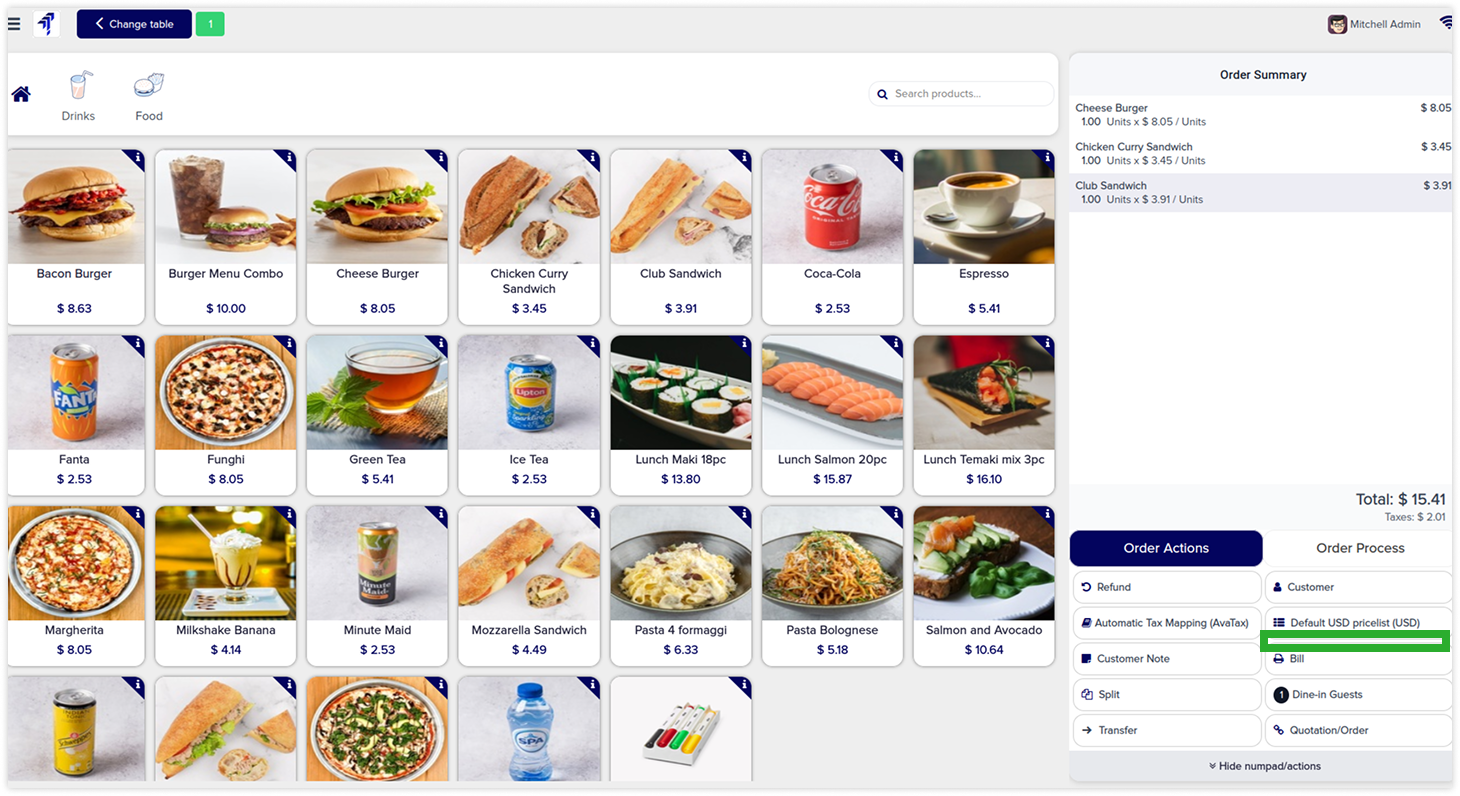
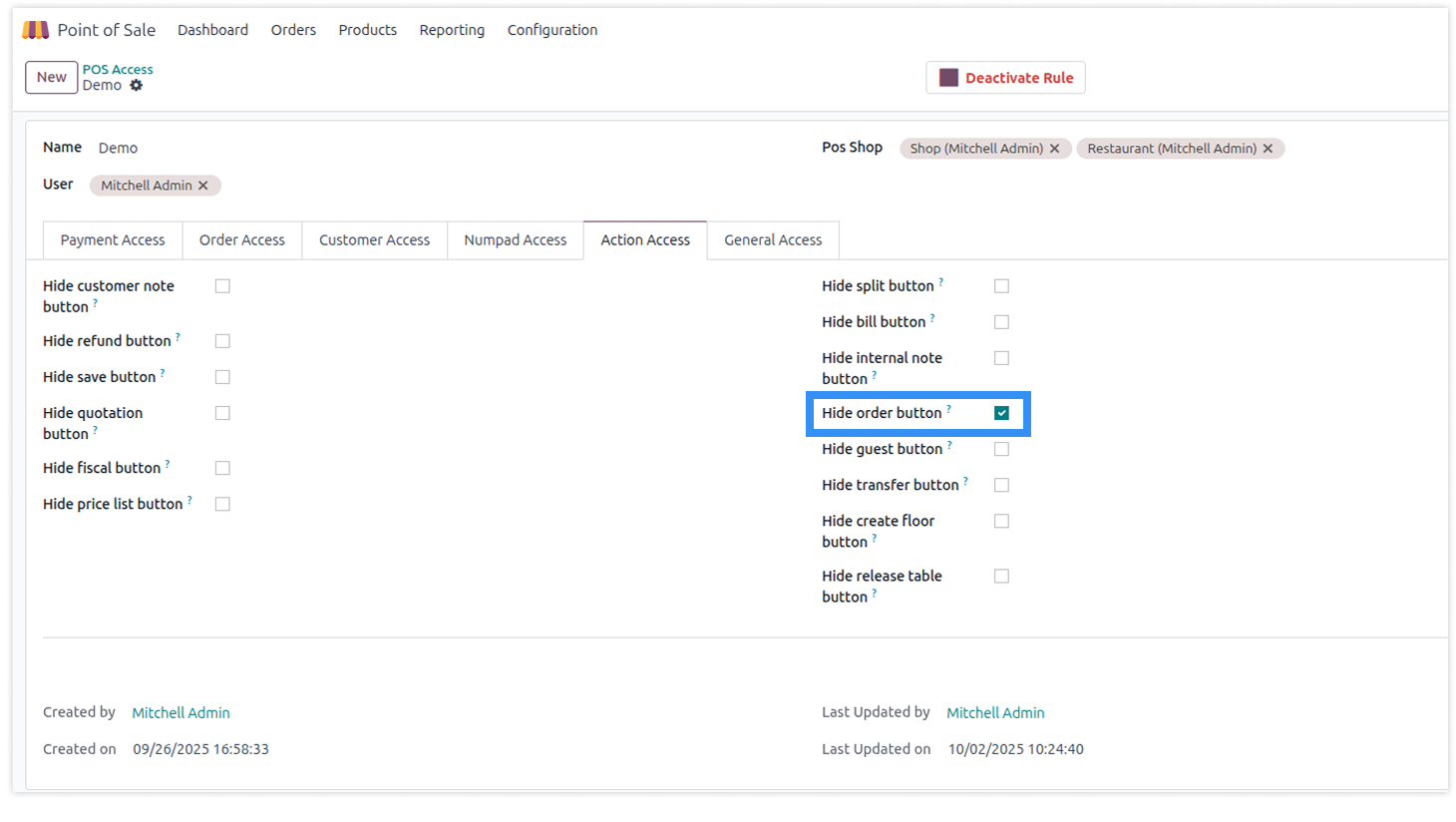
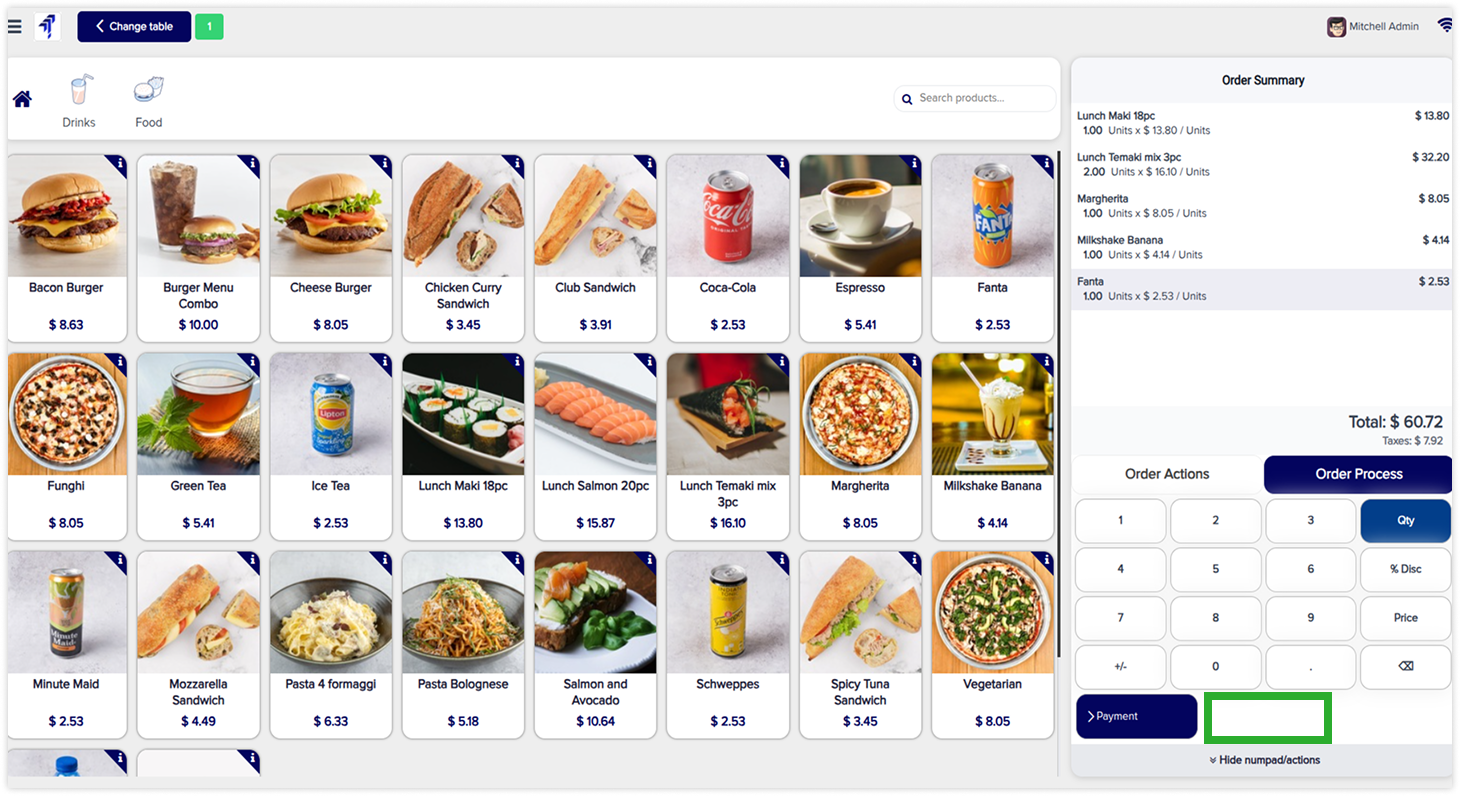
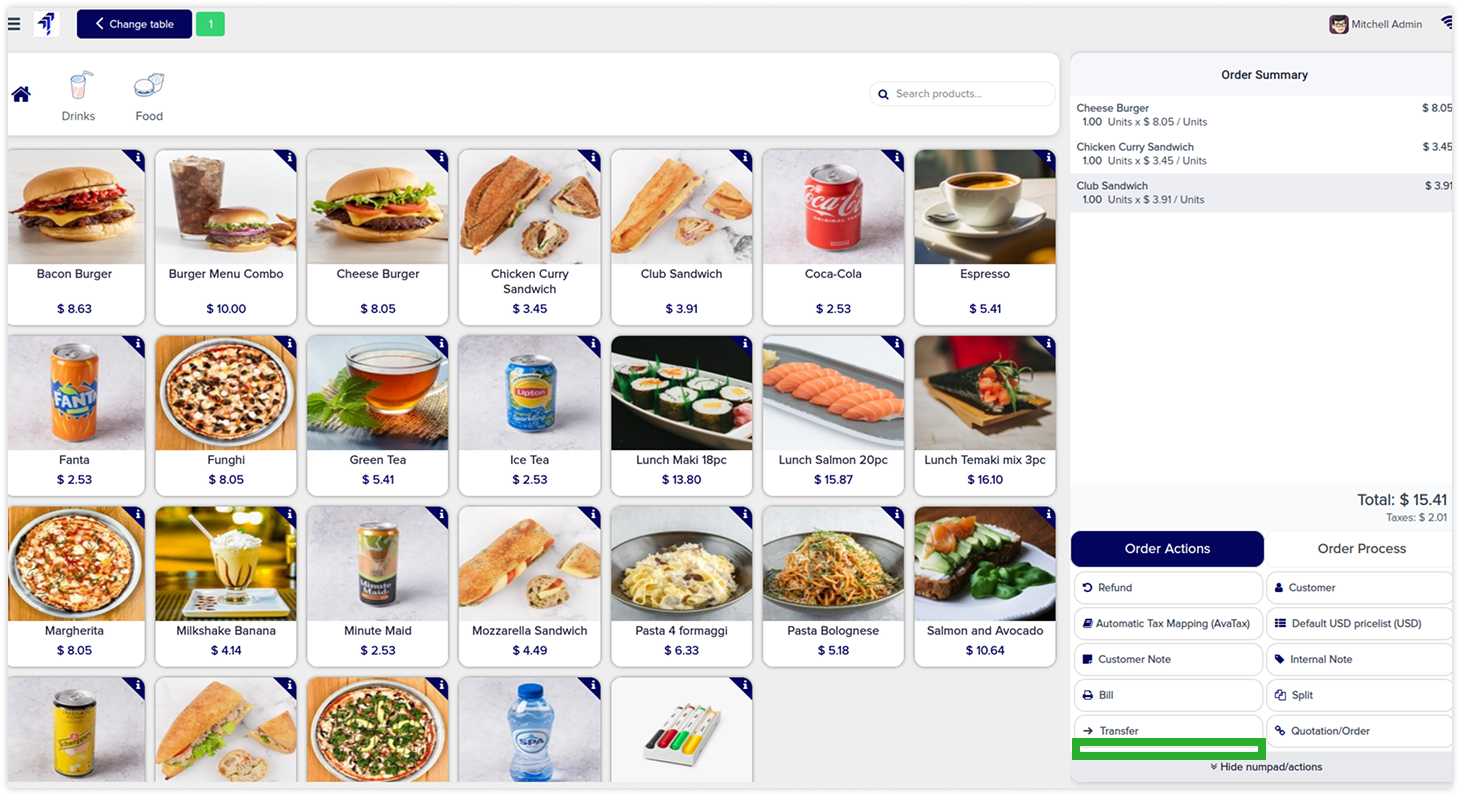
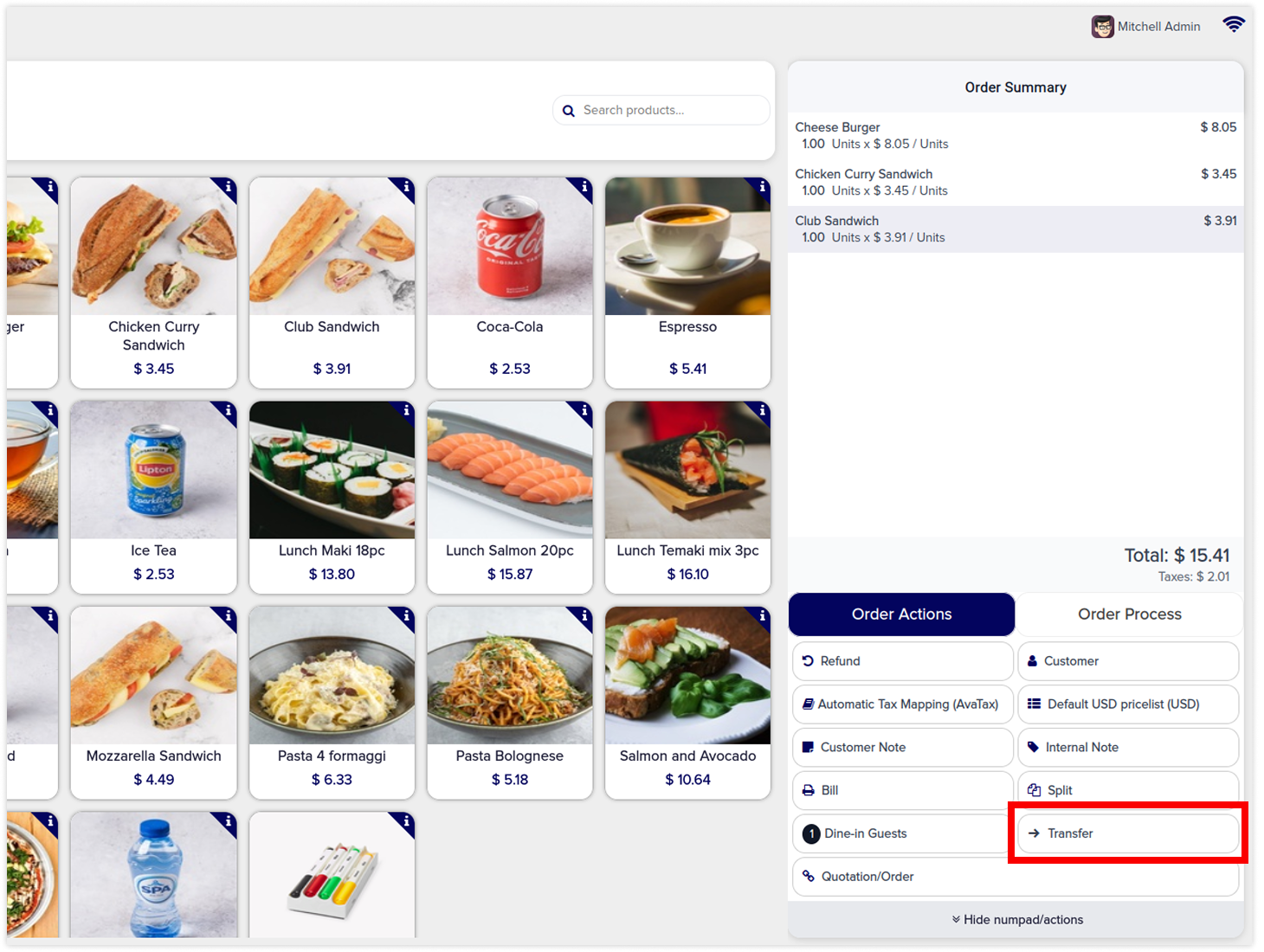
The order action section provides a number of actions. By creating rules on the action access tab, you can hide actions like a refund, split, merge, reward, order/quotations, etc from any user and employees if they are unimportant to them.
-
Click on image to Zoom out.
-
Click on image to zoom out.
-
Click on image to zoom out.
Hide refund button
-
Click on image to Zoom out.
-
Click on image to zoom out.
-
Click on image to zoom out.
Hide quotation button
-
Click on image to Zoom out.
-
Click on image to zoom out.
-
Click on image to zoom out.
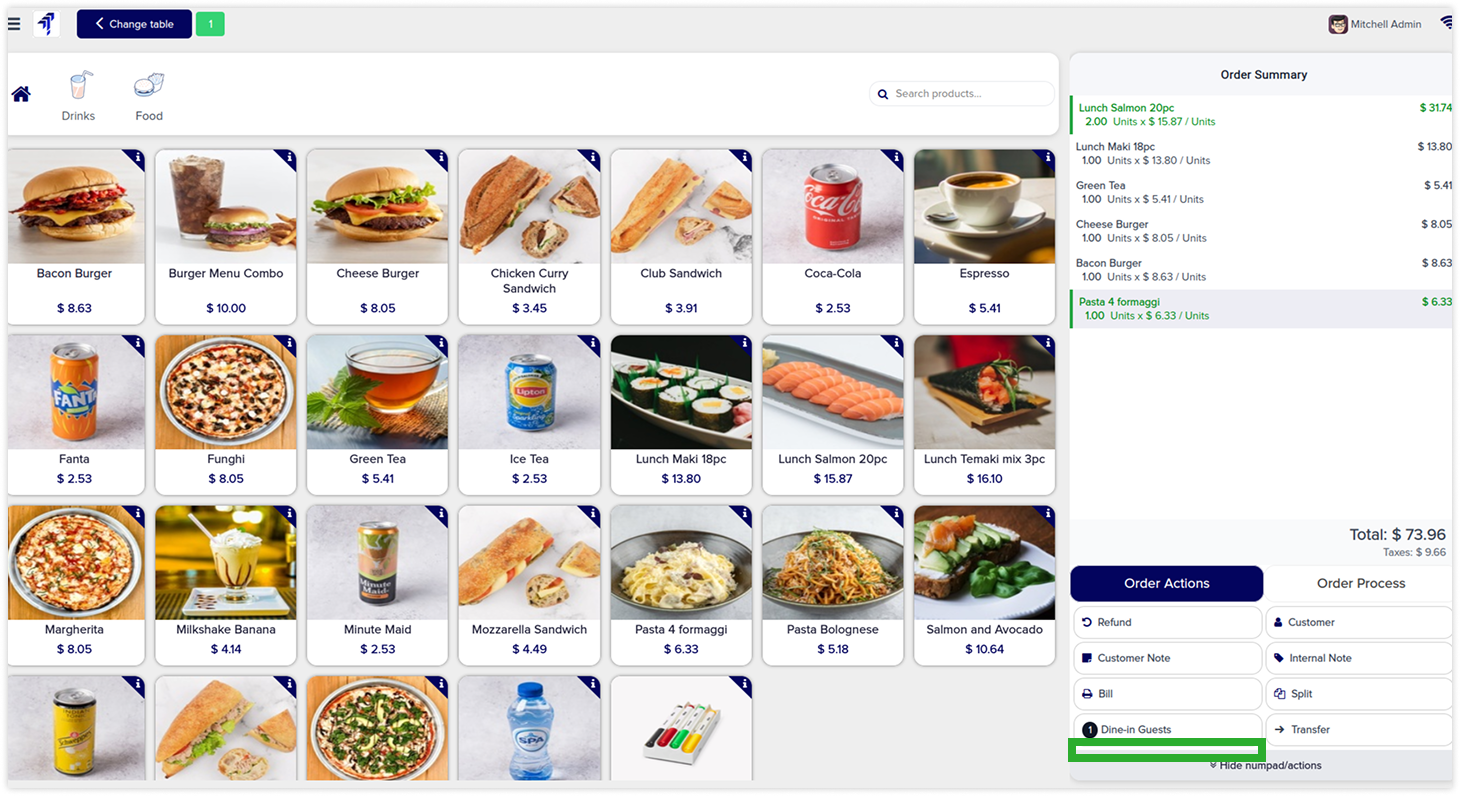
Hide fiscal button
-
Click on image to Zoom out.
-
Click on image to zoom out.
-
Click on image to zoom out.
Hide price list button
-
Click on image to Zoom out.
-
Click on image to zoom out.
-
Click on image to zoom out.
Hide split button
-
Click on image to Zoom out.
-
Click on image to zoom out.
-
Click on image to zoom out.
Hide bill button
-
Click on image to Zoom out.
-
Click on image to zoom out.
-
Click on image to zoom out.
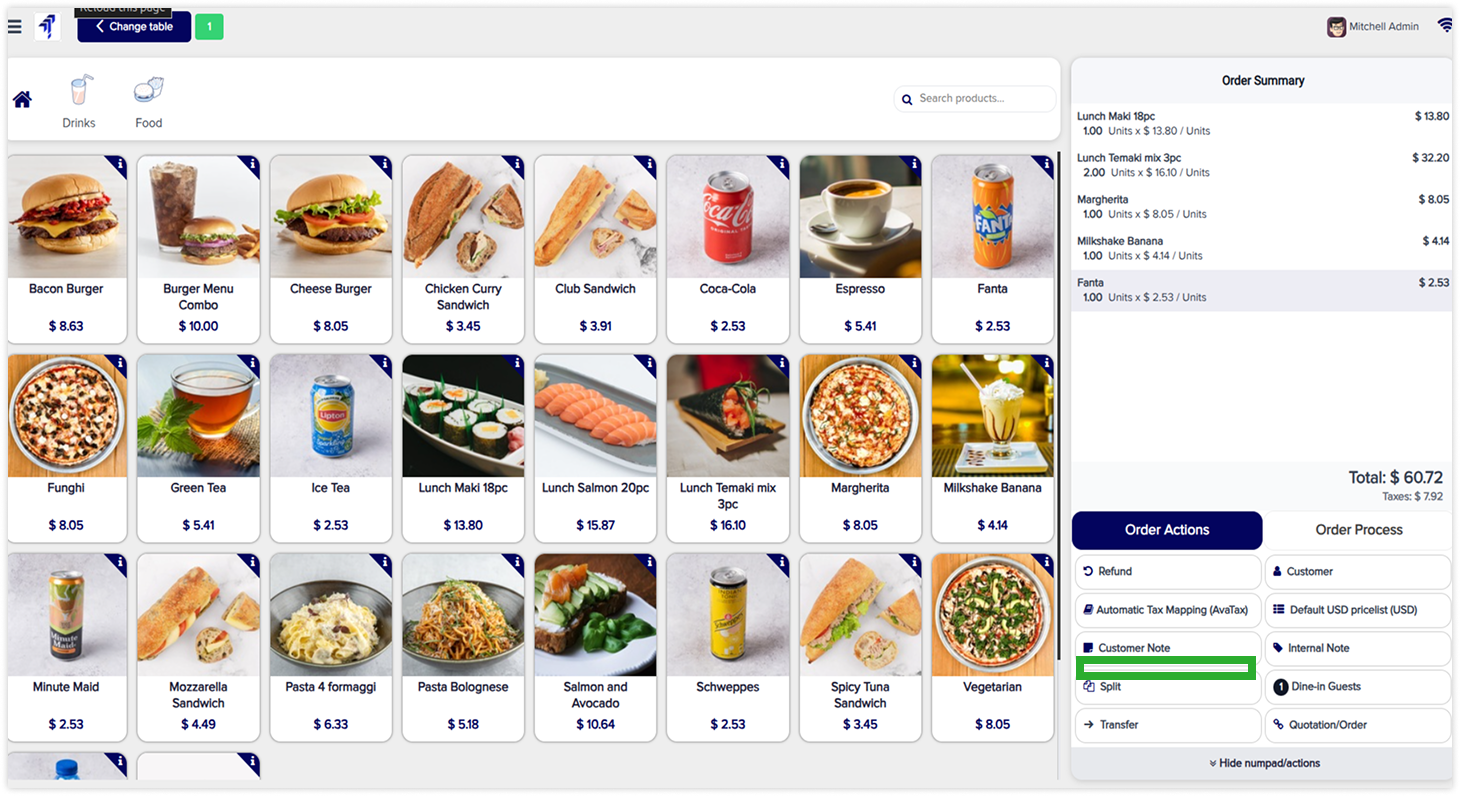
Hide internal note button
-
Click on image to Zoom out.
-
Click on image to zoom out.
-
Click on image to zoom out.
Hide order button
-
Click on image to Zoom out.
-
Click on image to zoom out.
-
Click on image to zoom out.
Hide guest button
-
Click on image to Zoom out.
-
Click on image to zoom out.
-
Click on image to zoom out.
Hide transfer button
-
Click on image to Zoom out.
-
Click on image to zoom out.
-
Click on image to zoom out.
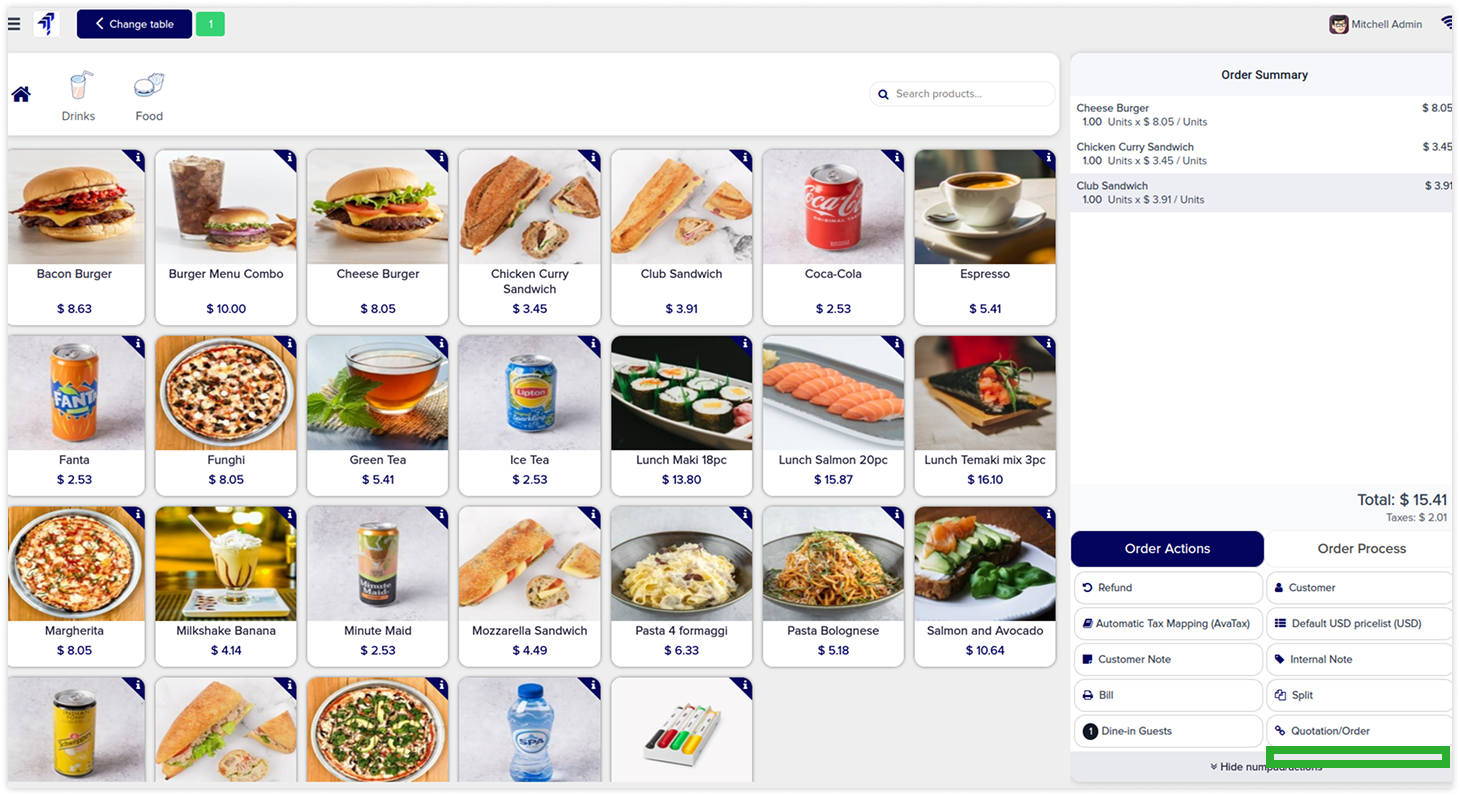
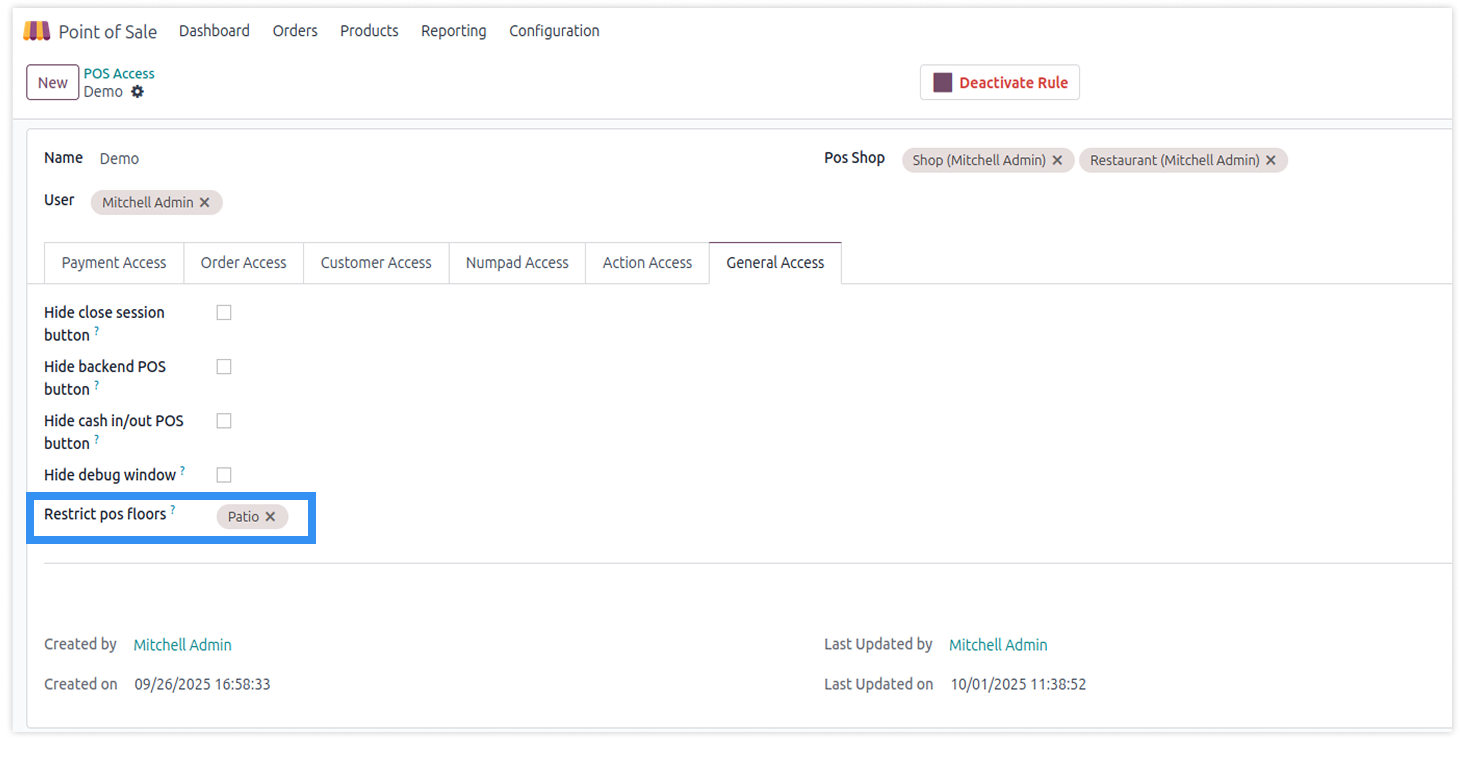
General access rights hide the close session, backend POS, cash in/out, debug buttons, and restrict POS floor access.
You must have technical knowledge.
Not possible to create user-wise access rules.
Here is the solution
No need to have technical knowledge, Only you have to understand our module features and you will be rock.
Work in both Enterprise and Community versions(14,15,16,17,18,19).
How to setup access rights for the general
Here we have explained some examples step by step.
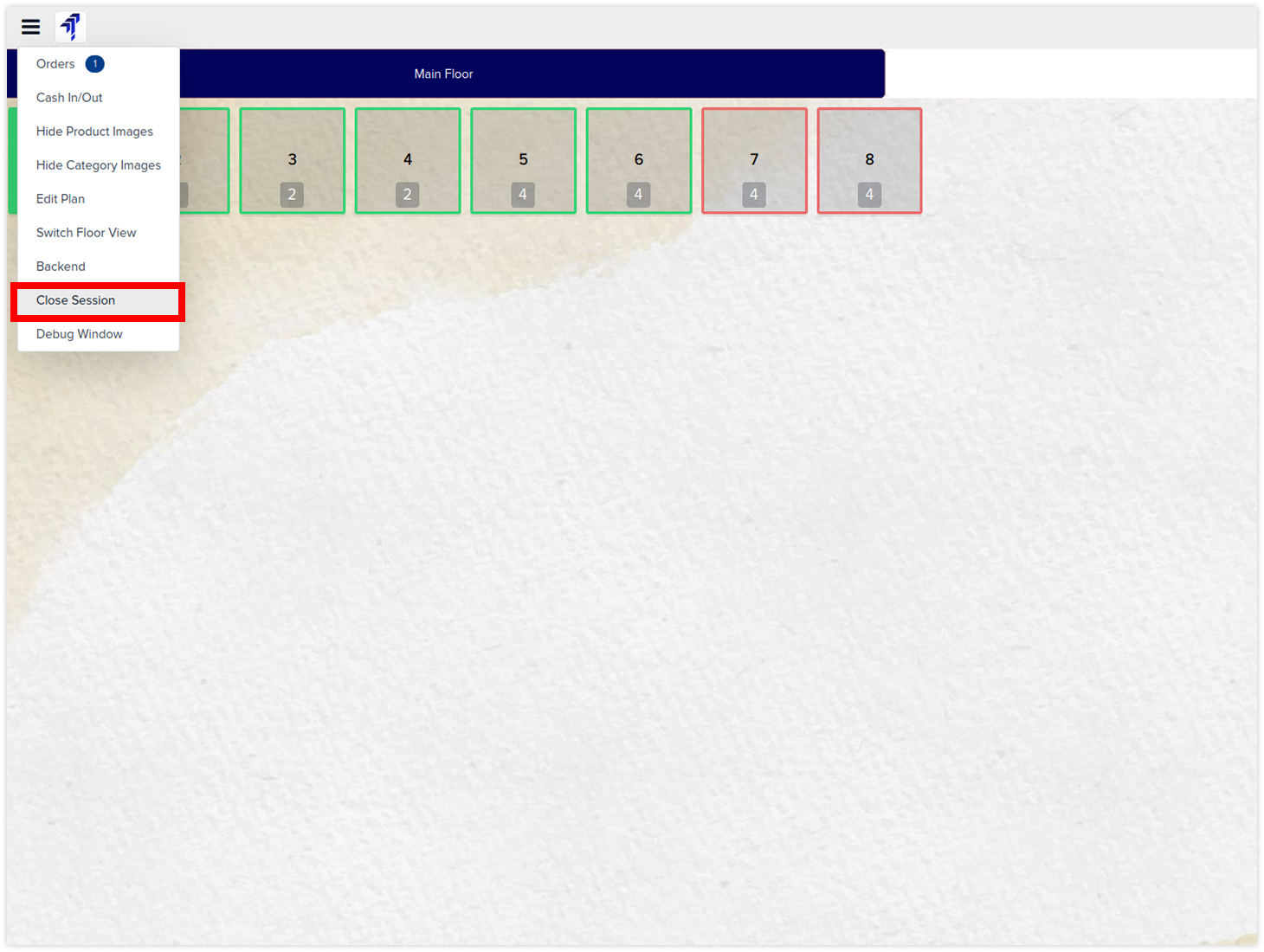
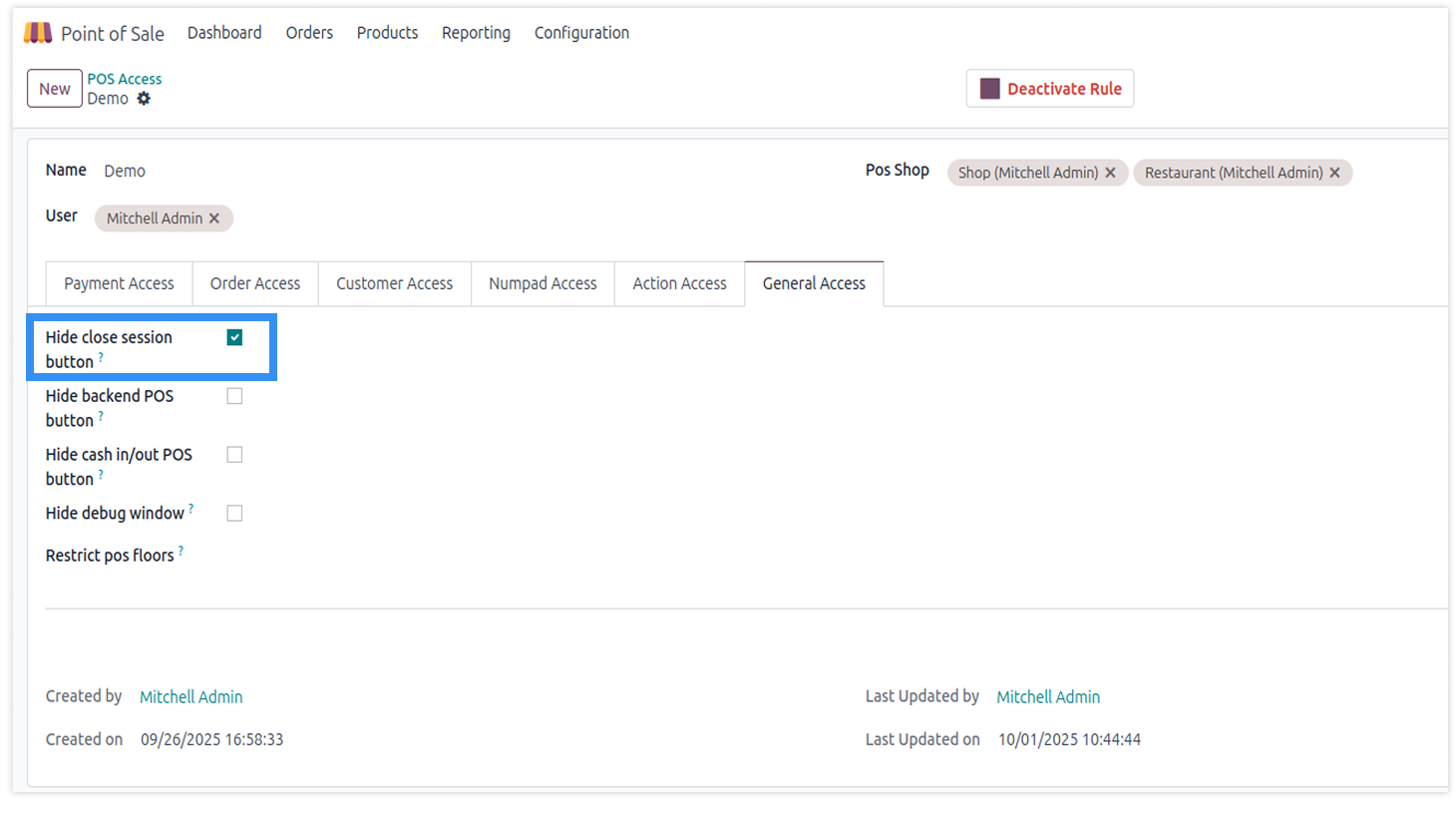
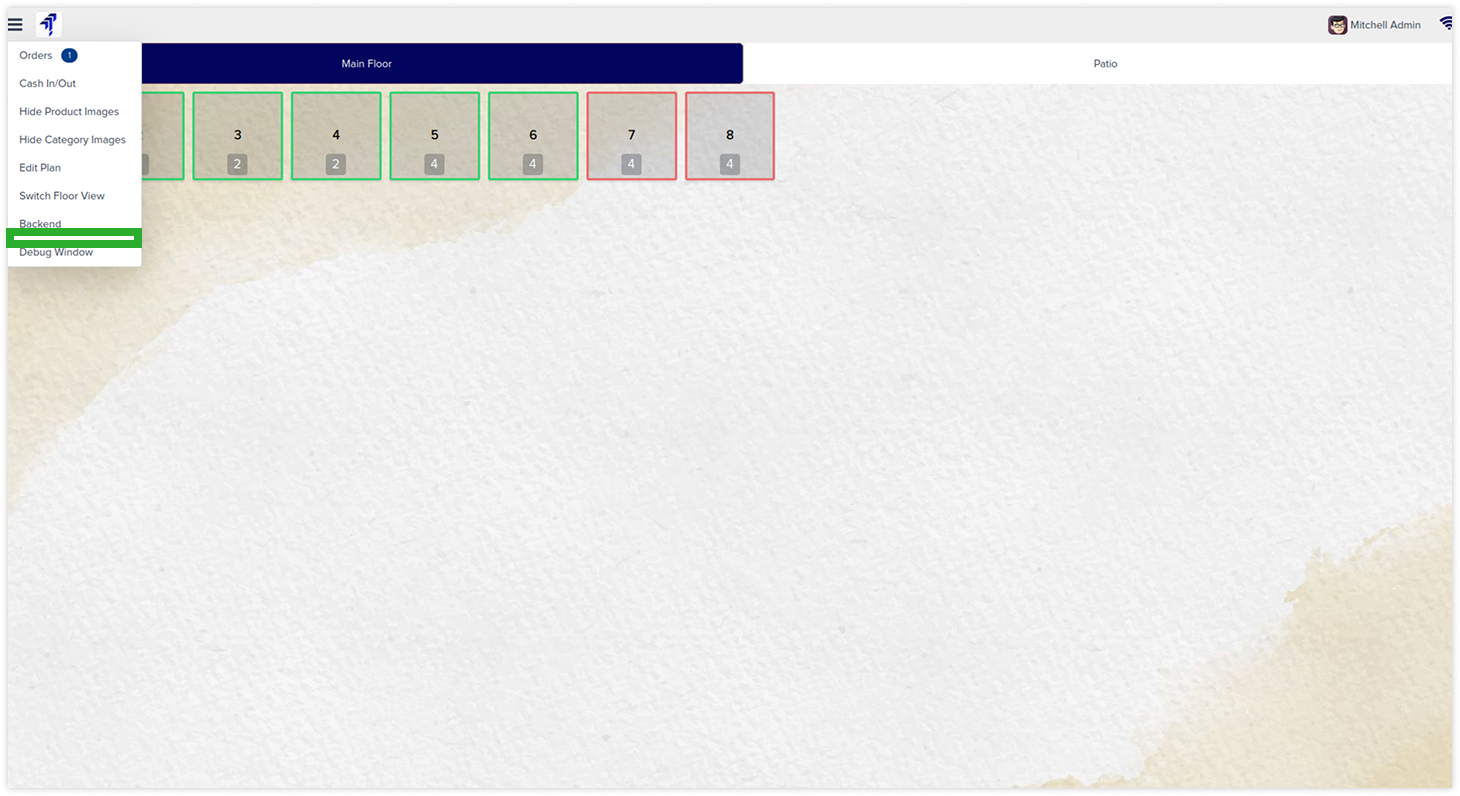
Hide close session button
-
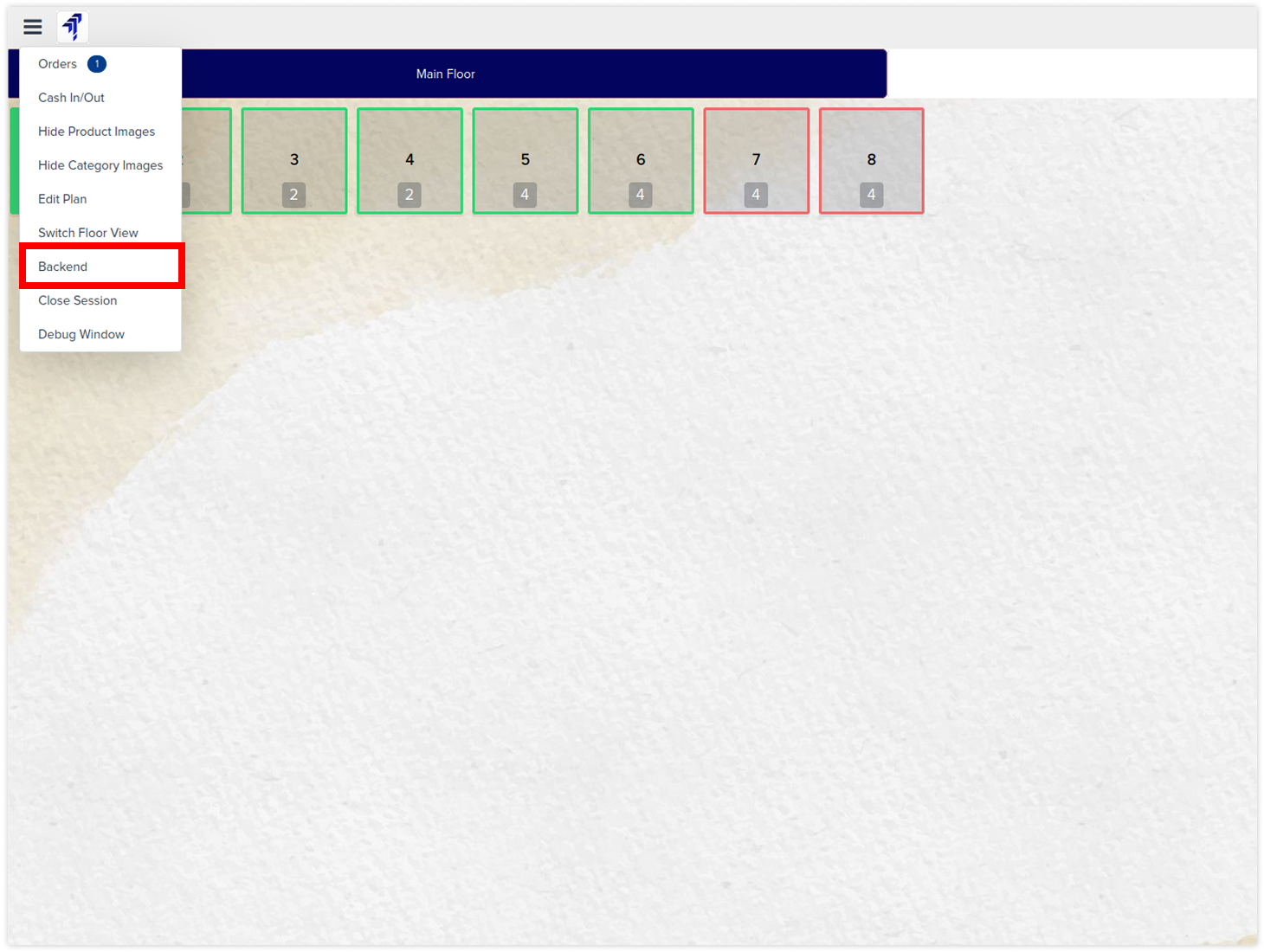
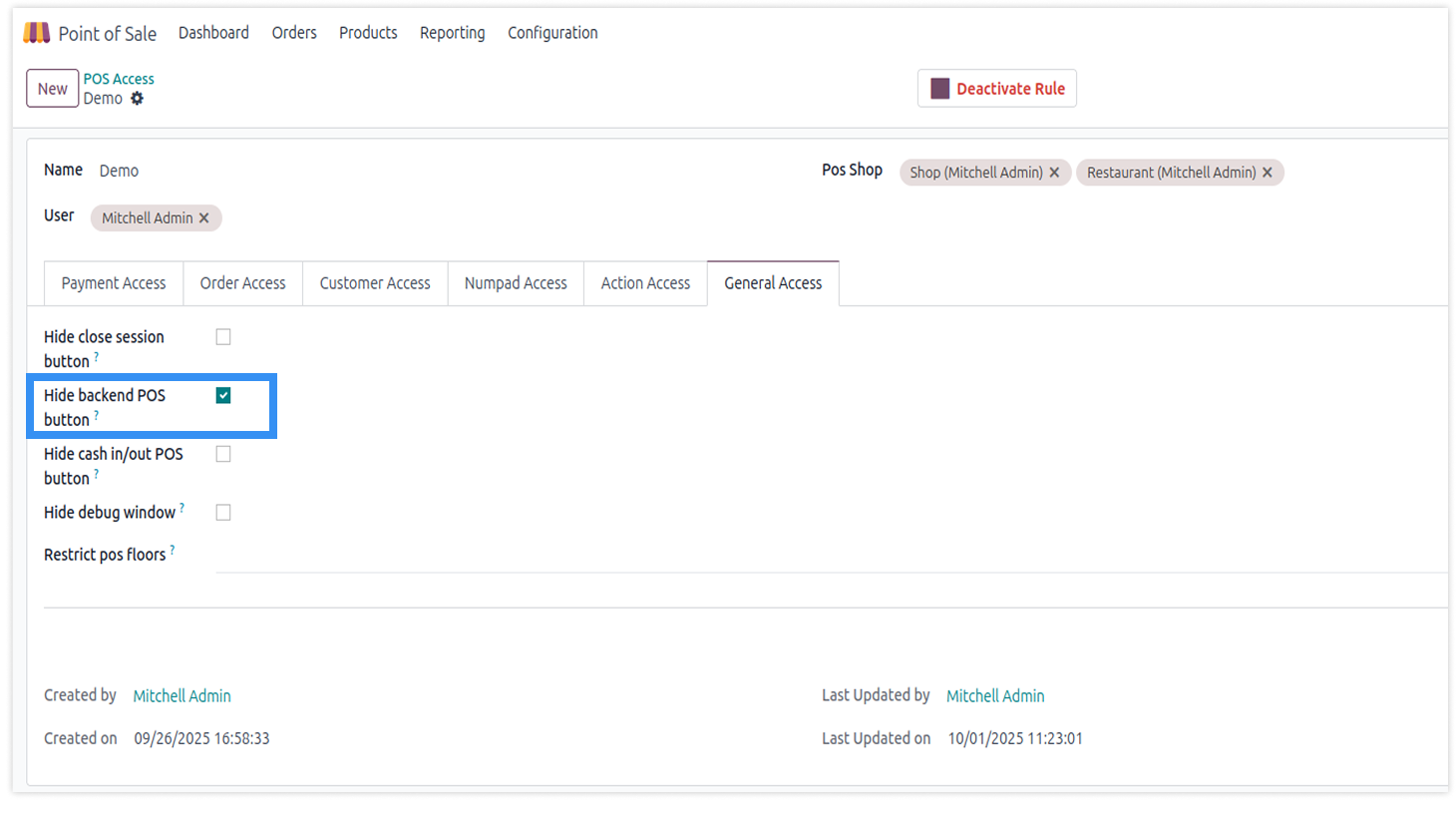
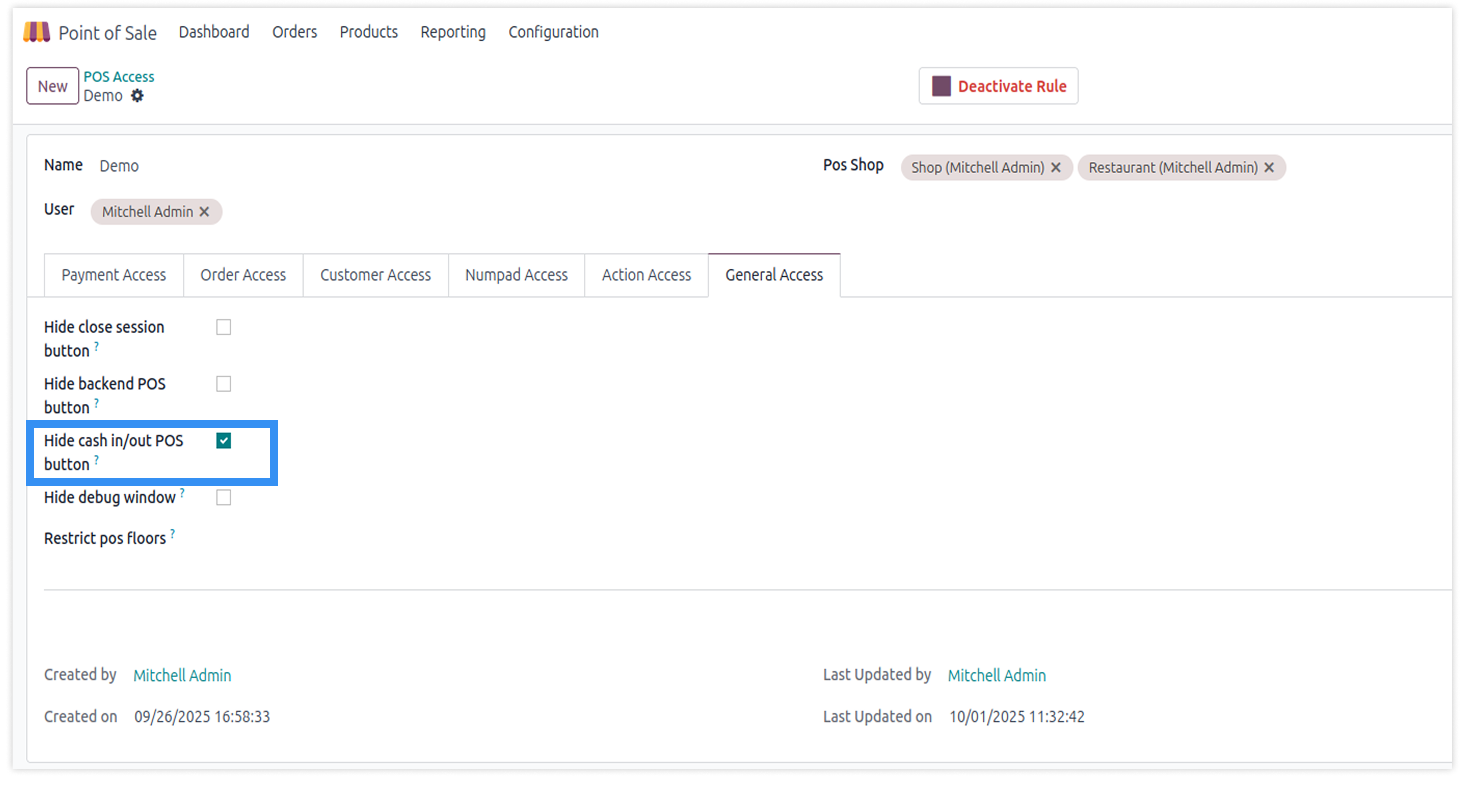
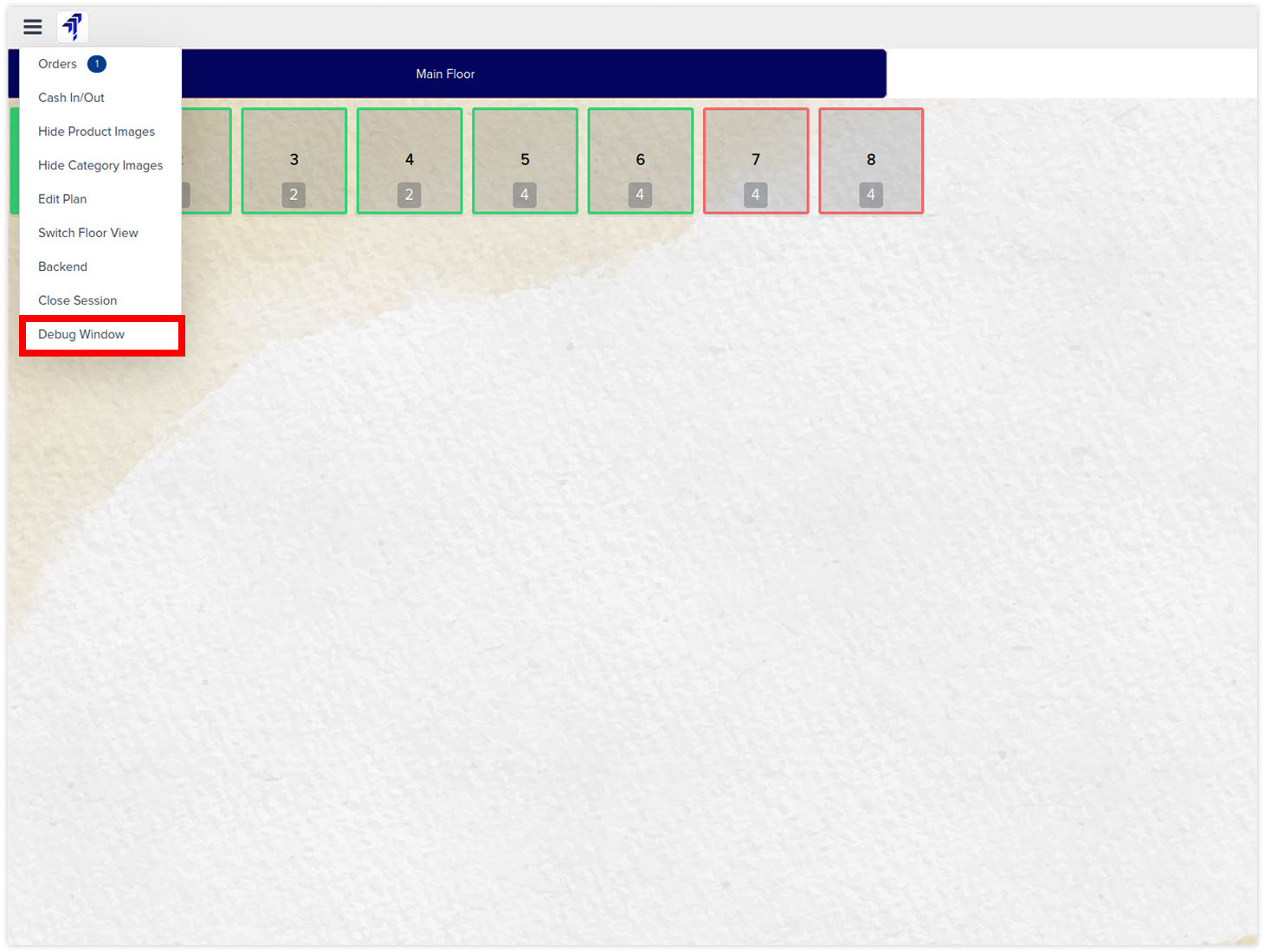
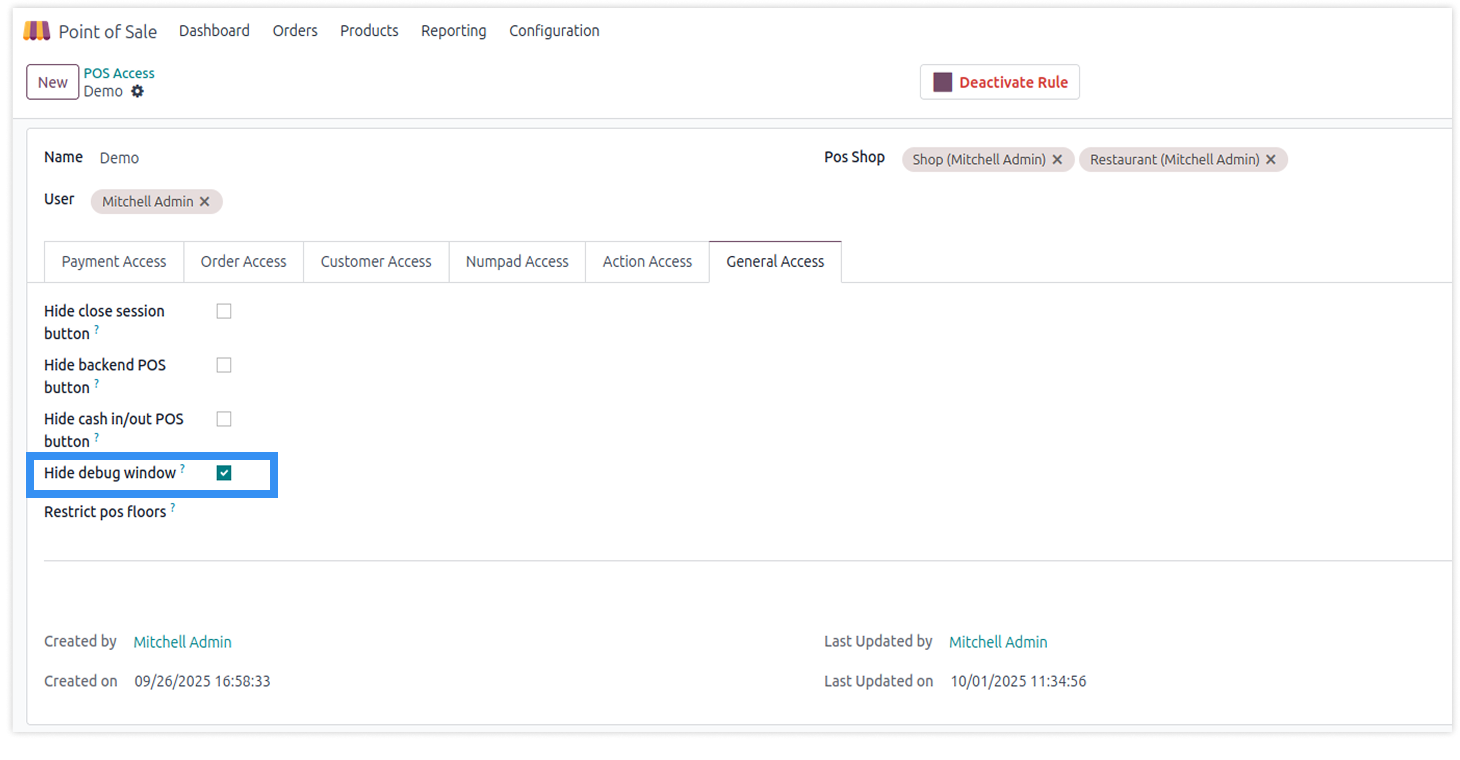
The pos close button and debug window can be hidden in the general access tab by enabling the buttons.
-
Click on image to Zoom out.
-
Click on image to zoom out.
-
Click on image to zoom out.
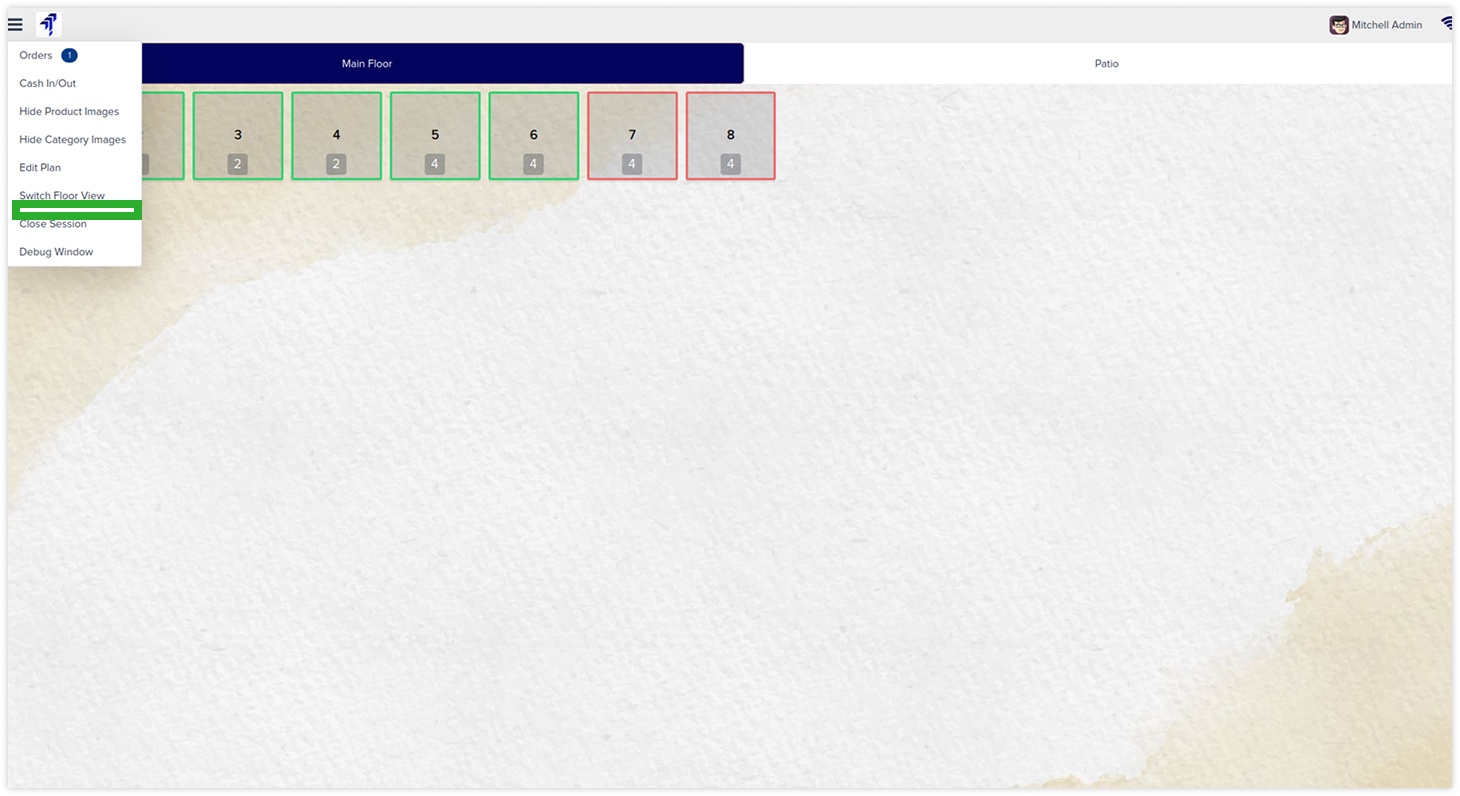
Hide backend POS button
-
Click on image to Zoom out.
-
Click on image to zoom out.
-
Click on image to zoom out.
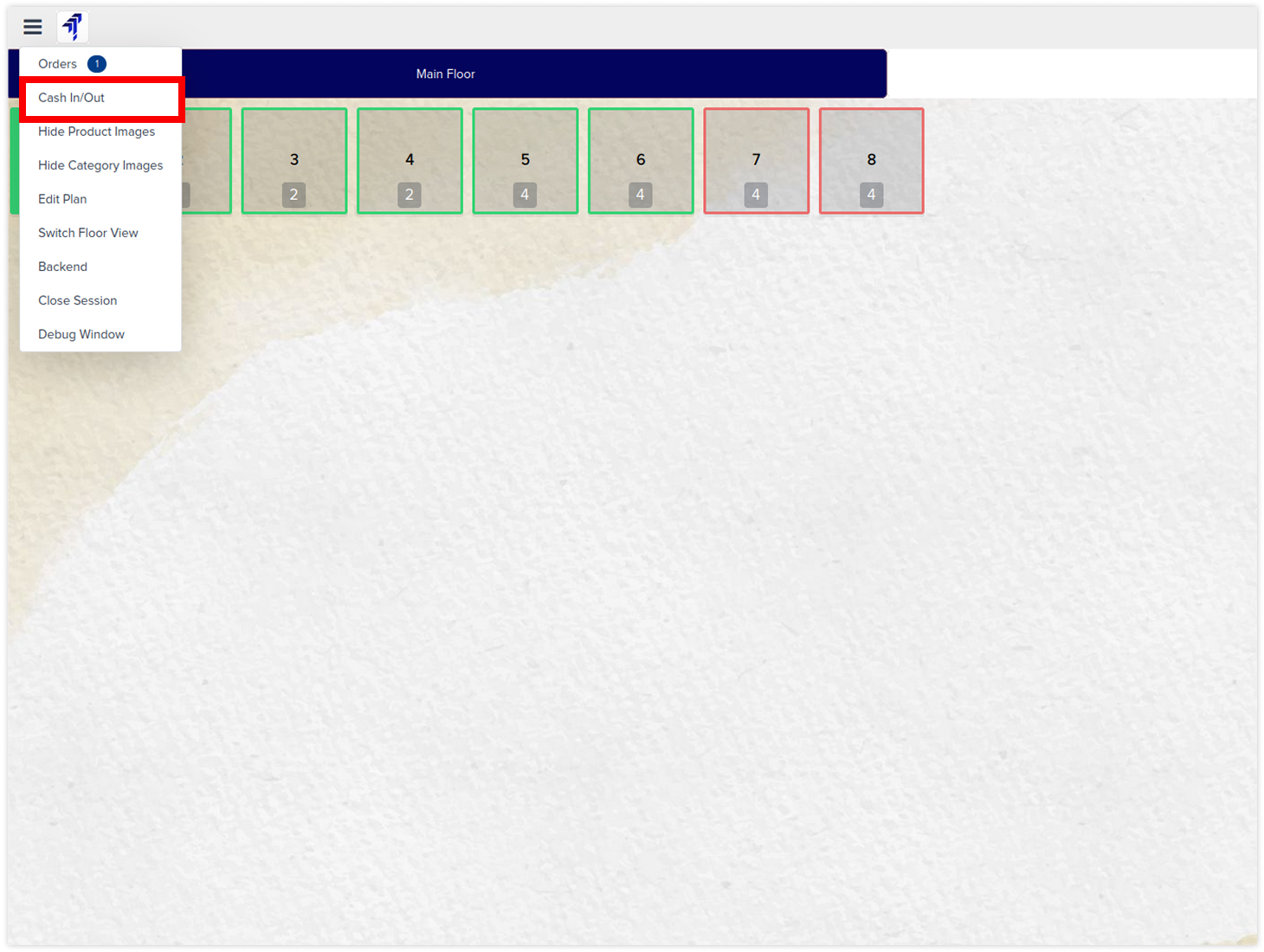
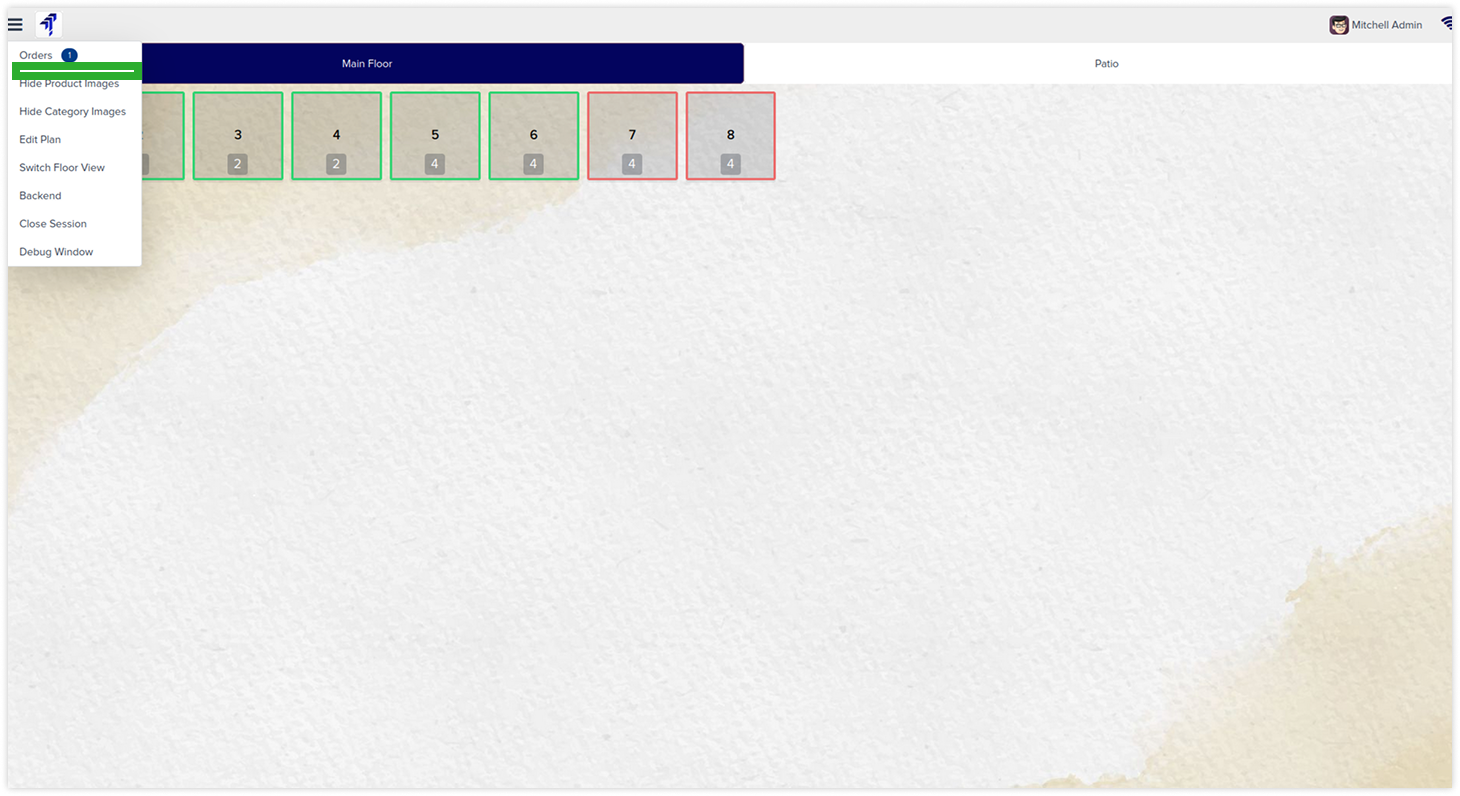
Hide cash in/out POS button
-
Click on image to Zoom out.
-
Click on image to zoom out.
-
Click on image to zoom out.
Hide debug button
-
Click on image to Zoom out.
-
Click on image to zoom out.
-
Click on image to zoom out.
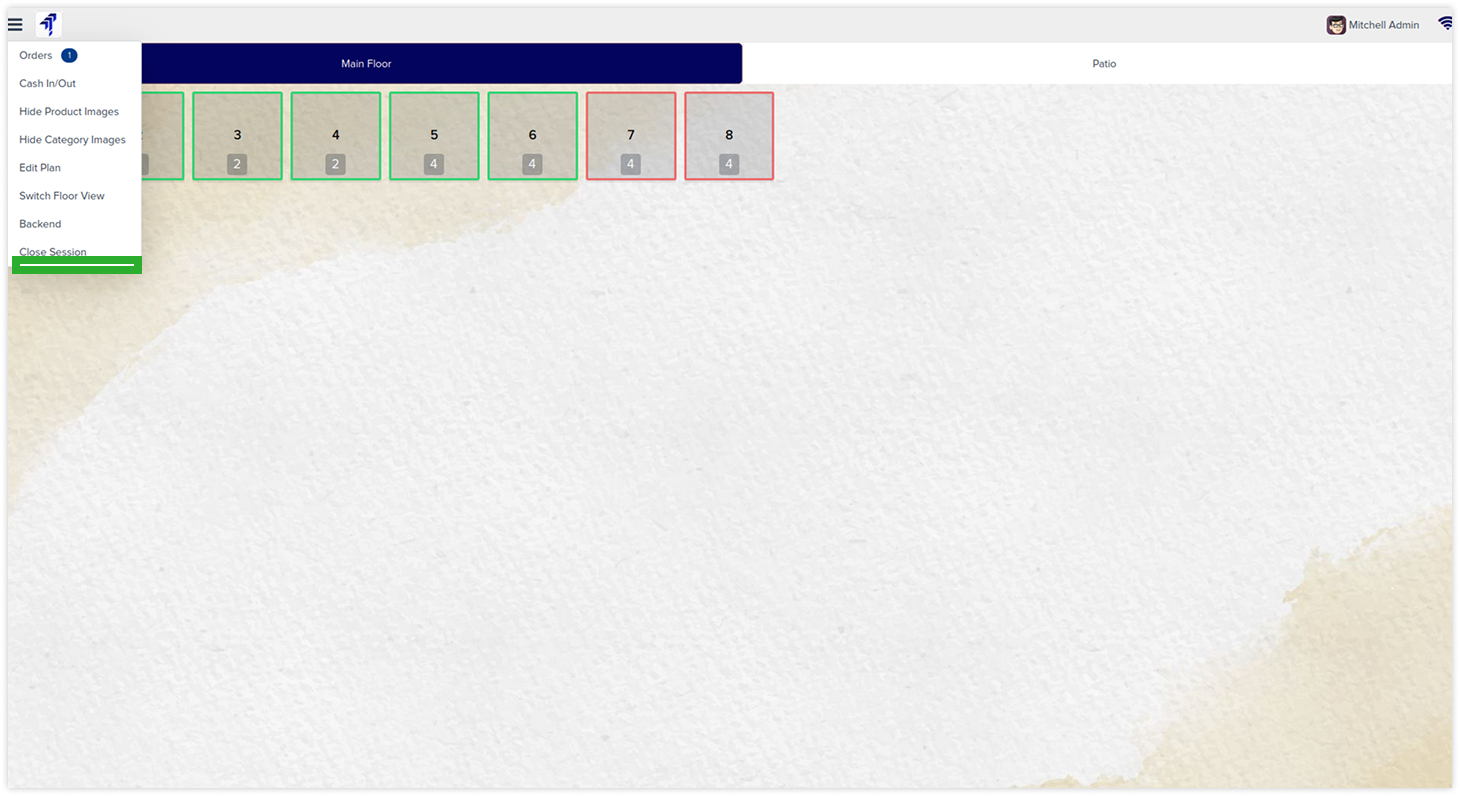
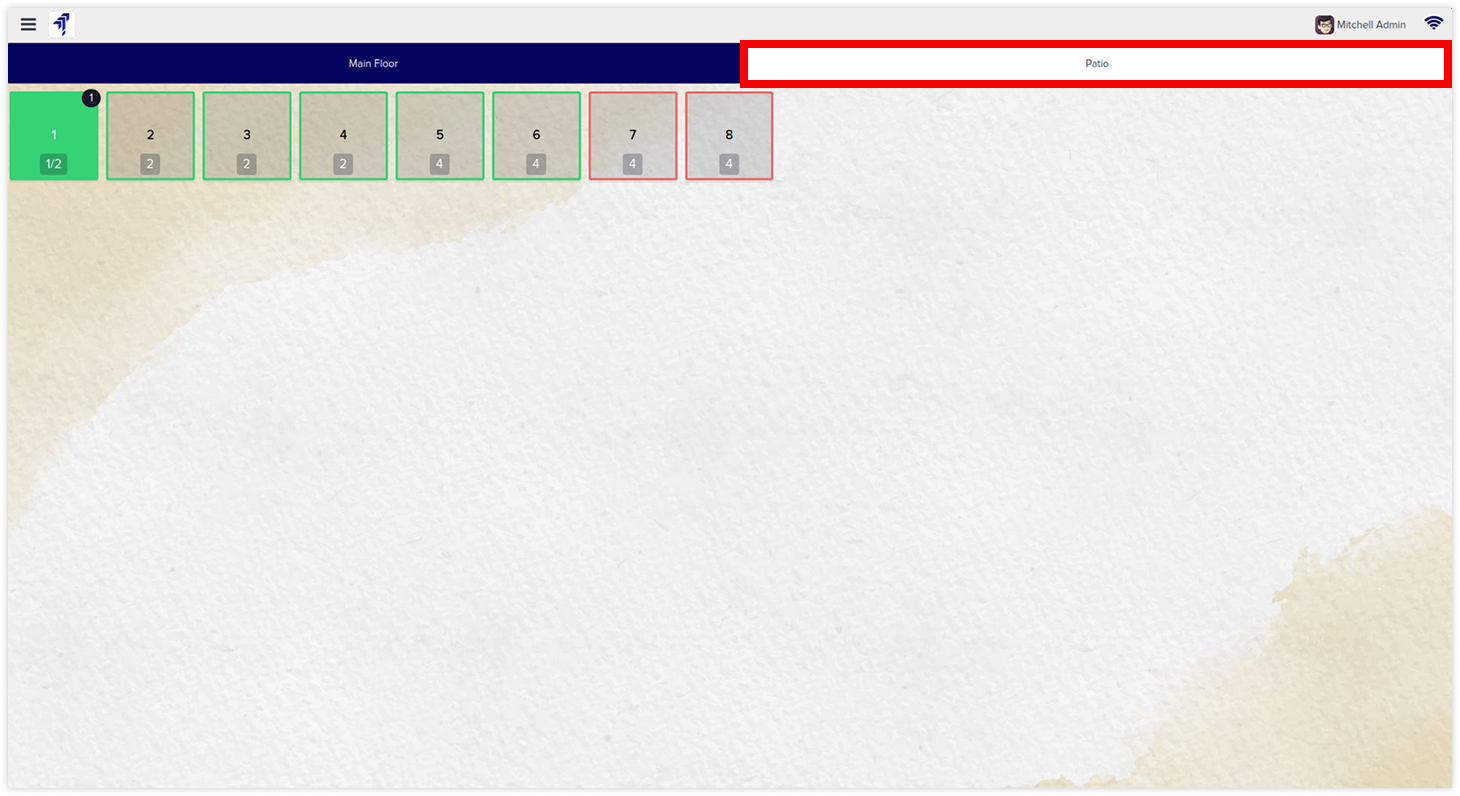
Hide restrict pos floor
-
Click on image to Zoom out.
-
Click on image to zoom out.
-
Click on image to zoom out.