
Odoo Shopify Connector
$ 254.94
| Required Apps |
•
base_connector_bits
|
| Technical Name |
shopify_connector_bits
|
| License | OPL-1 |
| Also available in version | v 20.0 v 19.0 v 18.0 v 17.0 |


 Last Updated : 24 OCT 2026 (v17.0.1.0.0)
Shopify Connector for Odoo
Connect one or many shopify stores to Odoo. Products, customers, orders, stock, deliveries, refunds and returns stay in step - automatically, in the store's own currency.

Key features
Everything the connector does, at a glance.

Multiple stores
Connect as many shopify stores as you need, each with its own settings, warehouse, locations and pricelist.

Real-time webhooks
Orders, products and customers changed on Shopify reach Odoo on their own within minutes - securely signature-checked.

Import & Export
Pull products, customers, orders & stock from Shopify, push products, customers and stock from Odoo. All records, chosen IDs or a date range.

Automatic order workflow
Confirm, email, deliver, invoice, register payment and lock orders without a click. Cash on delivery stays unpaid until paid.

Two-way delivery & tracking
Ship in Odoo and Shopify is fulfilled with tracking. Fulfil on Shopify & the Odoo delivery is validated. Partial shipments supported.

Refunds, returns & cancels
Credit notes for refunded lines only, restocked items received back, cancelled orders credited. Never billed or credited twice.

Prices in store
currency
Each store gets a pricelist in its own currency and every variant keeps its own price - no conversion.

Taxes exactly as
Shopify
Every order line carries the tax Shopify charged, so totals in Odoo and Shopify always match.

Multi-location stock
Each Shopify location is linked to an Odoo warehouse. Odoo is the master for stock.

Background queues
Big jobs run in batches of 100 in the background. Your screen never freezes; failed records are easy to retry.

Clear logs & dashboard
A live sales dashboard per store, and logs that show exactly why something failed.

Two access levels
Connector Users can view; Connector Managers run operations and see credentials.
What syncs, and How?
What our connector keeps in sync between Shopify and Odoo.

Product
Click Import Products. New changes in Shopify come in by themselves.
Customers
Click Import Customers. New sign-ups come in by themselves.
Stock (per location)
Click Import Stock.
Deliveries & tracking
Fulfil the order in Shopify. Odoo updates by itself.
Orders
Click Import Orders. New orders and draft orders come in by themselves.
Payments
When an order is paid on Shopify, Odoo records the payment by itself.
Cancellations, refunds & returns
Cancel, refund & return in Shopify. Odoo updates by itself.

Product
Click Import Products. New changes in Shopify come in by themselves.
Customers
Click Export. Later changes are sent by themselves.
Stock (per location)
Click Export Stock. Later stock changes are sent by themselves.
Deliveries & tracking
Validate the delivery in Odoo. Shopify updates by itself.
Import / Export = you click a button. Webhook / Auto = it happens by itself.
How it works
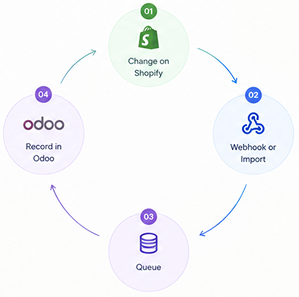
Every change moves through a queue, so nothing is lost and nothing blocks your screen.
01
Shopify to Odoo
Any changes made in Shopify are automatically updated in Odoo.
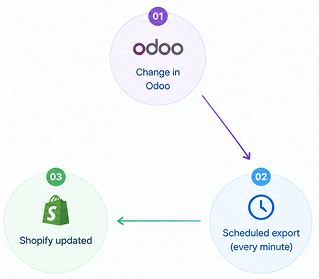
02
Odoo to Shopify
Updates made in Odoo are automatically sent to Shopify every minute.
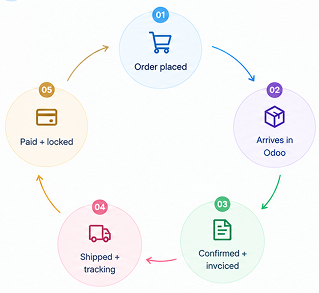
03
Order Journey
Track every order from the time it is placed until it is shipped and delivered.
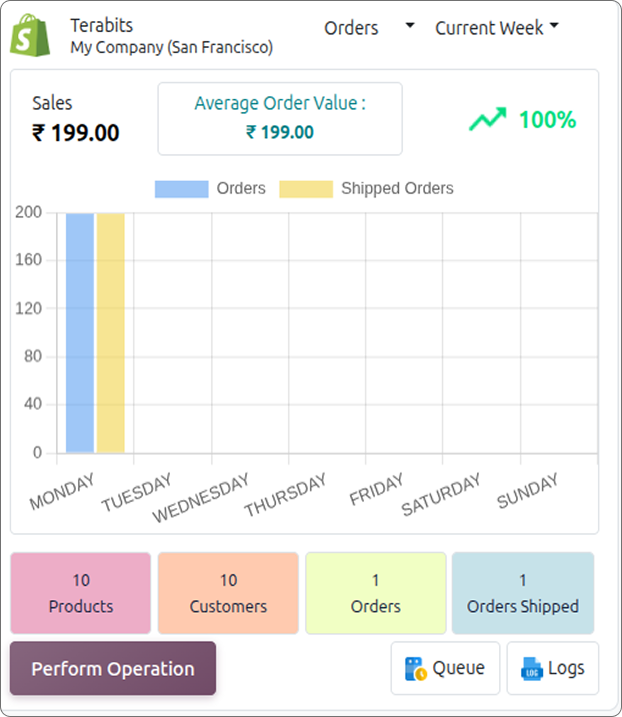
Dashboard
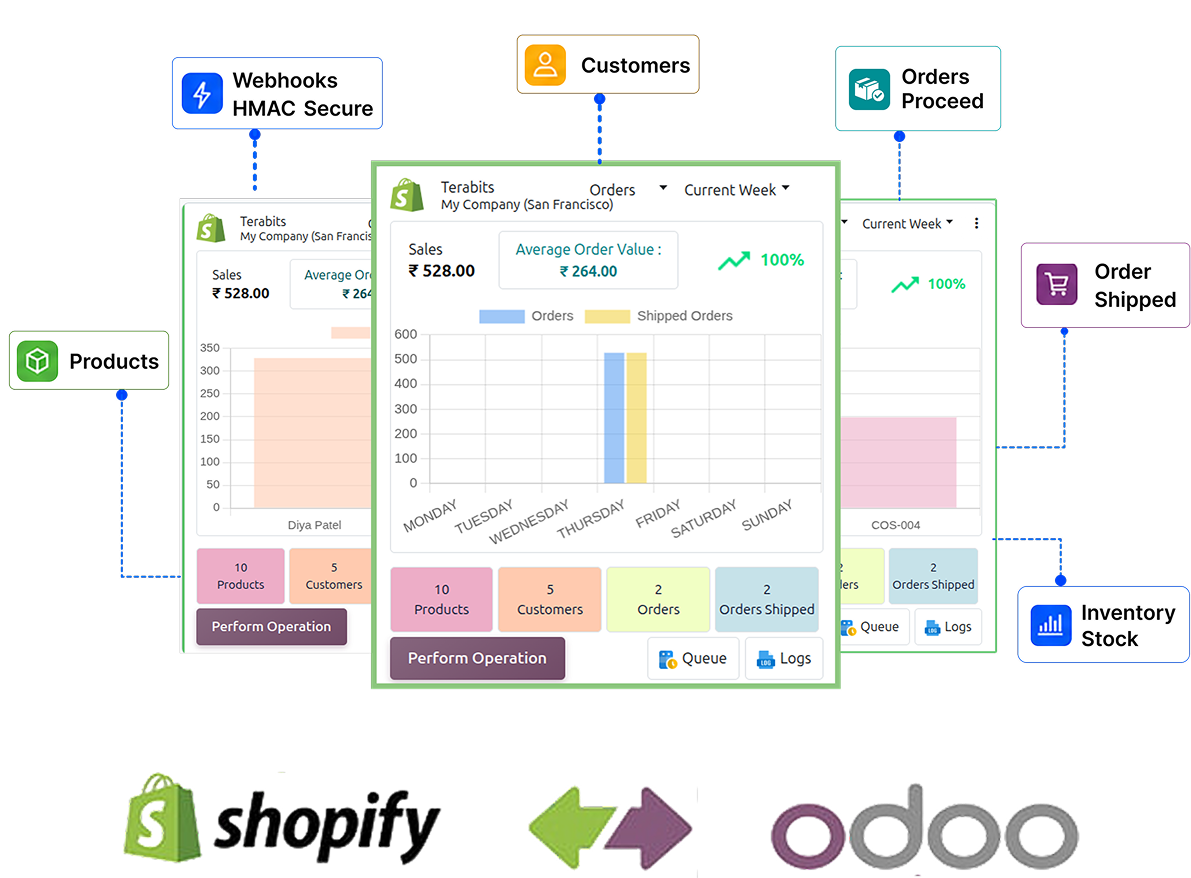
One card per connected store. Instantly see how the store is performing.

What you see on each card

Sales total and average order value for the period.
Growth % compared to the previous period.
Buttons to run an import/export, open logs or open queues
Chart of orders, top products or top customers.
Quick counts: products, customers, orders, shipped orders
Orders Shipped counts only orders that are fully delivered. An order with a delivery still open is not counted.
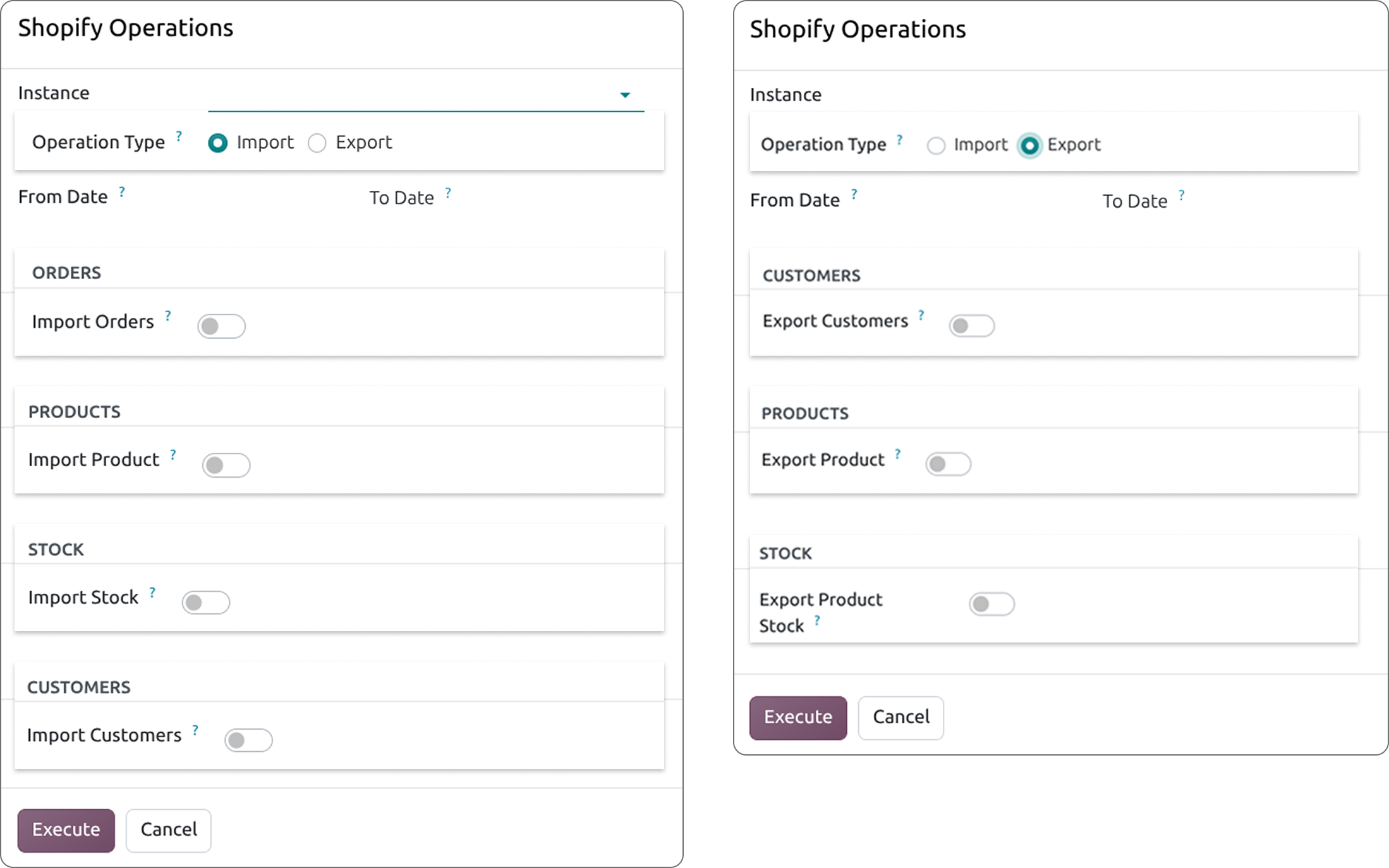
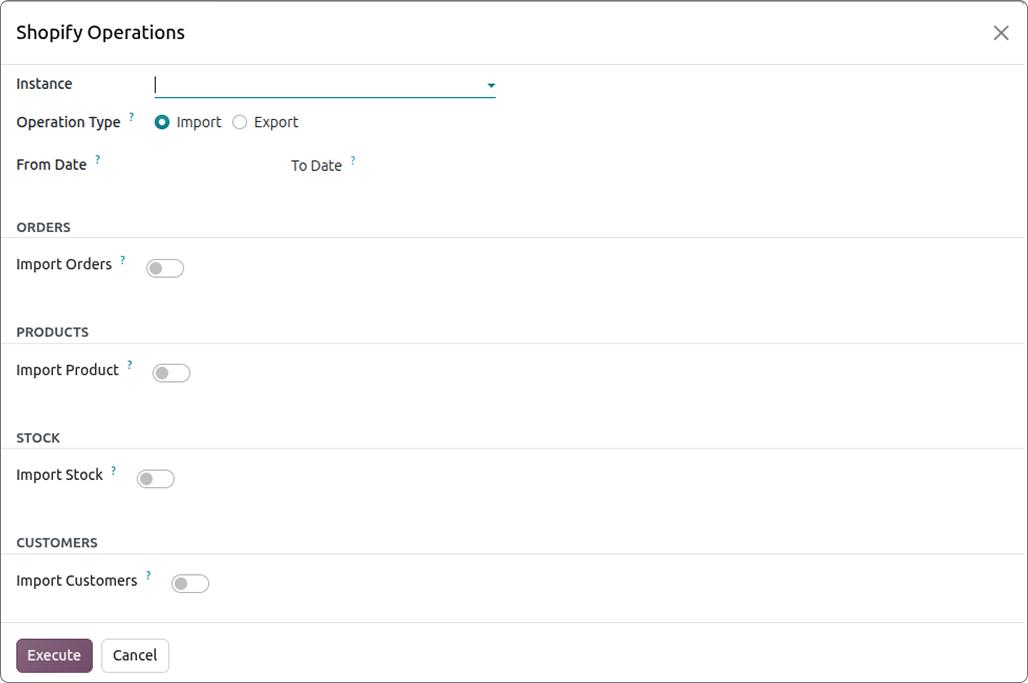
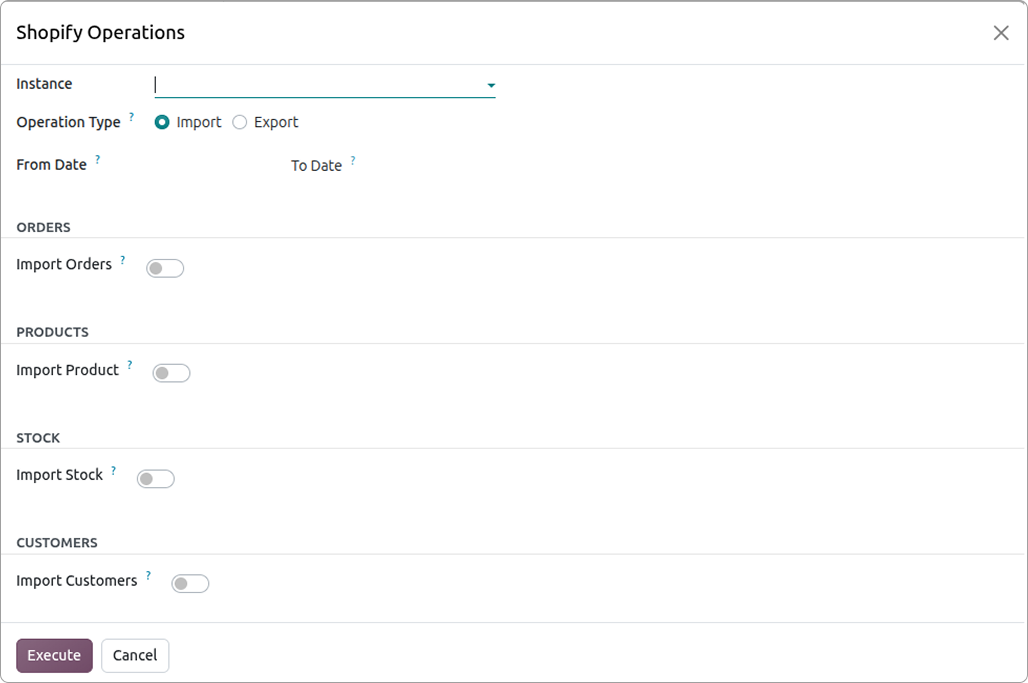
Import & Export
Move data between your store and Odoo whenever you need.
Import (Store to Odoo)
Orders (including draft orders).
Products and their stock.
Customers.
You can import everything, or only
specific IDs.
Export (Odoo to Store)
Products (with prices)
Customers
Stock levels.
Only products and customers linked to that store are sent. Deliveries (with tracking) are sent automatically when you validate a delivery. Delivery is not listed here as a manual export option.
Choosing a date range
Set a from date and a to date.
Records created or updated inside
that range come in.
Dates are whole days in your own
time zone. The same date in both
fields means that one day.
Leave from date empty to take
everything changed since the last
import or export.
Leave to date empty to go up to now.
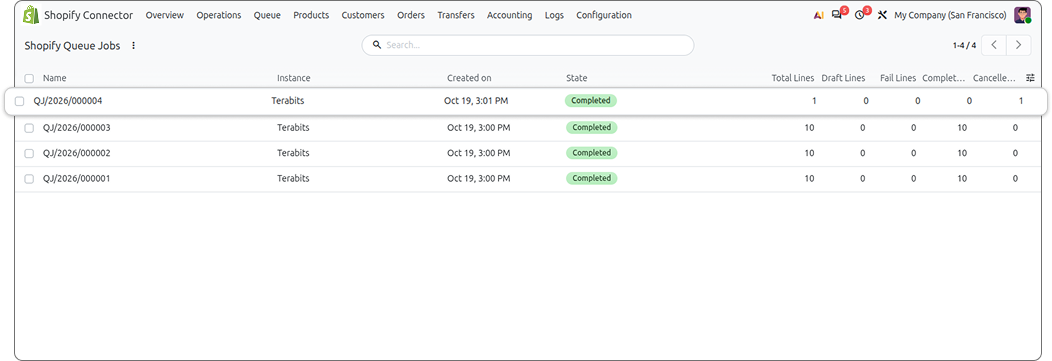
Background Queues
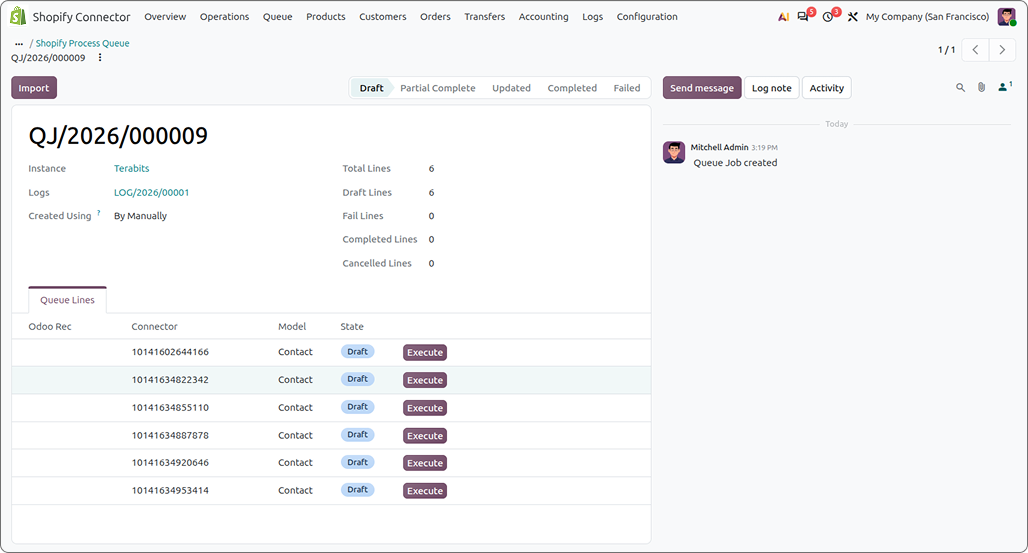
Large jobs are split into small batches (up to 100 records each) and processed in the background.
Why this helps
Your browser never times out.
You can keep working while data is syncing.
Failed records are easy to find and retry.
Each queue shows how many lines are waiting, done, or failed. You can run a queue immediately or let the system process it every few minutes.
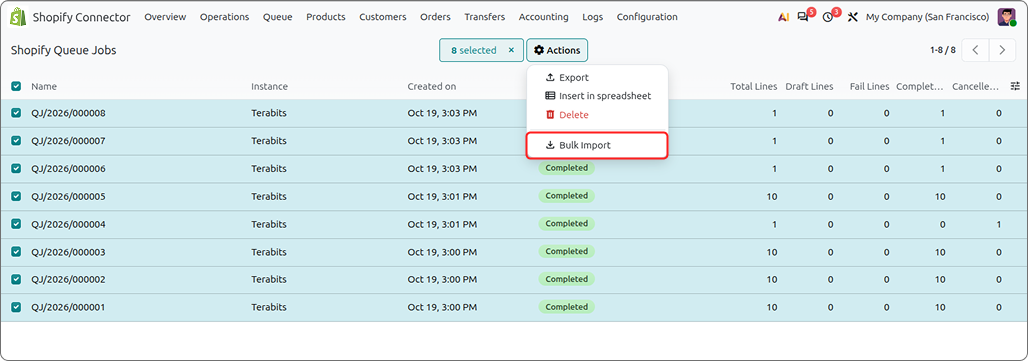
Bulk Import - run many queues at once
Open the Queue list and tick the queues you want.
Click Actions > Bulk Import (managers only).
A queues run the background. Failed lines in them are retried too.
The automatic run every few minutes skips lines that already failed, so one broken record never blocks the rest. Bulk Import is how you ask for them to be tried again.
Working with one queue
Import / Export button :- run the queue now, including its
failed lines.
Mark As Complete :- Works only if some queue lines are already
completed. It moves unfinished lines to a new queue for later review.
If no lines are completed, the button does nothing.
Execute on a line :- run just that one record again.
Update on a line :- Appears when a processed line receives newer
store data. Runs the line again using the updated data.
Logs on a line :- see exactly why that line failed. Available to
all connector users.
A queue runs for a few minutes at a time and saves as it goes. If it is not finished, the next run carries on where it stopped. Two people can never run the same queue at once - the second sees "Already being processed".
Logs
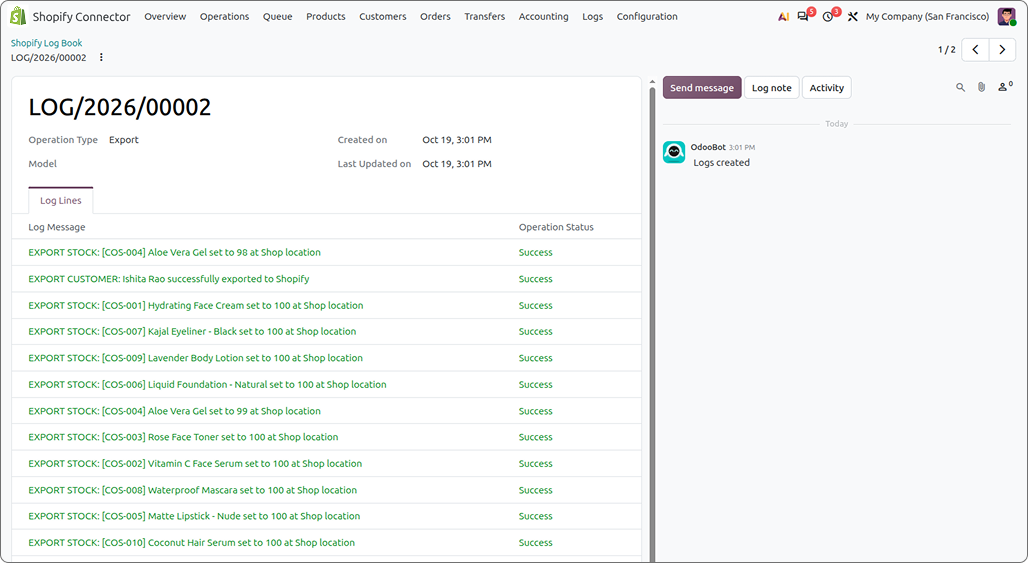
A history of imports, exports and webhooks - with a clear difference between them.
One log book per store, per day, per type of operation.
Lines are coloured: green = success, blue = warning, red = error.
Import only writes a log line when there is a problem (warning or error). A record that imported cleanly leaves no log line - its queue
line simply shows completed.
Export does write green (success) lines for records that went through.
Search and filter to quickly find problems. Do not expect to find success lines for every imported record.
Automatic order workflow
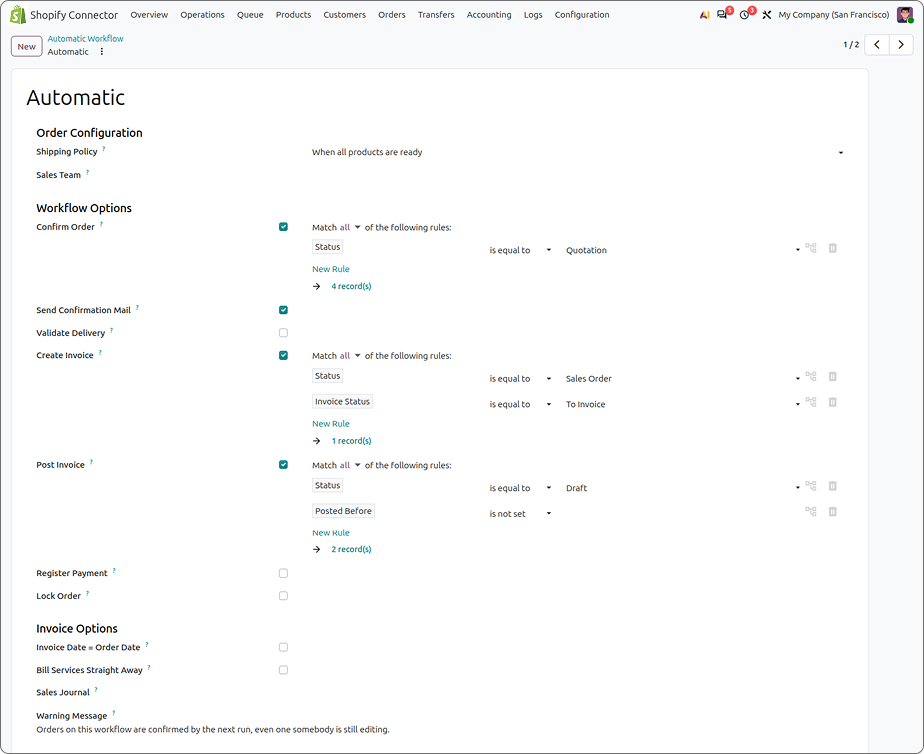
Tell Odoo what to do with every imported order - then let it run by itself.
Steps you can turn on
Confirm order - turns the quotation into a confirmed sales order.
Send confirmation email - notifies the customer.
Validate delivery - ships the goods and tells the store.
Create & post invoice - bills the customer.
Register payment - marks the invoice as paid when the store has the money.
Lock order - prevents accidental changes after everything is done.
Each step has a filter so only the right orders are processed. Two ready-made workflows come with the app: automatic & manual. The workflow runs every minute.
More workflow options
Shipping Policy - ship each item when ready, or wait
and ship everything together.
Sales Team - put on every order of this workflow.
Invoice Date = Order Date - invoices take the date the order
was placed, not today.
Bill Services Straight Away - service lines are marked delivered
when the invoice is made, so they billed with it.
Warning Message - shown when someone picks this workflow
on an order by hand.
Store orders always keep the date they were placed on when they are confirmed.
Working with one queue
Only orders that are paid on the store get
a payment in Odoo.
Cash on delivery, bank transfer and other pending
orders (also authorized, partially paid or voided)
keep their invoice unpaid.
As soon as the store marks such an order paid, the next
workflow run (within a minute) registers the
payment on its own.
The order shows its payment gateway (for example Cash on Delivery), so you can see how the customer paid.
Deliveries & Tracking
Shipping stays in step both ways.
Steps you can turn on
Validate a delivery and Shopify marks the order fulfilled
with the tracking number and carrier link.
Partial shipments are sent as partial fulfilments;
backorders follow when they ship.
Optionally let Shopify email the customer the tracking (off
by default, so testing never emails real customers).
Shopify fulfilment sync to odoo
The Odoo delivery is validated with the tracking
number and carrier.
Only the fulfilled quantity is delivered; the rest
becomes a backorder.
Fulfilled before the order reached Odoo? The tracking is
kept and applied when the delivery appears.
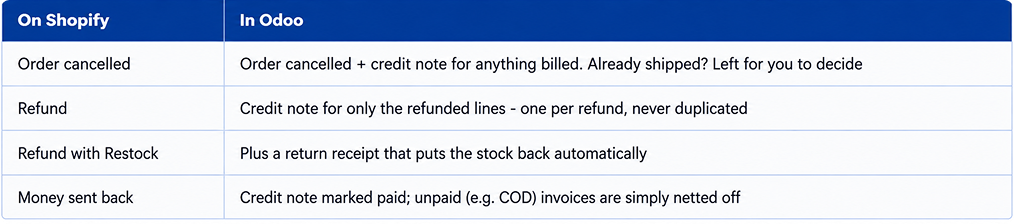
Returns, Refunds & Cancellations
Stock and money stay correct - nothing is ever billed or credited twice.
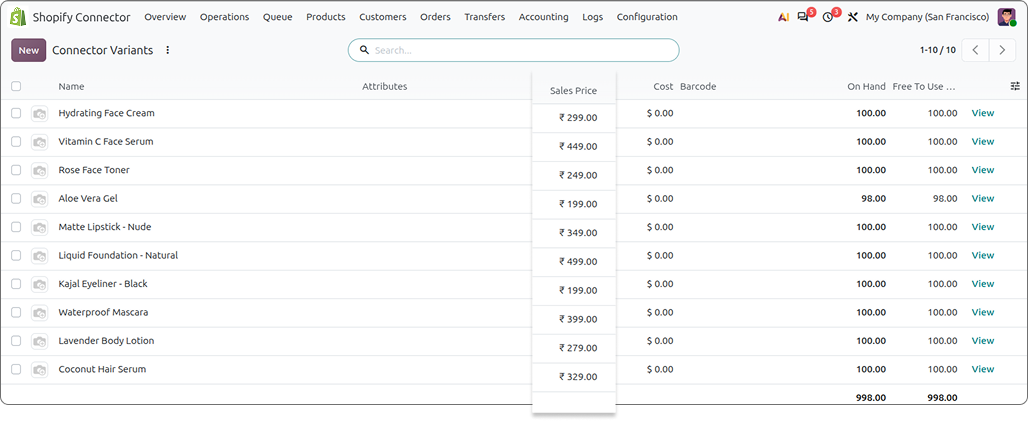
Prices in the Store's Currency
Each store keeps its own prices, in its own currency.

Every store has its own pricelist. Leave it empty and one is created in the store's currency when you connect.
Each variant's store price is a rule on that pricelist, shown in the product's Prices tab.
On a single-variant product, Sales Price and the store price rule stay in sync - change one and the other follows.
On a product with several variants, Sales Price is read only, because each variant has its own price. Set them in the prices tab.
A product that belongs to one store shows its prices in that store's currency.
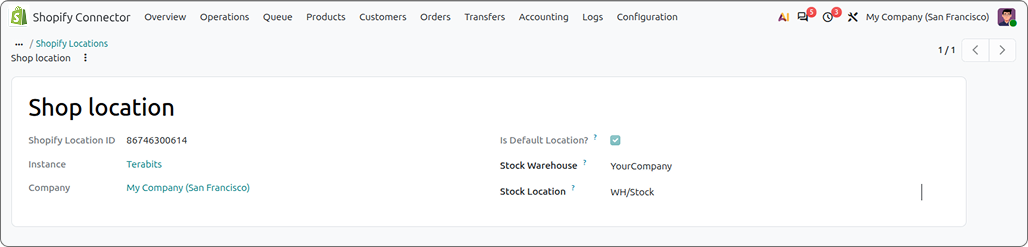
Stock & Locations
Odoo is in charge of stock. The store follows it.
Odoo is the master: stock is exported to Shopify per location, using the quantity you choose (On Hand or Forecasted).
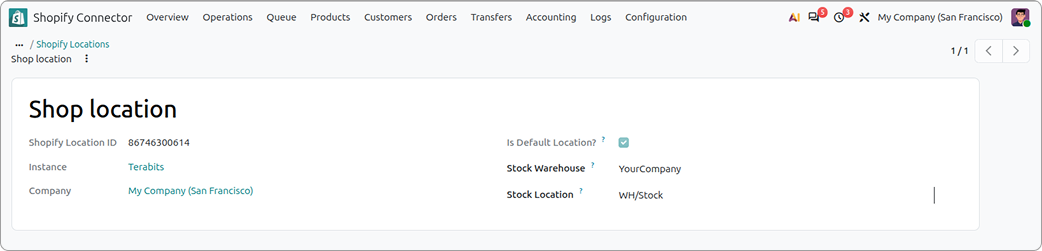
Each Shopify location is linked to an Odoo warehouse and stock location; new locations are fetched in one click.
Need Shopify's counts in Odoo? Run Import Stock - apply them straight away or review them first.
Restocked returns go back into stock automatically.
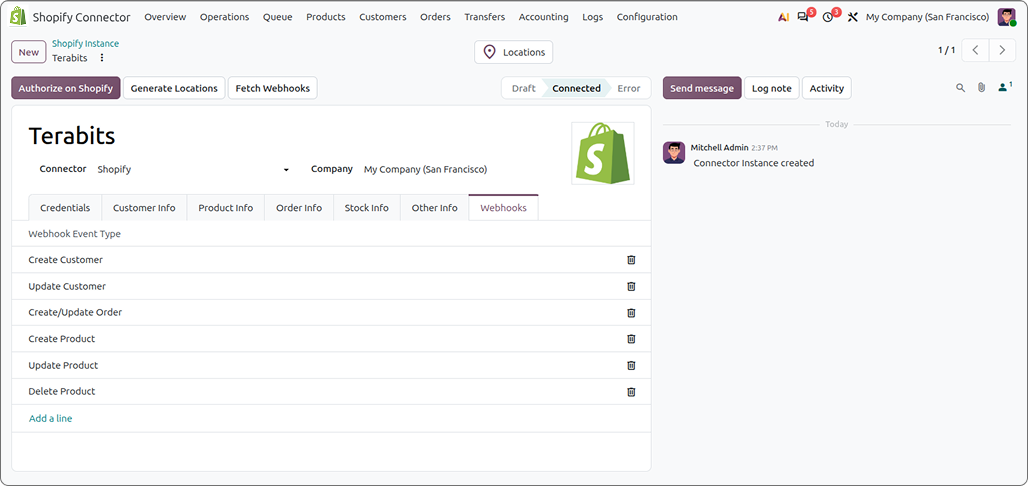
Webhooks
Changes made in the store reach Odoo on their own, within minutes - no manual import needed.
What is a webhook?
A webhook is a message the store
sends to Odoo the moment
something changes.
For example, when a customer
places an order or you edit a product
in the store, Odoo is told straight
away.
Events you can receive
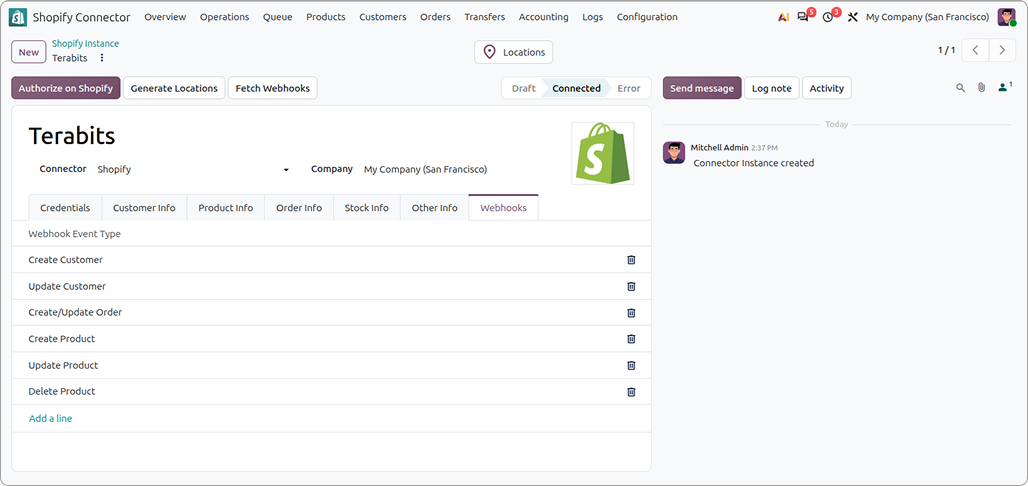
Create customer & update customer.
Create/Update Order - new orders
and changes to existing ones.
Create product, update product and
delete product.
How to set them up
Make sure Odoo is reachable on a
secure https:// address.
Enter the store's Client Secret in the
instance to verify that messages
come from your store.
Open the instance, go to the
Webhooks tab and add the events
you want.
Save - each event is registered in the
store automatically.
Already have webhooks in the store?
Click Fetch Webhooks to bring
them into Odoo.
What happens when a webhook arrives
The record is added to a webhook queue - one per store, per day.
The queue is processed in the background every few minutes.
If the same record changes again before it is processed, the waiting line is simply updated - no duplicates.
Problems are recorded in a Webhook log book, along with store events like cancellations, refunds and fulfilments.
Messages without a valid signature are refused, so nobody else can send fake data.
Removing an event from the Webhooks tab also removes it from the store.
Webhooks not arriving?
The Odoo server must serve only one database on that address (set dbfilter). Otherwise the store gets a
404 and nothing arrives.
The address must be https:// and the Client secret must be filled in.
If deliveries keep failing, Shopify removes the webhook by itself. The old line in Webhooks tab still carries the removed webhook's ID,
so Fetch Webhooks finds nothing & the same event cannot be added again next to it.
Fetch Webhooks only brings in webhooks that point to this Odoo's address. Webhooks of another server on the
same store are left alone.
Typical day with a store order
How an order moves from the store into Odoo and out again.
Customer places an order in the online store.
Order arrives in Odoo (by webhook or manual import).
Automatic workflow confirms the order and creates the delivery.
You (or the workflow) validate the delivery > store is updated with tracking.
Invoice is created, posted and marked paid > order is locked.
Store settings explained
Each store (instance) has its own settings. Here is what each one does.
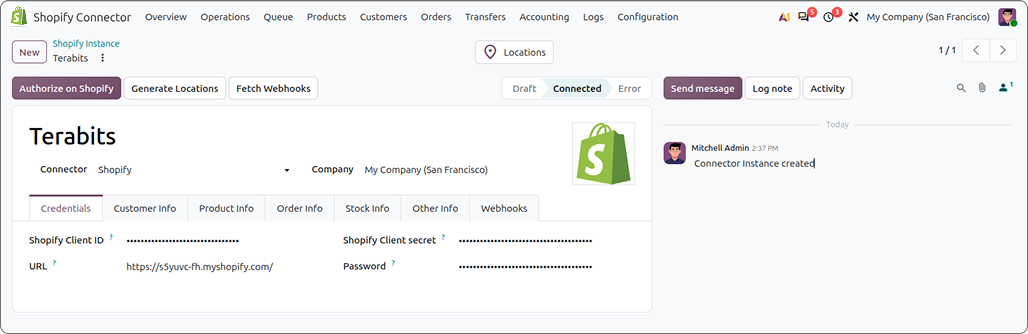
Credentials
Client ID, Client secret, Password (access token, filled in by Authorize) and the store URL.
Only Connector Managers can see these fields - the token alone is enough to run the whole store.
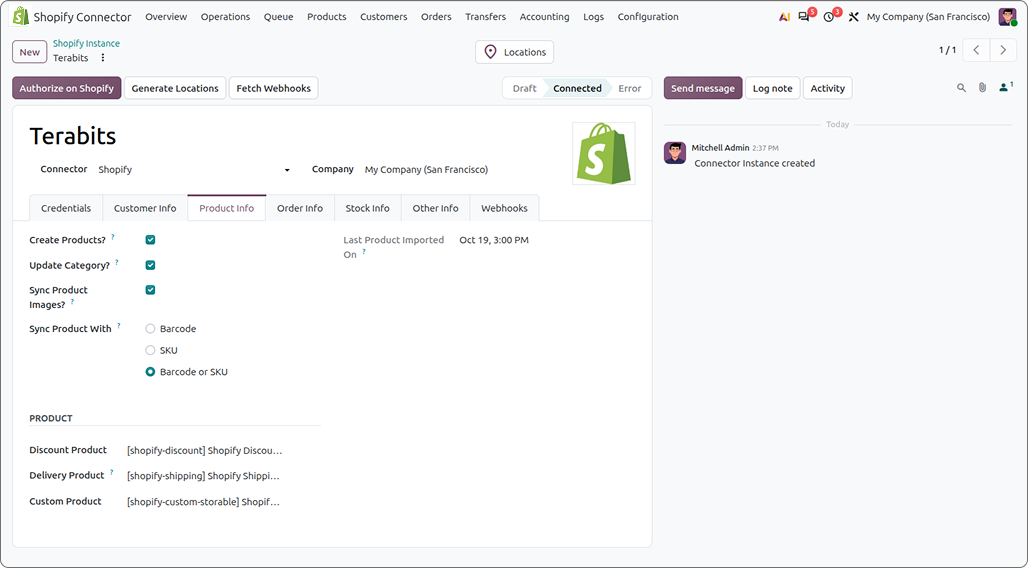
Products
Sync Product - how a store product is matched to an Odoo product: Barcode, SKU, or Barcode or SKU.
Create Products - create the product in Odoo when nothing matches.
Update Category - set the Odoo category from the store's product type.
Sync Product Images - bring product and variant images from the store.
Discount, Delivery and Custom Product - used for discount lines, shipping lines and lines that match no product.
The store's primary location is linked to the instance's warehouse to start with.
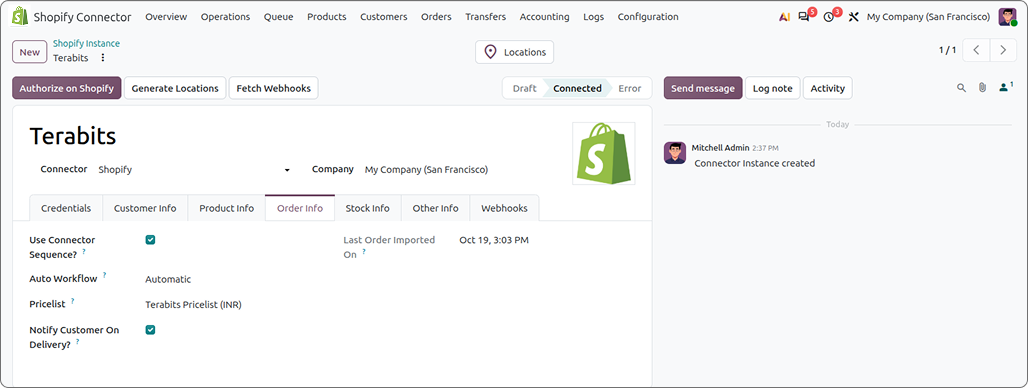
Orders
Use Connector Sequence - on: Odoo numbers the orders. Off: orders keep the store's number.
Automatic Workflow - put on every order imported from now on.
Pricelist - prices and currency of the store's orders.
Notify Customer On Delivery - let the store email the customer the tracking.
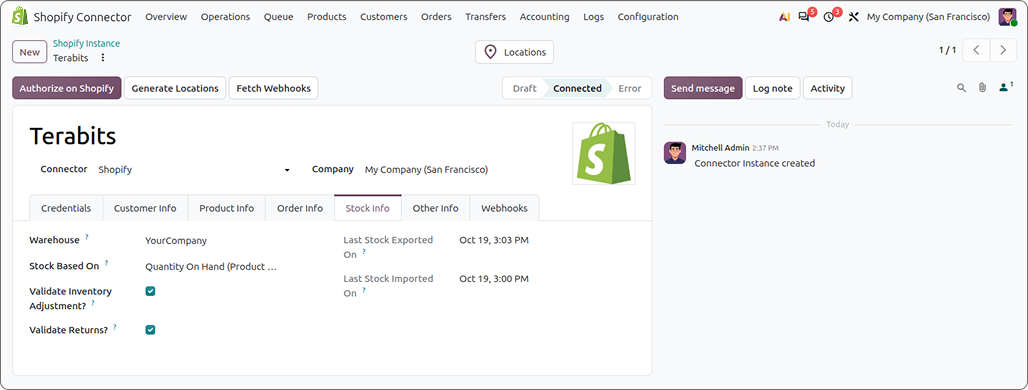
Stock
Warehouse - linked to the store's primary location.
Stock Based On - which Odoo quantity is sent as stock.
Validate Inventory Adjustment - apply imported stock counts right away.
Validate Returns - receive returned goods into stock straight away (on by default).
Customers & other
Receivable and Payable Account - set on customers imported
from the store.
Language and Country - defaults for imported customers.
Email Partners - people emailed when an import queue finishes.
Last imported / exported on dates - the next run only fetches
what changed after these.
Events you can receive
Orders > Quotations - store orders not yet confirmed. An
order left here was not carried through by its workflow,
so somebody should look.
Orders > Sales Orders - confirmed store orders.
Transfers > Deliveries and Returns - a return still listed here
could not be received, so stock is short of what the
store believes.
Accounting - Invoices and Credit Notes - billing of store orders
Logs > Log Lines - every log line in one place, to search and group.
Quick setup
Six steps, done once per store.
Good to know Already have a Shopify access token? Just paste it with the Client secret and press Connect.
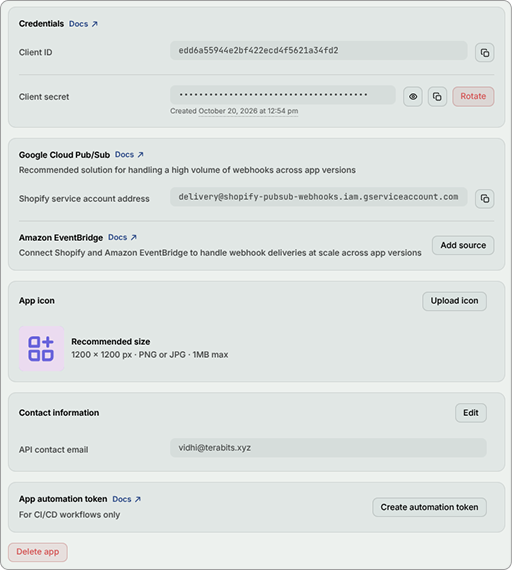
Create a custom app on Shopify
Build it in the Shopify Dev Dashboard, release and install it, then copy the Client ID and Client secret.
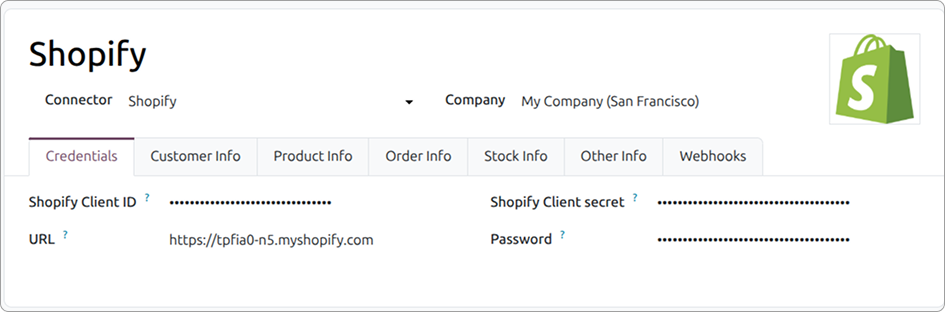
Create the store in Odoo
Connector > Configuration > Instance: enter the store URL, Client ID and Client secret.
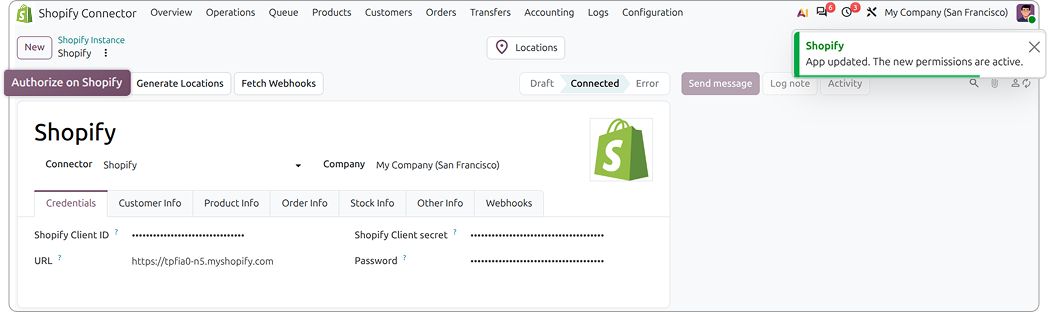
Authorize & Connect
One click to approve on Shopify, then Connect. Locations and a pricelist in the store's currency are set up for you.
Map locations
Link each Shopify location to an Odoo warehouse and stock location.
Add webhooks
Pick the order, product and customer events - they are registered on Shopify automatically.
Import and go
Import Products > Customers > Orders > Stock, choose your order workflow, and switch on the exports you need.
Need Help ?
You can instantly find the answer you need here when
you're looking for a quick solution.

The Shopify Connector integrates your Shopify store with Odoo, allowing you to synchronize products, customers, orders, stock, deliveries, and tracking information.
Yes, you can connect multiple stores. Each store can have its own settings, warehouse, stock locations, and pricelist.
Yes, you can import products, customers, orders, and stock from Shopify into Odoo. You can also export products, customers, and stock from Odoo to Shopify. Orders are imported through manual operations or configured webhooks.
Yes, you can configure automatic workflows to confirm orders, send confirmation emails, validate deliveries, create invoices, register payments, and lock completed orders.
Odoo manages stock quantities and can export them to Shopify. Deliveries validated in Odoo can update Shopify with fulfillment and tracking details. Fulfillment updates from Shopify can also update Odoo deliveries.
Yes, webhooks can automatically notify Odoo about product, customer, and order changes. The connector also handles cancellations, refunds, credit notes, and returned stock while helping prevent duplicate credit notes and billing.
Yes, I do provide free support for 90 days for any queries or any bug/issue fixing.
In case of if any bug raised in the listed features of this module, I am committed to providing support free of cost. You will need to provide me server ssh access or database access in order to solve the issue.
Just drop us an email at info@terabits.xyz with your questions and doubts, we will reach out to you as soon as possible.
Changelog(s)
Each update brings improvements to make the
app work better for you.
Recommended Apps

Need any help for this module?
Contact us info@terabits.xyz for your queries
                                            Odoo Proprietary License v1.0

                                            This software and associated files (the "Software") may only be used (executed,
                                            modified, executed after modifications) if you have purchased a valid license
                                            from the authors, typically via Odoo Apps, or if you have received a written
                                            agreement from the authors of the Software (see the COPYRIGHT file).

                                            You may develop Odoo modules that use the Software as a library (typically
                                            by depending on it, importing it and using its resources), but without copying
                                            any source code or material from the Software. You may distribute those
                                            modules under the license of your choice, provided that this license is
                                            compatible with the terms of the Odoo Proprietary License (For example:
                                            LGPL, MIT, or proprietary licenses similar to this one).

                                            It is forbidden to publish, distribute, sublicense, or sell copies of the Software
                                            or modified copies of the Software.

                                            The above copyright notice and this permission notice must be included in all
                                            copies or substantial portions of the Software.

                                            THE SOFTWARE IS PROVIDED "AS IS", WITHOUT WARRANTY OF ANY KIND, EXPRESS OR
                                            IMPLIED, INCLUDING BUT NOT LIMITED TO THE WARRANTIES OF MERCHANTABILITY,
                                            FITNESS FOR A PARTICULAR PURPOSE AND NONINFRINGEMENT.
                                            IN NO EVENT SHALL THE AUTHORS OR COPYRIGHT HOLDERS BE LIABLE FOR ANY CLAIM,
                                            DAMAGES OR OTHER LIABILITY, WHETHER IN AN ACTION OF CONTRACT, TORT OR OTHERWISE,
                                            ARISING FROM, OUT OF OR IN CONNECTION WITH THE SOFTWARE OR THE USE OR OTHER
                                            DEALINGS IN THE SOFTWARE.
Comment on this module. Please Login