- All products
- Odoo MCP Server Advanced | Claude, ChatGPT & More Connector
- All products



Advanced Odoo MCP Server
Connect Odoo to any AI assistant over the Model Context
Protocol and build, configure and operate your whole ERP in
plain language - with full CRUD, real module installation, live
dashboards, OAuth 2.1 sign-in and human approval controls.

01
What this module does
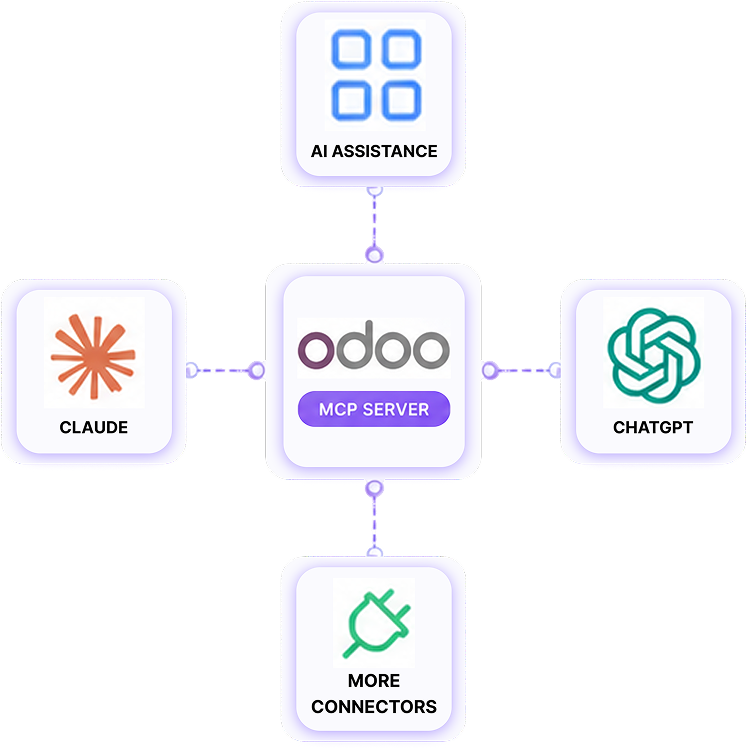
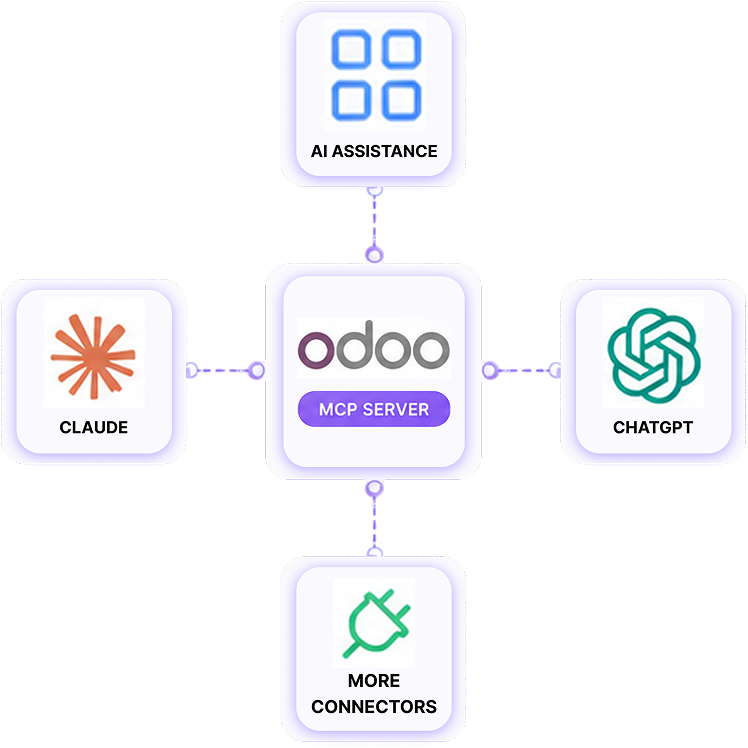
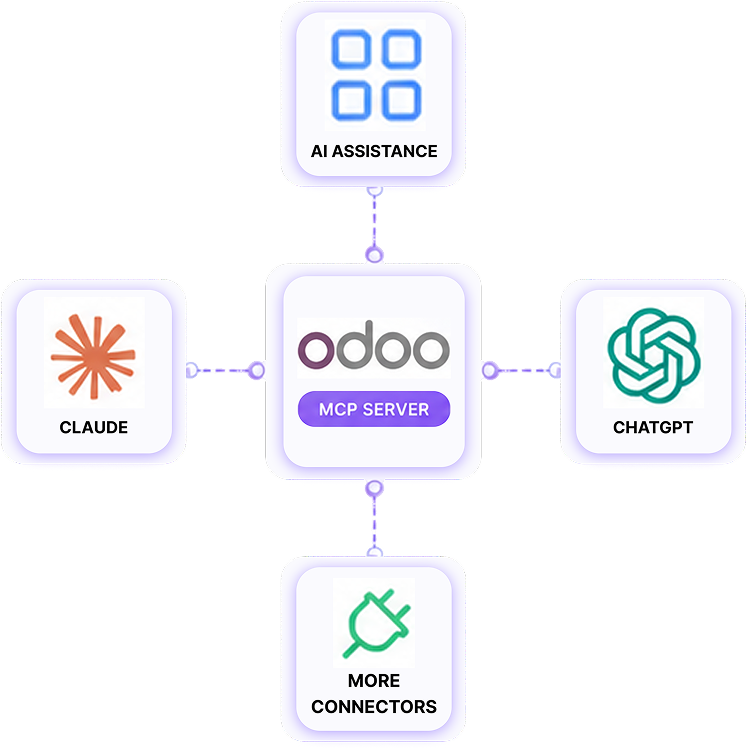
This module turns your Odoo instance into an MCP server. Any MCP-compatible AI client - Claude Desktop, Claude.ai, ChatGPT (Developer mode connectors), Cursor, VS Code, Windsurf or your own agent - can connect to it and then:

Read records from the models you allow (search, browse, aggregate, report).
Create, update, delete and duplicate records - full CRUD on allowed models.
Call Odoo methods such as action_confirm or action_post, exactly like clicking a button.
Install, upgrade and uninstall real Odoo apps, so an assistant can assemble an entire ERP from a blank database.
Publish live dashboards at a shareable public URL that stay in sync with the database.
Post messages in the chatter records from the models you allow (search, browse, aggregate, report).
Everything is gated by a master switch, authentication (API key or OAuth 2.1), an optional per-model allow-list, rate limiting, request logging and - when you want it - human approval before any write is executed.
02
Feature highlights

Modern MCP transport
Streamable-HTTP JSON-RPC endpoint at /mcp - the transport remote connectors (Claude.ai, ChatGPT) actually speak. Protocol versions 2025-06-18, 2025-03-26 and 2024-11-05 supported.

OAuth 2.1 built in
Self-contained authorization server: discovery metadata, Dynamic Client Registration, PKCE, consent screen, JWT access tokens, refresh-token rotation and revocation. No external gateway.

16 AI tools
Search, read, create (single & bulk), update, delete, copy, aggregate, call method, chatter, record URLs, module install, dashboards.

Real module installation
Installs run through genuine Odoo operations in a background job - not a fake status flip - with plain-language name resolution ("accounting" > account).

Human-in-loop approvals
Optionally queue every create / update / delete / method call / install for administrator approval before it runs.

Live dashboards
Query-driven KPI cards, charts (30+ ECharts types) and tables published at /mcp-dashboard/

Granular allow-list
Per model, tick exactly which of read / create / update / delete the assistant may perform.

Audit & safety
Full request logging with retention, rate limiting, request timeout, dedicated security groups, and legacy XML-RPC bridge compatibility.

03
How it works
Step 1: Choose an Entry Point
Requests can arrive through one of three channels :
Main endpoint (recommended, modern integration)
Quick-check helper endpoints (status/info only)
Legacy-compatible endpoint (for older tools/scripts)
All three lead into the same pipeline below.
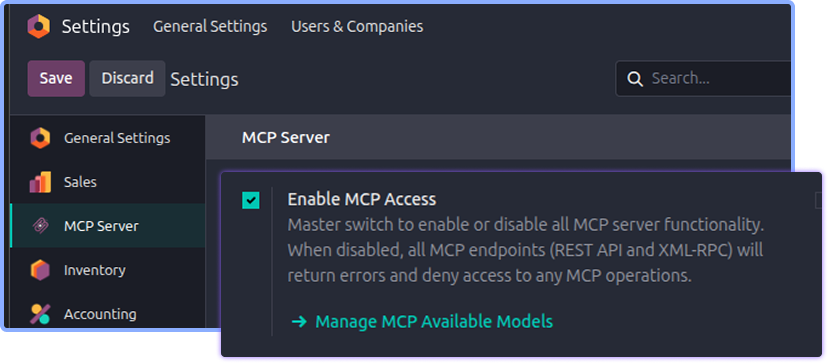
Step 2: Master Switch Check
The system first confirms MCP access is enabled.
If disabled, all requests are blocked immediately, regardless of source.
Step 3: Authentication
The request must include valid credentials - either an OAuth token or an API key.
Requests without valid credentials are rejected.
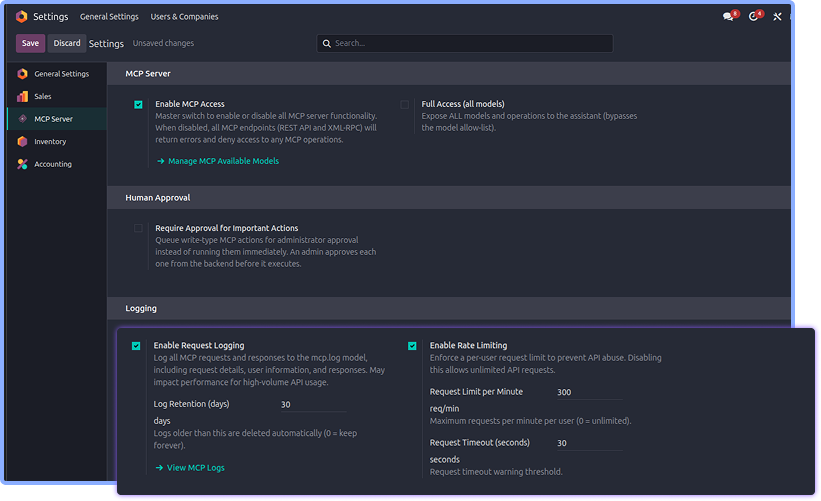
Step 4: Rate Limiting & Timeout
The system checks that the request doesn't exceed allowed volume or time limits.
This prevents overload and keeps the system responsive for everyone.
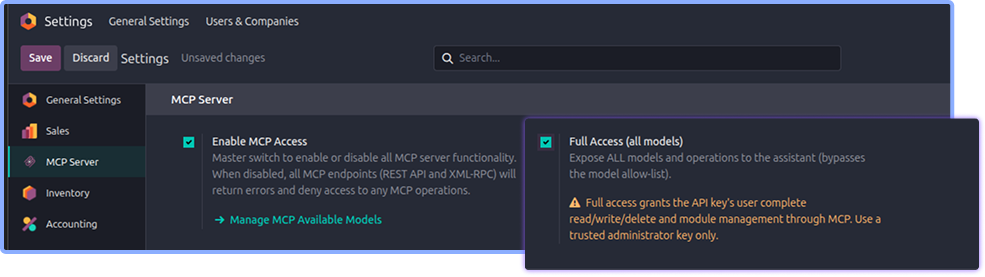
Step 5: Access Check
The system verifies whether this key has:
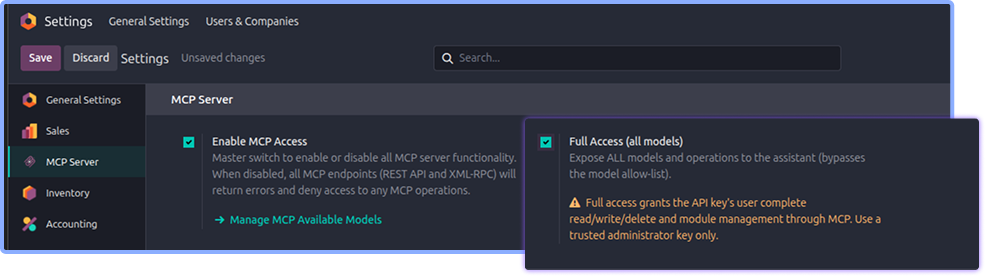
Full access, or
Access limited to a pre-approved list of models/data
Step 6: Odoo Permission Check
The action is checked against the acting user's normal Odoo permissions.
This ensures the request follows the same rules as a human user would.
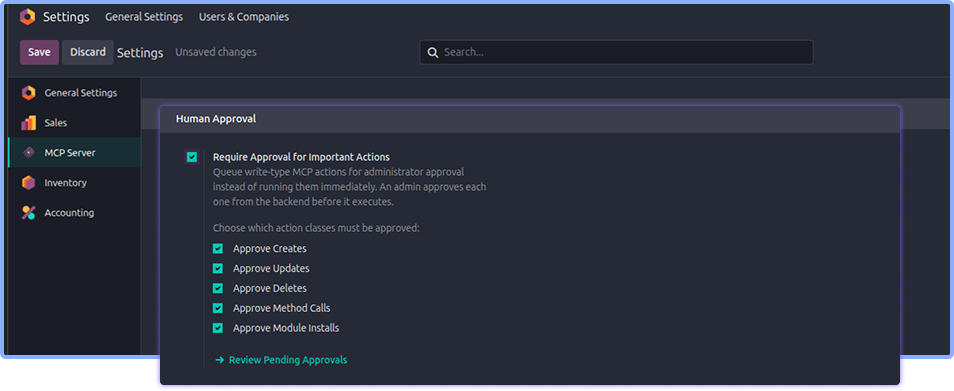
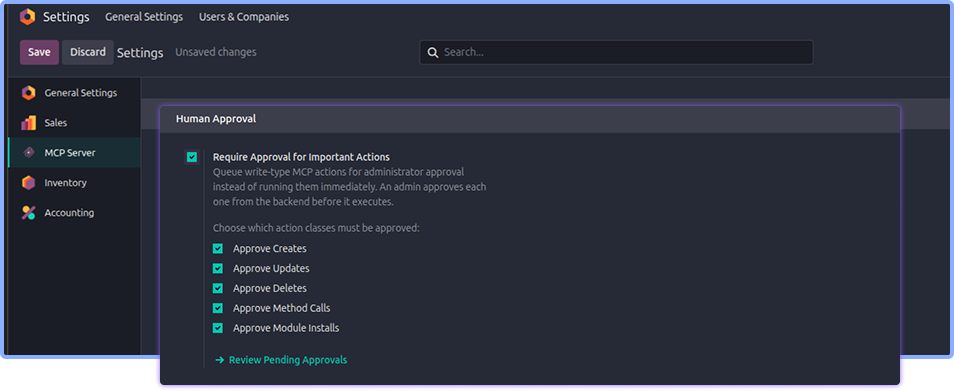
Step 7: Approval Gate (if enabled)
If approval mode is turned on, any action that changes data is placed in a queue for manual approval instead of running immediately.
Step 8: Execute & Log
Once all checks pass, the action is carried out and a record is logged for auditing.

04
Requirements
Odoo (this build targets the 20 / master series).
Python packages: defusedxml and cryptography.
Odoo dependencies, installed automatically: base, base_setup, web, mail, rpc.
An MCP-capable AI client (Claude Desktop / Claude.ai, ChatGPT connectors, Cursor, VS Code, Windsurf, or a custom agent).
HTTPS strongly recommended - required by remote connectors that use OAuth.
05
Installation
Copy the odoo_mcp_pro folder into your addons path.
Install the Python dependencies :
pip install defusedxml cryptography
Restart Odoo and update the apps list.
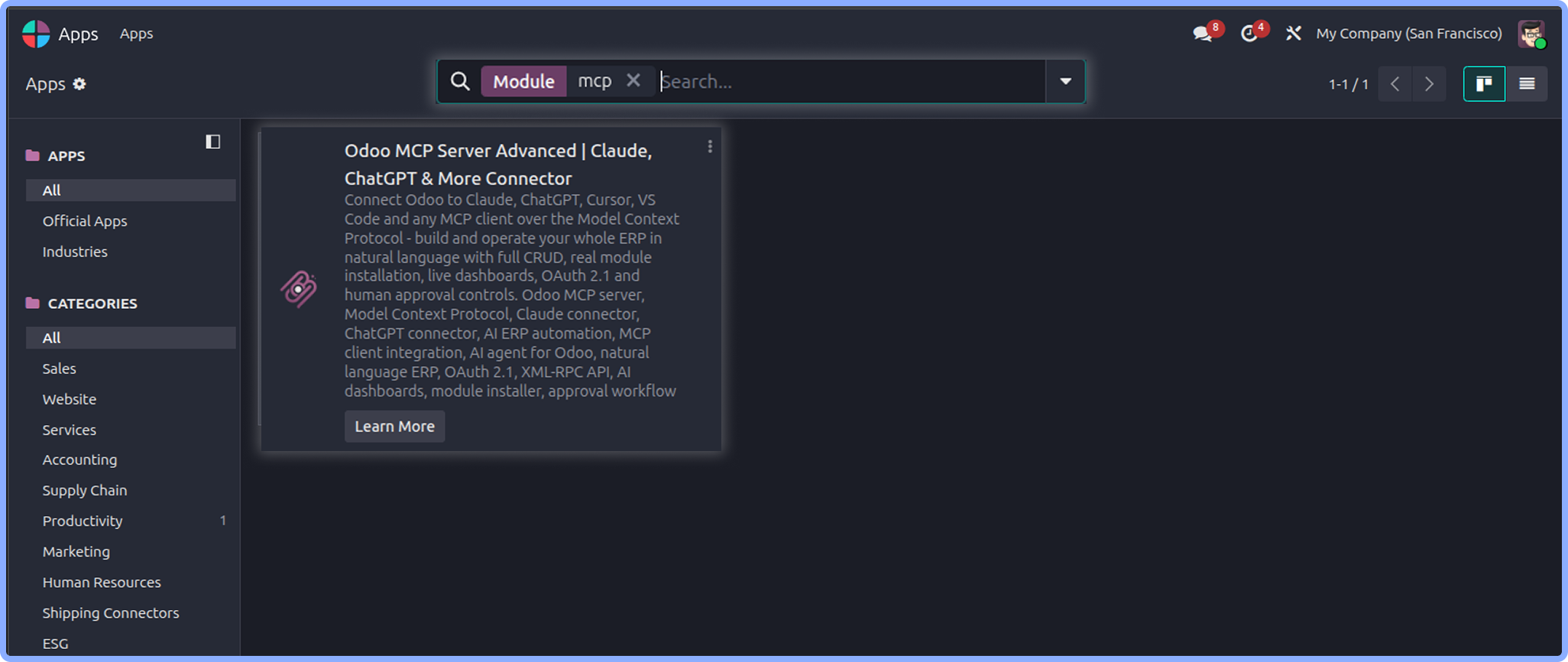
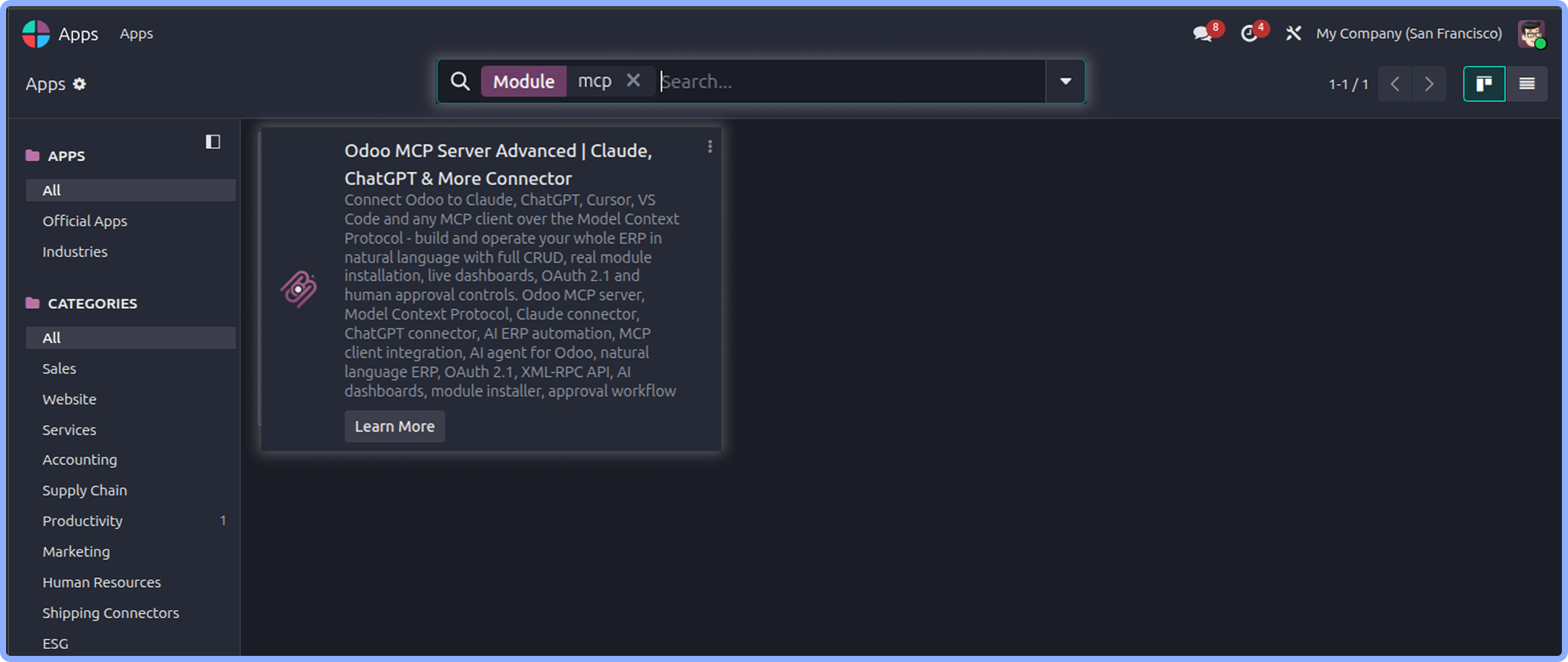
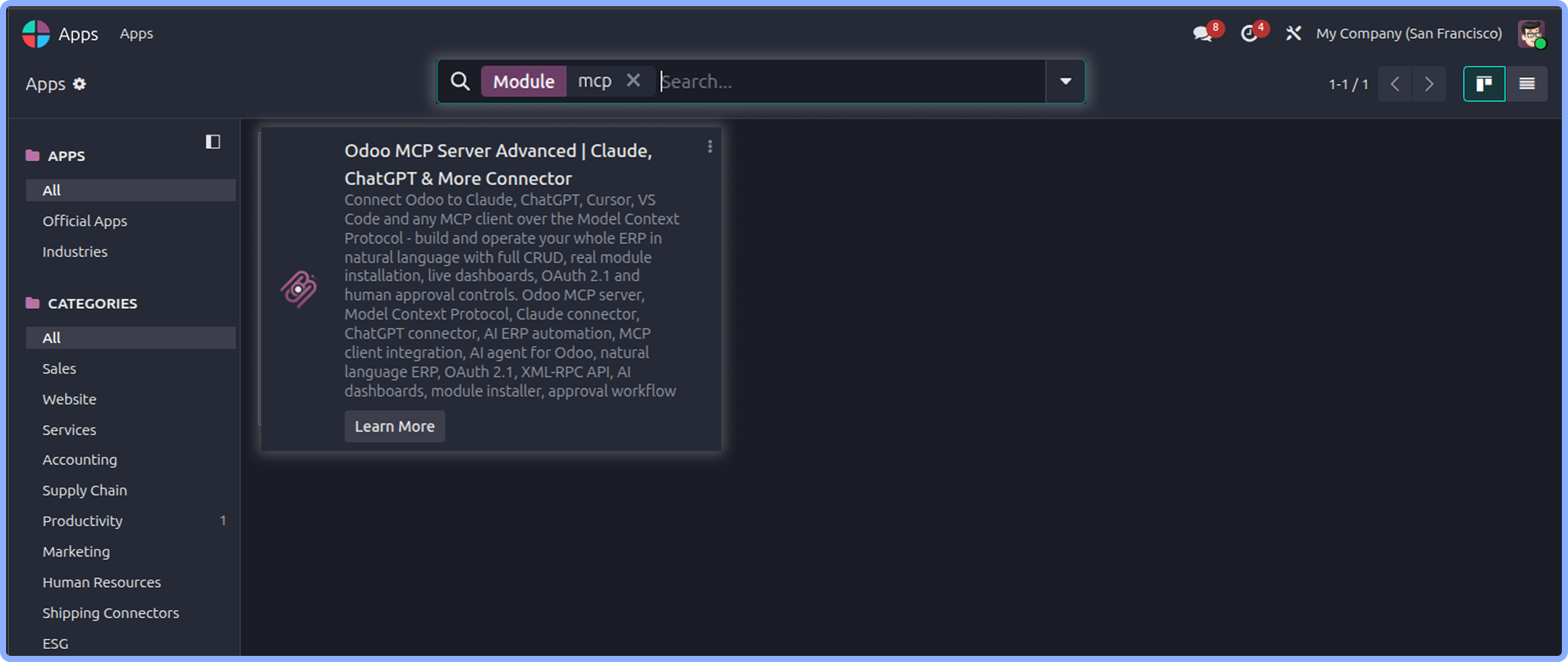
Go to Apps, search for "Odoo MCP Server Advanced" and click Install.
What you get after installing
A new top-level app menu: MCP Server.
Two security groups: MCP User and MCP Administrator (the admin user is added automatically).
A settings page under MCP Server - Configuration.
Background scheduled actions for the module installer and OAuth housekeeping.

06
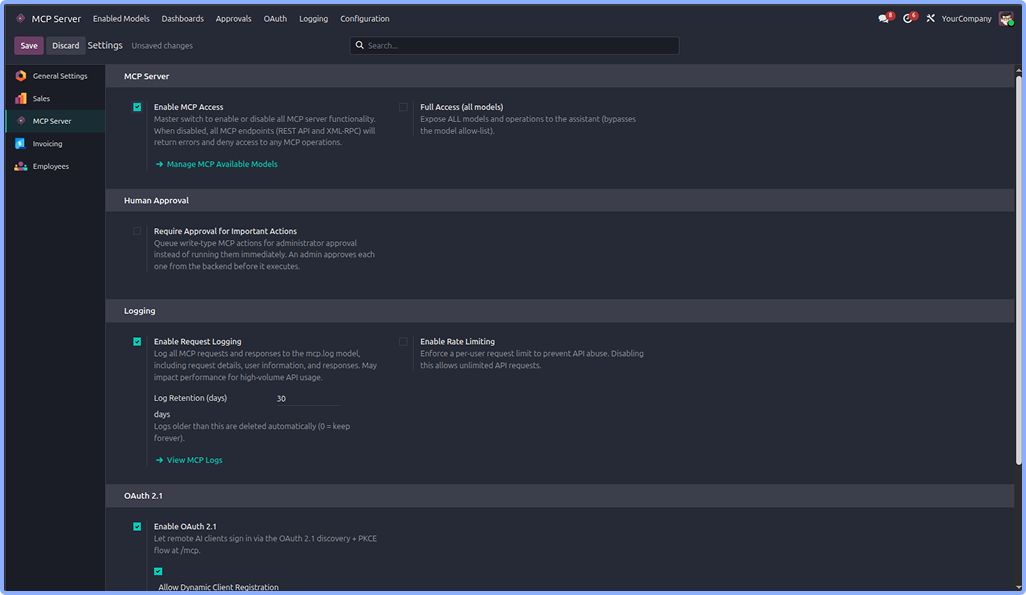
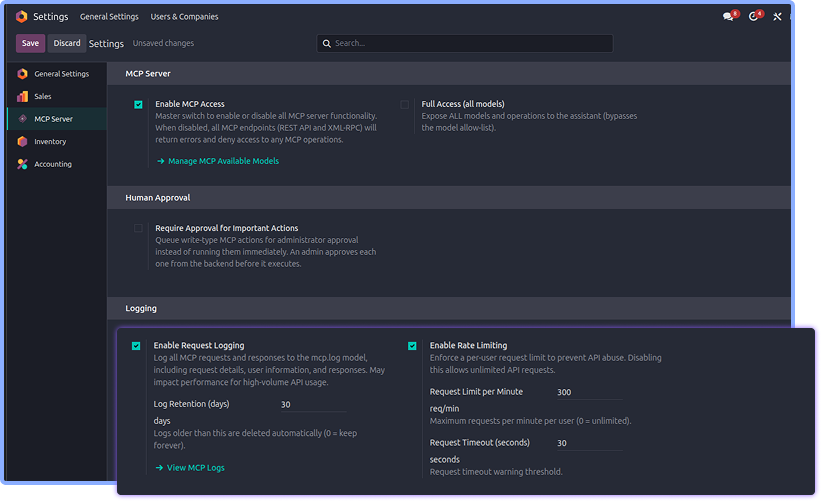
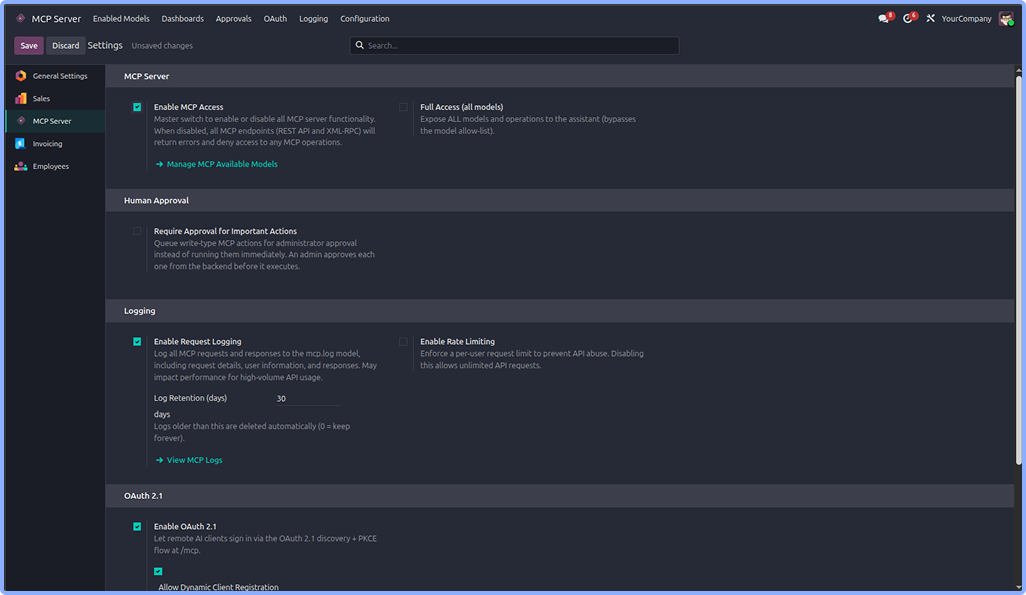
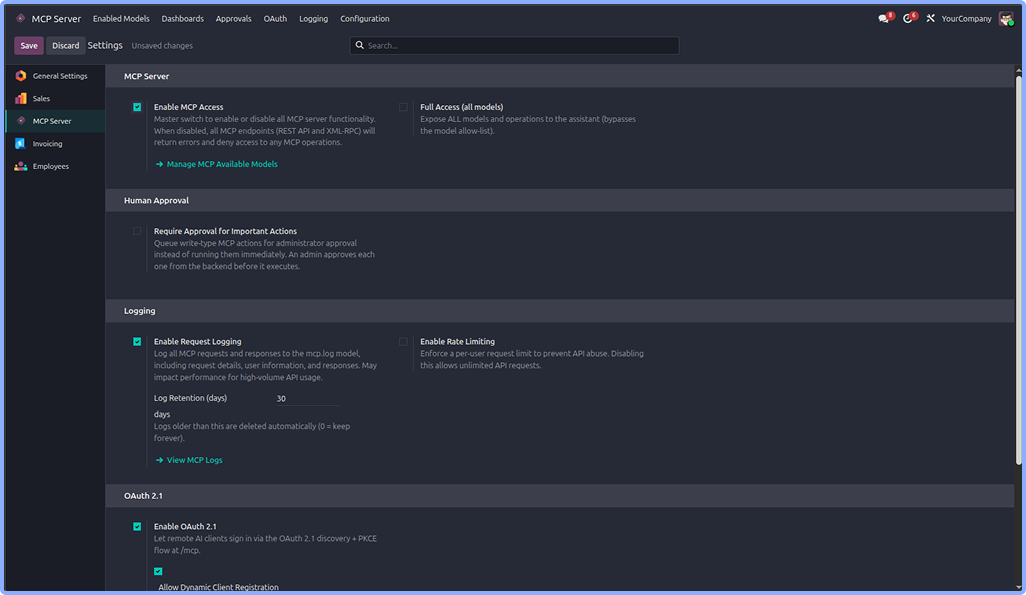
Configuration settings
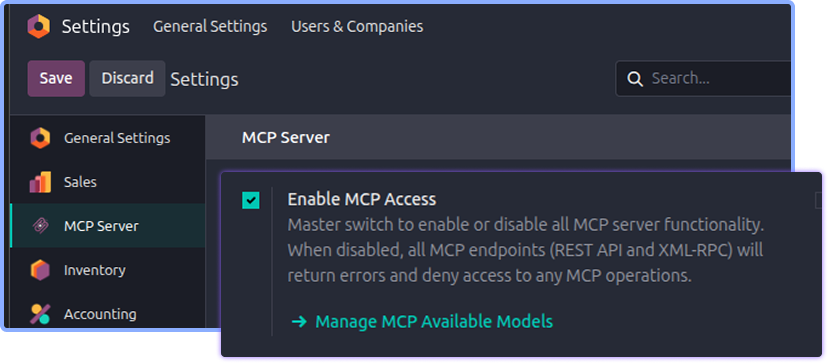
Open MCP Server > Configuration.
6.1 Core
OFF
Enable MCP access
Master switch. While OFF, every endpoint refuses access.
OFF
Full access (all models)
Exposes every model for every operation plus module installs, bypassing the allow-list. Security then falls back to the API-key user's own Odoo rights.
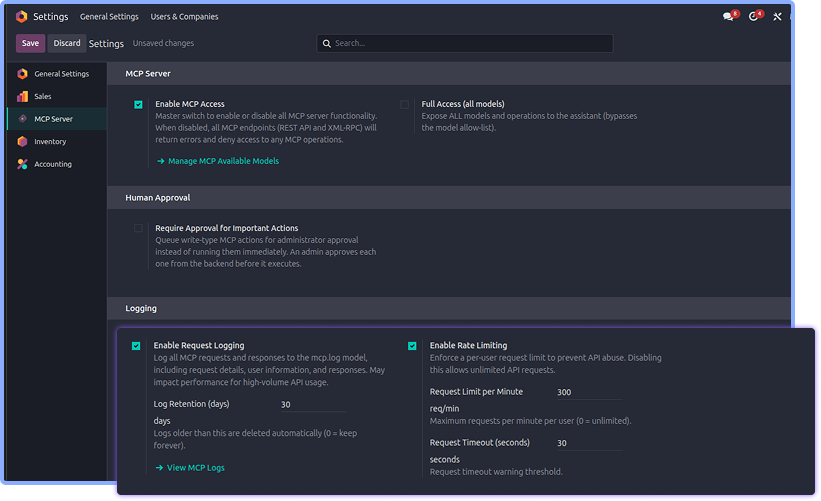
300
Request limit per minute
Maximum requests per user per minute (0 = unlimited).
30
Request timeout (seconds)
Maximum processing time for one request.
ON
Enable request logging
Records every MCP request/response for audit.
OFF
Enable rate limiting
Enforces the request limit above.
30
Log retention (days)
Auto-deletes logs older than N days (0 = keep forever).
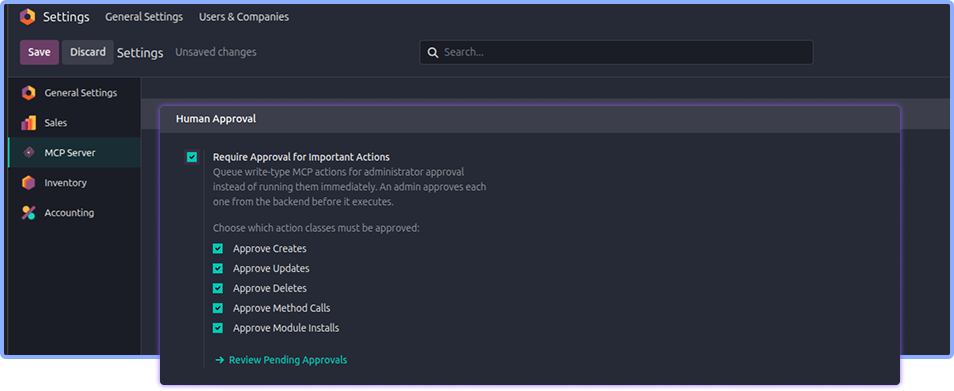
6.2 Approvals
OFF
Require approval for important actions
Master switch for the approval queue. Reads are never gated.
ON
Approve creates
Gate create_record, create_records, copy_record.
ON
Approve updates
Gate update_record.
ON
Approve deletes
Gate delete_record.
ON
Approve method calls
Gate call_method (e.g. confirming an order).
ON
Approve module installs
Gate install_modules.
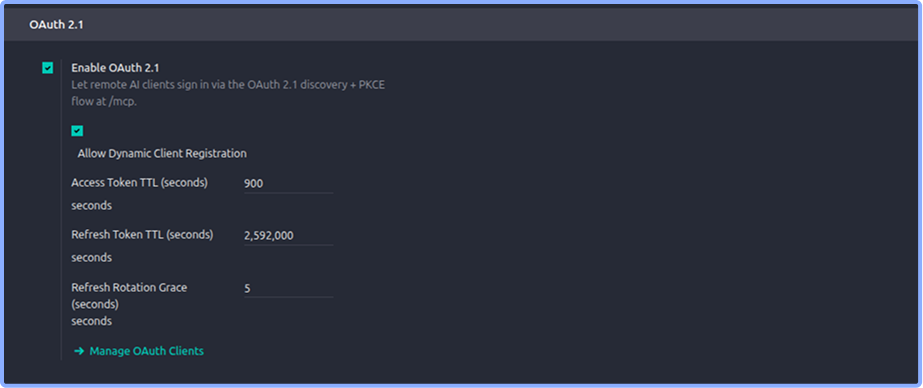
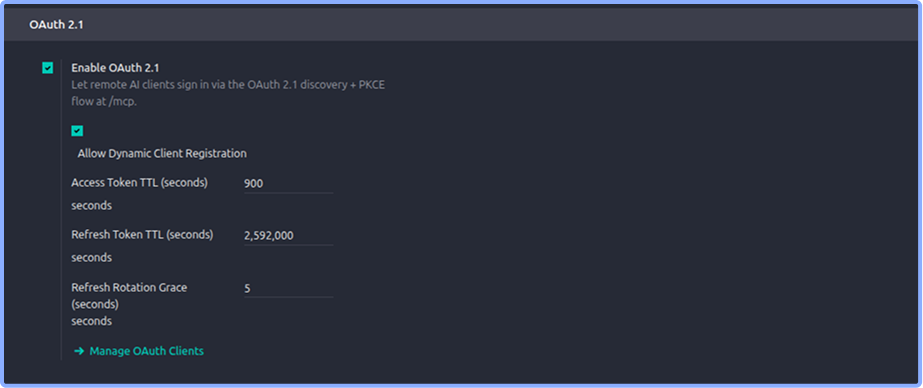
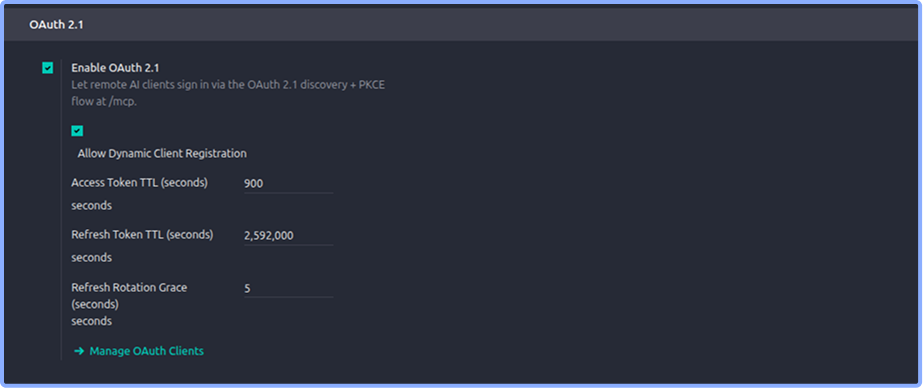
6.3 OAuth 2.1
ON
Enable OAuth 2.1
Turns /mcp into an OAuth authorization server. When off, discovery/OAuth endpoints return 404 and only API-key auth remains.
ON
Allow dynamic client registration
Lets clients self-register at /mcp/oauth/register - required for zero-config connectors like ChatGPT and Claude.ai.
900
Access Token TTL
Lifetime of an access token in seconds.
2,592,000
Approve deletes
Gate delete_record.
5
Refresh rotation grace
Window in which replaying a just-rotated refresh token is tolerated; later replays revoke the whole chain.

07
Access control & enabled models
There are two ways to decide what an assistant may touch.
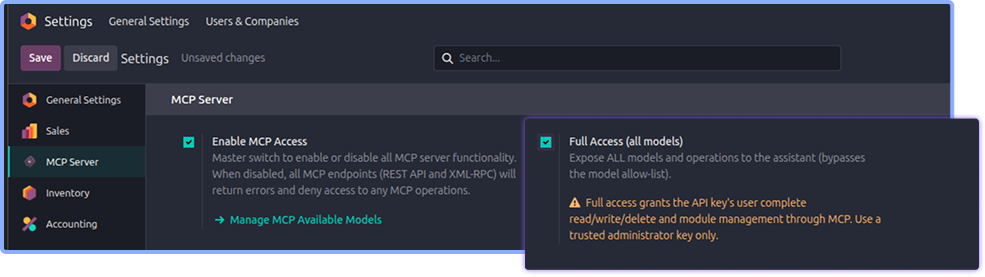
Option A - Full Access mode
fast bootstrapping
Turn full access ON. Connect with an administrator key and the assistant can read, create, update, delete anything and install modules. Ideal for building a fresh database end-to-end.
Leave Full Access OFF in production.
It bypasses the allow-list entirely; only Odoo's own access rights for the connected user remain.
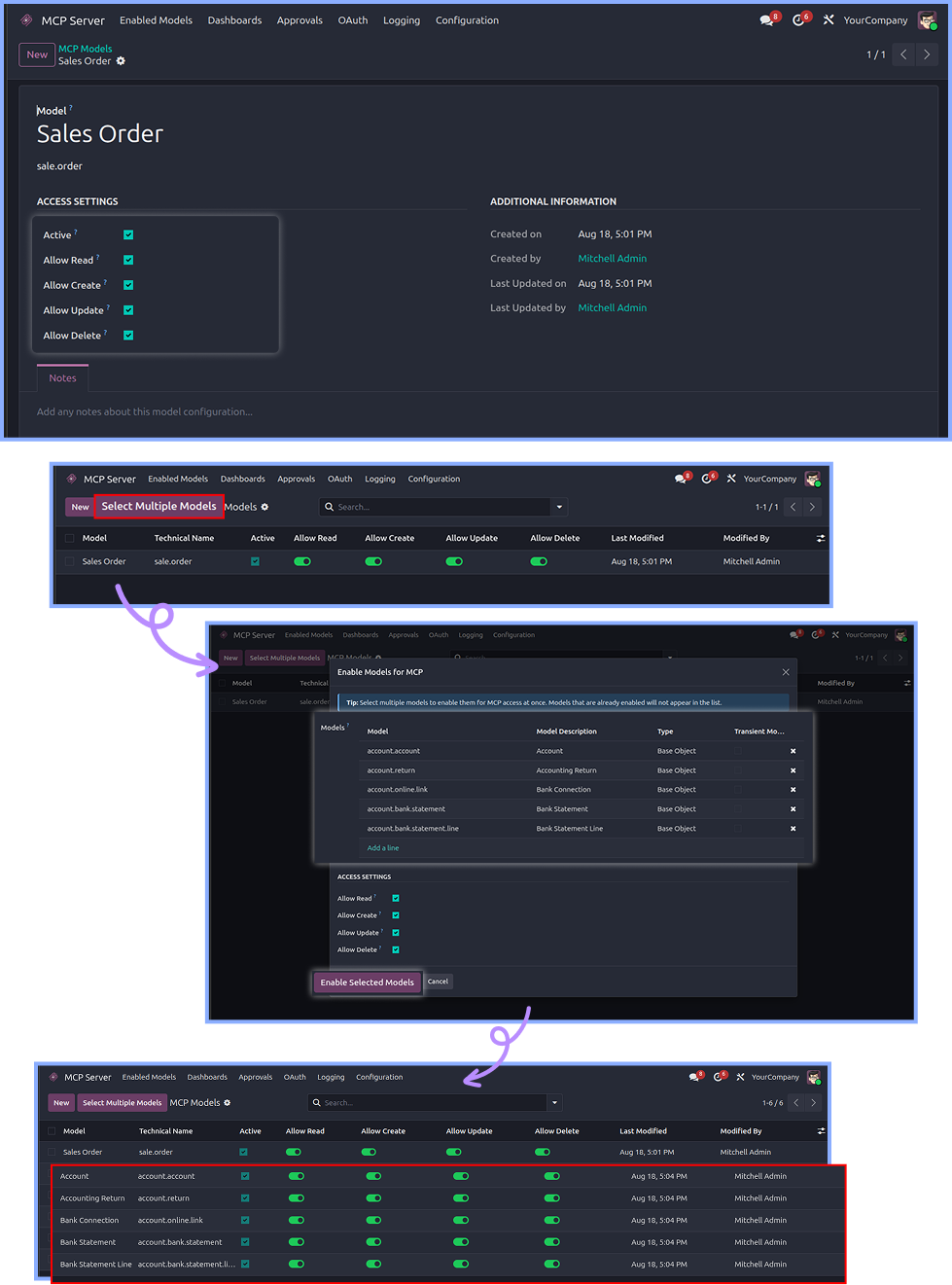
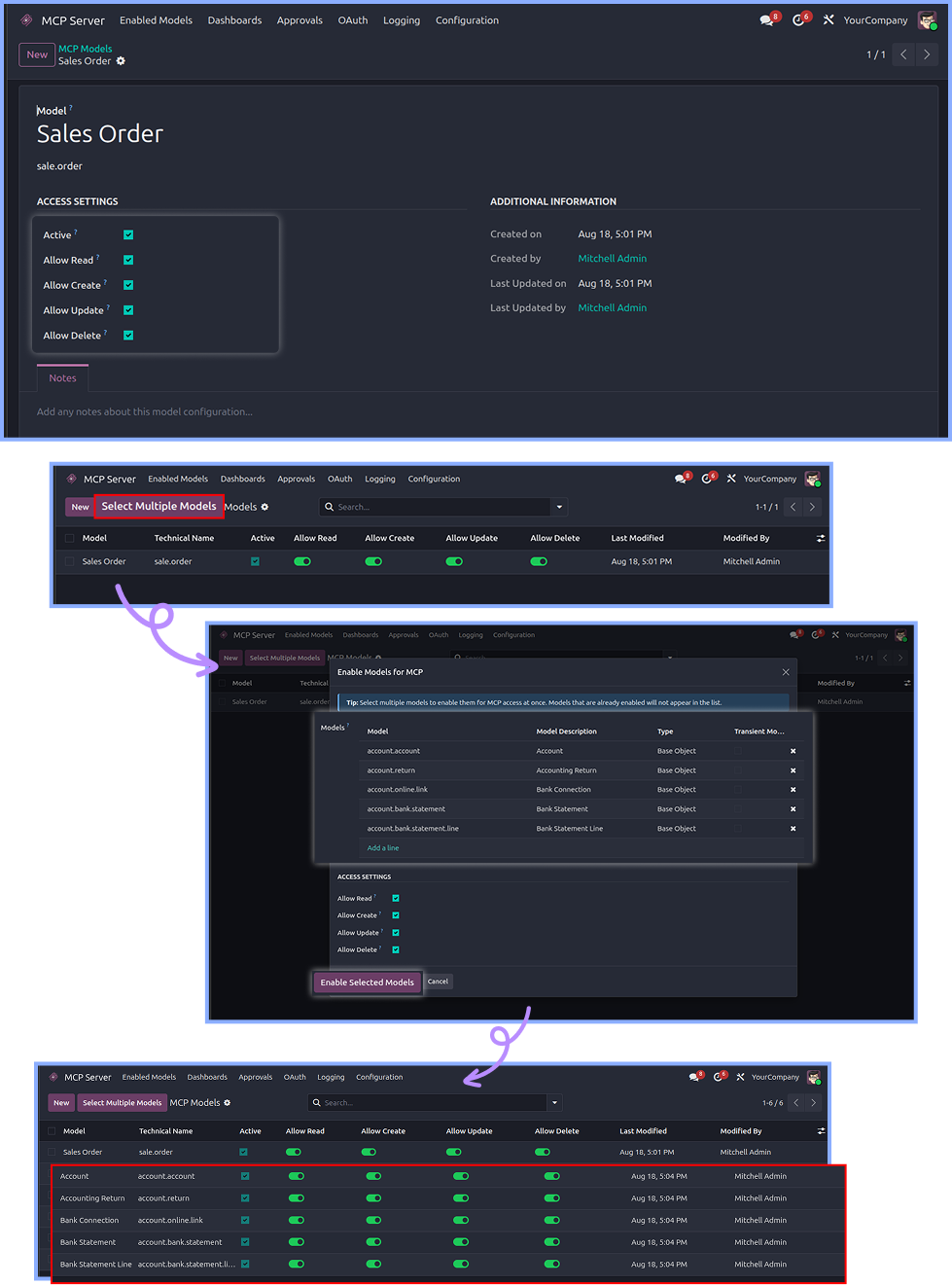
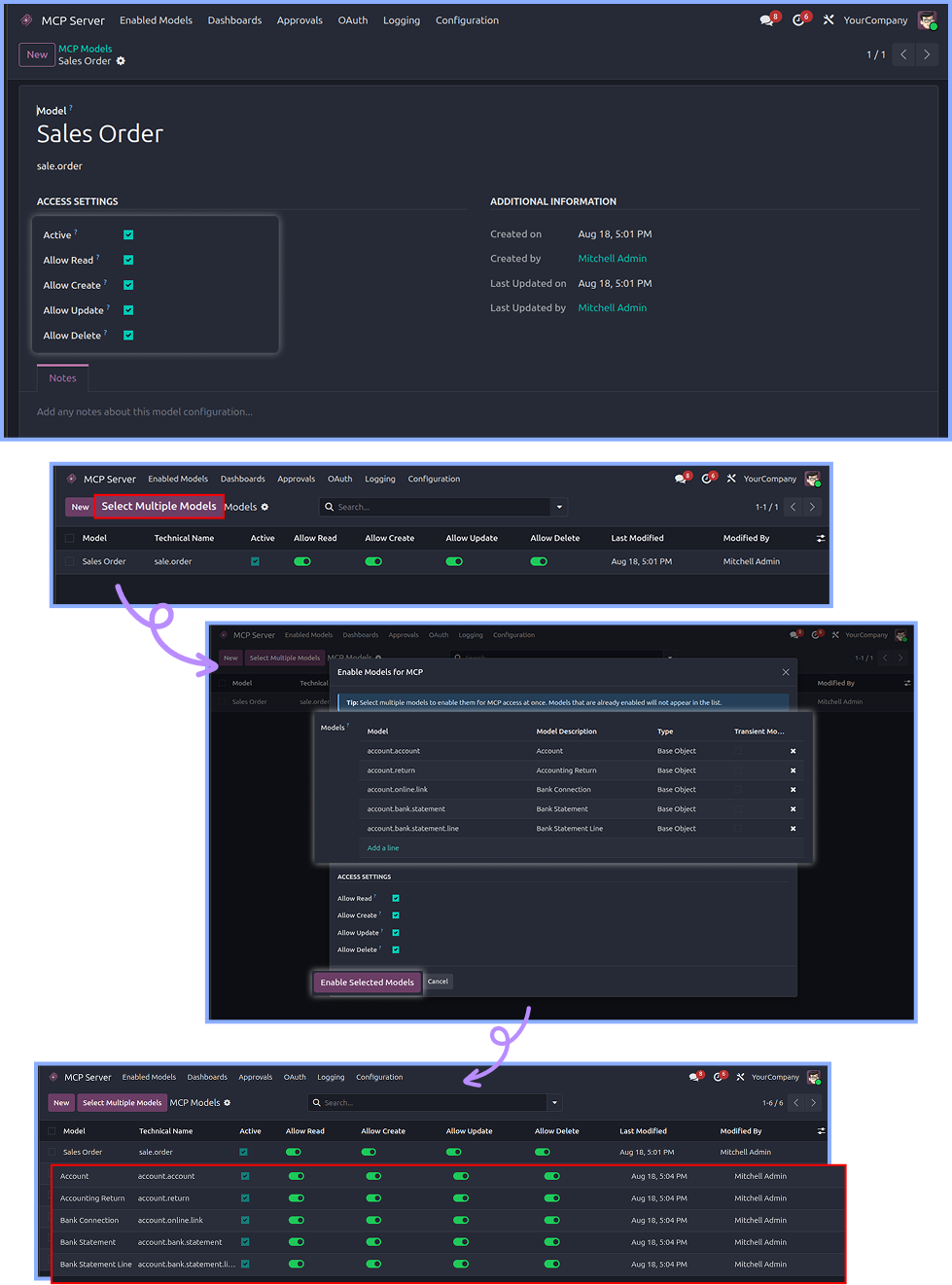
Option B - Per-model allow-list
Recommended
Go to MCP server > enabled models.
Use the add models wizard to bulk-pick models,
or create rows one by one.
For each model tick the permitted operations: Allow
Read, Allow Create, Allow Update, Allow Delete.
Anything not listed - or an operation not ticked - is
refused with 403 Forbidden.
Each model can appear only once, and rows can be archived to suspend access without deleting the configuration.

08
Connect your AI client
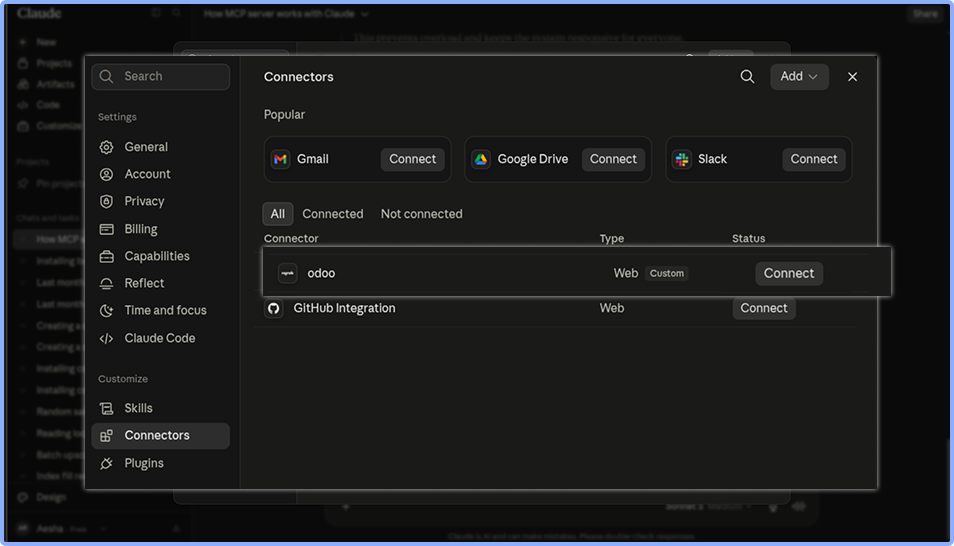
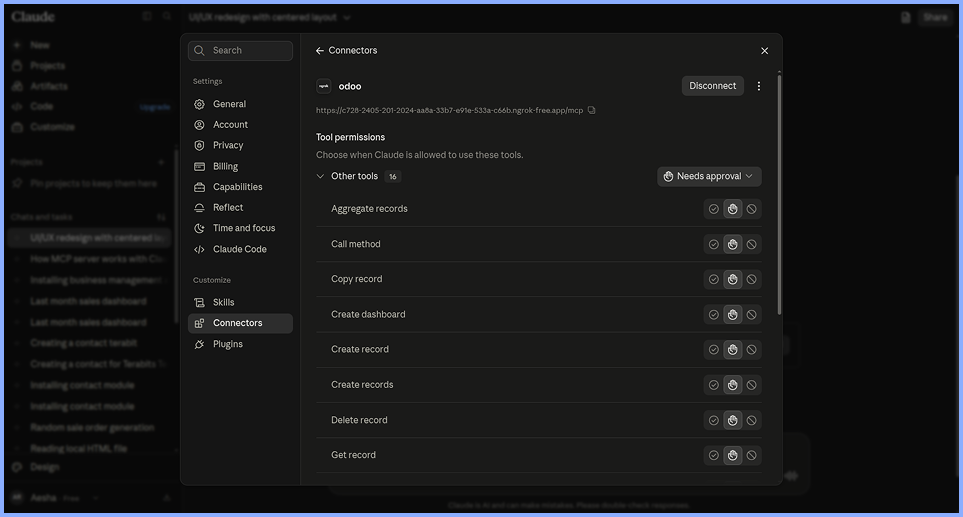
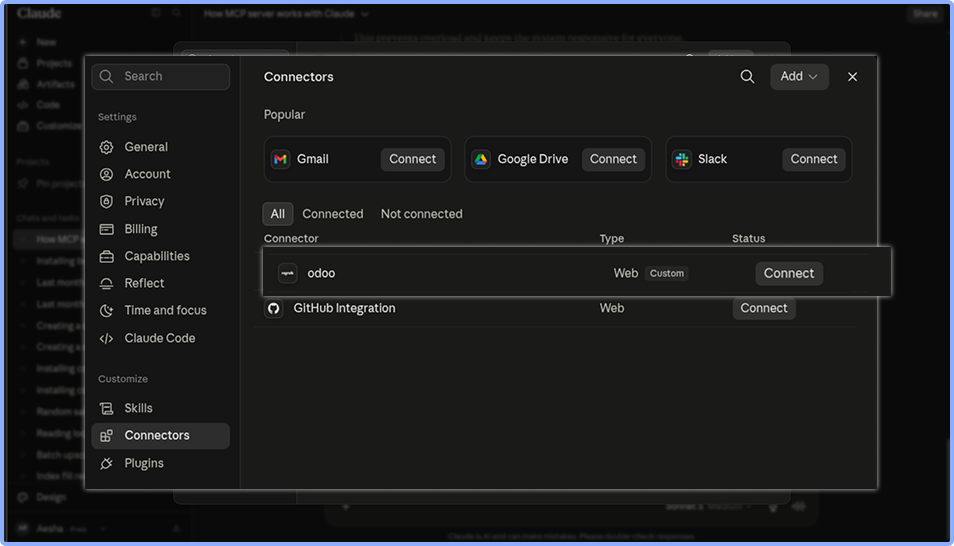
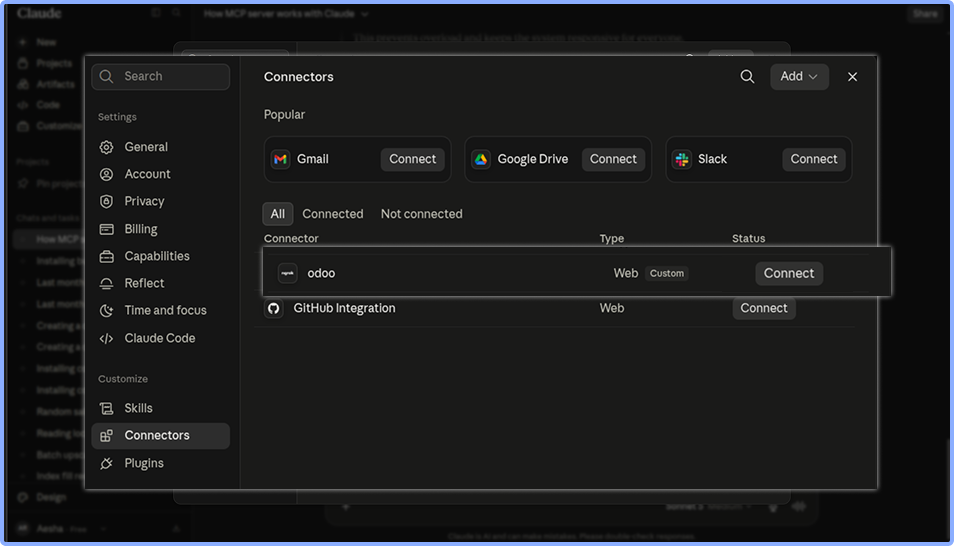
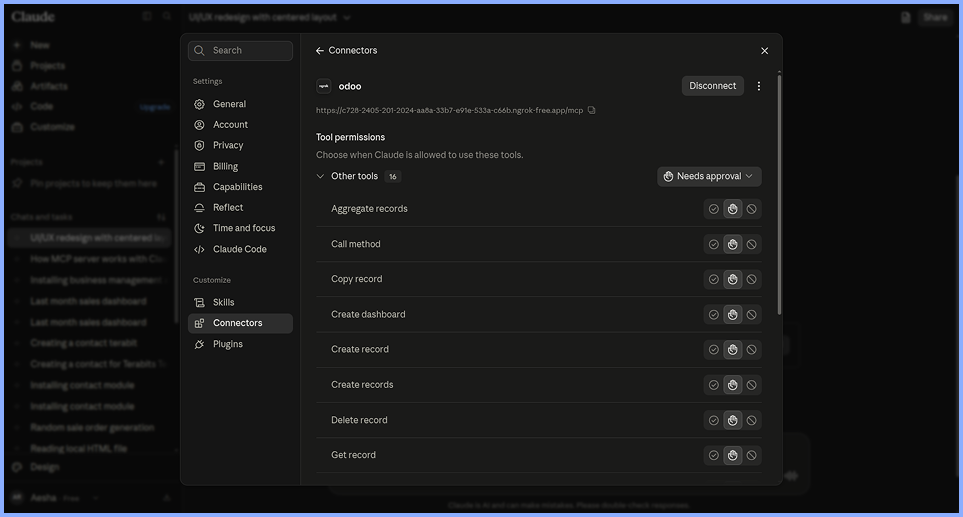
8.1 Remote connector (Claude.ai, ChatGPT Developer mode)
Add a custom connector / MCP server pointing at :
https://your-odoo-domain.com/mcp
The client discovers OAuth automatically, you sign in with your normal Odoo login and approve the consent screen.
Requires Enable OAuth 2.1 ON and HTTPS.
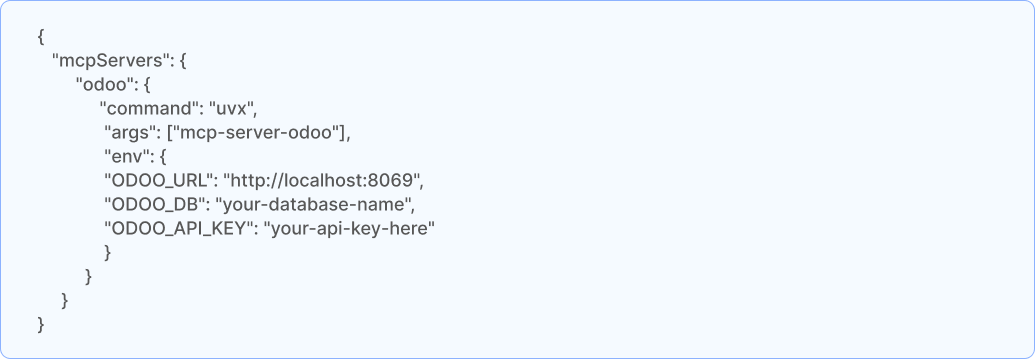
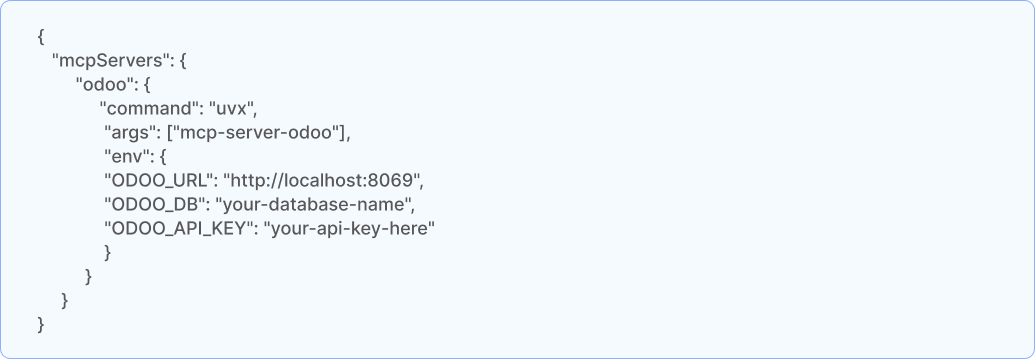
8.2 Local client (Claude Desktop, Cursor, VS Code, Windsurf)
Use a standard MCP server config with an API key:
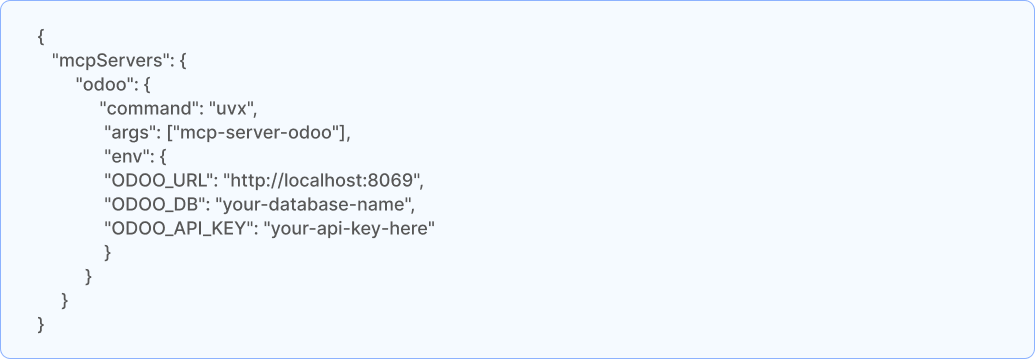
Restart the assistant; it will discover the tools and the enabled-model list on its own. A quick sanity check from a terminal:
curl -s https://your-odoo-domain.com/mcp/health
curl -s -H "X-API-Key: your-api-key" https://your-odoo-domain.com/mcp/models

09
MCP tool catalogue
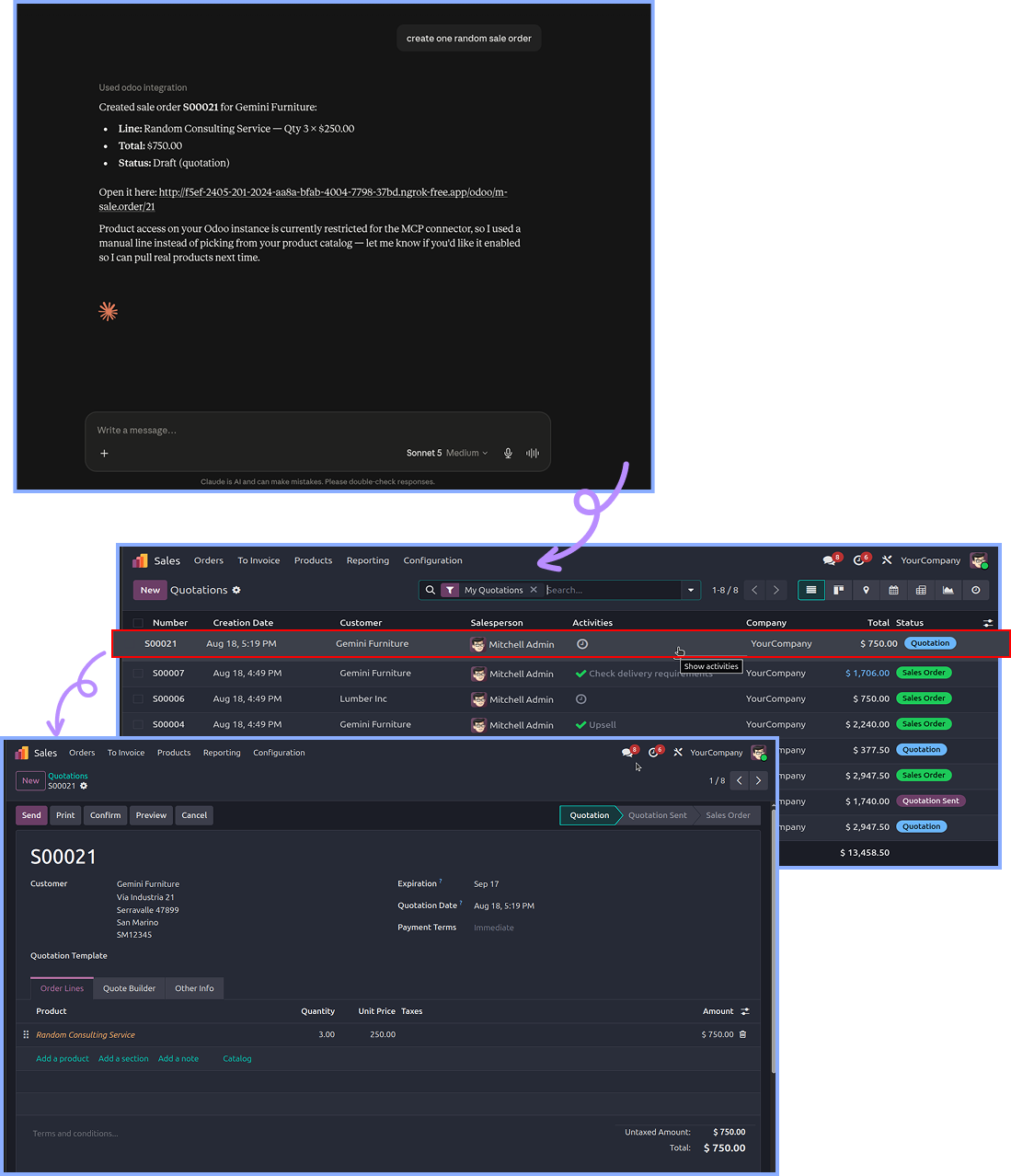
These are the tools the assistant sees. Each call is checked against the allow-list, Odoo's own access rights, and the approval gate.
list_models : List the Odoo models it is allowed to operate on.
model_fields : Describe a model's fields (types, labels, relations) before writing to it.
search_records : Search with an Odoo domain and return matching records.
get_record : Read one or more records by ID.
create_record : Create a single record.
create__many_record : Create many records in one call (bulk import).
update_record : Update one or more records.
delete_record : Delete one or more records.
copy_record : Duplicate a record using Odoo's native copy, with optional overrides.
aggregate_records : Group and aggregate (counts, sums, averages) like a pivot view.
call_method : Call a model/record method - confirm an order, post an invoice, run a server action.
post_message : Post a note or comment in a record's chatter, with followers and attachments.
get_record_url : Return a direct backend URL so you can open the record in one click.
install_modules : Install / upgrade / uninstall apps by technical name or plain-language description.
create_dashboard : Build and publish a live dashboard (full spec, or auto-generated from a model).
list_dashboards : List published dashboards with their slugs and public links.

10
Module installer - build an ERP by asking
Ask for a capability in plain language ("install sales, inventory and accounting", or even "I run a bakery and need to track orders
and stock") and the module:
Resolves friendly names to real technical modules using a curated alias map, falling back gracefully when an
enterprise addons is not available.
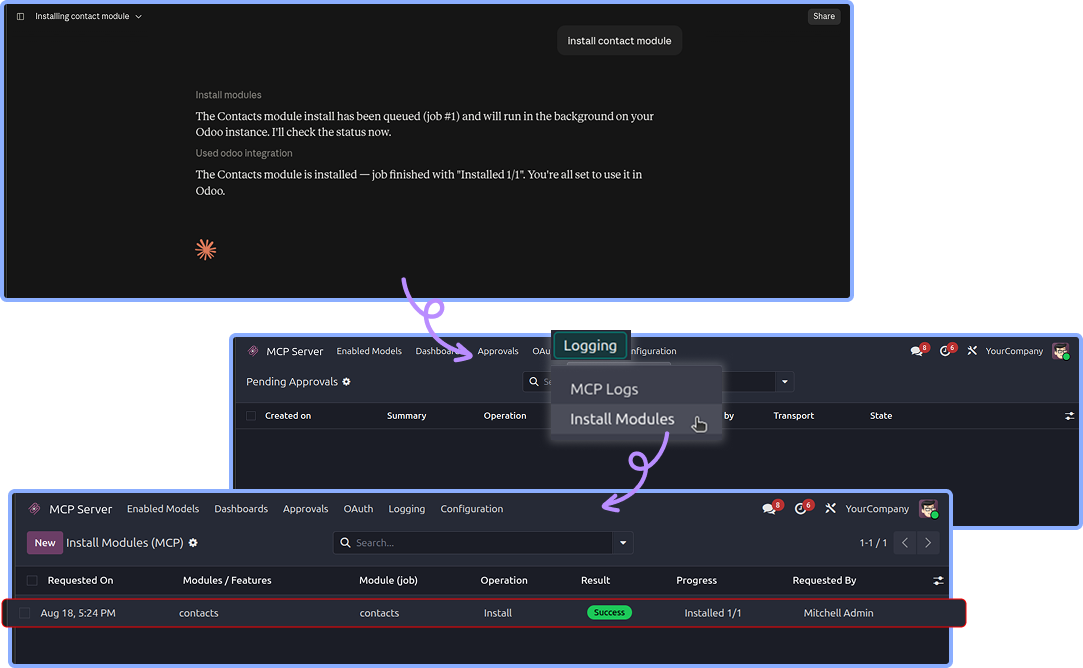
Queues a job - one record per requested module, run strictly one at a time in a background scheduled action, so the server is never overloaded.
Performs the real Odoo install, impersonating the requesting user so Odoo's admin gate still applies.
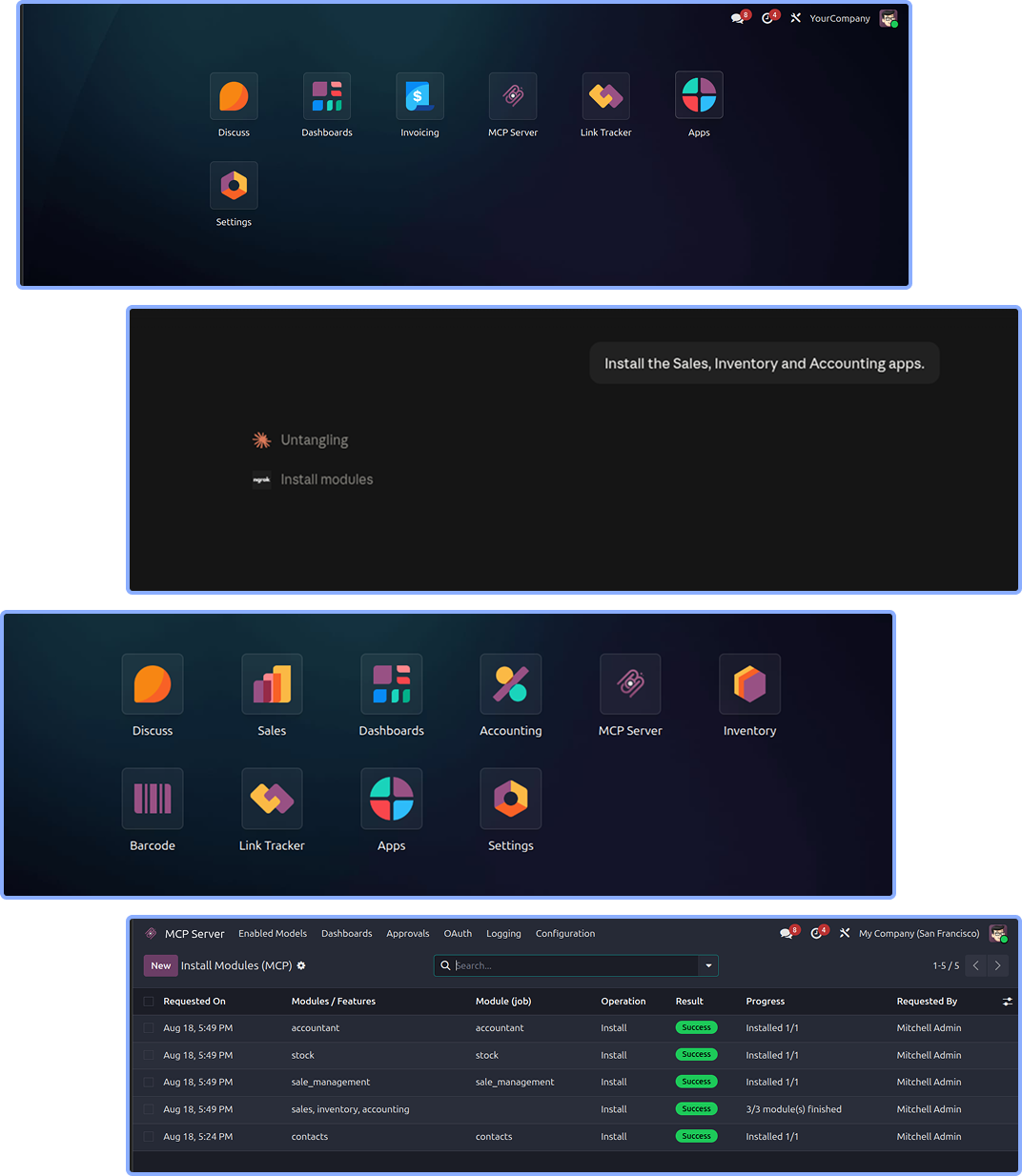
Records the outcome: resolved modules, unresolved terms, progress, state and messages, plus automatic recovery/retry if a module gets stuck in a transient state.
Track everything under MCP Server > Logging > Install Modules: requested names, operation (install/upgrade/uninstall), result state, progress and the installed modules.
Also works over XML-RPC.
A write of state on ir.module.module, or a button_immediate_install/upgrade/uninstall call, is rerouted through the same audited installer instead of merely
flipping a status column.

11
Human approval workflow
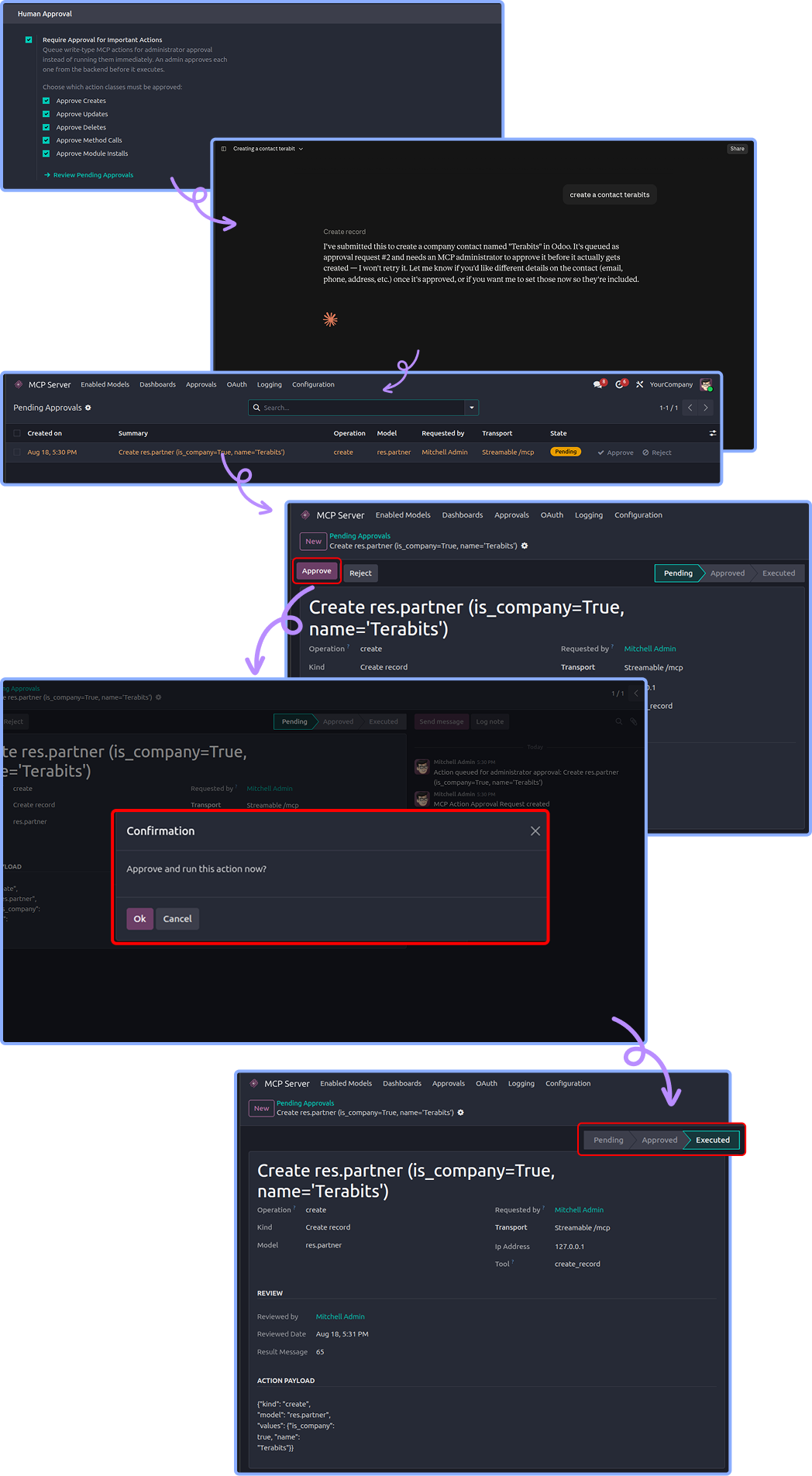
When require approval for important Actions is on, a write-type action is not executed. Instead :-
The action is normalised and queued as an MCP Approval Request in pending state, and the assistant is told
it is awaiting an administrator.
An MCP administrator opens MCP Server > Approvals and reviews the request: summary, action type, model, target record
IDs, the requesting user, the OAuth client and the IP address.
Approve replays the original action as the requesting user, so Odoo's access rights and record rules still apply. The
result is stored and the state becomes executed (or failed, with the error, if it did not work).
Reject means the action never runs; the state becomes rejected.
Every step is tracked in the chatter of the request. Reads are never gated, and the same queue serves both the /mcp and XML-RPC transports.
Action types that can be queued: create record, create records, update, delete, duplicate, method call, and module install/upgrade/uninstall.

12
Live dashboards
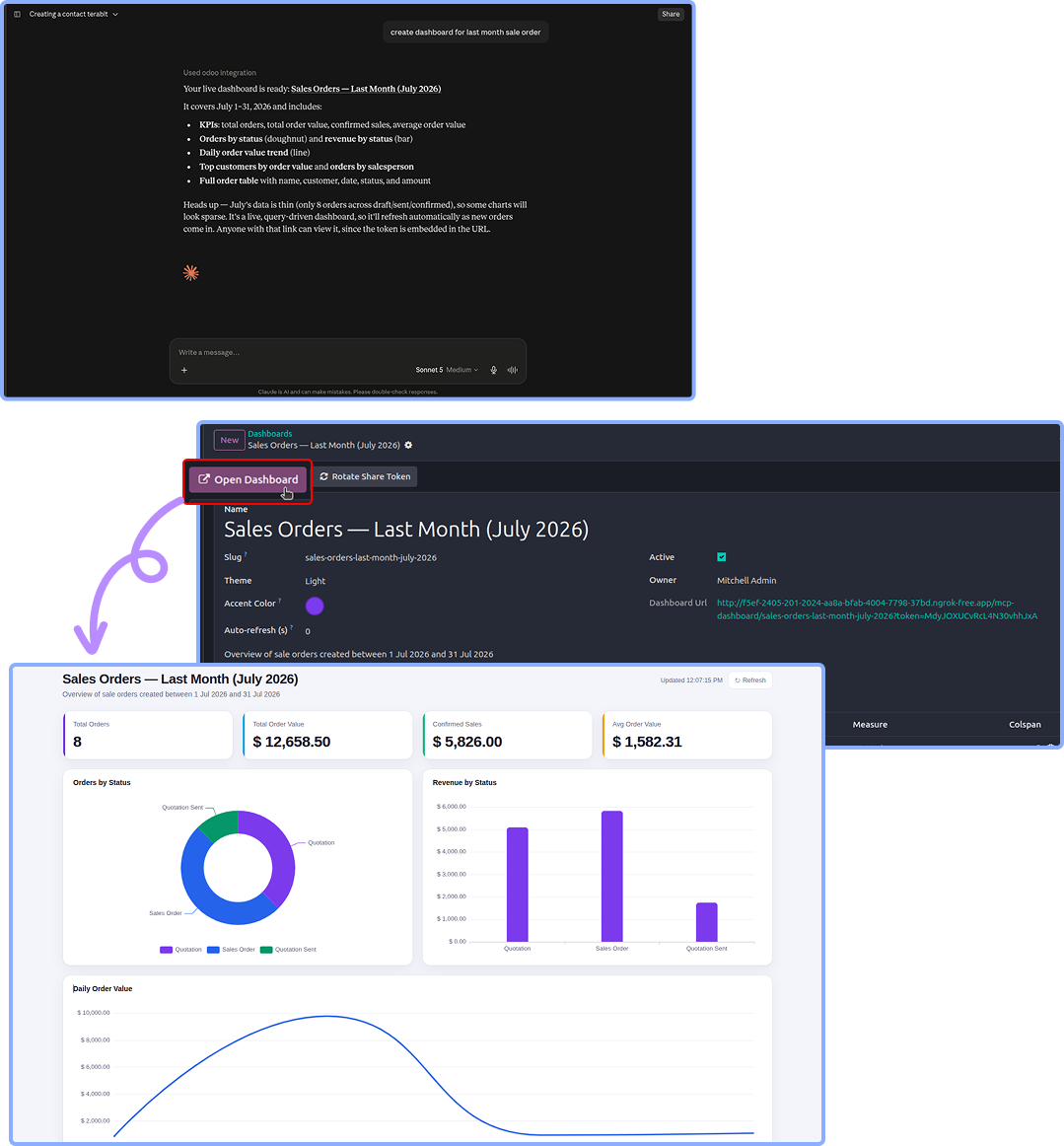
The assistant can build a dashboard and publish it instantly. A dashboard is a set of items - KPI cards, charts and tables - that each carry a query (model, domain, group-by, measure) rather than a frozen dataset, so the numbers recompute on every load.
Two ways to build :- the assistant composes the full spec, or you let it auto-generate a sensible layout from a
single model (KPIs, a state bar, a monthly trend, a breakdown pie and a recent-records table).
30+ chart types:- bar, line, area, pie, doughnut, scatter, heatmap, radar, treemap, sunburst, sankey, funnel, gauge,
calendar heatmap, Gantt, 3D and geo maps, and more.
Publishing :- each dashboard lives at /mcp-dashboard/
share link with its secret token, which you can rotate at any time.
Presentation:- light or dark theme, custom accent colour, and an optional auto-refresh interval in seconds.
Safety :- every model referenced by a dashboard is checked against the MCP read allow-list when it is created, so a
dashboard can only surface data the creator was already allowed to read.
Manage them from the Dashboards menu: open the public page, rotate the share token, or archive a dashboard.

13
Logs & monitoring
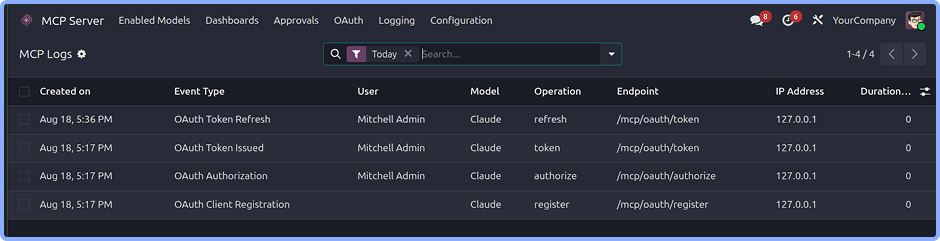
MCP Server > Logging > MCP Logs records what happened, when, and how long it took. Event types include:
Authentication success / failure
Model access, resource retrieval, write operations
Permission denied, rate limit exceeded, errors
OAuth events: client registration, authorization, token issued, refresh, revoke, error
Each entry stores the user, IP address, endpoint, HTTP method, model, operation, affected record IDs, request/response data,
error details and the duration in milliseconds - everything you need for an audit trail or to debug a misbehaving client.
14
Rate limiting, timeouts & retention
MCP Server > Logging > MCP Logs records what happened, when, and how long it took. Event types include:
Rate limiting caps requests per user per minute; over the limit the client receives a rate-limit error and the event is logged.
Request timeout stops a single long-running request from tying up a worker.
Log retention deletes entries older than the configured number of days automatically.
Search results are capped server-side so an assistant cannot pull an unbounded result set in one call.

15
End-to-end walkthrough
Build a whole ERP from a blank database
Install the module on a fresh database.
Configuration > turn on Enable MCP Access and full access.
Create an administrator API key (or connect a remote client over OAuth).
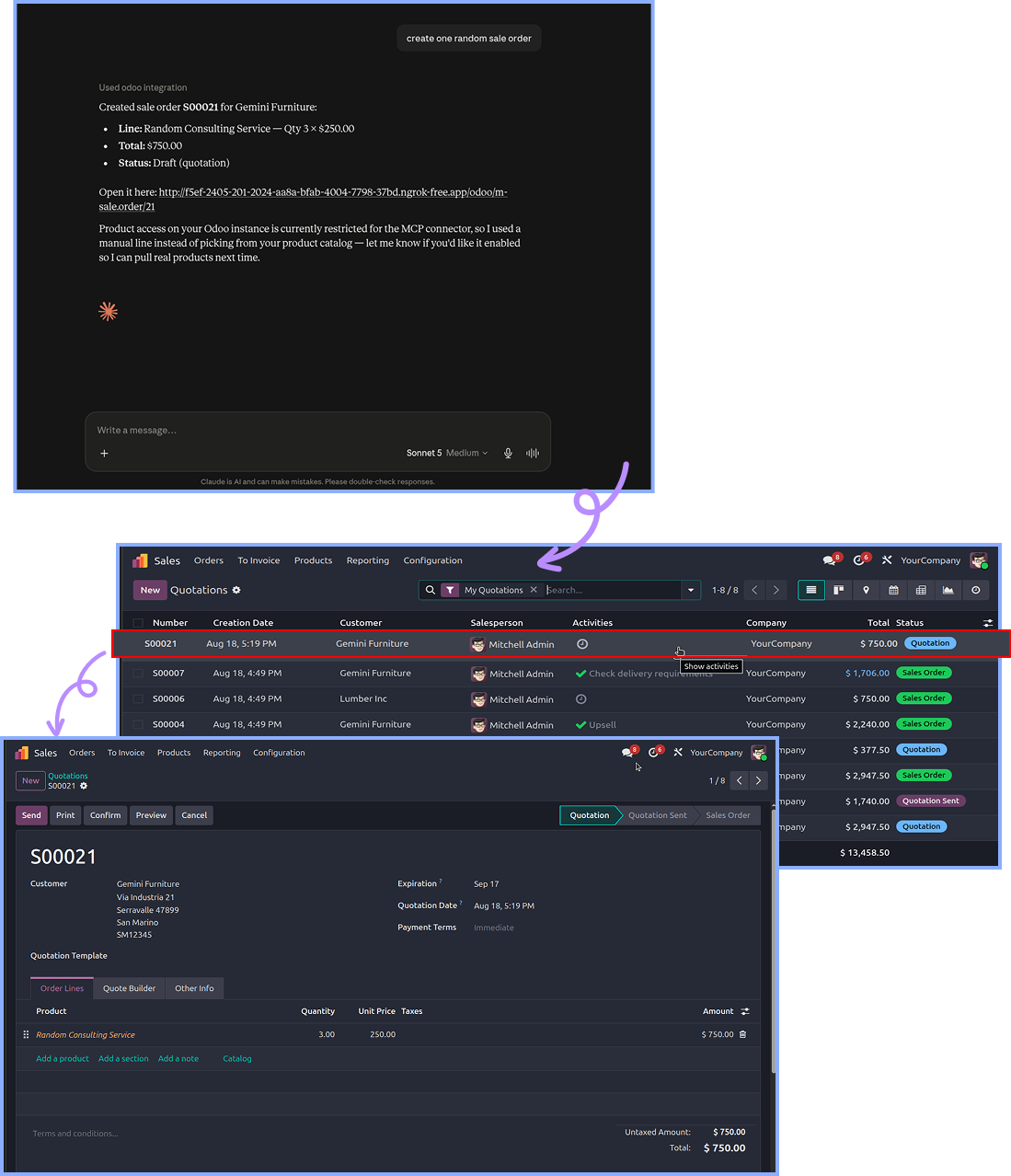
Connect your assistant and ask, in plain language :-
"Install the Sales, Inventory and Accounting apps."
"Create a product "Widget" priced at 50 and a customer "Acme Corp"."
"Make a draft sale order for Acme with 10 Widgets and confirm it."
"Build me a live sales dashboard and give me the link.""
When the ERP is set up, turn Full Access OFF, switch to the per-model allow-list with a least-privilege user, and turn
on approvals for day-to-day operation.
Audit everything under MCP Logs.

Need Help ?
You can instantly find the answer you need here when
you're looking for a quick solution.

Make sure Enable MCP Access is turned ON in the Configuration settings. If it is disabled, all MCP requests will fail.
The model may not be included in Enabled Models, or the required operation may not be enabled. If Full Access is turned OFF, make sure the specific model and operation are explicitly enabled.
Check that Enable OAuth 2.1 is turned ON. Also, verify that the connector can reach the server over HTTPS.
Allow dynamic client registration may be disabled. Turn it ON, or manually provision the client under OAuth - Clients.
Approvals are enabled for the MCP server. Go to MCP Server - Approvals and approve or reject the pending request.
The configured per-minute request limit may have been reached. You can increase the limit if appropriate. Rate-limit events can be monitored in MCP Logs.
Module installations run one at a time as background jobs. Check the installation record under Install Modules for its progress, unresolved terms, or error messages. Also, make sure the scheduled actions responsible for processing installations are running.
The dashboard's share token may be missing or rotated, or the dashboard may have been archived.
Restart the client after changing its configuration. You should also verify the configuration key using the /mcp/auth/validate endpoint.
Yes, I do provide free support for 90 days for any queries or any bug/issue fixing.
In case of if any bug raised in the listed features of this module, I am committed to providing support free of cost. You will need to provide me server ssh access or database access in order to solve the issue.
Just drop us an email at info@terabits.xyz with your questions and doubts, we will reach out to you as soon as possible.
Changelog(s)
Each update brings improvements to make the
app work better for you.

Recommended Apps

Need any help for this module?
Contact us info@terabits.xyz for your queries



Advanced Odoo MCP Server
Connect Odoo to any AI assistant over the Model Context
Protocol and build, configure and operate your whole ERP in
plain language - with full CRUD, real module installation, live
dashboards, OAuth 2.1 sign-in and human approval controls.

01
What this module does
This module turns your Odoo instance into an MCP server. Any MCP-compatible AI client - Claude Desktop, Claude.ai, ChatGPT (Developer mode connectors), Cursor, VS Code, Windsurf or your own agent - can connect to it and then:

Read records from the models you allow (search, browse, aggregate, report).
Create, update, delete and duplicate records - full CRUD on allowed models.
Call Odoo methods such as action_confirm or action_post, exactly like clicking a button.
Install, upgrade and uninstall real Odoo apps, so an assistant can assemble an entire ERP from a blank database.
Publish live dashboards at a shareable public URL that stay in sync with the database.
Post messages in the chatter records from the models you allow (search, browse, aggregate, report).
Everything is gated by a master switch, authentication (API key or OAuth 2.1), an optional per-model allow-list, rate limiting, request logging and - when you want it - human approval before any write is executed.
02
Feature highlights

Modern MCP transport
Streamable-HTTP JSON-RPC endpoint at /mcp - the transport remote connectors (Claude.ai, ChatGPT) actually speak. Protocol versions 2025-06-18, 2025-03-26 and 2024-11-05 supported.

OAuth 2.1 built in
Self-contained authorization server: discovery metadata, Dynamic Client Registration, PKCE, consent screen, JWT access tokens, refresh-token rotation and revocation. No external gateway.

16 AI tools
Search, read, create (single & bulk), update, delete, copy, aggregate, call method, chatter, record URLs, module install, dashboards.

Real module installation
Installs run through genuine Odoo operations in a background job - not a fake status flip - with plain-language name resolution ("accounting" > account).

Human-in-loop approvals
Optionally queue every create / update / delete / method call / install for administrator approval before it runs.

Live dashboards
Query-driven KPI cards, charts (30+ ECharts types) and tables published at /mcp-dashboard/

Granular allow-list
Per model, tick exactly which of read / create / update / delete the assistant may perform.

Audit & safety
Full request logging with retention, rate limiting, request timeout, dedicated security groups, and legacy XML-RPC bridge compatibility.

03
How it works
Step 1: Choose an Entry Point
Requests can arrive through one of three channels :
Main endpoint (recommended, modern integration)
Quick-check helper endpoints (status/info only)
Legacy-compatible endpoint (for older tools/scripts)
All three lead into the same pipeline below.
Step 2: Master Switch Check
The system first confirms MCP access is enabled.
If disabled, all requests are blocked immediately, regardless of source.
Step 3: Authentication
The request must include valid credentials - either an OAuth token or an API key.
Requests without valid credentials are rejected.
Step 4: Rate Limiting & Timeout
The system checks that the request doesn't exceed allowed volume or time limits.
This prevents overload and keeps the system responsive for everyone.
Step 5: Access Check
The system verifies whether this key has:
Full access, or
Access limited to a pre-approved list of models/data
Step 6: Odoo Permission Check
The action is checked against the acting user's normal Odoo permissions.
This ensures the request follows the same rules as a human user would.
Step 7: Approval Gate (if enabled)
If approval mode is turned on, any action that changes data is placed in a queue for manual approval instead of running immediately.
Step 8: Execute & Log
Once all checks pass, the action is carried out and a record is logged for auditing.

04
Requirements
Odoo (this build targets the 20 / master series).
Python packages: defusedxml and cryptography.
Odoo dependencies, installed automatically: base, base_setup, web, mail, rpc.
An MCP-capable AI client (Claude Desktop / Claude.ai, ChatGPT connectors, Cursor, VS Code, Windsurf, or a custom agent).
HTTPS strongly recommended - required by remote connectors that use OAuth.
05
Installation
Copy the odoo_mcp_pro folder into your addons path.
Install the Python dependencies :
pip install defusedxml cryptography
Restart Odoo and update the apps list.
Go to Apps, search for "Odoo MCP Server Advanced" and click Install.
What you get after installing
A new top-level app menu: MCP Server.
Two security groups: MCP User and MCP Administrator (the admin user is added automatically).
A settings page under MCP Server - Configuration.
Background scheduled actions for the module installer and OAuth housekeeping.

06
Configuration settings
Open MCP Server > Configuration.
6.1 Core
OFF
Enable MCP access
Master switch. While OFF, every endpoint refuses access.
OFF
Full access (all models)
Exposes every model for every operation plus module installs, bypassing the allow-list. Security then falls back to the API-key user's own Odoo rights.
300
Request limit per minute
Maximum requests per user per minute (0 = unlimited).
30
Request timeout (seconds)
Maximum processing time for one request.
ON
Enable request logging
Records every MCP request/response for audit.
OFF
Enable rate limiting
Enforces the request limit above.
30
Log retention (days)
Auto-deletes logs older than N days (0 = keep forever).
6.2 Approvals
OFF
Require approval for important actions
Master switch for the approval queue. Reads are never gated.
ON
Approve creates
Gate create_record, create_records, copy_record.
ON
Approve updates
Gate update_record.
ON
Approve deletes
Gate delete_record.
ON
Approve method calls
Gate call_method (e.g. confirming an order).
ON
Approve module installs
Gate install_modules.
6.3 OAuth 2.1
ON
Enable OAuth 2.1
Turns /mcp into an OAuth authorization server. When off, discovery/OAuth endpoints return 404 and only API-key auth remains.
ON
Allow dynamic client registration
Lets clients self-register at /mcp/oauth/register - required for zero-config connectors like ChatGPT and Claude.ai.
900
Access Token TTL
Lifetime of an access token in seconds.
2,592,000
Approve deletes
Gate delete_record.
5
Refresh rotation grace
Window in which replaying a just-rotated refresh token is tolerated; later replays revoke the whole chain.

07
Access control & enabled models
There are two ways to decide what an assistant may touch.
Option A - Full Access mode
fast bootstrapping
Turn full access ON. Connect with an administrator key and the assistant can read, create, update, delete anything and install modules. Ideal for building a fresh database end-to-end.
Leave Full Access OFF in production.
It bypasses the allow-list entirely; only Odoo's own access rights for the connected user remain.
Option B - Per-model allow-list
Recommended
Go to MCP server > enabled models.
Use the add models wizard to bulk-pick models,
or create rows one by one.
For each model tick the permitted operations: Allow
Read, Allow Create, Allow Update, Allow Delete.
Anything not listed - or an operation not ticked - is
refused with 403 Forbidden.
Each model can appear only once, and rows can be archived to suspend access without deleting the configuration.

08
Connect your AI client
8.1 Remote connector (Claude.ai, ChatGPT Developer mode)
Add a custom connector / MCP server pointing at :
https://your-odoo-domain.com/mcp
The client discovers OAuth automatically, you sign in with your normal Odoo login and approve the consent screen.
Requires Enable OAuth 2.1 ON and HTTPS.
8.2 Local client (Claude Desktop, Cursor, VS Code, Windsurf)
Use a standard MCP server config with an API key:
Restart the assistant; it will discover the tools and the enabled-model list on its own. A quick sanity check from a terminal:
curl -s https://your-odoo-domain.com/mcp/health
curl -s -H "X-API-Key: your-api-key" https://your-odoo-domain.com/mcp/models

09
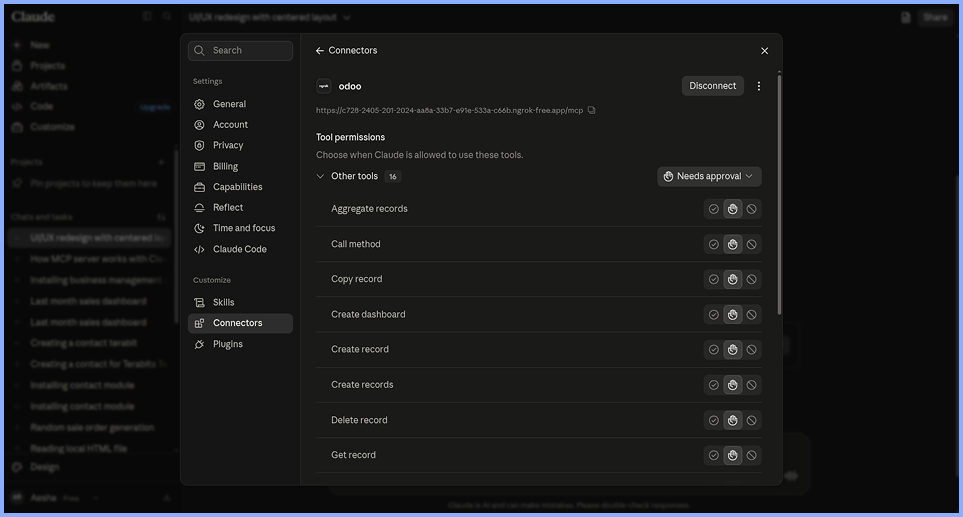
MCP tool catalogue
These are the tools the assistant sees. Each call is checked against the allow-list, Odoo's own access rights, and the approval gate.
list_models : List the Odoo models it is allowed to operate on.
model_fields : Describe a model's fields (types, labels, relations) before writing to it.
search_records : Search with an Odoo domain and return matching records.
get_record : Read one or more records by ID.
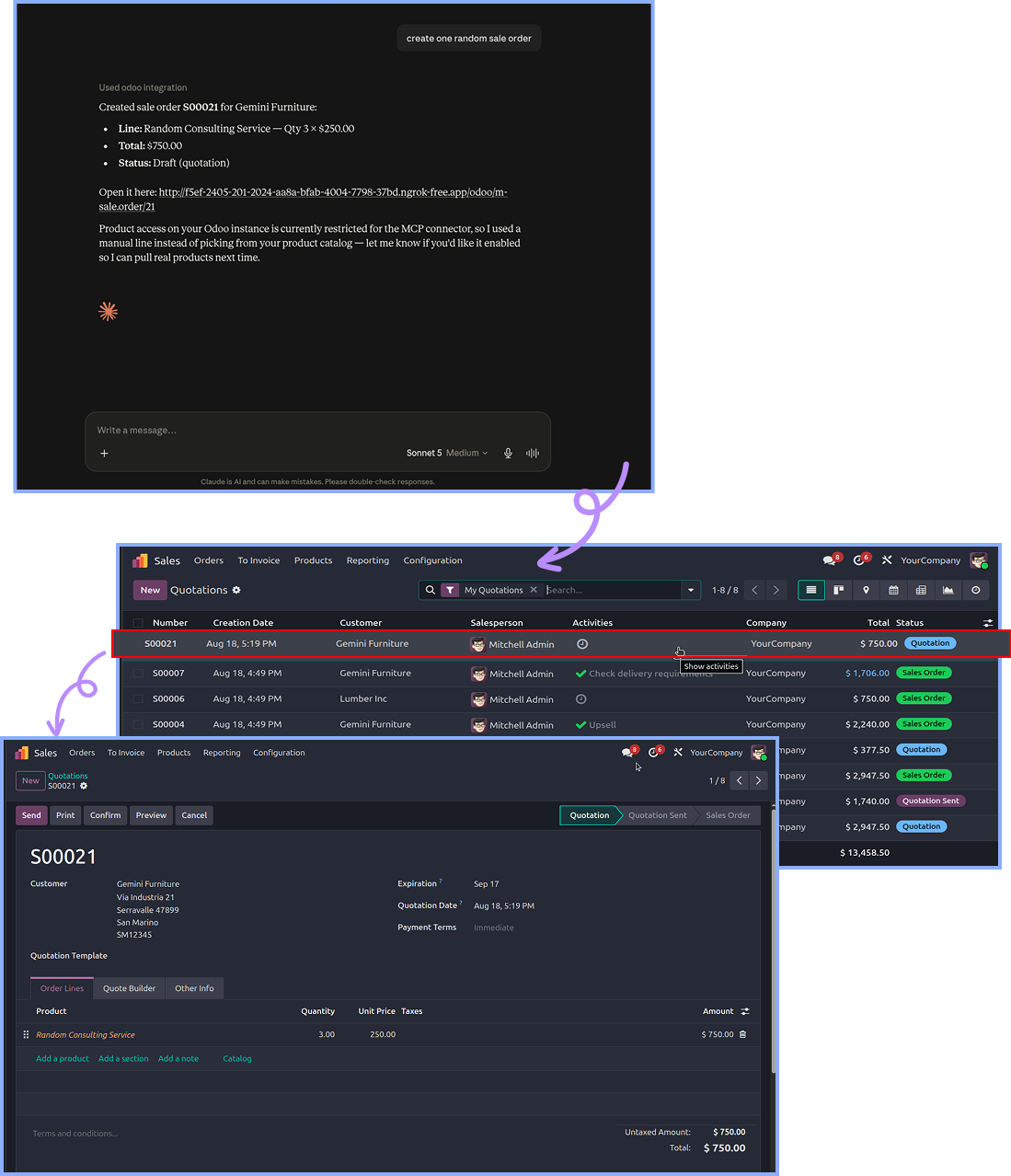
create_record : Create a single record.
create__many_record : Create many records in one call (bulk import).
update_record : Update one or more records.
delete_record : Delete one or more records.
copy_record : Duplicate a record using Odoo's native copy, with optional overrides.
aggregate_records : Group and aggregate (counts, sums, averages) like a pivot view.
call_method : Call a model/record method - confirm an order, post an invoice, run a server action.
post_message : Post a note or comment in a record's chatter, with followers and attachments.
get_record_url : Return a direct backend URL so you can open the record in one click.
install_modules : Install / upgrade / uninstall apps by technical name or plain-language description.
create_dashboard : Build and publish a live dashboard (full spec, or auto-generated from a model).
list_dashboards : List published dashboards with their slugs and public links.

10
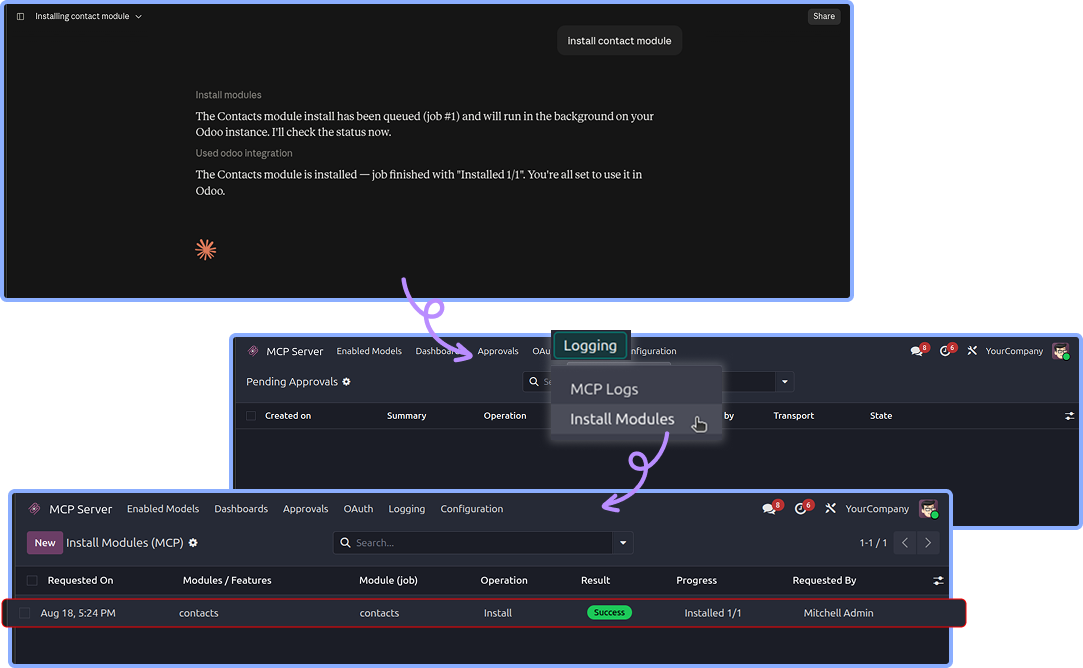
Module installer - build an ERP by asking
Ask for a capability in plain language ("install sales, inventory and accounting", or even "I run a bakery and need to track orders
and stock") and the module:
Resolves friendly names to real technical modules using a curated alias map, falling back gracefully when an
enterprise addons is not available.
Queues a job - one record per requested module, run strictly one at a time in a background scheduled action, so the server is never overloaded.
Performs the real Odoo install, impersonating the requesting user so Odoo's admin gate still applies.
Records the outcome: resolved modules, unresolved terms, progress, state and messages, plus automatic recovery/retry if a module gets stuck in a transient state.
Track everything under MCP Server > Logging > Install Modules: requested names, operation (install/upgrade/uninstall), result state, progress and the installed modules.
Also works over XML-RPC.
A write of state on ir.module.module, or a button_immediate_install/upgrade/uninstall call, is rerouted through the same audited installer instead of merely
flipping a status column.

11
Human approval workflow
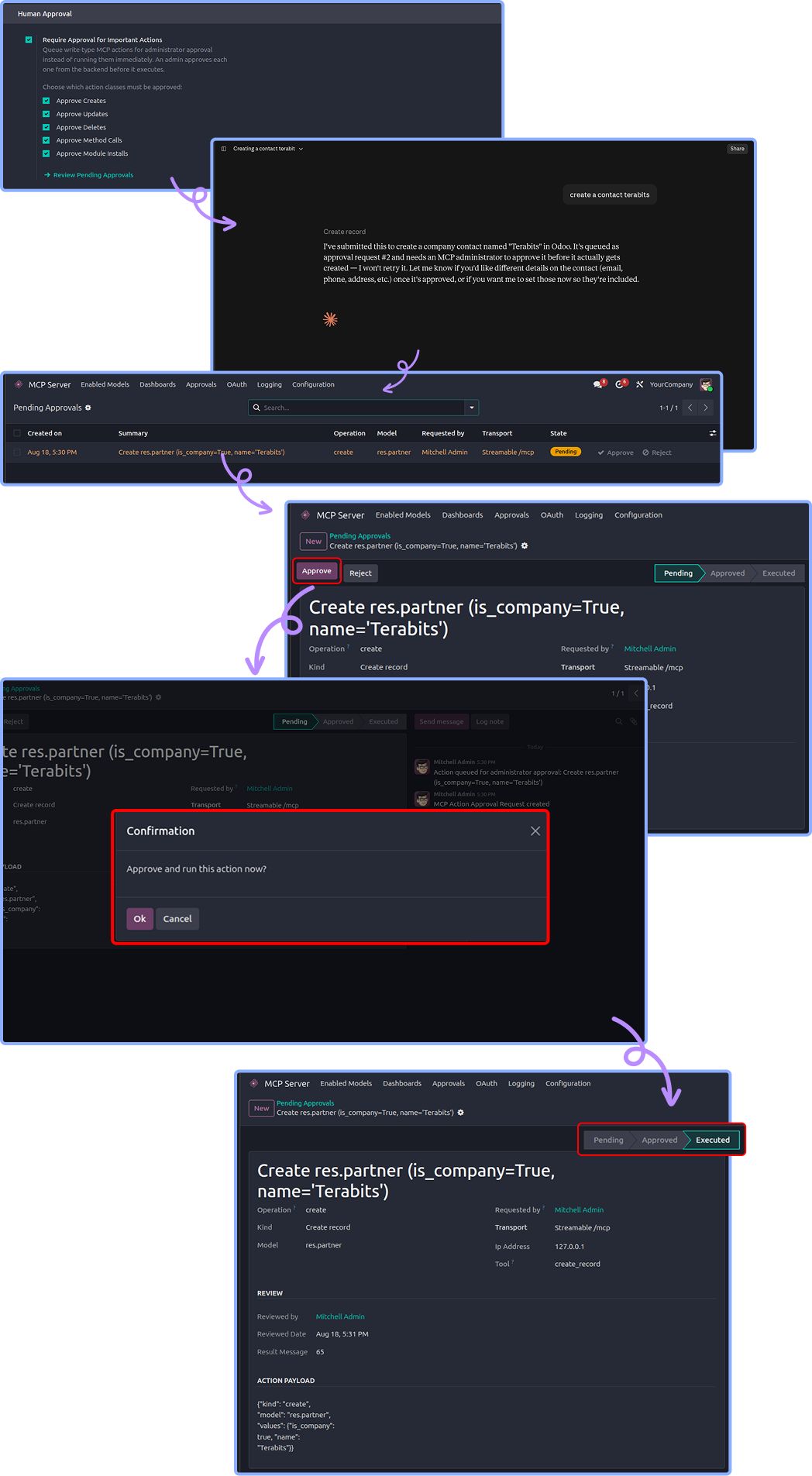
When require approval for important Actions is on, a write-type action is not executed. Instead :-
The action is normalised and queued as an MCP Approval Request in pending state, and the assistant is told
it is awaiting an administrator.
An MCP administrator opens MCP Server > Approvals and reviews the request: summary, action type, model, target record
IDs, the requesting user, the OAuth client and the IP address.
Approve replays the original action as the requesting user, so Odoo's access rights and record rules still apply. The
result is stored and the state becomes executed (or failed, with the error, if it did not work).
Reject means the action never runs; the state becomes rejected.
Every step is tracked in the chatter of the request. Reads are never gated, and the same queue serves both the /mcp and XML-RPC transports.
Action types that can be queued: create record, create records, update, delete, duplicate, method call, and module install/upgrade/uninstall.

12
Live dashboards
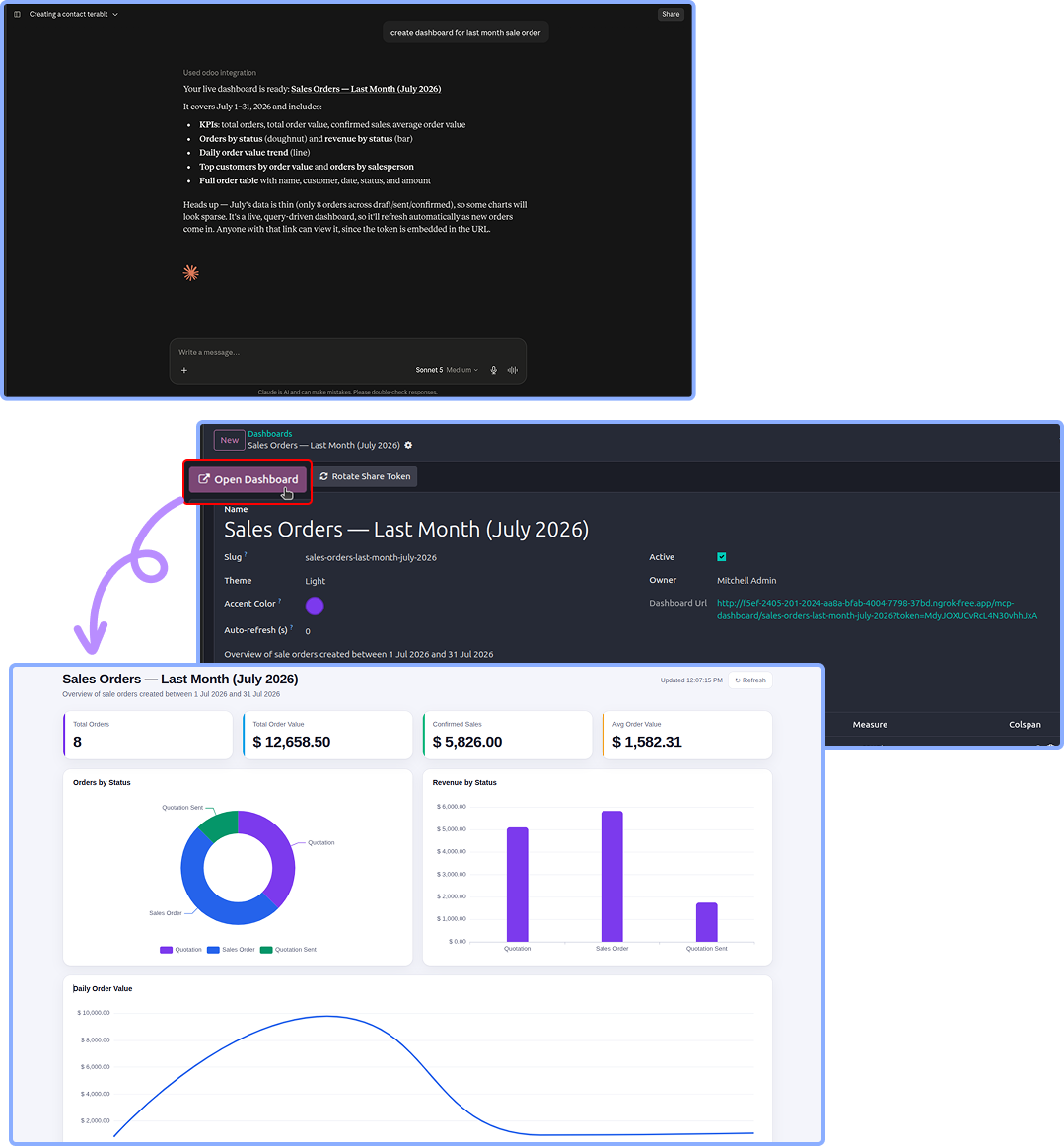
The assistant can build a dashboard and publish it instantly. A dashboard is a set of items - KPI cards, charts and tables - that each carry a query (model, domain, group-by, measure) rather than a frozen dataset, so the numbers recompute on every load.
Two ways to build :- the assistant composes the full spec, or you let it auto-generate a sensible layout from a
single model (KPIs, a state bar, a monthly trend, a breakdown pie and a recent-records table).
30+ chart types:- bar, line, area, pie, doughnut, scatter, heatmap, radar, treemap, sunburst, sankey, funnel, gauge,
calendar heatmap, Gantt, 3D and geo maps, and more.
Publishing :- each dashboard lives at /mcp-dashboard/
share link with its secret token, which you can rotate at any time.
Presentation:- light or dark theme, custom accent colour, and an optional auto-refresh interval in seconds.
Safety :- every model referenced by a dashboard is checked against the MCP read allow-list when it is created, so a
dashboard can only surface data the creator was already allowed to read.
Manage them from the Dashboards menu: open the public page, rotate the share token, or archive a dashboard.

13
Logs & monitoring
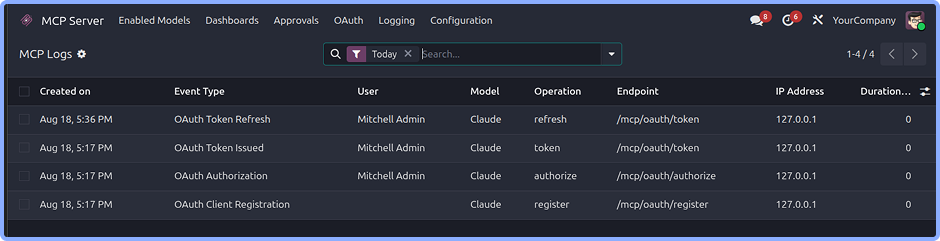
MCP Server > Logging > MCP Logs records what happened, when, and how long it took. Event types include:
Authentication success / failure
Model access, resource retrieval, write operations
Permission denied, rate limit exceeded, errors
OAuth events: client registration, authorization, token issued, refresh, revoke, error
Each entry stores the user, IP address, endpoint, HTTP method, model, operation, affected record IDs, request/response data,
error details and the duration in milliseconds - everything you need for an audit trail or to debug a misbehaving client.
14
Rate limiting, timeouts & retention
MCP Server > Logging > MCP Logs records what happened, when, and how long it took. Event types include:
Rate limiting caps requests per user per minute; over the limit the client receives a rate-limit error and the event is logged.
Request timeout stops a single long-running request from tying up a worker.
Log retention deletes entries older than the configured number of days automatically.
Search results are capped server-side so an assistant cannot pull an unbounded result set in one call.

15
End-to-end walkthrough
Build a whole ERP from a blank database
Install the module on a fresh database.
Configuration > turn on Enable MCP Access and full access.
Create an administrator API key (or connect a remote client over OAuth).
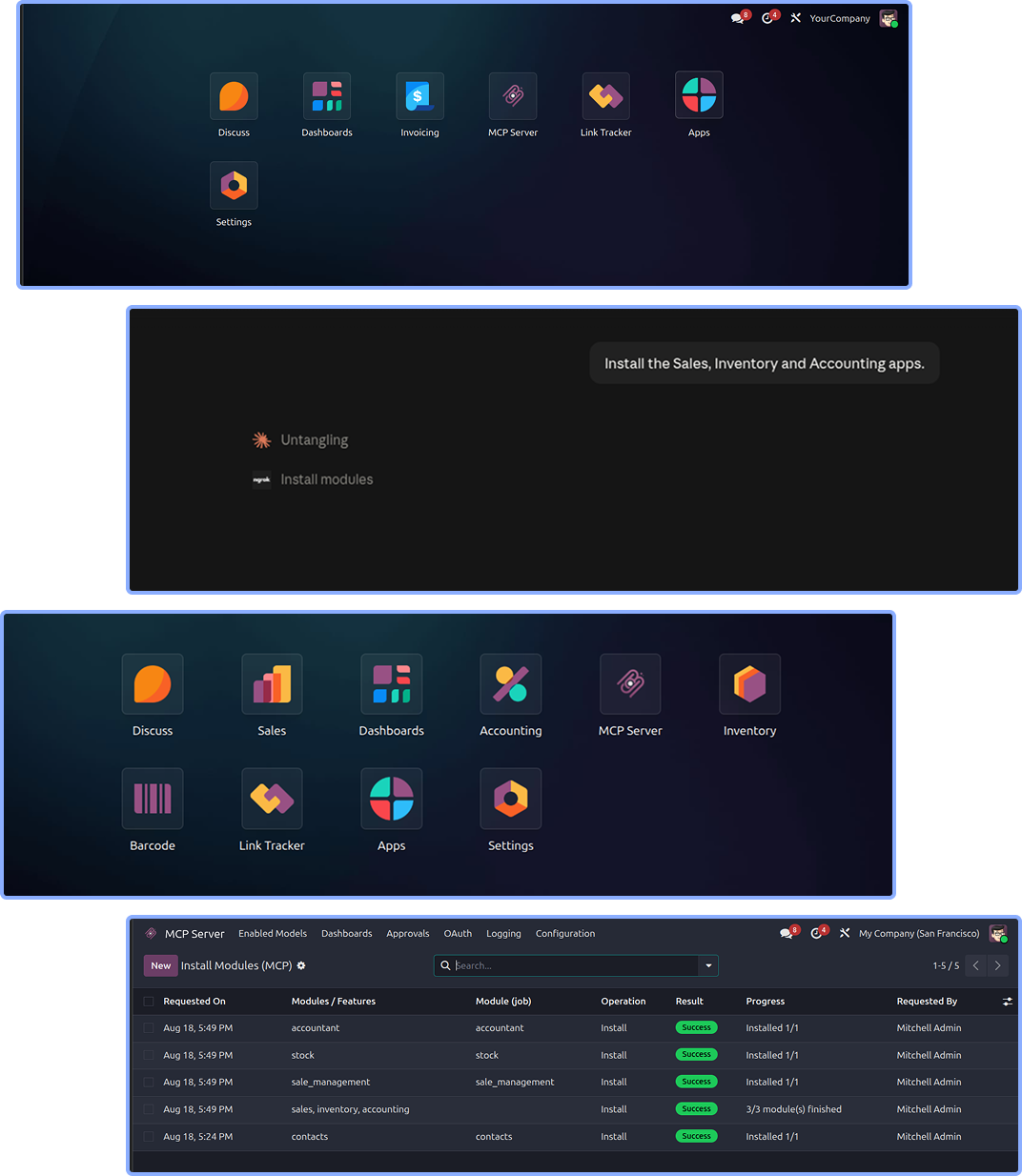
Connect your assistant and ask, in plain language :-
"Install the Sales, Inventory and Accounting apps."
"Create a product "Widget" priced at 50 and a customer "Acme Corp"."
"Make a draft sale order for Acme with 10 Widgets and confirm it."
"Build me a live sales dashboard and give me the link.""
When the ERP is set up, turn Full Access OFF, switch to the per-model allow-list with a least-privilege user, and turn
on approvals for day-to-day operation.
Audit everything under MCP Logs.

Need Help ?
You can instantly find the answer you need here when
you're looking for a quick solution.

Make sure Enable MCP Access is turned ON in the Configuration settings. If it is disabled, all MCP requests will fail.
The model may not be included in Enabled Models, or the required operation may not be enabled. If Full Access is turned OFF, make sure the specific model and operation are explicitly enabled.
Check that Enable OAuth 2.1 is turned ON. Also, verify that the connector can reach the server over HTTPS.
Allow dynamic client registration may be disabled. Turn it ON, or manually provision the client under OAuth - Clients.
Approvals are enabled for the MCP server. Go to MCP Server - Approvals and approve or reject the pending request.
The configured per-minute request limit may have been reached. You can increase the limit if appropriate. Rate-limit events can be monitored in MCP Logs.
Module installations run one at a time as background jobs. Check the installation record under Install Modules for its progress, unresolved terms, or error messages. Also, make sure the scheduled actions responsible for processing installations are running.
The dashboard's share token may be missing or rotated, or the dashboard may have been archived.
Restart the client after changing its configuration. You should also verify the configuration key using the /mcp/auth/validate endpoint.
Yes, I do provide free support for 90 days for any queries or any bug/issue fixing.
In case of if any bug raised in the listed features of this module, I am committed to providing support free of cost. You will need to provide me server ssh access or database access in order to solve the issue.
Just drop us an email at info@terabits.xyz with your questions and doubts, we will reach out to you as soon as possible.
Changelog(s)
Each update brings improvements to make the
app work better for you.

Recommended Apps

Need any help for this module?
Contact us info@terabits.xyz for your queries



Advanced Odoo MCP Server
Connect Odoo to any AI assistant over the Model Context
Protocol and build, configure and operate your whole ERP in
plain language - with full CRUD, real module installation, live
dashboards, OAuth 2.1 sign-in and human approval controls.

01
What this module does
This module turns your Odoo instance into an MCP server. Any MCP-compatible AI client - Claude Desktop, Claude.ai, ChatGPT (Developer mode connectors), Cursor, VS Code, Windsurf or your own agent - can connect to it and then:

Read records from the models you allow (search, browse, aggregate, report).
Create, update, delete and duplicate records - full CRUD on allowed models.
Call Odoo methods such as action_confirm or action_post, exactly like clicking a button.
Install, upgrade and uninstall real Odoo apps, so an assistant can assemble an entire ERP from a blank database.
Publish live dashboards at a shareable public URL that stay in sync with the database.
Post messages in the chatter records from the models you allow (search, browse, aggregate, report).
Everything is gated by a master switch, authentication (API key or OAuth 2.1), an optional per-model allow-list, rate limiting, request logging and - when you want it - human approval before any write is executed.
02
Feature highlights

Modern MCP transport
Streamable-HTTP JSON-RPC endpoint at /mcp - the transport remote connectors (Claude.ai, ChatGPT) actually speak. Protocol versions 2025-06-18, 2025-03-26 and 2024-11-05 supported.

OAuth 2.1 built in
Self-contained authorization server: discovery metadata, Dynamic Client Registration, PKCE, consent screen, JWT access tokens, refresh-token rotation and revocation. No external gateway.

16 AI tools
Search, read, create (single & bulk), update, delete, copy, aggregate, call method, chatter, record URLs, module install, dashboards.

Real module installation
Installs run through genuine Odoo operations in a background job - not a fake status flip - with plain-language name resolution ("accounting" > account).

Human-in-loop approvals
Optionally queue every create / update / delete / method call / install for administrator approval before it runs.

Live dashboards
Query-driven KPI cards, charts (30+ ECharts types) and tables published at /mcp-dashboard/

Granular allow-list
Per model, tick exactly which of read / create / update / delete the assistant may perform.

Audit & safety
Full request logging with retention, rate limiting, request timeout, dedicated security groups, and legacy XML-RPC bridge compatibility.

03
How it works
Step 1: Choose an Entry Point
Requests can arrive through one of three channels :
Main endpoint (recommended, modern integration)
Quick-check helper endpoints (status/info only)
Legacy-compatible endpoint (for older tools/scripts)
All three lead into the same pipeline below.
Step 2: Master Switch Check
The system first confirms MCP access is enabled.
If disabled, all requests are blocked immediately, regardless of source.
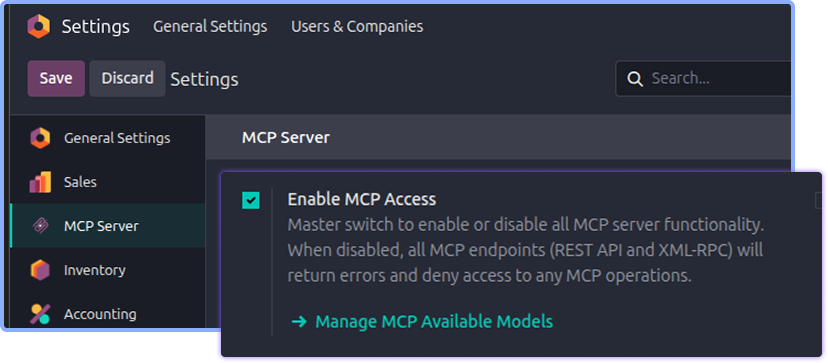
Step 3: Authentication
The request must include valid credentials - either an OAuth token or an API key.
Requests without valid credentials are rejected.
Step 4: Rate Limiting & Timeout
The system checks that the request doesn't exceed allowed volume or time limits.
This prevents overload and keeps the system responsive for everyone.
Step 5: Access Check
The system verifies whether this key has:
Full access, or
Access limited to a pre-approved list of models/data
Step 6: Odoo Permission Check
The action is checked against the acting user's normal Odoo permissions.
This ensures the request follows the same rules as a human user would.
Step 7: Approval Gate (if enabled)
If approval mode is turned on, any action that changes data is placed in a queue for manual approval instead of running immediately.
Step 8: Execute & Log
Once all checks pass, the action is carried out and a record is logged for auditing.

04
Requirements
Odoo (this build targets the 20 / master series).
Python packages: defusedxml and cryptography.
Odoo dependencies, installed automatically: base, base_setup, web, mail, rpc.
An MCP-capable AI client (Claude Desktop / Claude.ai, ChatGPT connectors, Cursor, VS Code, Windsurf, or a custom agent).
HTTPS strongly recommended - required by remote connectors that use OAuth.
05
Installation
Copy the odoo_mcp_pro folder into your addons path.
Install the Python dependencies :
pip install defusedxml cryptography
Restart Odoo and update the apps list.
Go to Apps, search for "Odoo MCP Server Advanced" and click Install.
What you get after installing
A new top-level app menu: MCP Server.
Two security groups: MCP User and MCP Administrator (the admin user is added automatically).
A settings page under MCP Server - Configuration.
Background scheduled actions for the module installer and OAuth housekeeping.

06
Configuration settings
Open MCP Server > Configuration.
6.1 Core
OFF
Enable MCP access
Master switch. While OFF, every endpoint refuses access.
OFF
Full access (all models)
Exposes every model for every operation plus module installs, bypassing the allow-list. Security then falls back to the API-key user's own Odoo rights.
300
Request limit per minute
Maximum requests per user per minute (0 = unlimited).
30
Request timeout (seconds)
Maximum processing time for one request.
ON
Enable request logging
Records every MCP request/response for audit.
OFF
Enable rate limiting
Enforces the request limit above.
30
Log retention (days)
Auto-deletes logs older than N days (0 = keep forever).
6.2 Approvals
OFF
Require approval for important actions
Master switch for the approval queue. Reads are never gated.
ON
Approve creates
Gate create_record, create_records, copy_record.
ON
Approve updates
Gate update_record.
ON
Approve deletes
Gate delete_record.
ON
Approve method calls
Gate call_method (e.g. confirming an order).
ON
Approve module installs
Gate install_modules.
6.3 OAuth 2.1
ON
Enable OAuth 2.1
Turns /mcp into an OAuth authorization server. When off, discovery/OAuth endpoints return 404 and only API-key auth remains.
ON
Allow dynamic client registration
Lets clients self-register at /mcp/oauth/register - required for zero-config connectors like ChatGPT and Claude.ai.
900
Access Token TTL
Lifetime of an access token in seconds.
2,592,000
Approve deletes
Gate delete_record.
5
Refresh rotation grace
Window in which replaying a just-rotated refresh token is tolerated; later replays revoke the whole chain.

07
Access control & enabled models
There are two ways to decide what an assistant may touch.
Option A - Full Access mode
fast bootstrapping
Turn full access ON. Connect with an administrator key and the assistant can read, create, update, delete anything and install modules. Ideal for building a fresh database end-to-end.
Leave Full Access OFF in production.
It bypasses the allow-list entirely; only Odoo's own access rights for the connected user remain.
Option B - Per-model allow-list
Recommended
Go to MCP server > enabled models.
Use the add models wizard to bulk-pick models,
or create rows one by one.
For each model tick the permitted operations: Allow
Read, Allow Create, Allow Update, Allow Delete.
Anything not listed - or an operation not ticked - is
refused with 403 Forbidden.
Each model can appear only once, and rows can be archived to suspend access without deleting the configuration.

08
Connect your AI client
8.1 Remote connector (Claude.ai, ChatGPT Developer mode)
Add a custom connector / MCP server pointing at :
https://your-odoo-domain.com/mcp
The client discovers OAuth automatically, you sign in with your normal Odoo login and approve the consent screen.
Requires Enable OAuth 2.1 ON and HTTPS.
8.2 Local client (Claude Desktop, Cursor, VS Code, Windsurf)
Use a standard MCP server config with an API key:
Restart the assistant; it will discover the tools and the enabled-model list on its own. A quick sanity check from a terminal:
curl -s https://your-odoo-domain.com/mcp/health
curl -s -H "X-API-Key: your-api-key" https://your-odoo-domain.com/mcp/models

09
MCP tool catalogue
These are the tools the assistant sees. Each call is checked against the allow-list, Odoo's own access rights, and the approval gate.
list_models : List the Odoo models it is allowed to operate on.
model_fields : Describe a model's fields (types, labels, relations) before writing to it.
search_records : Search with an Odoo domain and return matching records.
get_record : Read one or more records by ID.
create_record : Create a single record.
create__many_record : Create many records in one call (bulk import).
update_record : Update one or more records.
delete_record : Delete one or more records.
copy_record : Duplicate a record using Odoo's native copy, with optional overrides.
aggregate_records : Group and aggregate (counts, sums, averages) like a pivot view.
call_method : Call a model/record method - confirm an order, post an invoice, run a server action.
post_message : Post a note or comment in a record's chatter, with followers and attachments.
get_record_url : Return a direct backend URL so you can open the record in one click.
install_modules : Install / upgrade / uninstall apps by technical name or plain-language description.
create_dashboard : Build and publish a live dashboard (full spec, or auto-generated from a model).
list_dashboards : List published dashboards with their slugs and public links.

10
Module installer - build an ERP by asking
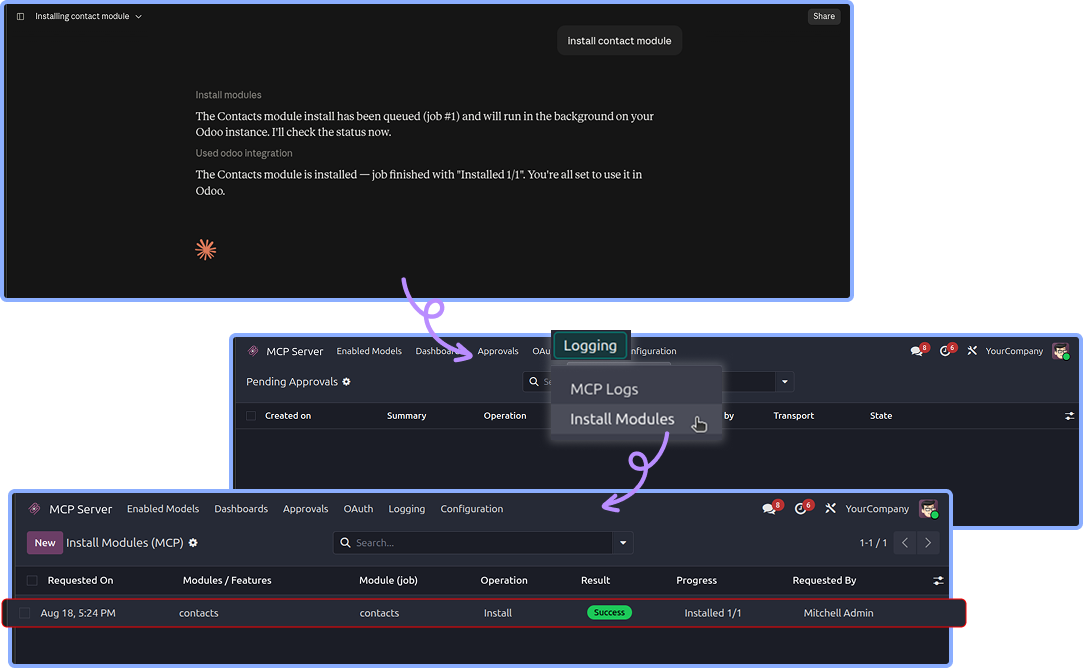
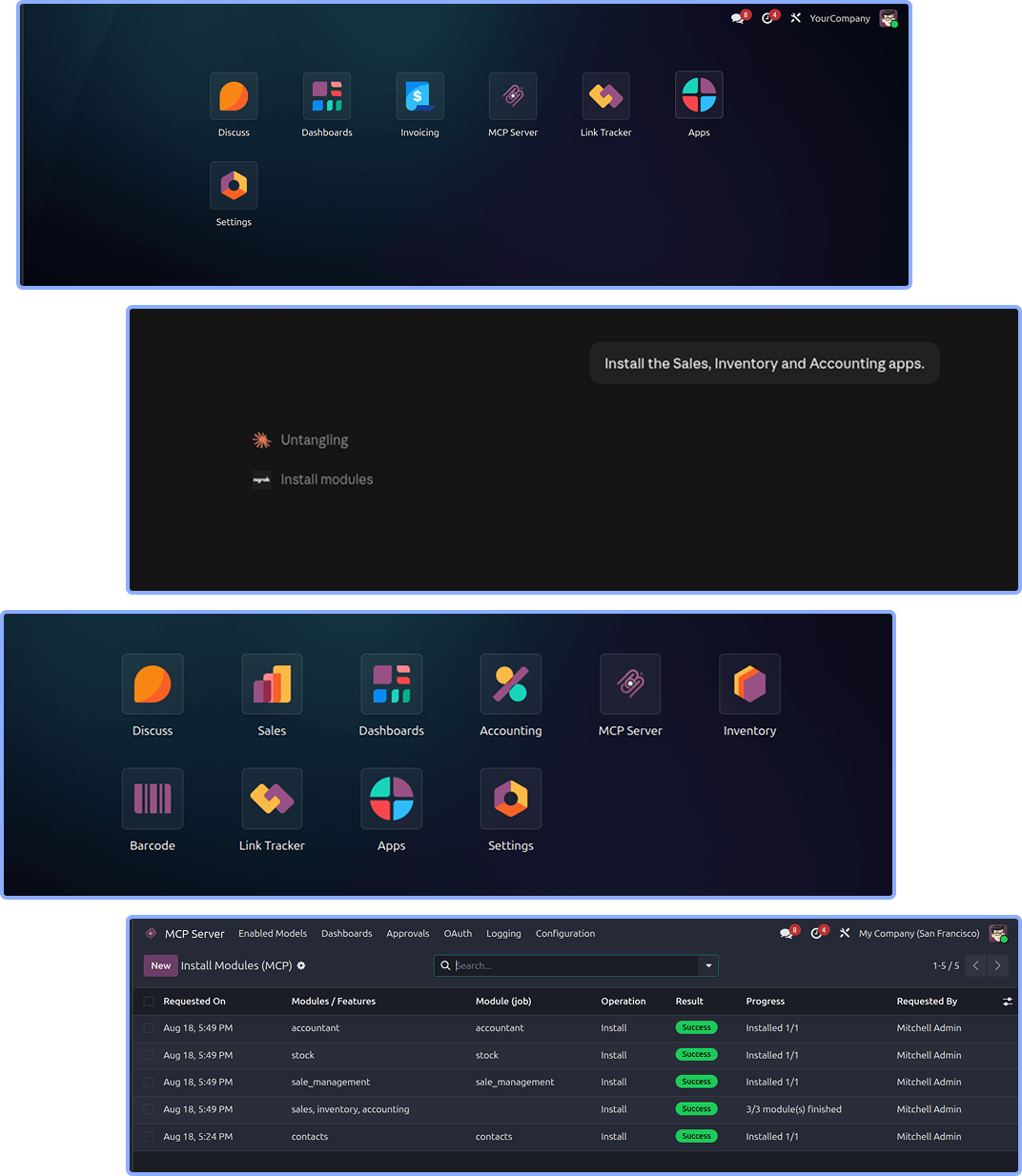
Ask for a capability in plain language ("install sales, inventory and accounting", or even "I run a bakery and need to track orders
and stock") and the module:
Resolves friendly names to real technical modules using a curated alias map, falling back gracefully when an
enterprise addons is not available.
Queues a job - one record per requested module, run strictly one at a time in a background scheduled action, so the server is never overloaded.
Performs the real Odoo install, impersonating the requesting user so Odoo's admin gate still applies.
Records the outcome: resolved modules, unresolved terms, progress, state and messages, plus automatic recovery/retry if a module gets stuck in a transient state.
Track everything under MCP Server > Logging > Install Modules: requested names, operation (install/upgrade/uninstall), result state, progress and the installed modules.
Also works over XML-RPC.
A write of state on ir.module.module, or a button_immediate_install/upgrade/uninstall call, is rerouted through the same audited installer instead of merely
flipping a status column.

11
Human approval workflow
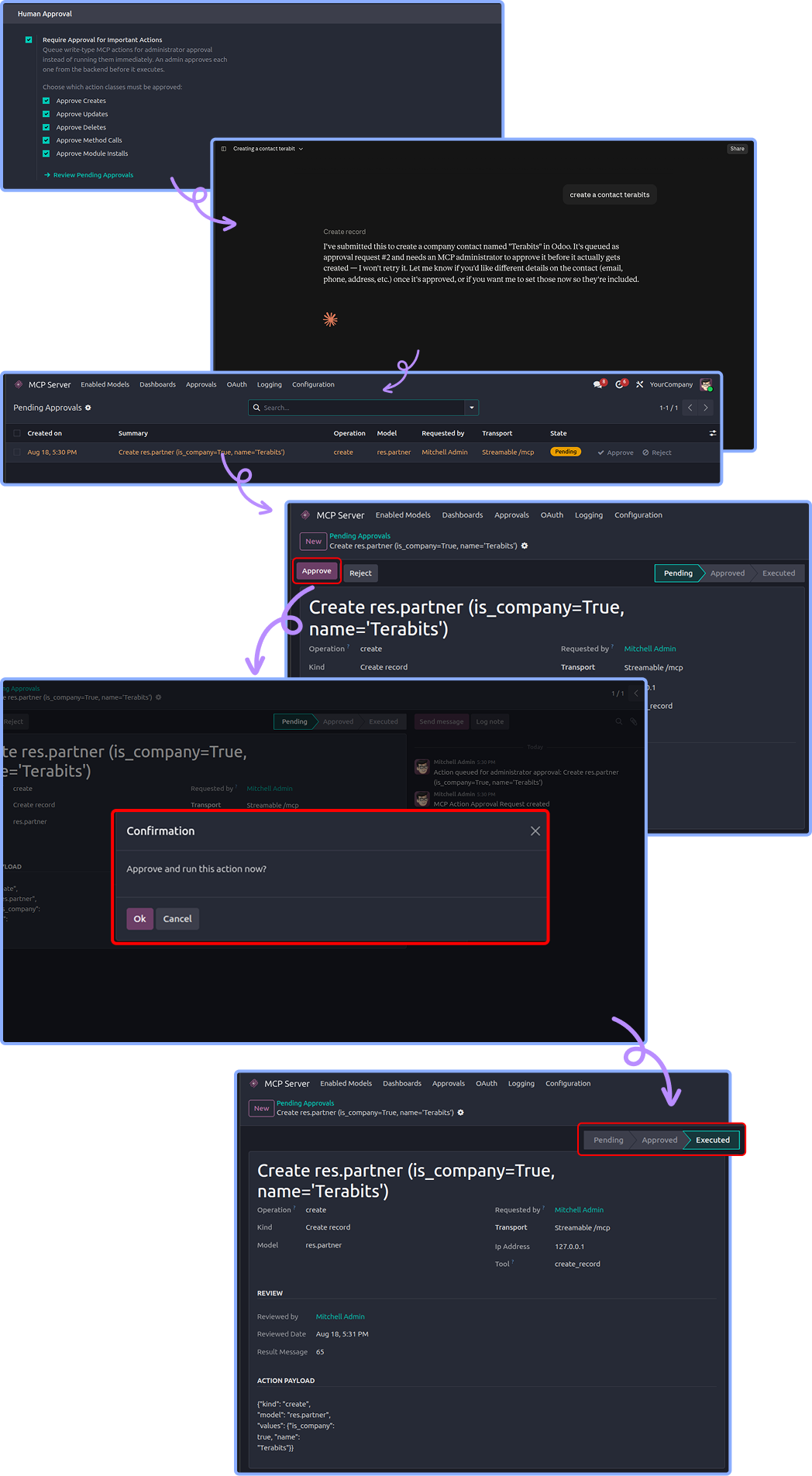
When require approval for important Actions is on, a write-type action is not executed. Instead :-
The action is normalised and queued as an MCP Approval Request in pending state, and the assistant is told
it is awaiting an administrator.
An MCP administrator opens MCP Server > Approvals and reviews the request: summary, action type, model, target record
IDs, the requesting user, the OAuth client and the IP address.
Approve replays the original action as the requesting user, so Odoo's access rights and record rules still apply. The
result is stored and the state becomes executed (or failed, with the error, if it did not work).
Reject means the action never runs; the state becomes rejected.
Every step is tracked in the chatter of the request. Reads are never gated, and the same queue serves both the /mcp and XML-RPC transports.
Action types that can be queued: create record, create records, update, delete, duplicate, method call, and module install/upgrade/uninstall.

12
Live dashboards
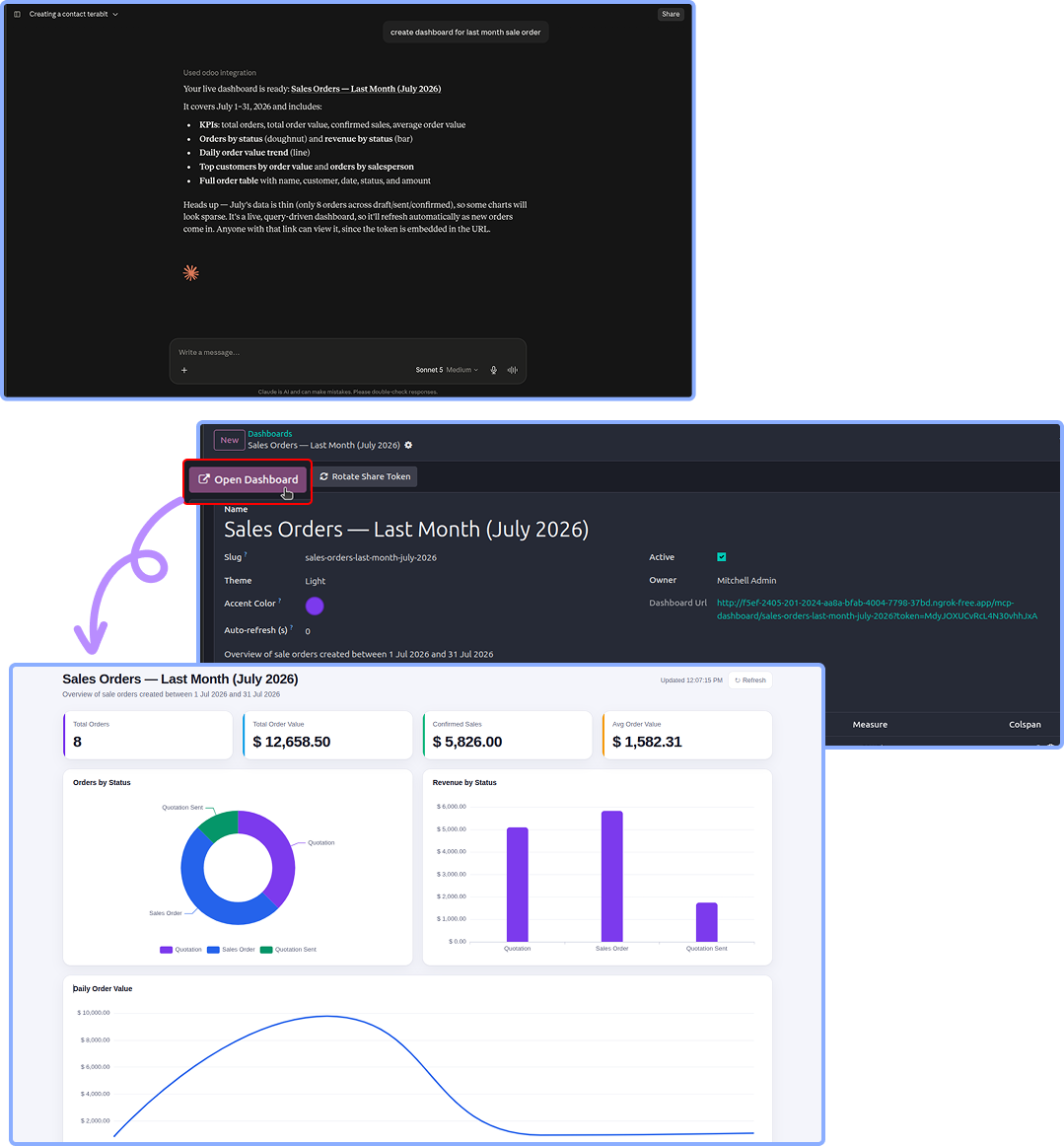
The assistant can build a dashboard and publish it instantly. A dashboard is a set of items - KPI cards, charts and tables - that each carry a query (model, domain, group-by, measure) rather than a frozen dataset, so the numbers recompute on every load.
Two ways to build :- the assistant composes the full spec, or you let it auto-generate a sensible layout from a
single model (KPIs, a state bar, a monthly trend, a breakdown pie and a recent-records table).
30+ chart types:- bar, line, area, pie, doughnut, scatter, heatmap, radar, treemap, sunburst, sankey, funnel, gauge,
calendar heatmap, Gantt, 3D and geo maps, and more.
Publishing :- each dashboard lives at /mcp-dashboard/
share link with its secret token, which you can rotate at any time.
Presentation:- light or dark theme, custom accent colour, and an optional auto-refresh interval in seconds.
Safety :- every model referenced by a dashboard is checked against the MCP read allow-list when it is created, so a
dashboard can only surface data the creator was already allowed to read.
Manage them from the Dashboards menu: open the public page, rotate the share token, or archive a dashboard.

13
Logs & monitoring
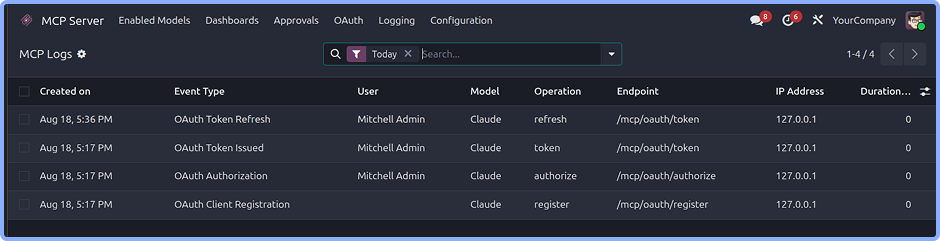
MCP Server > Logging > MCP Logs records what happened, when, and how long it took. Event types include:
Authentication success / failure
Model access, resource retrieval, write operations
Permission denied, rate limit exceeded, errors
OAuth events: client registration, authorization, token issued, refresh, revoke, error
Each entry stores the user, IP address, endpoint, HTTP method, model, operation, affected record IDs, request/response data,
error details and the duration in milliseconds - everything you need for an audit trail or to debug a misbehaving client.
14
Rate limiting, timeouts & retention
MCP Server > Logging > MCP Logs records what happened, when, and how long it took. Event types include:
Rate limiting caps requests per user per minute; over the limit the client receives a rate-limit error and the event is logged.
Request timeout stops a single long-running request from tying up a worker.
Log retention deletes entries older than the configured number of days automatically.
Search results are capped server-side so an assistant cannot pull an unbounded result set in one call.

15
End-to-end walkthrough
Build a whole ERP from a blank database
Install the module on a fresh database.
Configuration > turn on Enable MCP Access and full access.
Create an administrator API key (or connect a remote client over OAuth).
Connect your assistant and ask, in plain language :-
"Install the Sales, Inventory and Accounting apps."
"Create a product "Widget" priced at 50 and a customer "Acme Corp"."
"Make a draft sale order for Acme with 10 Widgets and confirm it."
"Build me a live sales dashboard and give me the link.""
When the ERP is set up, turn Full Access OFF, switch to the per-model allow-list with a least-privilege user, and turn
on approvals for day-to-day operation.
Audit everything under MCP Logs.

Need Help ?
You can instantly find the answer you need here when
you're looking for a quick solution.

Make sure Enable MCP Access is turned ON in the Configuration settings. If it is disabled, all MCP requests will fail.
The model may not be included in Enabled Models, or the required operation may not be enabled. If Full Access is turned OFF, make sure the specific model and operation are explicitly enabled.
Check that Enable OAuth 2.1 is turned ON. Also, verify that the connector can reach the server over HTTPS.
Allow dynamic client registration may be disabled. Turn it ON, or manually provision the client under OAuth - Clients.
Approvals are enabled for the MCP server. Go to MCP Server - Approvals and approve or reject the pending request.
The configured per-minute request limit may have been reached. You can increase the limit if appropriate. Rate-limit events can be monitored in MCP Logs.
Module installations run one at a time as background jobs. Check the installation record under Install Modules for its progress, unresolved terms, or error messages. Also, make sure the scheduled actions responsible for processing installations are running.
The dashboard's share token may be missing or rotated, or the dashboard may have been archived.
Restart the client after changing its configuration. You should also verify the configuration key using the /mcp/auth/validate endpoint.
Yes, I do provide free support for 90 days for any queries or any bug/issue fixing.
In case of if any bug raised in the listed features of this module, I am committed to providing support free of cost. You will need to provide me server ssh access or database access in order to solve the issue.
Just drop us an email at info@terabits.xyz with your questions and doubts, we will reach out to you as soon as possible.
Changelog(s)
Each update brings improvements to make the
app work better for you.

Recommended Apps